HACIA                                    HACIA
  ATRAS                                  ADELANTE
 (PAGINA    Katherine Peñaranda S. UCR
                                          (PAGINA
ANTERIOR)                                SIGUIENTE)
Katherine Peñaranda S. UCR
Escribo mi dirección de correo
      electrónico
             Escribo mi contraseña

                       Doy clic IZQUIERDO en
                       “Aceptar”


Katherine Peñaranda S. UCR
Damos click IZQUIERDO para acceder a la
opción de “Redactar”


                     Katherine Peñaranda S. UCR
Damos click IZQUIERDO para abrir el correo


               Katherine Peñaranda S. UCR
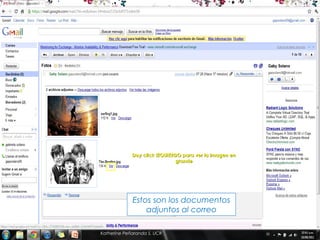
Doy click IZQUIERDO para ver la imagen en
                              grande


             Estos son los documentos
                 adjuntos al correo

Katherine Peñaranda S. UCR
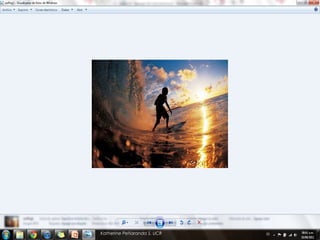
Esta es la imagen en
 grande que antes dimos
            “ver”


Katherine Peñaranda S. UCR
Doy click IZQUIERDO para descargar la imagen


Nos indica que la imagen
   se ha descargado
          Katherine Peñaranda S. UCR
   Paso #1: Damos click IZQUIERDO
    en el botón de “Inicio”


   Paso #2: Buscamos donde diga
    “Mis Documentos” y damos clic
    IZQUIERDO


                     Katherine Peñaranda S. UCR
   Paso #3: Clic en “Descargas”


              Katherine Peñaranda S. UCR
   Paso #3: Ahora buscamos el imagen que descargamos
    por el nombre y damos 2 clic IZQUIERDOS sobre ella para
    abrirla.


        Katherine Peñaranda S. UCR
Katherine Peñaranda S. UCR

16º Módulo: Descargar archivos en el correo

  • 1.
    HACIA HACIA ATRAS ADELANTE (PAGINA Katherine Peñaranda S. UCR (PAGINA ANTERIOR) SIGUIENTE)
  • 2.
  • 3.
    Escribo mi direcciónde correo electrónico Escribo mi contraseña Doy clic IZQUIERDO en “Aceptar” Katherine Peñaranda S. UCR
  • 4.
    Damos click IZQUIERDOpara acceder a la opción de “Redactar” Katherine Peñaranda S. UCR
  • 5.
    Damos click IZQUIERDOpara abrir el correo Katherine Peñaranda S. UCR
  • 6.
    Doy click IZQUIERDOpara ver la imagen en grande Estos son los documentos adjuntos al correo Katherine Peñaranda S. UCR
  • 7.
    Esta es laimagen en grande que antes dimos “ver” Katherine Peñaranda S. UCR
  • 8.
    Doy click IZQUIERDOpara descargar la imagen Nos indica que la imagen se ha descargado Katherine Peñaranda S. UCR
  • 9.
    Paso #1: Damos click IZQUIERDO en el botón de “Inicio”  Paso #2: Buscamos donde diga “Mis Documentos” y damos clic IZQUIERDO Katherine Peñaranda S. UCR
  • 10.
    Paso #3: Clic en “Descargas” Katherine Peñaranda S. UCR
  • 11.
    Paso #3: Ahora buscamos el imagen que descargamos por el nombre y damos 2 clic IZQUIERDOS sobre ella para abrirla. Katherine Peñaranda S. UCR
  • 12.