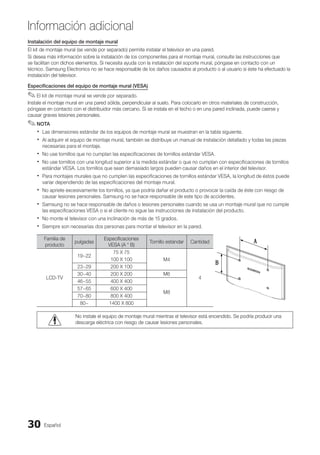
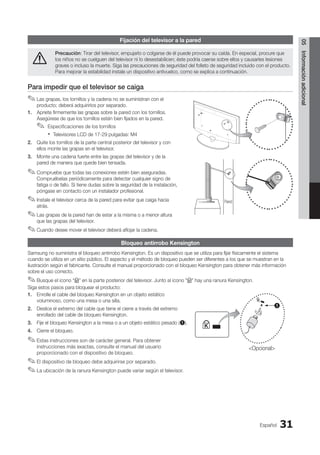
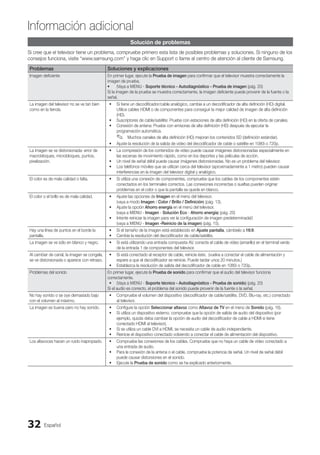
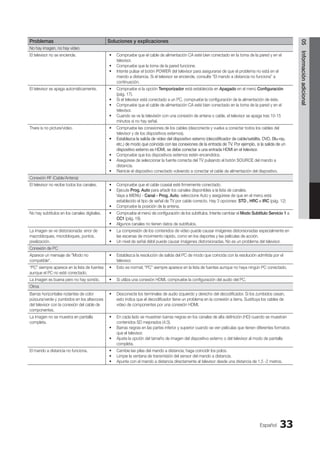
LCD TV
user manual
imagine the possibilities
Thank you for purchasing this Samsung product.
To receive more complete service, please register
your product at
www.samsung.com/register
Model Serial No.
BN68-02751A-04
Contact SAMSUNG WORLD-WIDE
If you have any questions or comments relating to Samsung products, please contact the SAMSUNG customer care center.
Contacte con SAMSUNG WORLD WIDE
Si desea formular alguna pregunta o comentario en relación con los productos de Samsung, comuníquese con el centro de atención
al cliente de SAMSUNG.
Country Customer Care Center  Web Site
MEXICO 01-800-SAMSUNG(726-7864) www.samsung.com
IMPORTADO POR: SAMSUNG ELECTRONICS MÉXICO S.A. de C.V.
AV. PRESIDENTE MASARIK #111 INT701
COL. CHAPULTEPEC MORALES C.P.11570
DELEGACION MIGUEL HIDALGO MEXICO. DISTRITO FEDERAL
Tel: 01-55-5747-5100 / 01-800-726-7864
BN68-02751A_Eng.indb 1 2010-08-31 �� 5:04:30
2 English
Figures and illustrations in this User Manual are provided for reference only and may differ from actual product appearance.
Product design and specifications may be changed without notice.
Still image warning
Avoid displaying still images (such as jpeg picture files) or still image elements (such as TV channel logos, panorama or 4:3 image format, stock
or news bars at screen bottom etc.) on the screen. Constant displaying of still pictures can cause ghosting of LCD screen, which will affect image
quality. To reduce risk of this effect, please follow below recommendations:
Avoid displaying the same TV channel for long periods.
•
Always try to display any image on full screen, use TV set picture format menu for best possible match.
•
Reduce brightness and contrast values to minimum required to achieve desired picture quality, exceeded values may speed up the burnout
•
process.
Frequently use all TV features designed to reduce image retention and screen burnout, refer to proper user manual section for details.
•
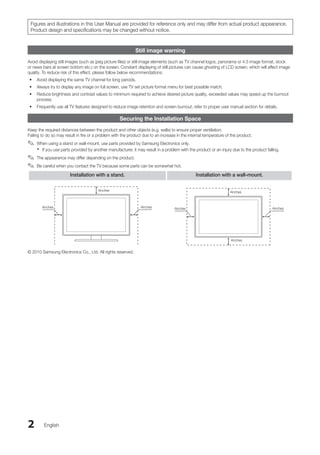
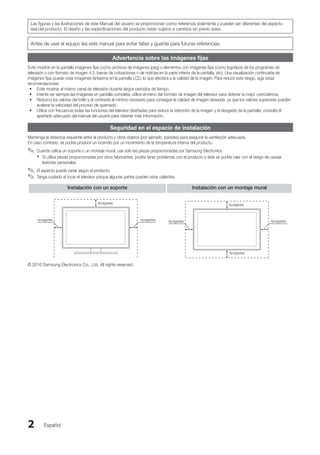
Securing the Installation Space
Keep the required distances between the product and other objects (e.g. walls) to ensure proper ventilation.
Failing to do so may result in fire or a problem with the product due to an increase in the internal temperature of the product.
When using a stand or wall-mount, use parts provided by Samsung Electronics only.
✎
✎
If you use parts provided by another manufacturer, it may result in a problem with the product or an injury due to the product falling.
x
x
The appearance may differ depending on the product.
✎
✎
Be careful when you contact the TV because some parts can be somewhat hot.
✎
✎
Installation with a stand. Installation with a wall-mount.
4inches
4inches
4inches
4inches
4inches
4inches
4inches
© 2010 Samsung Electronics Co., Ltd. All rights reserved.
BN68-02751A_Eng.indb 2 2010-08-31 �� 5:04:30
3
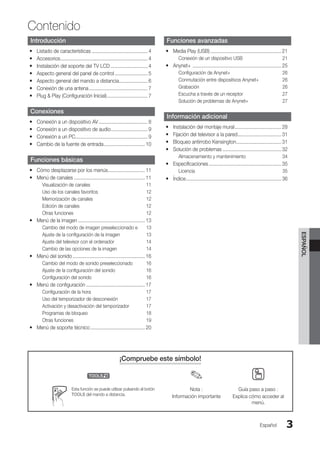
Contents
English
English
Getting Started
List of Features
y
y .......................................................... 4
Accessories
y
y ............................................................... 4
Installing the LCD TV Stand
y
y ....................................... 4
Viewing the Control Panel
y
y .......................................... 5
Viewing the Remote Control
y
y .
...................................... 6
Connecting to an Antenna
y
y ......................................... 7
Plug & Play (Initial Setup)
y
y ............................................ 7
Connections
Connecting to an AV Device
y
y .
...................................... 8
Connecting to an Audio Device
y
y .................................. 9
Connecting to a PC
y
y ................................................... 9
Changing the Input source
y
y ....................................... 10
Basic Features
How to Navigate Menus
y
y .
.......................................... 11
Channel Menu
y
y ......................................................... 11
Seeing Channels 11
Using Favorite Channels 12
Memorizing channels 12
Editing channels 12
Other Features 12
Picture Menu
y
y ........................................................... 13
Changing the Preset Picture Mode 13
Adjusting picture settings 13
Setting up the TV with your PC 14
Changing the Picture Options 14
Sound Menu
y
y ............................................................ 16
Changing the Preset Sound Mode 16
Adjusting sound settings 16
Sound Settings 16
Setup Menu
y
y ............................................................. 17
Setting the Time 17
Using the Sleep Timer 17
Setting the On/Off Timer 17
Locking Programs 18
Other Features 19
Support Menu
y
y .
......................................................... 20
Advanced Features
Media Play
y
y ............................................................... 21
Connecting a USB Device 21
Anynet+
y
y .................................................................. 25
Setting Up Anynet+ 26
Switching between Anynet+ Devices 26
Recording 26
Listening through a Receiver 27
Troubleshooting for Anynet+ 27
Other Information
Installing the Wall Mount
y
y .......................................... 28
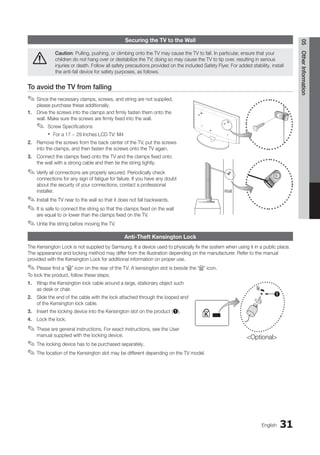
Securing the TV to the Wall
y
y ...................................... 31
Anti-Theft Kensington Lock
y
y ...................................... 31
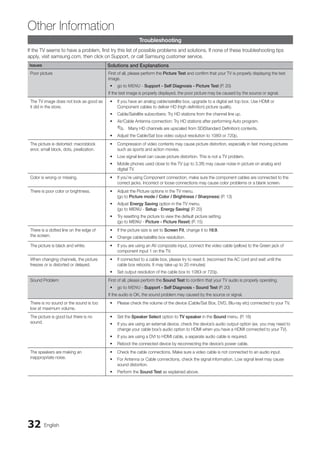
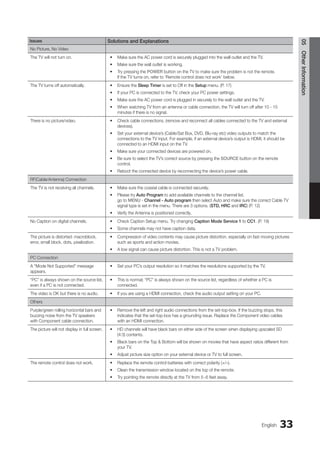
Troubleshooting
y
y ....................................................... 32
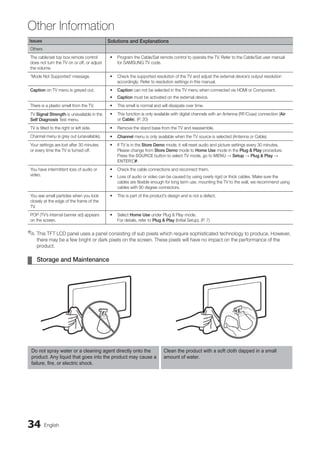
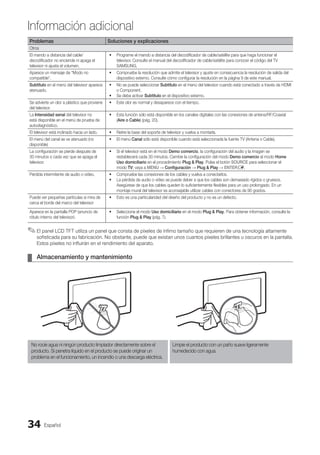
Storage and Maintenance 34
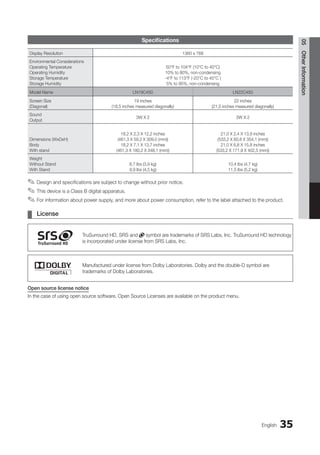
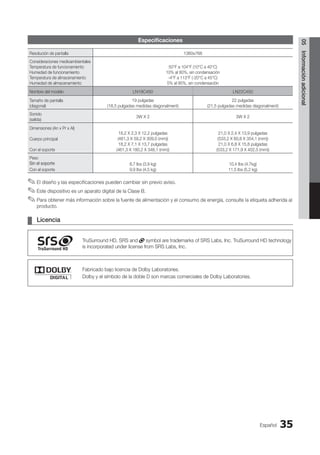
Specifications
y
y .......................................................... 35
License 35
Index
y
y ....................................................................... 36
Check the Symbol!
t ✎ O
This function can be used by pressing the
TOOLS button on the remote control.
Note :
Important information
Step by step guide :
Informs you how to access
the menu.
BN68-02751A_Eng.indb 3 2010-08-31 �� 5:04:30
4
Getting Started
English
List of Features
Excellent Digital Interface & Networking : With a built-in HD digital tuner, nonsubscription HD broadcasts can be viewed
■
■
without a cable box / STB (Set-Top-Box) satellite receiver.
Media Play
■
■ : Allows you to play music files, and pictures saved on a USB device. (P. 21)
Self Diagnosis
■
■ : You can check picture and sound operation. (P. 20)
Accessories
Please make sure the following items are included with your LCD TV. If any items are missing, contact your dealer.
✎
✎
The items' colors and shapes may vary depending on the models.
✎
✎
Remote Control & Batteries (AAA x 2)
■
■
Warranty Card / Safety Guide / Quick Setup Guide
■
■
Owner’s Instructions
■
■
Cleaning Cloth
■
■
Power Cord
■
■
(M4 X L16: 3EA)
Stand Screws
y
y
(LN22C450 only)
Wall Mount kit
y
y
See separate guide for installation.
✎
✎
Decoration Cover
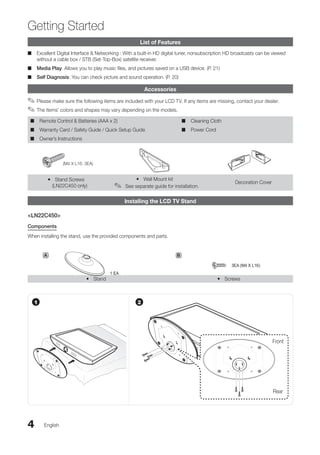
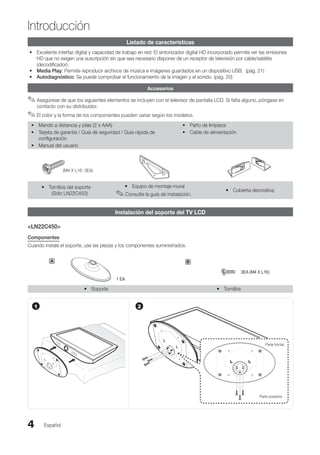
Installing the LCD TV Stand
<LN22C450>
Components
When installing the stand, use the provided components and parts.
Stand
y
y Screws
y
y
A
1 EA
B
3EA (M4 X L16)
1
Front
Rear
2
BN68-02751A_Eng.indb 4 2010-08-31 �� 5:04:32
5
01
Getting
Started
English
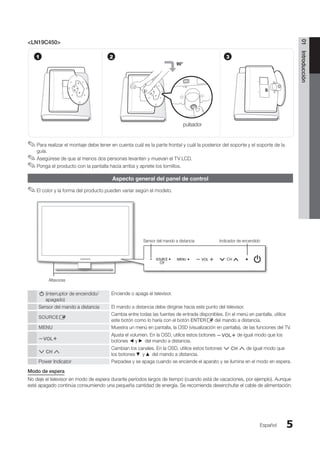
<LN19C450>
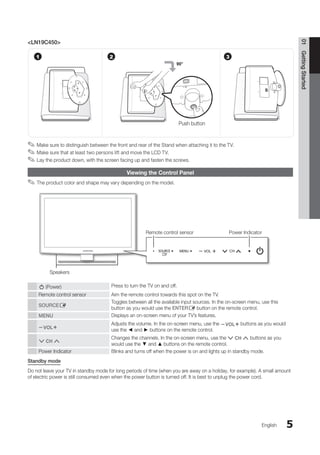
Make sure to distinguish between the front and rear of the Stand when attaching it to the TV.
✎
✎
Make sure that at least two persons lift and move the LCD TV.
✎
✎
Lay the product down, with the screen facing up and fasten the screws.
✎
✎
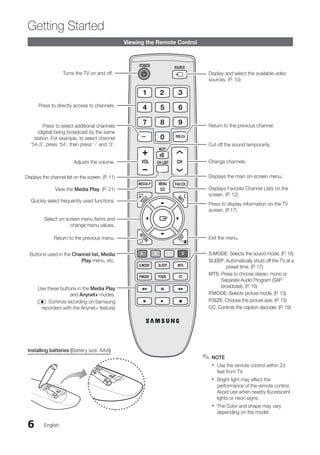
Viewing the Control Panel
The product color and shape may vary depending on the model.
✎
✎
P (Power) Press to turn the TV on and off.
Remote control sensor Aim the remote control towards this spot on the TV.
SOURCEE
Toggles between all the available input sources. In the on-screen menu, use this
button as you would use the ENTERE button on the remote control.
MENU Displays an on-screen menu of your TV’s features.
y
Adjusts the volume. In the on-screen menu, use the y buttons as you would
use the ◄ and ► buttons on the remote control.
z
Changes the channels. In the on-screen menu, use the z buttons as you
would use the ▼ and ▲ buttons on the remote control.
Power Indicator Blinks and turns off when the power is on and lights up in standby mode.
Standby mode
Do not leave your TV in standby mode for long periods of time (when you are away on a holiday, for example). A small amount
of electric power is still consumed even when the power button is turned off. It is best to unplug the power cord.
1 2 3
Push button
90°
Speakers
Power Indicator
Remote control sensor
BN68-02751A_Eng.indb 5 2010-08-31 �� 5:04:32
6
Getting Started
English
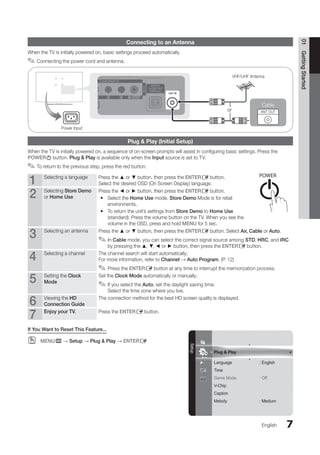
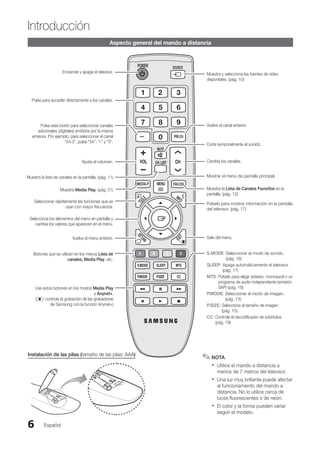
Viewing the Remote Control
Installing batteries (Battery size: AAA)
NOTE
✎
✎
Use the remote control within 23
x
x
feet from TV.
Bright light may affect the
x
x
performance of the remote control.
Avoid use when nearby fluorescent
lights or neon signs.
The Color and shape may vary
x
x
depending on the model.
P.MODE
MEDIA.P
A B C D
S.MODE
P.SIZE
SLEEP
CC
MTS
Use these buttons in the Media Play
and Anynet+ modes.
(�: controls recording on Samsung
recorders with the Anynet+ feature)
Press to select additional channels
(digital) being broadcast by the same
station. For example, to select channel
‘54-3’, press ‘54’, then press ‘-’ and ‘3’.
Return to the previous channel.
Press to directly access to channels.
Turns the TV on and off. Display and select the available video
sources. (P. 10)
S.MODE: Selects the sound mode. (P. 16)
SLEEP: 
Automatically shuts off the TV at a
preset time. (P. 17)
MTS: 
Press to choose stereo, mono or
Separate Audio Program (SAP
broadcast). (P. 16)
P.MODE: Selects picture mode. (P. 13)
P.SIZE: Choose the picture size. (P. 15)
CC: Controls the caption decoder. (P. 19)
Cut off the sound temporarily.
Displays Favorite Channel Lists on the
screen. (P. 12)
Displays the channel list on the screen. (P. 11)
Press to display information on the TV
screen. (P.17)
Quickly select frequently used functions.
Select on-screen menu items and
change menu values.
Exit the menu.
Return to the previous menu.
View the Media Play. (P. 21)
Buttons used in the Channel list, Media
Play menu, etc.
Change channels.
Displays the main on-screen menu.
Adjusts the volume.
BN68-02751A_Eng.indb 6 2010-08-31 �� 5:04:33
7
Plug  Play
Language : English
Time
Game Mode : Off
V-Chip
Caption
Melody : Medium
Setup
01
Getting
Started
English
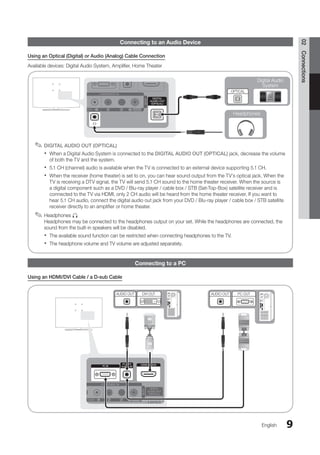
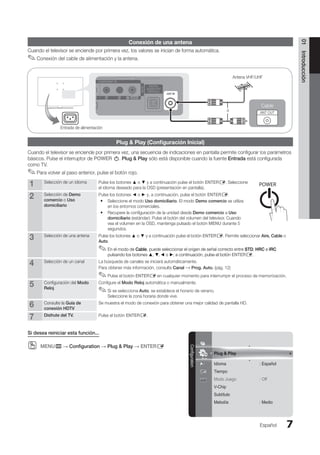
Connecting to an Antenna
When the TV is initially powered on, basic settings proceed automatically.
Connecting the power cord and antenna.
✎
✎
Plug  Play (Initial Setup)
When the TV is initially powered on, a sequence of on-screen prompts will assist in configuring basic settings. Press the
POWERP button. Plug  Play is available only when the Input source is set to TV.
To return to the previous step, press the red button.
✎
✎
1 Selecting a language Press the ▲ or ▼ button, then press the ENTERE button.
Select the desired OSD (On Screen Display) language.
2 Selecting Store Demo
or Home Use
Press the ◄ or ► button, then press the ENTERE button.
Select the
y
y Home Use mode. Store Demo Mode is for retail
environments.
To return the unit’s settings from
y
y Store Demo to Home Use
(standard): Press the volume button on the TV. When you see the
volume in the OSD, press and hold MENU for 5 sec.
3 Selecting an antenna Press the ▲ or ▼ button, then press the ENTERE button. Select Air, Cable or Auto.
In
✎
✎ Cable mode, you can select the correct signal source among STD, HRC, and IRC
by pressing the ▲, ▼, ◄ or ► button, then press the ENTERE button.
4 Selecting a channel The channel search will start automatically.
For more information, refer to Channel → Auto Program. (P. 12)
Press the
✎
✎ ENTERE button at any time to interrupt the memorization process.
5 Setting the Clock
Mode
Set the Clock Mode automatically or manually.
If you select the
✎
✎ Auto, set the daylight saving time.
Select the time zone where you live.
6 Viewing the HD
Connection Guide
The connection method for the best HD screen quality is displayed.
7 Enjoy your TV. Press the ENTERE button.
If You Want to Reset This Feature...
MENU
O
O m → Setup → Plug  Play → ENTERE
or
Cable
R-AUDIO-L PR PB Y
ANT OUT
VHF/UHF Antenna
Power Input
MEDIA.P
P
POWER
SLEEP S.M
BN68-02751A_Eng.indb 7 2010-08-31 �� 5:04:34
8
Connecting to an AV Device
Using an HDMI / DVI Cable: HD connection (up to 1080p)
We recommend using the HDMI connection for the best quality HD picture.
Available devices: DVD, Blu-ray player, HD cable box, HD STB (Set-Top-Box) satellite receiver
HDMI (DVI) IN
✎
✎ / PC/DVI AUDIO IN
When using an HDMI/DVI cable connection, you must use the
x
x HDMI (DVI) IN jack for video. A DVD, Blu-ray
player, HD cable box, HD STB satellite receiver, cable box, or STB satellite receiver may require a DVI-HDMI (DVI
to HDMI) cable or DVI-HDMI (DVI to HDMI) adapter. The PC/DVI AUDIO IN jack is required for audio.
The picture may not display normally (if at all) or the audio may not work if an external device that uses an older
x
x
version of HDMI mode is connected to the TV. If such a problem occurs, ask the manufacturer of the external
device about the HDMI version and, if out of date, request an upgrade.
Be sure to purchase a certified HDMI cable. Otherwise, the picture may not display or a connection error may
x
x
occur.
Using a Component Cable: (up to 1080p), Using an Audio/Video Cable: (480i only)
Available devices: DVD, Blu-ray player, cable box, STB satellite receiver, VCR
Device
R-AUDIO-L PR PB Y
DVI OUT
BD/DVD player/
HD cable/sat box
R-AUDIO-L PR PB Y
HDMI OUT
R-AUDIO-L PR PB Y
AUDIO OUT
W
R
R-AUDIO-L PR PB Y
COMPONENT OUT
R-AUDIO-L PR PB Y
AUDIO OUT Blu-ray player
W
Y
W
Y B G
R
W
W
B G
R
R
R
R
R
R-AUDIO-L PR PB Y
VIDEO OUT VCR
R-AUDIO-L PR PB Y
AUDIO OUT
When connecting to
✎
✎ AV IN, the color of
the AV IN [Y/VIDEO] jack (Green) does not
match the color of the video cable (Yellow).
For better picture quality, the Component
✎
✎
connection is recommended over the A/V
connection.
Red White
W W B G
R
R
W
Y
W W B G
R
R
W
Y
Yellow Red White Red Blue Green
English
Connections
Connections
BN68-02751A_Eng.indb 8 2010-08-31 �� 5:04:37
9
R-AUDIO-L PR PB Y
OPTICAL
Digital Audio
System
Headphones
English
02
Connections
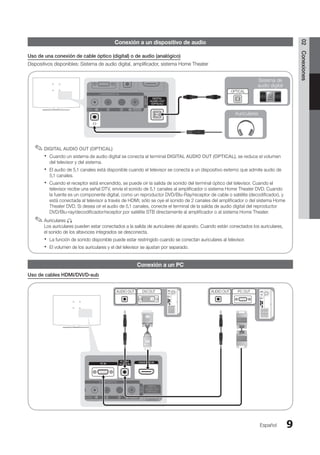
Connecting to an Audio Device
Using an Optical (Digital) or Audio (Analog) Cable Connection
Available devices: Digital Audio System, Amplifier, Home Theater
DIGITAL AUDIO OUT (OPTICAL)
✎
✎
When a Digital Audio System is connected to the
x
x DIGITAL AUDIO OUT (OPTICAL) jack, decrease the volume
of both the TV and the system.
5.1 CH (channel) audio is available when the TV is connected to an external device supporting 5.1 CH.
x
x
When the receiver (home theater) is set to on, you can hear sound output from the TV’s optical jack. When the
x
x
TV is receiving a DTV signal, the TV will send 5.1 CH sound to the home theater receiver. When the source is
a digital component such as a DVD / Blu-ray player / cable box / STB (Set-Top-Box) satellite receiver and is
connected to the TV via HDMI, only 2 CH audio will be heard from the home theater receiver. If you want to
hear 5.1 CH audio, connect the digital audio out jack from your DVD / Blu-ray player / cable box / STB satellite
receiver directly to an amplifier or home theater.
Headphones
✎
✎ H
Headphones may be connected to the headphones output on your set. While the headphones are connected, the
sound from the built-in speakers will be disabled.
The available sound function can be restricted when connecting headphones to the TV.
x
x
The headphone volume and TV volume are adjusted separately.
x
x
Connecting to a PC
Using an HDMI/DVI Cable / a D-sub Cable
R-AUDIO-L PR PB Y
AUDIO OUT
R-AUDIO-L PR PB Y
AUDIO OUT
R-AUDIO-L PR PB Y
DVI OUT
R-AUDIO-L PR PB Y
PC OUT
BN68-02751A_Eng.indb 9 2010-08-31 �� 5:04:39
10 English
Connections
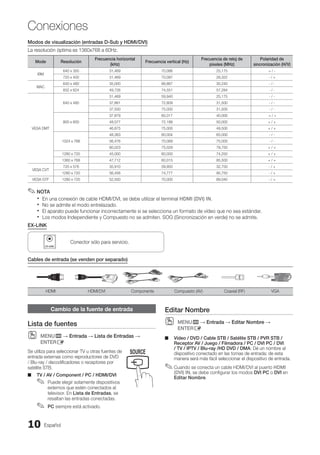
Changing the Input source
Source List
MENU
O
O m → Input → Source List → ENTERE
Use to select TV or an external input sources
such as a DVD / Blu-ray player / cable box /
STB satellite receiver.
TV / AV / Component/ PC / HDMI/DVI
■
■
You can only choose external
✎
✎
devices that are connected to the
TV. In the Source List, connected
inputs will be highlighted.
PC
✎
✎ always stay activated.
Edit Name
MENU
O
O m → Input → Edit Name → ENTERE
VCR / DVD / Cable STB / Satellite STB / PVR STB
■
■
/ AV Receiver / Game / Camcorder / PC / DVI PC /
DVI / TV / IPTV / Blu-ray / HD DVD / DMA: Name the
device connected to the input jacks to make your input
source selection easier.
When connecting an HDMI/DVI cable to the
✎
✎ HDMI
(DVI) IN port, you should set to DVI PC or DVI mode
under Edit Name.
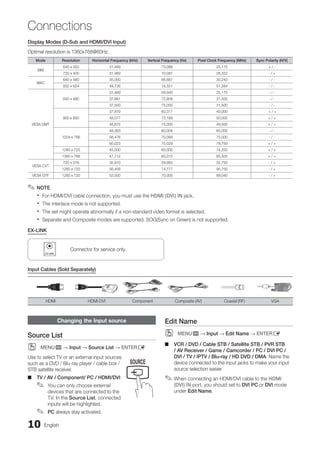
Display Modes (D-Sub and HDMI/DVI Input)
Optimal resolution is 1360x768@60Hz.
Mode Resolution Horizontal Frequency (kHz) Vertical Frequency (Hz) Pixel Clock Frequency (MHz) Sync Polarity (H/V)
IBM
640 x 350 31,469 70,086 25,175 + / -
720 x 400 31,469 70,087 28,322 - / +
MAC
640 x 480 35,000 66,667 30,240 - / -
832 x 624 49,726 74,551 57,284 - / -
VESA DMT
640 x 480
31,469 59,940 25,175 - / -
37,861 72,809 31,500 - / -
37,500 75,000 31,500 - / -
800 x 600
37,879 60,317 40,000 + / +
48,077 72,188 50,000 + / +
46,875 75,000 49,500 + / +
1024 x 768
48,363 60,004 65,000 - / -
56,476 70,069 75,000 - / -
60,023 75,029 78,750 + / +
1280 x 720 45,000 60,000 74,250 + / +
1360 x 768 47,712 60,015 85,500 + / +
VESA CVT
720 x 576 35,910 59,950 32,750 - / +
1280 x 720 56,456 74,777 95,750 - / +
VESA GTF 1280 x 720 52,500 70,000 89,040 - / +
NOTE
✎
✎
For HDMI/DVI cable connection, you must use the
x
x HDMI (DVI) IN jack.
The interlace mode is not supported.
x
x
The set might operate abnormally if a non-standard video form
x
x at is selected.
Separate and Composite modes are supported. SOG(Sync on Green) is not supported.
x
x
EX-LINK
Connector for service only.
Input Cables (Sold Separately)
HDMI HDMI-DVI Component Composite (AV) Coaxial (RF) VGA
MEDIA.P
P
POWER
SLEEP S.MODE P.MODE
BN68-02751A_Eng.indb 10 2010-08-31 �� 5:04:40
11
English
03
Basic
Features
Basic Features
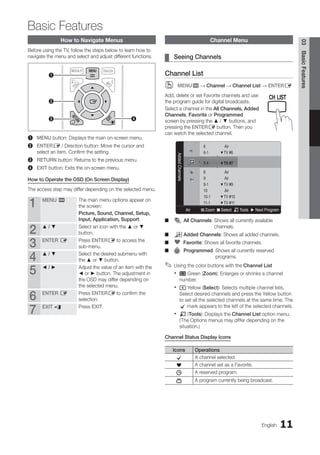
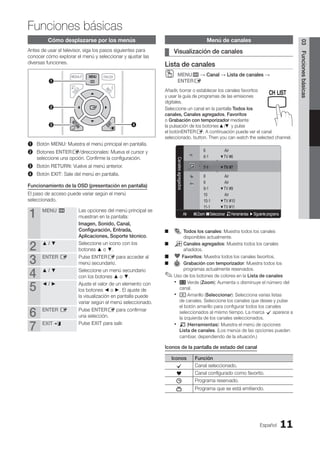
How to Navigate Menus
Before using the TV, follow the steps below to learn how to
navigate the menu and select and adjust different functions.
1 MENU button: Displays the main on-screen menu.
2 ENTERE / Direction button: Move the cursor and
select an item. Confirm the setting.
3 RETURN button: Returns to the previous menu.
4 EXIT button: Exits the on-screen menu.
How to Operate the OSD (On Screen Display)
The access step may differ depending on the selected menu.
1 MENU m The main menu options appear on
the screen:
Picture, Sound, Channel, Setup,
Input, Application, Support.
2 ▲ / ▼ Select an icon with the ▲ or ▼
button.
3 ENTER E Press ENTERE to access the
sub-menu.
4 ▲ / ▼ Select the desired submenu with
the ▲ or ▼ button.
5 ◄ / ► Adjust the value of an item with the
◄ or ► button. The adjustment in
the OSD may differ depending on
the selected menu.
6 ENTER E Press ENTERE to confirm the
selection.
7 EXIT e Press EXIT.
Channel Menu
Seeing Channels
¦
¦
Channel List
MENU
O
O m → Channel → Channel List → ENTERE
Add, delete or set Favorite channels and use
the program guide for digital broadcasts.
Select a channel in the All Channels, Added
Channels, Favorite or Programmed
screen by pressing the ▲ / ▼ buttons, and
pressing the ENTERE button. Then you
can watch the selected channel.
Added
Channels
6 Air
6-1 ♥ TV #6
7-1 ♥ TV #7
8 Air
9 Air
9-1 ♥ TV #9
10 Air
10-1 ♥ TV #10
11-1 ♥ TV #11
Air B Zoom C Select T Tools ► Next Program
■
■ All Channels: 
Shows all currently available
channels.
■
■ Added Channels: Shows all added channels.
*
■
■ Favorite: Shows all favorite channels.
■
■ Programmed: 
Shows all currently reserved
programs.
Using the color buttons with the
✎
✎ Channel List
A B C D
x
x Green (Zoom): Enlarges or shrinks a channel
number.
A B C D
x
x Yellow (Select): Selects multiple channel lists.
Select desired channels and press the Yellow button
to set all the selected channels at the same time. The
c mark appears to the left of the selected channels.
T
x
x (Tools): Displays the Channel List option menu.
(The Options menus may differ depending on the
situation.)
Channel Status Display Icons
Icons Operations
c A channel selected.
* A channel set as a Favorite.
) A reserved program.
( A program currently being broadcast.
MEDIA.P
1
3 4
2
MEDIA.P
P
POWER
SLEEP S.MODE P.MODE
BN68-02751A_Eng.indb 11 2010-08-31 �� 5:04:41
12 English
Basic Features
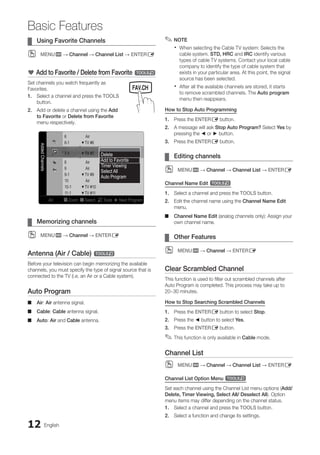
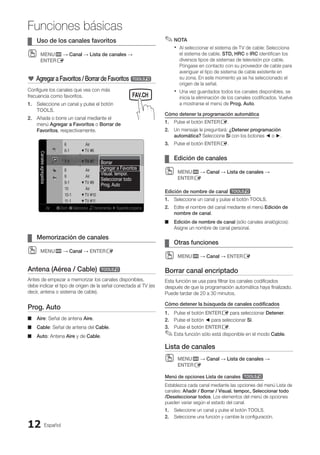
Using Favorite Channels
¦
¦
MENU
O
O m → Channel → Channel List → ENTERE
* Add to Favorite / Delete from Favorite t
Set channels you watch frequently as
Favorites.
1. Select a channel and press the TOOLS
button.
2. Add or delete a channel using the Add
to Favorite or Delete from Favorite
menu respectively.
Added
Channels
6 Air
6-1 ♥ TV #6
7-1 ♥ TV #7
8 Air
9 Air
9-1 ♥ TV #9
10 Air
10-1 ♥ TV #10
11-1 ♥ TV #11
Air B Zoom C Select T Tools ► Next Program
Delete
Add to Favorite
Timer Viewing
Select All
Auto Program
Memorizing channels
¦
¦
MENU
O
O m → Channel → ENTERE
Antenna (Air / Cable) t
Before your television can begin memorizing the available
channels, you must specify the type of signal source that is
connected to the TV (i.e. an Air or a Cable system).
Auto Program
Air
■
■ : Air antenna signal.
Cable
■
■ : Cable antenna signal.
Auto
■
■ : Air and Cable antenna.
NOTE
✎
✎
When selecting the Cable TV system: Selects the
x
x
cable system. STD, HRC and IRC identify various
types of cable TV systems. Contact your local cable
company to identify the type of cable system that
exists in your particular area. At this point, the signal
source has been selected.
After all the available channels are stored, it starts
x
x
to remove scrambled channels. The Auto program
menu then reappears.
How to Stop Auto Programming
1. Press the ENTERE button.
2. A message will ask Stop Auto Program? Select Yes by
pressing the ◄ or ► button.
3. Press the ENTERE button.
Editing channels
¦
¦
MENU
O
O m → Channel → Channel List → ENTERE
Channel Name Edit t
1. Select a channel and press the TOOLS button.
2. Edit the channel name using the Channel Name Edit
menu.
Channel Name Edit
■
■ (analog channels only): Assign your
own channel name.
Other Features
¦
¦
MENU
O
O m → Channel → ENTERE
Clear Scrambled Channel
This function is used to filter out scrambled channels after
Auto Program is completed. This process may take up to
20~30 minutes.
How to Stop Searching Scrambled Channels
1. Press the ENTERE button to select Stop.
2. Press the ◄ button to select Yes.
3. Press the ENTERE button.
This function is only available in
✎
✎ Cable mode.
Channel List
MENU
O
O m → Channel → Channel List → ENTERE
Channel List Option Menu t
Set each channel using the Channel List menu options (Add/
Delete, Timer Viewing, Select All/ Deselect All). Option
menu items may differ depending on the channel status.
1. Select a channel and press the TOOLS button.
2. Select a function and change its settings.
MEDIA.P
SLEEP S.MODE P.MODE
BN68-02751A_Eng.indb 12 2010-08-31 �� 5:04:42
13
MEDIA.P
P
POWER
SLEEP S.MODE P.MODE
English
03
Basic
Features
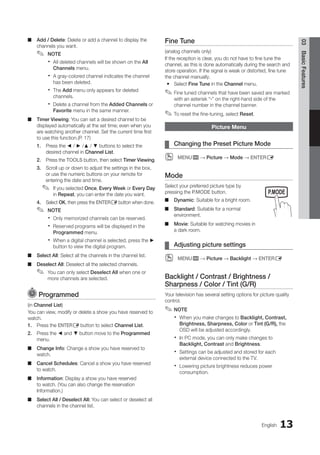
Add / Delete
■
■ : Delete or add a channel to display the
channels you want.
NOTE
✎
✎
All deleted channels will be shown on the
x
x All
Channels menu.
A gray-colored channel indicates the channel
x
x
has been deleted.
The
x
x Add menu only appears for deleted
channels.
Delete a channel from the
x
x Added Channels or
Favorite menu in the same manner.
Timer Viewing
■
■ : You can set a desired channel to be
displayed automatically at the set time; even when you
are watching another channel. Set the current time first
to use this function.(P. 17)
1. Press the ◄ / ► /▲ / ▼ buttons to select the
desired channel in Channel List.
2. Press the TOOLS button, then select Timer Viewing.
3. Scroll up or down to adjust the settings in the box,
or use the numeric buttons on your remote for
entering the date and time.
If you selected
✎
✎ Once, Every Week or Every Day
in Repeat, you can enter the date you want.
4. Select OK, then press the ENTERE button when done.
NOTE
✎
✎
Only memorized channels can be reserved.
x
x
Reserved programs will be displayed in the
x
x
Programmed menu.
When a digital channel is selected, press the
x
x ►
button to view the digital program.
Select All
■
■ : Select all the channels in the channel list.
Deselect All
■
■ : Deselect all the selected channels.
You can only select
✎
✎ Deselect All when one or
more channels are selected.
Programmed
(in Channel List)
You can view, modify or delete a show you have reserved to
watch.
1. Press the ENTERE button to select Channel List.
2. Press the ◄ and ▼ button move to the Programmed
menu.
Change Info
■
■ : Change a show you have reserved to
watch.
Cancel Schedules
■
■ : Cancel a show you have reserved
to watch.
Information
■
■ : Display a show you have reserved
to watch. (You can also change the reservation
Information.)
Select All / Deselect All:
■
■ You can select or deselect all
channels in the channel list.
Fine Tune
(analog channels only)
If the reception is clear, you do not have to fine tune the
channel, as this is done automatically during the search and
store operation. If the signal is weak or distorted, fine tune
the channel manually.
Select
y
y Fine Tune in the Channel menu.
Fine tuned channels that have been saved are marked
✎
✎
with an asterisk “*” on the right-hand side of the
channel number in the channel banner.
To reset the fine-tuning, select
✎
✎ Reset.
Picture Menu
Changing the Preset Picture Mode
¦
¦
MENU
O
O m → Picture → Mode → ENTERE
Mode
Select your preferred picture type by
pressing the P.MODE button.
Dynamic
■
■ : Suitable for a bright room.
Standard
■
■ : Suitable for a normal
environment.
Movie
■
■ : Suitable for watching movies in
a dark room.
Adjusting picture settings
¦
¦
MENU
O
O m → Picture → Backlight → ENTERE
Backlight / Contrast / Brightness /
Sharpness / Color / Tint (G/R)
Your television has several setting options for picture quality
control.
NOTE
✎
✎
When you make changes to
x
x Backlight, Contrast,
Brightness, Sharpness, Color or Tint (G/R), the
OSD will be adjusted accordingly.
In PC mode, you can only make changes to
x
x
Backlight, Contrast and Brightness.
Settings can be adjusted and stored for each
x
x
external device connected to the TV.
Lowering picture brightness reduces power
x
x
consumption.
BN68-02751A_Eng.indb 13 2010-08-31 �� 5:04:42
14 English
Basic Features
Setting up the TV with your PC
¦
¦
Set the input source to PC.
Auto Adjustment t
MENU
O
O m →Picture → Auto Adjustment →
ENTERE
Adjust frequency values/positions and fine tune the settings
automatically.
Not available when connecting through HDMI/DVI
✎
✎
cable.
Screen
Coarse / Fine
■
■ : Removes or reduces picture noise. If the
noise is not removed by Fine-tuning alone, then adjust
the frequency as best as possible (Coarse) and Fine-
tune again. After the noise has been reduced, readjust
the picture so that it is aligned to the center of screen.
Position
■
■ : Adjust the PC’s screen positioning if it does
not fit the TV screen. Press the ▲ or ▼ button to adjust
the Vertical-Position. Press the ◄ or ► button to adjust
the Horizontal-Position.
Image Reset
■
■ : Resets the image to default settings.
Using Your TV as a Computer (PC) Display
Setting Up Your PC Software (Based on Windows XP)
Depending on the version of Windows and the video card,
the actual screens on your PC will probably look different, but
the same basic set-up information will apply in most cases.
(If not, contact your computer manufacturer or Samsung
Dealer.)
1. Click on “Control Panel” on the Windows start menu.
2. Click on “Appearance and Themes” in the “Control
Panel” window and a display dialog-box will appear.
3. Click on “Display” and a display dialog box will appear.
4. Navigate to the “Settings” tab on the display dialog-box.
The correct size setting (resolution) [Optimum: 1360x768
y
y
pixels]
If a vertical-frequency option exists on your display
y
y
settings dialog box, the correct value is ‘60’ or ‘60 Hz’.
Otherwise, just click ‘OK’ and exit the dialog box.
Changing the Picture Options
¦
¦
Advanced Settings
MENU
O
O m → Picture → Advanced Settings →
ENTERE
(available in Standard / Movie mode)
Compared to previous models, new Samsung TVs have a
more precise picture.
In PC mode, you can only make changes to
✎
✎ Gamma
and White Balance.
Black Tone (Off / Dark / Darker / Darkest)
■
■ : Select the
black level to adjust the screen depth.
Dynamic Contrast (Off / Low / Medium / High)
■
■ :
Adjust the screen contrast.
Gamma
■
■ : Adjust the primary color intensity.
Color Space (Auto / Native)
■
■ : Adjust the range of colors
available to create the image.
White Balance
■
■ : Adjust the color temperature for a more
natural picture.
R-Offset / G-Offset / B-Offset: Adjust each color's
(red, green, blue) darkness.
R-Gain / G-Gain / B-Gain : Adjust each color's (red,
green, blue) brightness.
Reset: Resets the White Balance to it's default
settings.
Flesh Tone
■
■ : Emphasize pink flesh tone.
Edge Enhancement (Off / On)
■
■ : Emphasize object
boundaries.
Advanced Settings
Black Tone : Off		 ►
Dynamic Contrast : Medium
Gamma : 0
Color Space : Native
White Balance
Flesh Tone : 0
Edge Enhancement : On
U Move E Enter R Return
BN68-02751A_Eng.indb 14 2010-08-31 �� 5:04:42
15
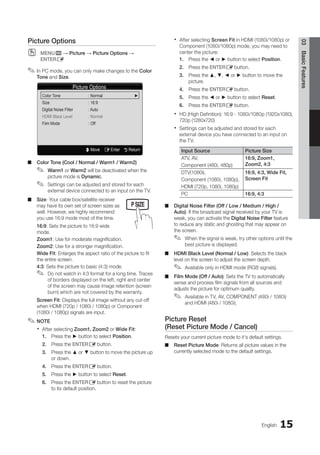
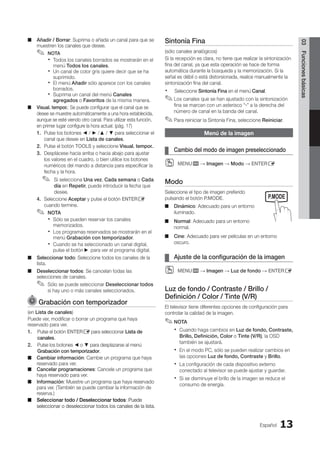
Picture Options
Color Tone : Normal		 ►
Size : 16:9
Digital Noise Filter : Auto
HDMI Black Level : Normal
Film Mode : Off
U Move E Enter R Return
MEDIA.P
P
POWER
SLEEP S.MODE P.MODE
English
03
Basic
Features
Picture Options
MENU
O
O m → Picture → Picture Options →
ENTERE
In PC mode, you can only make changes to the
✎
✎ Color
Tone and Size.
Color Tone (Cool / Normal / Warm1 / Warm2)
■
■
Warm1
✎
✎ or Warm2 will be deactivated when the
picture mode is Dynamic.
Settings can be adjusted and stored for each
✎
✎
external device connected to an input on the TV.
Size
■
■ : Your cable box/satellite receiver
may have its own set of screen sizes as
well. However, we highly recommend
you use 16:9 mode most of the time.
16:9: Sets the picture to 16:9 wide
mode.
Zoom1: Use for moderate magnification.
Zoom2: Use for a stronger magnification.
Wide Fit: Enlarges the aspect ratio of the picture to fit
the entire screen.
4:3: Sets the picture to basic (4:3) mode.
Do not watch in 4:3 format for a long time. Traces
✎
✎
of borders displayed on the left, right and center
of the screen may cause image retention (screen
burn) which are not covered by the warranty.
Screen Fit: Displays the full image without any cut-off
when HDMI (720p / 1080i / 1080p) or Component
(1080i / 1080p) signals are input.
NOTE
✎
✎
After selecting
x
x Zoom1, Zoom2 or Wide Fit:
1. Press the ► button to select Position.
2. Press the ENTERE button.
3. Press the ▲ or ▼ button to move the picture up
or down.
4. Press the ENTERE button.
5. Press the ► button to select Reset.
6. Press the ENTERE button to reset the picture
to its default position.
After selecting
x
x Screen Fit in HDMI (1080i/1080p) or
Component (1080i/1080p) mode, you may need to
center the picture:
1. Press the ◄ or ► button to select Position.
2. Press the ENTERE button.
3. Press the ▲, ▼, ◄ or ► button to move the
picture.
4. Press the ENTERE button.
5. Press the ◄ or ► button to select Reset.
6. Press the ENTERE button.
HD (High Definition): 16:9 - 1080i/1080p (1920x1080),
x
x
720p (1280x720)
Settings can be adjusted and stored for each
x
x
external device you have connected to an input on
the TV.
Input Source Picture Size
ATV, AV,
Component (480i, 480p)
16:9, Zoom1,
Zoom2, 4:3
DTV(1080i),
Component (1080i, 1080p),
HDMI (720p, 1080i, 1080p)
16:9, 4:3, Wide Fit,
Screen Fit
PC 16:9, 4:3
Digital Noise Filter (Off / Low / Medium / High /
■
■
Auto): If the broadcast signal received by your TV is
weak, you can activate the Digital Noise Filter feature
to reduce any static and ghosting that may appear on
the screen.
When the signal is weak, try other options until the
✎
✎
best picture is displayed.
HDMI Black Level (Normal / Low)
■
■ : Selects the black
level on the screen to adjust the screen depth.
Available only in HDMI mode (RGB signals).
✎
✎
Film Mode (Off / Auto)
■
■ : Sets the TV to automatically
sense and process film signals from all sources and
adjusts the picture for optimum quality.
Available in TV, AV, COMPONENT (480i / 1080i)
✎
✎
and HDMI (480i / 1080i).
Picture Reset
(Reset Picture Mode / Cancel)
Resets your current picture mode to it's default settings.
Reset Picture Mode
■
■ : Returns all picture values in the
currently selected mode to the default settings.
BN68-02751A_Eng.indb 15 2010-08-31 �� 5:04:43
16 English
Basic Features
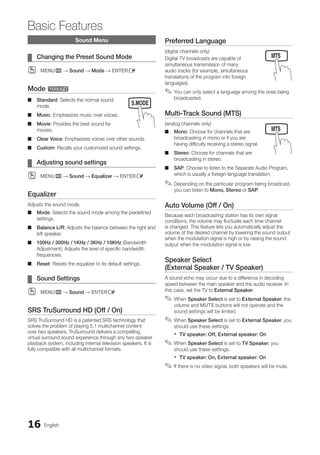
Sound Menu
Changing the Preset Sound Mode
¦
¦
MENU
O
O m → Sound → Mode → ENTERE
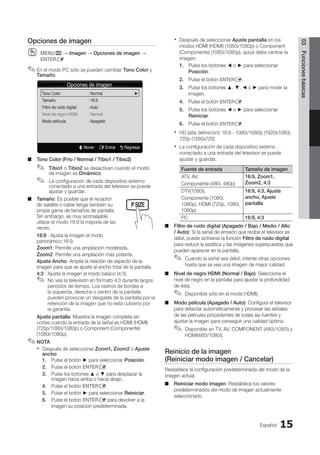
Mode t
Standard
■
■ : Selects the normal sound
mode.
Music
■
■ : Emphasizes music over voices.
Movie
■
■ : Provides the best sound for
movies.
Clear Voice
■
■ : Emphasizes voices over other sounds.
Custom
■
■ : Recalls your customized sound settings.
Adjusting sound settings
¦
¦
MENU
O
O m → Sound → Equalizer → ENTERE
Equalizer
Adjusts the sound mode.
Mode
■
■ : Selects the sound mode among the predefined
settings.
Balance L/R
■
■ : Adjusts the balance between the right and
left speaker.
100Hz / 300Hz / 1KHz / 3KHz / 10KHz
■
■ (Bandwidth
Adjustment): Adjusts the level of specific bandwidth
frequencies.
Reset
■
■ : Resets the equalizer to its default settings.
Sound Settings
¦
¦
MENU
O
O m → Sound → ENTERE
SRS TruSurround HD (Off / On)
SRS TruSurround HD is a patented SRS technology that
solves the problem of playing 5.1 multichannel content
over two speakers. TruSurround delivers a compelling,
virtual surround sound experience through any two-speaker
playback system, including internal television speakers. It is
fully compatible with all multichannel formats.
Preferred Language
(digital channels only)
Digital-TV broadcasts are capable of
simultaneous transmission of many
audio tracks (for example, simultaneous
translations of the program into foreign
languages).
You can only select a language among the ones being
✎
✎
broadcasted.
Multi-Track Sound (MTS)
(analog channels only)
Mono
■
■ : Choose for channels that are
broadcasting in mono or if you are
having difficulty receiving a stereo signal.
Stereo
■
■ : Choose for channels that are
broadcasting in stereo.
SAP
■
■ : Choose to listen to the Separate Audio Program,
which is usually a foreign-language translation.
Depending on the particular program being broadcast,
✎
✎
you can listen to Mono, Stereo or SAP.
Auto Volume (Off / On)
Because each broadcasting station has its own signal
conditions, the volume may fluctuate each time channel
is changed. This feature lets you automatically adjust the
volume of the desired channel by lowering the sound output
when the modulation signal is high or by raising the sound
output when the modulation signal is low.
Speaker Select
(External Speaker / TV Speaker)
A sound echo may occur due to a difference in decoding
speed between the main speaker and the audio receiver. In
this case, set the TV to External Speaker.
When
✎
✎ Speaker Select is set to External Speaker, the
volume and MUTE buttons will not operate and the
sound settings will be limited.
When
✎
✎ Speaker Select is set to External Speaker, you
should use these settings.
TV speaker: Off, External speaker: On
x
x
When
✎
✎ Speaker Select is set to TV Speaker, you
should use these settings.
TV speaker: On, External speaker: On
x
x
If there is no video signal, both speakers will be mute.
✎
✎
MEDIA.P
SLEEP S.MODE P.MODE
MEDIA.P
SLEEP S.MODE P.MODE
MEDIA.P
P
POWER
SLEEP S.MODE P.MODE
BN68-02751A_Eng.indb 16 2010-08-31 �� 5:04:43
17
English
03
Basic
Features
Sound Reset (Reset All / Reset Sound
Mode / Cancel)
Reset All
■
■ : Resets all sound settings to the factory
defaults.
Reset Sound Mode
■
■ : Returns all sound values in the
currently selected mode to the default settings
Setup Menu
Setting the Time
¦
¦
MENU
O
O m → Setup → Time → ENTERE
Time
The current time will appear every time you press the
✎
✎
INFO button.
Clock
■
■ : Setting the clock is for using various timer
features of the TV.
If you disconnect the power cord, you have to set
✎
✎
the clock again.
Clock Mode: Set up the current time manually or
automatically.
Auto
–
– : Set the current time automatically using the
time from the digital channel.
The antenna must be connected in order to set
✎
✎
the time automatically.
Manual
–
– : Set the current time manually.
Depending on the broadcast station and signal,
✎
✎
the auto time set up may not be correct. In this
case, set the time manually.
Clock Set: Set the Month, Day, Year, Hour, Minute
and am/pm.
Available only when
✎
✎ Clock Mode is set to
Manual.
You can set the
✎
✎ Month, Day, Year, Hour and
Minute directly by pressing the number buttons
on the remote control.
DST (Daylight Saving Time) (Off / On / Auto):
Switches the Daylight Saving Time function on or off.
This function is only available when the
✎
✎ Clock
Mode is set to Auto.
Time Zone: Select your time zone.
This function is only available when the
✎
✎ Clock
Mode is set to Auto.
Using the Sleep Timer
¦
¦
MENU
O
O m → Setup → Time → Sleep Timer →
ENTERE
Sleep Timer
■
■ t : Automatically
shuts off the TV after a preset period
of time. (30, 60, 90, 120, 150 and 180
minutes).
To cancel the
✎
✎ Sleep Timer, select
Off.
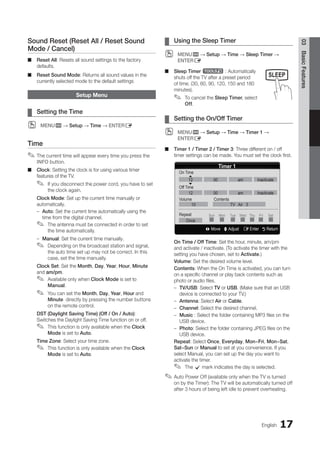
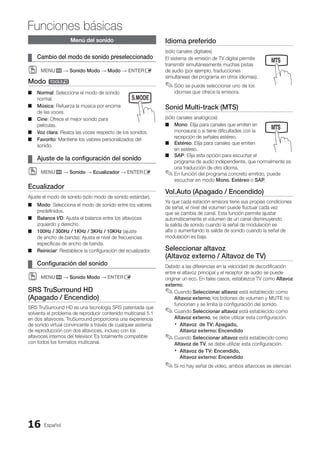
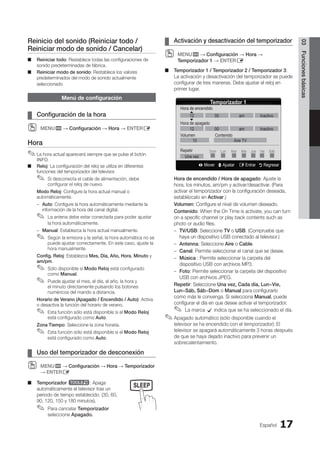
Setting the On/Off Timer
¦
¦
MENU
O
O m → Setup → Time → Timer 1 →
ENTERE
Timer 1 / Timer 2 / Timer 3
■
■ : Three different on / off
timer settings can be made. You must set the clock first.
On Time / Off Time: Set the hour, minute, am/pm
and activate / inactivate. (To activate the timer with the
setting you have chosen, set to Activate.)
Volume: Set the desired volume level.
Contents: When the On Time is activated, you can turn
on a specific channel or play back contents such as
photo or audio files.
TV/USB
–
– : Select TV or USB. (Make sure that an USB
device is connected to your TV.)
Antenna
–
– : Select Air or Cable.
Channel
–
– : Select the desired channel.
Music
–
– : Select the folder containing MP3 files on the
USB device.
Photo
–
– : Select the folder containing JPEG files on the
USB device.
Repeat: Select Once, Everyday, Mon~Fri, Mon~Sat,
Sat~Sun or Manual to set at you convenience. If you
select Manual, you can set up the day you want to
activate the timer.
The
✎
✎ c mark indicates the day is selected.
Auto Power Off (available only when the TV is turned
✎
✎
on by the Timer): The TV will be automatically turned off
after 3 hours of being left idle to prevent overheating.
SLEEP
Timer 1
L Move U Adjust E Enter R Return
On Time
Off Time
Volume Contents
Repeat
▲
▼
Sun Mon Tue Wed Thu Fri Sat
12 00 am Inactivate
12 00 am Inactivate
10 TV Air 3
Once
BN68-02751A_Eng.indb 17 2010-08-31 �� 5:04:43
18 English
Basic Features
Locking Programs
¦
¦
MENU
O
O m → Setup → V-Chip → ENTERE
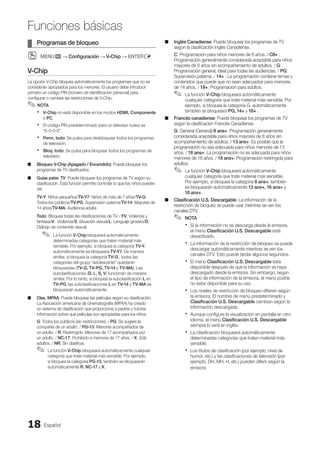
V-Chip
The V-Chip feature automatically locks out programs that are
deemed inappropriate for children. The user must enter a
PIN (personal identification number) before any of the V-Chip
restrictions are set up or changed.
NOTE
✎
✎
V-Chip
x
x is not available in HDMI, Component or PC
mode.
The default PIN number of a new TV set is “0-0-0-0”.
x
x
Allow all
x
x : Press to unlock all TV ratings.
Block all
x
x : Press to lock all TV ratings.
V-Chip Lock (Off / On)
■
■ : You can block rated TV
Programs.
TV Parental Guidelines
■
■ : You can block TV programs
depending on their rating. This function allows you to
control what your children are watching.
TV-Y: Young children / TV-Y7: Children 7 and over /
TV-G: General audience / TV-PG: Parental guidance /
TV-14: Viewers 14 and over / TV-MA: Mature audience
ALL: Lock all TV ratings. / FV: Fantasy violence /
V: Violence / S: Sexual situation / L: Adult Language /
D: Sexually Suggestive Dialog
The V-Chip will automatically block certain
✎
✎
categories dealing with more sensitive material.
For example, if you block the TV-Y category,
then TV-Y7 will automatically be blocked.
Similarly, if you block the TV-G category, then
all the categories in the young adult group will
be blocked (TV-G, TV-PG, TV-14 and TV-MA).
The sub-ratings (D, L, S, V) work similarly. So,
if you block the L sub-rating in TV-PG, then
the L sub-ratings in TV-14 and TV-MA will
automatically be blocked.
MPAA Rating
■
■ : You can block movies depending on
their MPAA rating. The Motion Picture Association of
America(MPAA) has implemented a rating system that
provides parents or guardians with advanced information
on which films are appropriate for children.
G: General audience (no restrictions). / PG: Parental
guidance suggested. / PG-13: Parents strongly
cautioned. / R: Restricted. Children under 17 should be
accompanied by an adult. / NC-17: No children under
age 17. / X: Adults only. / NR: Not rated.
The
✎
✎ V-Chip will automatically block any
category that deals with more sensitive material.
For example, if you block the PG-13 category,
then R, NC-17 and X will automatically be
blocked.
Canadian English
■
■ : You can block TV programs
depending on their Anglophone Canadian.
C: Programming intended for children under age 8. /
C8+: Programming generally considered acceptable for
children 8 years and over to watch on their own. /
G: General programming, suitable for all audiences. /
PG: Parental Guidance. / 14+: Programming contains
themes or content which may not be suitable for viewers
under the age of 14. / 18+: Adult programming.
The
✎
✎ V-Chip will automatically block any
category that deals with more sensitive material.
For example, if you block the G category, then
PG, 14+ and 18+ will automatically be blocked.
Canadian French
■
■ : You can block TV programs
depending on their French Canadian rating.
G: General / 8 ans+: Programming generally considered
acceptable for children 8 years and over to watch on
their own. / 13 ans+: Programming may not be suitable
for children under the age of 13. /
16 ans+: Programming is not suitable for children under
the age of 16. / 18 ans+: Programming restricted to
adults.
The
✎
✎ V-Chip will automatically block any category
that deals with more sensitive material. For
example, if you block the 8 ans+ category, then
13 ans+, 16 ans+ and 18 ans+ will automatically
be blocked also.
Downloadable U.S. Rating
■
■ : Parental restriction
information can be used while watching DTV channels.
NOTE
✎
✎
If information is not downloaded from the
x
x
broadcasting station, the Downloadable U.S.
Rating menu is deactivated.
Parental restriction information is automatically
x
x
downloaded while watching DTV channels. It
may take several seconds.
The
x
x Downloadable U.S. Rating menu
is available for use after information is
downloaded from the broadcasting station.
However, depending on the information from
the broadcasting station, it may not be available
for use.
Parental restriction levels differ depending on
x
x
the broadcasting station. The default menu
name and Downloadable U.S. Rating change
depending on the downloaded information.
Even if you set the on-screen display to another
x
x
language, the Downloadable U.S. Rating
menu will appear in English only.
The rating will automatically block certain
x
x
categories that deal with more sensitive
material.
The rating titles (For example: Humor Level..etc)
x
x
and TV ratings (For example: DH, MH, H..etc)
may differ depending on the broadcasting
station.
BN68-02751A_Eng.indb 18 2010-08-31 �� 5:04:44
19
English
03
Basic
Features
Change PIN
■
■ : The Change PIN screen will appear.
Choose any 4 digits for your PIN and enter them. As
soon as the 4 digits are entered, the Confirm New
PIN screen appears. Re-enter the same 4 digits. When
the Confirm screen disappears, your PIN has been
memorized.
How to watch a restricted channel
If the TV is tuned to a restricted channel, the V-Chip
will block it. The screen will go blank and the following
message will appear: This channel is blocked by
V-Chip. Please enter the PIN to unblock.
If you forget the PIN, press the remote-control
✎
✎
buttons in the following sequence, which resets
the pin to “0-0-0-0” : POWER (off) → MUTE →
8 → 2 → 4 → POWER (on)
Other Features
¦
¦
MENU
O
O m → Setup → ENTERE
Language
Set the menu language.
1. Select Language and press the ENTERE button.
2. Choose desired language and press the ENTERE
button.
Choose between
✎
✎ English, Español and Français.
Game Mode (Off / On)
When connecting to a game console such as PlayStation™
or Xbox™, you can enjoy a more realistic gaming experience
by selecting the game menu.
NOTE
✎
✎
Precautions and limitations for game mode
x
x
To disconnect the game console and connect
–
–
another external device, set Game Mode to Off in
the setup menu.
If you display the TV menu in
–
– Game Mode, the
screen shakes slightly.
Game Mode
x
x is not available when the input source
is set to TV or PC.
After connecting the game console, set
x
x Game Mode
to On. Unfortunately, you may notice reduced picture
quality.
If
x
x Game Mode is On:
Picture
–
– mode is set to Standard and Sound mode
is set to Movie.
Equalizer
–
– is not available.
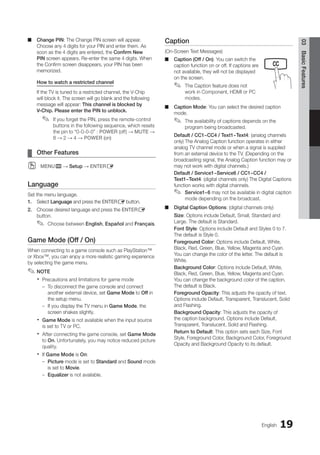
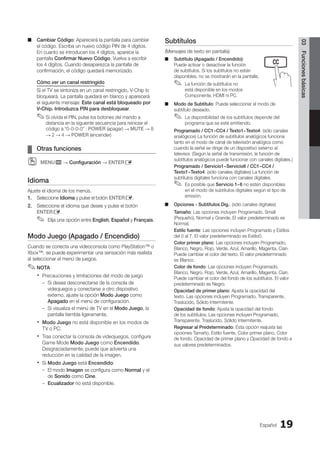
Caption
(On-Screen Text Messages)
Caption (Off / On)
■
■ : You can switch the
caption function on or off. If captions are
not available, they will not be displayed
on the screen.
The Caption feature does not
✎
✎
work in Component, HDMI or PC
modes.
Caption Mode
■
■ : You can select the desired caption
mode.
The availability of captions depends on the
✎
✎
program being broadcasted.
Default / CC1~CC4 / Text1~Text4: (analog channels
only) The Analog Caption function operates in either
analog TV channel mode or when a signal is supplied
from an external device to the TV. (Depending on the
broadcasting signal, the Analog Caption function may or
may not work with digital channels.)
Default / Service1~Service6 / CC1~CC4 /
Text1~Text4: (digital channels only) The Digital Captions
function works with digital channels.
Service1~6
✎
✎ may not be available in digital caption
mode depending on the broadcast.
Digital Caption Options
■
■ : (digital channels only)
Size: Options include Default, Small, Standard and
Large. The default is Standard.
Font Style: Options include Default and Styles 0 to 7.
The default is Style 0.
Foreground Color: Options include Default, White,
Black, Red, Green, Blue, Yellow, Magenta and Cyan.
You can change the color of the letter. The default is
White.
Background Color: Options include Default, White,
Black, Red, Green, Blue, Yellow, Magenta and Cyan.
You can change the background color of the caption.
The default is Black.
Foreground Opacity: This adjusts the opacity of text.
Options include Default, Transparent, Translucent, Solid
and Flashing.
Background Opacity: This adjusts the opacity of
the caption background. Options include Default,
Transparent, Translucent, Solid and Flashing.
Return to Default: This option sets each Size, Font
Style, Foreground Color, Background Color, Foreground
Opacity and Background Opacity to its default.
MEDIA.P
P
SLEEP S.MODE P.MOD
BN68-02751A_Eng.indb 19 2010-08-31 �� 5:04:44
20 English
Basic Features
NOTE
✎
✎
Digital Caption Options
x
x are available only
when Default and Service1 ~ Service6 can be
selected in Caption Mode.
The availability of captions depends on the
x
x
program being broadcasted.
The
x
x Default setting follow the standards set by
the broadcaster.
The Foreground and Background cannot be set
x
x
to have the same color.
You cannot set both the
x
x Foreground Opacity
and the Background Opacity to Transparent.
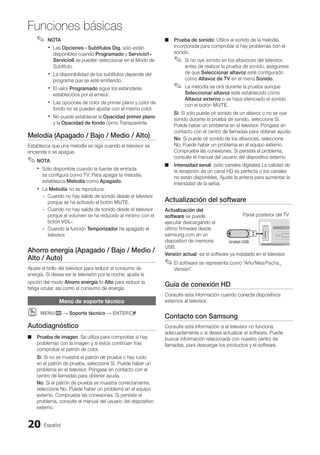
Melody (Off / Low / Medium / High)
Set so that a melody plays when the TV is turned on or off.
NOTE
✎
✎
Only available when the Input source is set to TV.
x
x
To turn the melody off, set Melody to Off.
The
x
x Melody does not play.
When no sound is output from the TV because the
–
–
MUTE button has been pressed.
When no sound is output from the TV because the
–
–
volume has been reduced to minimum with the
VOL – button.
When the TV is turned off by
–
– Sleep Timer function.
Energy Saving
(Off / Low / Medium / High / Auto)
Adjust the brightness of the TV in order to reduce power
consumption. When watching TV at night, set the Energy
Saving to High to reduce eye fatigue as well as power
consumption.
Support Menu
MENU
O
O m → Support → ENTERE
Self Diagnosis
Picture Test
■
■ : Use to check for picture problems. If the
problem continues to occur, check the Color pattern.
Yes: If the test pattern does not appear or there is
noise in the test pattern, select Yes. There may be a
problem with the TV. Contact Samsung’s Call Center for
assistance.
No: If the test pattern is properly displayed, select No.
There may be a problem with your external equipment.
Please check your connections. If the problem persists,
refer to the external device’s user manual.
Sound Test
■
■ : Use the built-in melody sound to check for
sound problems.
If you hear no sound from the TV’s speakers,
✎
✎
before performing the sound test, make sure
Speaker Select is set to TV speaker in the
Sound menu.
The melody will be heard during the test even if
✎
✎
Speaker Select is set to External Speaker or the
sound is muted by pressing the MUTE button.
Yes: If you can hear sound only from one speaker or not
at all during the sound test, select Yes. There may be a
problem with the TV. Contact Samsung’s Call Center for
assistance.
No: If you can hear sound from the speakers, select No.
There may be a problem with your external equipment.
Please check your connections. If the problem persists,
refer to the external device’s user manual.
Signal Strength
■
■ : (digital channels only) An HD channel’s
reception quality is either perfect or the channels are
unavailable. Adjust your antenna to increase signal
strength.
Software Upgrade
Software Upgrade can be
performed by downloading
the latest firmware from
samsung.com to a USB
memory device.
Current Version - the
software already installed
in the TV.
Software is represented as ‘Year/Month/Day_Version’.
✎
✎
HD Connection Guide
Refer to this information when connecting external devices
to the TV.
Contact Samsung
View this information when your TV does not work properly
or when you want to upgrade the software. You can find
information regarding our call centers and how to download
products and software.
TV Rear Panel
USB Drive
BN68-02751A_Eng.indb 20 2010-08-31 �� 5:04:44
21
English
04
Advanced
Features
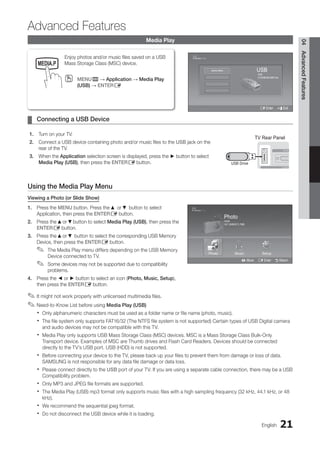
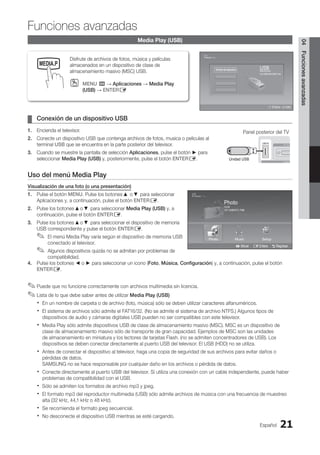
Media Play
Enjoy photos and/or music files saved on a USB
Mass Storage Class (MSC) device.
MENU
O
O m → Application → Media Play
(USB) → ENTERE
Connecting a USB Device
¦
¦
1. Turn on your TV.
2. Connect a USB device containing photo and/or music files to the USB jack on the
rear of the TV.
3. When the Application selection screen is displayed, press the ► button to select
Media Play (USB), then press the ENTERE button.
Using the Media Play Menu
Viewing a Photo (or Slide Show)
1. Press the MENU button. Press the ▲ or ▼ button to select
Application, then press the ENTERE button.
2. Press the ▲or ▼button to select Media Play (USB), then press the
ENTERE button.
3. Press the ▲or ▼ button to select the corresponding USB Memory
Device, then press the ENTERE button.
The Media Play menu differs depending on the USB Memory
✎
✎
Device connected to TV.
Some devices may not be supported due to compatibility
✎
✎
problems.
4. Press the ◄ or ► button to select an icon (Photo, Music, Setup),
then press the ENTERE button.
It might not work properly with unlicensed multimedia files.
✎
✎
Need-to-Know List before using
✎
✎ Media Play (USB)
Only alphanumeric characters must be used as a folder name or file name (photo, music).
x
x
The file system only supports FAT16/32 (The NTFS file system is not supported) Certain types of USB Digital camera
x
x
and audio devices may not be compatible with this TV.
Media Play only supports USB Mass Storage Class (MSC) devices. MSC is a Mass Storage Class Bulk-Only
x
x
Transport device. Examples of MSC are Thumb drives and Flash Card Readers. Devices should be connected
directly to the TV’s USB port. USB (HDD) is not supported.
Before connecting your device to the TV, please back up your files to prevent them from damage or loss of data.
x
x
SAMSUNG is not responsible for any data file damage or data loss.
Please connect directly to the
x
x USB port of your TV. If you are using a separate cable connection, there may be a USB
Compatibility problem.
Only MP3 and JPEG file formats are supported.
x
x
The Media Play (USB) mp3 format only supports music files with a high sampling frequency (32 kHz, 44.1 kHz, or 48
x
x
kHz).
We recommend the sequential jpeg format.
x
x
Do not disconnect the USB device while it is loading.
x
x
Advanced Features
TV Rear Panel
USB Drive
Photo
Photo Music Setup
SUM
307.2MB/973.7MB
P
DSC_0558.JPG
580 440
78.0KB
03 / 14
SUM
*
Photo
307.2MB/973.7MB
File.....jpg File.....jpg File.....jpg
File.....jpg File.....jpg
File.....jpg File.....jpg File.....jpg
Music
4.3MB
2 / 31
06-I Will Carry You.mp3 00:00:00
01-The Way.mp3 00:03:25
02-Run To Me.mp3 00:03:25
03-No More Sad Songs.mp3 00:03:25
04-Interference-gold.mp3 00:03:25
05-marketa_irglova-The_hill.mp3 00:03:25
06-I Will Carry You.mp3 00:03:25
07-marketa_irglova.mp3 00:03:25
08-Super World.mp3 00:03:25
SUM
307.2MB/973.7MB
Setup
USB
E Enter e Exit
SUM
315.0MB/495.0MB Free
Device Name
Photo
Photo Music Setup
SUM
307.2MB/973.7MB
P
DSC_0558.JPG
580 440
78.0KB
03 / 14
SUM
*
Photo
307.2MB/973.7MB
File.....jpg File.....jpg File.....jpg
File.....jpg File.....jpg
File.....jpg File.....jpg File.....jpg
Music
4.3MB
2 / 31
06-I Will Carry You.mp3 00:00:00
01-The Way.mp3 00:03:25
02-Run To Me.mp3 00:03:25
03-No More Sad Songs.mp3 00:03:25
04-Interference-gold.mp3 00:03:25
05-marketa_irglova-The_hill.mp3 00:03:25
06-I Will Carry You.mp3 00:03:25
07-marketa_irglova.mp3 00:03:25
08-Super World.mp3 00:03:25
SUM
307.2MB/973.7MB
USB
L Move E Enter R Return
MEDIA.P
P
BN68-02751A_Eng.indb 21 2010-08-31 �� 5:04:46
22 English
Advanced Features
MSC supports MP3 and JPEG files, and the PTP device supports JPEG files only.
x
x
MTP (Media Transfer Protocol) is not supported.
x
x
The playing duration of an mp3 file may be displayed as “00:00:00” if its playing time information is not found at the
x
x
start of the file.
The higher the resolution of the image, the longer it takes to display on the screen.
x
x
The Photo or Music List displays up to 300 folders or files.
x
x
Loading may take some time depending on the size of the file.
x
x
MP3 files with DRM that have been downloaded from a non-free site cannot be played.
x
x
Digital Rights Management (DRM) is a technology that supports the creation, distribution and management of of the
x
x
content in an integrated and comprehensive way, including the protection of the rights and interests of the content
providers, the prevention of the illegal copying of contents, as well as managing billings and settlements.
If a USB extension cable is used, the USB device may not be recognized or the files on the device may not be read.
x
x
If a USB device connected to the TV is not recognized, the list of files on the device is corrupted or a file in the list is
x
x
not played, connect the USB device to the PC, format the device and check the connection.
If a file deleted from the PC is still found when Media Play is run, use the “Empty the Recycle Bin” function on the PC
x
x
to permanently delete the file.
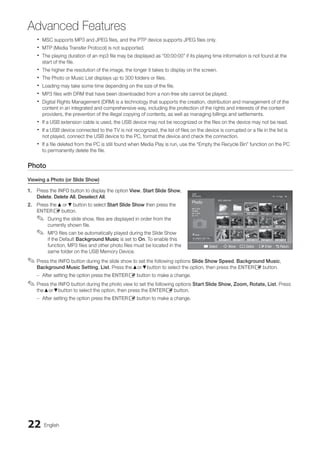
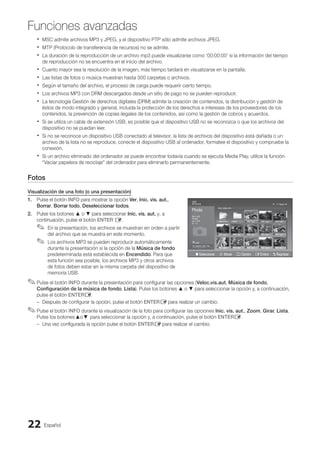
Photo
Viewing a Photo (or Slide Show)
1. Press the INFO button to display the option View, Start Slide Show,
Delete, Delete All, Deselect All.
2. Press the ▲or ▼button to select Start Slide Show then press the
ENTERE button.
During the slide show, files are displayed in order from the
✎
✎
currently shown file.
MP3 files can be automatically played during the Slide Show
✎
✎
if the Default Background Music is set to On. To enable this
function, MP3 files and other photo files must be located in the
same folder on the USB Memory Device.
Press the
✎
✎ INFO button during the slide show to set the following options Slide Show Speed, Background Music,
Background Music Setting, List. Press the ▲or ▼button to select the option, then press the ENTERE button.
After setting the option press the
–
– ENTERE button to make a change.
Press the
✎
✎ INFO button during the photo view to set the following options Start Slide Show, Zoom, Rotate, List. Press
the ▲or ▼button to select the option, then press the ENTERE button.
After setting the option press the
–
– ENTERE button to make a change.
Photo
Photo Music Setup
SUM
307.2MB/973.7MB
P
DSC_0558.JPG
580 440
78.0KB
03 / 14
SUM
*
Photo
307.2MB/973.7MB
File.....jpg File.....jpg File.....jpg
File.....jpg File.....jpg
File.....jpg File.....jpg File.....jpg
Music
4.3MB
2 / 31
06-I Will Carry You.mp3 00:00:00
01-The Way.mp3 00:03:25
02-Run To Me.mp3 00:03:25
03-No More Sad Songs.mp3 00:03:25
04-Interference-gold.mp3 00:03:25
05-marketa_irglova-The_hill.mp3 00:03:25
06-I Will Carry You.mp3 00:03:25
07-marketa_irglova.mp3 00:03:25
08-Super World.mp3 00:03:25
SUM
307.2MB/973.7MB
Setup
USB
Jan 7, 2010 Upper Fold... Folder
1/1 Page
Free
' Select n Move j Option E Enter R Return
BN68-02751A_Eng.indb 22 2010-08-31 �� 5:04:46
23
English
04
Advanced
Features
Music
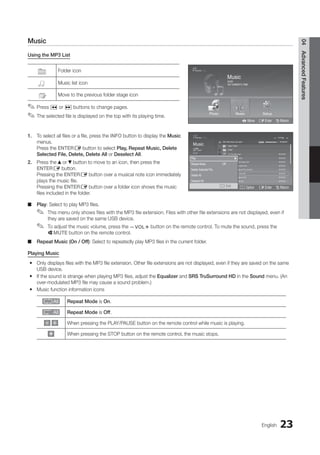
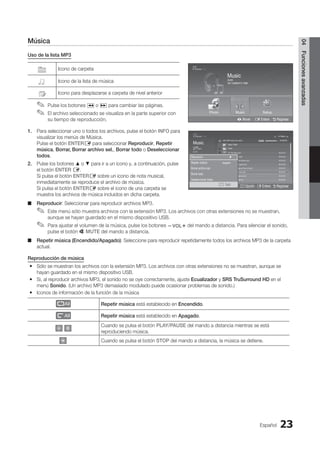
Using the MP3 List
Folder icon
Music list icon
Move to the previous folder stage icon
Press
✎
✎ � or µ buttons to change pages.
The selected file is displayed on the top with its playing time.
✎
✎
1. To select all files or a file, press the INFO button to display the Music
menus.
Press the ENTERE button to select Play, Repeat Music, Delete
Selected File, Delete, Delete All or Deselect All.
2. Press the ▲or ▼button to move to an icon, then press the
ENTERE button.
Pressing the ENTERE button over a musical note icon immediately
plays the music file.
Pressing the ENTERE button over a folder icon shows the music
files included in the folder.
Play
■
■ : Select to play MP3 files.
This menu only shows files with the MP3 file extension. Files with other file extensions are not displayed, even if
✎
✎
they are saved on the same USB device.
To adjust the music volume, press the
✎
✎ y button on the remote control. To mute the sound, press the
MMUTE button on the remote control.
Repeat Music (On / Off)
■
■ : Select to repeatedly play MP3 files in the current folder.
Playing Music
Only displays files with the MP3 file extension. Other file extensions are not displayed, even if they are saved on the same
y
y
USB device.
If the sound is strange when playing MP3 files, adjust the
y
y Equalizer and SRS TruSurround HD in the Sound menu. (An
over-modulated MP3 file may cause a sound problem.)
Music function information icons
y
y
Repeat Mode is On.
Repeat Mode is Off.
When pressing the PLAY/PAUSE button on the remote control while music is playing.
When pressing the STOP button on the remote control, the music stops.
Photo
Photo Music Setup
SUM
307.2MB/973.7MB
Music
Photo Music Setup
SUM
307.2MB/973.7MB
DSC_0558.JPG
580 440
78.0KB
03 / 14
SUM
*
Photo
307.2MB/973.7MB
File.....jpg File.....jpg File.....jpg
File.....jpg File.....jpg
File.....jpg File.....jpg File.....jpg
Music
4.3MB
2 / 31
06-I Will Carry You.mp3 00:00:00
01-The Way.mp3 00:03:25
02-Run To Me.mp3 00:03:25
03-No More Sad Songs.mp3 00:03:25
04-Interference-gold.mp3 00:03:25
05-marketa_irglova-The_hill.mp3 00:03:25
06-I Will Carry You.mp3 00:03:25
07-marketa_irglova.mp3 00:03:25
08-Super World.mp3 00:03:25
SUM
307.2MB/973.7MB
Setup
USB
L Move E Enter R Return
Photo Music Setup
DSC_0558.JPG
580 440
78.0KB
03 / 14
SUM
*
Photo
307.2MB/973.7MB
File.....jpg File.....jpg File.....jpg
File.....jpg File.....jpg
File.....jpg File.....jpg File.....jpg
Music
4.3MB
2 / 31
06-I Will Carry You.mp3 00:00:00
01-The Way.mp3 00:03:25
02-Run To Me.mp3 00:03:25
03-No More Sad Songs.mp3 00:03:25
04-Interference-gold.mp3 00:03:25
05-marketa_irglova-The_hill.mp3 00:03:25
06-I Will Carry You.mp3 00:03:25
07-marketa_irglova.mp3 00:03:25
08-Super World.mp3 00:03:25
SUM
307.2MB/973.7MB
Setup
Jan 7, 2010
1/4 Page
' Select n Move j Option E Enter R Return
Upper Folder
Folder
Play		 r
Repeat Music : Off
Delete Selected File
Delete All
Deselect All
j Exit
BN68-02751A_Eng.indb 23 2010-08-31 �� 5:04:47
24 English
Advanced Features
Setup
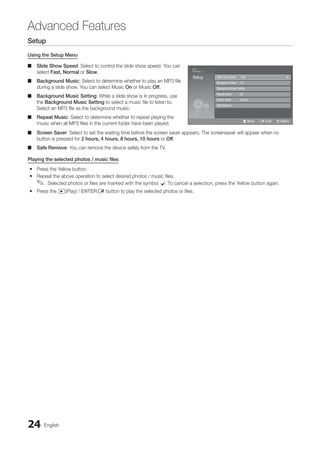
Using the Setup Menu
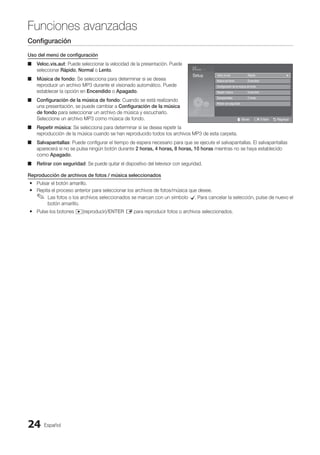
Slide Show Speed
■
■ : Select to control the slide show speed. You can
select Fast, Normal or Slow.
Background Music
■
■ : Select to determine whether to play an MP3 file
during a slide show. You can select Music On or Music Off.
Background Music Setting
■
■ : While a slide show is in progress, use
the Background Music Setting to select a music file to listen to.
Select an MP3 file as the background music.
Repeat Music
■
■ : Select to determine whether to repeat playing the
music when all MP3 files in the current folder have been played.
Screen Saver
■
■ : Select to set the waiting time before the screen saver appears. The screensaver will appear when no
button is pressed for 2 hours, 4 hours, 8 hours, 10 hours or Off.
Safe Remove
■
■ : You can remove the device safely from the TV.
Playing the selected photos / music files
Press the Yellow button.
y
y
Repeat the above operation to select desired photos / music files.
y
y
Selected photos or files are marked with the symbol
✎
✎ c
. To cancel a selection, press the Yellow button again.
Press the
y
y �(Play) / ENTERE button to play the selected photos or files.
Music
4.3MB
2 / 31
01-The Way.mp3 00:03:25
02-Run To Me.mp3 00:03:25
03-No More Sad Songs.mp3 00:03:25
04-Interference-gold.mp3 00:03:25
05-marketa_irglova-The_hill.mp3 00:03:25
06-I Will Carry You.mp3 00:03:25
07-marketa_irglova.mp3 00:03:25
08-Super World.mp3 00:03:25
SUM
307.2MB/973.7MB
Setup Slide show Speed : Fast
Background Music : On
Background Music Setting
Repeat Music : On
Screen Saver : 2 hours
Safe Remove
U Move E Enter R Return
BN68-02751A_Eng.indb 24 2010-08-31 �� 5:04:48
25
English
04
Advanced
Features
Anynet+
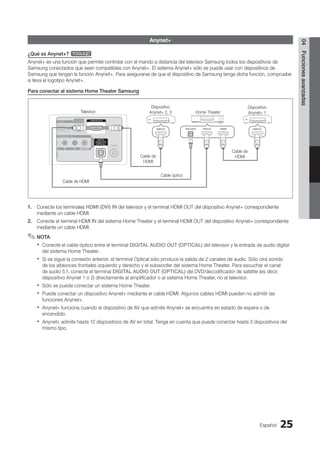
What is Anynet+? t
Anynet+ is a function that enables you to control all connected Samsung devices that support Anynet+ with your Samsung
TV’s remote. The Anynet+ system can be used only with Samsung devices that have the Anynet+ feature. To be sure your
Samsung device has this feature, check if there is an Anynet+ logo on it.
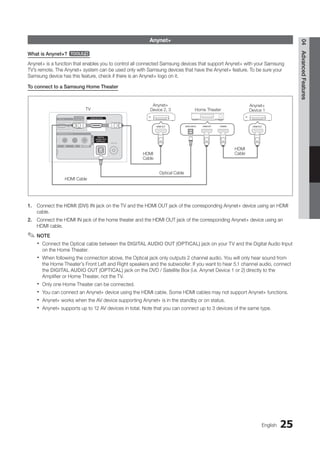
To connect to a Samsung Home Theater
Anynet+
Device 1
HDMI
Cable
TV
Optical Cable
Home Theater
Anynet+
Device 2, 3
HDMI Cable
HDMI
Cable
1. Connect the HDMI (DVI) IN jack on the TV and the HDMI OUT jack of the corresponding Anynet+ device using an HDMI
cable.
2. Connect the HDMI IN jack of the home theater and the HDMI OUT jack of the corresponding Anynet+ device using an
HDMI cable.
NOTE
✎
✎
Connect the Optical cable between the
x
x DIGITAL AUDIO OUT (OPTICAL) jack on your TV and the Digital Audio Input
on the Home Theater.
When following the connection above, the Optical jack only outputs 2 channel audio. You will only hear sound from
x
x
the Home Theater’s Front Left and Right speakers and the subwoofer. If you want to hear 5.1 channel audio, connect
the DIGITAL AUDIO OUT (OPTICAL) jack on the DVD / Satellite Box (i.e. Anynet Device 1 or 2) directly to the
Amplifier or Home Theater, not the TV.
Only one Home Theater can be connected.
x
x
You can connect an Anynet+ device using the HDMI cable. Some HDMI cables may not support Anynet+ functions.
x
x
Anynet+ works when the AV device supporting Anynet+ is in the standby or on status.
x
x
Anynet+ supports up to 12 AV devices in total. Note that you can connect up to 3 devices of the same type.
x
x
BN68-02751A_Eng.indb 25 2010-08-31 �� 5:04:49
26 English
Advanced Features
Anynet+ Menu
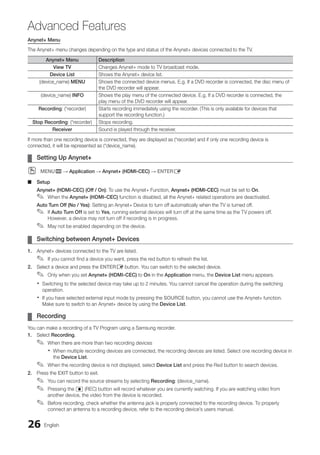
The Anynet+ menu changes depending on the type and status of the Anynet+ devices connected to the TV.
Anynet+ Menu Description
View TV Changes Anynet+ mode to TV broadcast mode.
Device List Shows the Anynet+ device list.
(device_name) MENU Shows the connected device menus. E.g. If a DVD recorder is connected, the disc menu of
the DVD recorder will appear.
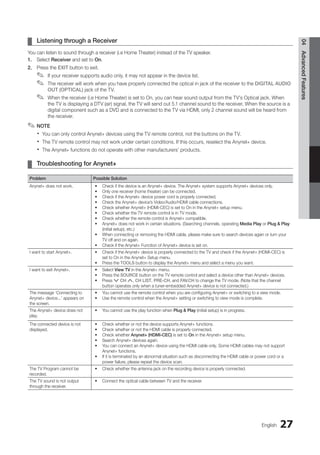
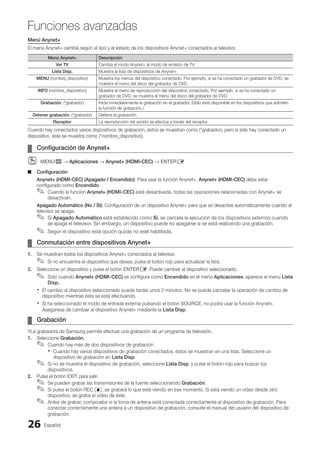
(device_name) INFO Shows the play menu of the connected device. E.g. If a DVD recorder is connected, the
play menu of the DVD recorder will appear.
Recording: (*recorder) Starts recording immediately using the recorder. (This is only available for devices that
support the recording function.)
Stop Recording: (*recorder) Stops recording.
Receiver Sound is played through the receiver.
If more than one recording device is connected, they are displayed as (*recorder) and if only one recording device is
connected, it will be represented as (*device_name).
Setting Up Anynet+
¦
¦
MENU
O
O m → Application → Anynet+ (HDMI-CEC) → ENTERE
Setup
■
■
Anynet+ (HDMI-CEC) (Off / On): To use the Anynet+ Function, Anynet+ (HDMI-CEC) must be set to On.
When the
✎
✎ Anynet+ (HDMI-CEC) function is disabled, all the Anynet+ related operations are deactivated.
Auto Turn Off (No / Yes): Setting an Anynet+ Device to turn off automatically when the TV is turned off.
If
✎
✎ Auto Turn Off is set to Yes, running external devices will turn off at the same time as the TV powers off.
However, a device may not turn off if recording is in progress.
May not be enabled depending on the device.
✎
✎
Switching between Anynet+ Devices
¦
¦
1. Anynet+ devices connected to the TV are listed.
If you cannot find a device you want, press the red button to refresh the list.
✎
✎
2. Select a device and press the ENTERE button. You can switch to the selected device.
Only when you set
✎
✎ Anynet+ (HDMI-CEC) to On in the Application menu, the Device List menu appears.
Switching to the selected device may take up to 2 minutes. You cannot cancel the operation during the switching
x
x
operation.
If you have selected external input mode by pressing the
x
x SOURCE button, you cannot use the Anynet+ function.
Make sure to switch to an Anynet+ device by using the Device List.
Recording
¦
¦
You can make a recording of a TV Program using a Samsung recorder.
1. Select Recording.
When there are more than two recording devices
✎
✎
When multiple recording devices are connected, the recording devices are listed. Select one recording device in
x
x
the Device List.
When the recording device is not displayed, select
✎
✎ Device List and press the Red button to search devices.
2. Press the EXIT button to exit.
You can record the source streams by selecting
✎
✎ Recording: (device_name).
Pressing the
✎
✎ � (REC) button will record whatever you are currently watching. If you are watching video from
another device, the video from the device is recorded.
Before recording, check whether the antenna jack is properly connected to the recording device. To properly
✎
✎
connect an antenna to a recording device, refer to the recording device’s users manual.
BN68-02751A_Eng.indb 26 2010-08-31 �� 5:04:49
27
English
04
Advanced
Features
Listening through a Receiver
¦
¦
You can listen to sound through a receiver (i.e Home Theater) instead of the TV speaker.
1. Select Receiver and set to On.
2. Press the EXIT button to exit.
If your receiver supports audio only, it may not appear in the device list.
✎
✎
The receiver will work when you have properly connected the optical in jack of the receiver to the
✎
✎ DIGITAL AUDIO
OUT (OPTICAL) jack of the TV.
When the receiver (i.e Home Theater) is set to On, you can hear sound output from the TV’s Optical jack. When
✎
✎
the TV is displaying a DTV (air) signal, the TV will send out 5.1 channel sound to the receiver. When the source is a
digital component such as a DVD and is connected to the TV via HDMI, only 2 channel sound will be heard from
the receiver.
NOTE
✎
✎
You can only control Anynet+ devices using the TV remote control, not the buttons on the TV.
x
x
The TV remote control may not work under certain conditions. If this occurs, reselect the Anynet+ device.
x
x
The Anynet+ functions do not operate with other manufacturers’ products.
x
x
Troubleshooting for Anynet+
¦
¦
Problem Possible Solution
Anynet+ does not work. Check if the device is an Anynet+ device. The Anynet+ system supports Anynet+ devices only.
•
Only one receiver (home theater) can be connected.
•
Check if the Anynet+ device power cord is properly connected.
•
Check the Anynet+ device’s Video/Audio/HDMI cable connections.
•
Check whether Anynet+ (HDMI-CEC) is set to On in the Anynet+ setup menu.
•
Check whether the TV remote control is in TV mode.
•
Check whether the remote control is Anynet+ compatible.
•
Anynet+ does not work in certain situations. (Searching channels, operating
• Media Play or Plug  Play
(initial setup), etc.)
When connecting or removing the HDMI cable, please make sure to search devices again or turn your
•
TV off and on again.
Check if the Anynet+ Function of Anynet+ device is set on.
•
I want to start Anynet+. Check if the Anynet+ device is properly connected to the TV and check if the Anynet+ (HDMI-CEC) is
•
set to On in the Anynet+ Setup menu.
Press the
• TOOLS button to display the Anynet+ menu and select a menu you want.
I want to exit Anynet+. Select
• View TV in the Anynet+ menu.
Press the
• SOURCE button on the TV remote control and select a device other than Anynet+ devices.
Press
•  CH , CH LIST, PRE-CH, and FAV.CH to change the TV mode. (Note that the channel
button operates only when a tuner-embedded Anynet+ device is not connected.)
The message ‘Connecting to
Anynet+ device...’ appears on
the screen.
You cannot use the remote control when you are configuring Anynet+ or switching to a view mode.
•
Use the remote control when the Anynet+ setting or switching to view mode is complete.
•
The Anynet+ device does not
play.
You cannot use the play function when
• Plug  Play (initial setup) is in progress.
The connected device is not
displayed.
Check whether or not the device supports Anynet+ functions.
•
Check whether or not the HDMI cable is properly connected.
•
Check whether
• Anynet+ (HDMI-CEC) is set to On in the Anynet+ setup menu.
Search Anynet+ devices again.
•
You can connect an Anynet+ device using the HDMI cable only. Some HDMI cables may not support
•
Anynet+ functions.
If it is terminated by an abnormal situation such as disconnecting the HDMI cable or power cord or a
•
power failure, please repeat the device scan.
The TV Program cannot be
recorded.
Check whether the antenna jack on the recording device is properly connected.
•
The TV sound is not output
through the receiver.
Connect the optical cable between TV and the receiver.
•
BN68-02751A_Eng.indb 27 2010-08-31 �� 5:04:49
28 English
Other Information
Installing the Wall Mount
Assembling the Blanking Bracket
1 2
1. Place the front of the TV onto a soft cloth or cushion on a table as in Figure 1.
Align the TV bottom along the table edge.
–
–
2. Press on the center of the TV back. Adjust the stand as in Figure 2 while pressing the button on the back of the stand.
3. Place the TV on the table so that the TV sits safely on the table.
How to Adjust the Angle of the TV (LN19C450)
1 Angle adjustment when using
the TV on its stand.
2 Angle adjustment when
converting from Stand to Wall
mount (1→3, 3→1)
3 Angle adjustment when LCD
TV is wall-mounted
When you adjust the stand, press the button on the back of the stand.
✎
✎
1. Figure 1 shows the adjustment angle (-2°~14°) when you use the LCD on its stand.
Excessive tilting can turn the LCD TV over which may cause damage.
2. Figure 2 shows the adjustment angle (14°~80°) when you convert the LCD from stand-based use to wall-mount.
3. Figure 3 shows the adjustment angle (0°~10°) when you mount the LCD TV to a wall.
You will hear a “Click” sound when changing the angle from 1 to 2 or 3 to 2.
✎
✎
BN68-02751A_Eng.indb 28 2010-08-31 �� 5:04:50
29
English
05
Other
Information
Installing VESA Compliant Mounting Devices (LN19C450)
1. Place the TV face down on a soft cloth or cushion on a table.
2. Adjust the stand, pressing the button on the back of the stand.
3. Align the mounting interface pad (not supplied) with the holes in the stand bottom and secure it with the four screws that
come with the arm-type base, wall mount hanger or other bases (not supplied).
Using the Decoration Covers (LN19C450)
1. When installing the TV on the wall without using the stand, insert decoration covers into the holes as described in the
picture 1.
2. After inserting the decoration covers, fasten them with 4 screws as described in the picture 2.
2
1
Button
Mounting pad
(Sold separately)
1 2
BN68-02751A_Eng.indb 29 2010-08-31 �� 5:04:50
30 English
Other Information
Installing the Wall Mount Kit
The wall mount kit (sold separately) allows you to mount the TV on the wall.
For detailed information on installing the wall mount, see the instructions provided with the wall mount items. Contact a
technician for assistance when installing the wall mount bracket. Samsung Electronics is not responsible for any damage to the
product or injury to yourself or others if you elect to install the TV on your own.
Wall Mount Kit Specifications (VESA)
The wall mount kit is not supplied, but sold separately.
✎
✎
Install your wall mount on a solid wall perpendicular to the floor. When attaching to other building materials, please contact
your nearest dealer. If installed on a ceiling or slanted wall, it may fall and result in severe personal injury.
NOTE
✎
✎
Standard dimensions for wall mount kits are shown in the table below.
x
x
When purchasing our wall mount kit, a detailed installation manual and all parts necessary for assembly are provided.
x
x
Do not use screws that do not comply with the VESA standard screw specifications.
x
x
Do not use screws that are longer than the standard dimension or do not comply with the VESA standard screw
x
x
specifications. Screws that are too long may cause damage to the inside of the TV set.
For wall mounts that do not comply with the VESA standard screw specifications, the length of the screws may differ
x
x
depending on the wall mount specifications.
Do not fasten the screws too strongly; this may damage the product or cause the product to fall, leading to personal
x
x
injury. Samsung is not liable for these kinds of accidents.
Samsung is not liable for product damage or personal injury when a non-VESA or non-specified wall mount is used or
x
x
the consumer fails to follow the product installation instructions.
Do not mount the TV at more than a 15 degree tilt.
x
x
Always use two people to mount the TV to a wall.
x
x
Product Family inches VESA Spec. (A * B) Standard Screw Quantity
LCD-TV
19~22
75 X 75
100 X 100 M4
4
23~29 200 X 100
30~40 200 X 200 M6
46~55 400 X 400
M8
57~65 600 X 400
70~80 800 X 400
80~ 1400 X 800
Do not install your Wall Mount Kit while your TV is turned on. It may result in personal injury due to
electric shock.
BN68-02751A_Eng.indb 30 2010-08-31 �� 5:04:50
31
English
05
Other
Information
Securing the TV to the Wall
Caution: Pulling, pushing, or climbing onto the TV may cause the TV to fall. In particular, ensure that your
children do not hang over or destabilize the TV; doing so may cause the TV to tip over, resulting in serious
injuries or death. Follow all safety precautions provided on the included Safety Flyer. For added stability, install
the anti-fall device for safety purposes, as follows.
To avoid the TV from falling
Since the necessary clamps, screws, and string are not supplied,
✎
✎
please purchase these additionally.
1. Drive the screws into the clamps and firmly fasten them onto the
wall. Make sure the screws are firmly fixed into the wall.
Screw Specifications
✎
✎
For a 17 ~ 29 Inches LCD TV: M4
x
x
2. Remove the screws from the back center of the TV, put the screws
into the clamps, and then fasten the screws onto the TV again.
3. Connect the clamps fixed onto the TV and the clamps fixed onto
the wall with a strong cable and then tie the string tightly.
Verify all connections are properly secured. Periodically check
✎
✎
connections for any sign of fatigue for failure. If you have any doubt
about the security of your connections, contact a professional
installer.
Install the TV near to the wall so that it does not fall backwards.
✎
✎
It is safe to connect the string so that the clamps fixed on the wall
✎
✎
are equal to or lower than the clamps fixed on the TV.
Untie the string before moving the TV.
✎
✎
Anti-Theft Kensington Lock
The Kensington Lock is not supplied by Samsung. It a device used to physically fix the system when using it in a public place.
The appearance and locking method may differ from the illustration depending on the manufacturer. Refer to the manual
provided with the Kensington Lock for additional information on proper use.
Please find a “
✎
✎ K” icon on the rear of the TV. A kensington slot is beside the “K” icon.
To lock the product, follow these steps:
1. Wrap the Kensington lock cable around a large, stationary object such
as desk or chair.
2. Slide the end of the cable with the lock attached through the looped end
of the Kensington lock cable.
3. Insert the locking device into the Kensington slot on the product (1).
4. Lock the lock.
These are general instructions. For exact instructions, see the User
✎
✎
manual supplied with the locking device.
The locking device has to be purchased separately.
✎
✎
The location of the Kensington slot may be different depending on the TV model.
✎
✎
Wall
1
Optional
BN68-02751A_Eng.indb 31 2010-08-31 �� 5:04:51
32 English
Other Information
Troubleshooting
If the TV seems to have a problem, first try this list of possible problems and solutions. If none of these troubleshooting tips
apply, visit samsung.com, then click on Support, or call Samsung customer service.
Issues Solutions and Explanations
Poor picture First of all, please perform the Picture Test and confirm that your TV is properly displaying the test
image.
go to
• MENU - Support - Self Diagnosis - Picture Test (P. 20)
If the test image is properly displayed, the poor picture may be caused by the source or signal.
The TV image does not look as good as
it did in the store.
If you have an analog cable/satellite box, upgrade to a digital set top box. Use HDMI or
•
Component cables to deliver HD (high definition) picture quality.
Cable/Satellite subscribers: Try HD stations from the channel line up.
•
Air/Cable Antenna connection: Try HD stations after performing Auto program.
•
Many HD channels are upscaled from SD(Standard Definition) contents.
✎
✎
Adjust the Cable/Sat box video output resolution to 1080i or 720p.
•
The picture is distorted: macroblock
error, small block, dots, pixelization.
Compression of video contents may cause picture distortion, especially in fast moving pictures
•
such as sports and action movies.
Low signal level can cause picture distortion. This is not a TV problem.
•
Mobile phones used close to the TV (up to 3.3ft) may cause noise in picture on analog and
•
digital TV.
Color is wrong or missing. If you’re using Component connection, make sure the component cables are connected to the
•
correct jacks. Incorrect or loose connections may cause color problems or a blank screen.
There is poor color or brightness. Adjust the Picture options in the TV menu.
•
(go to Picture mode / Color / Brightness / Sharpness) (P. 13)
Adjust
• Energy Saving option in the TV menu.
(go to MENU - Setup - Energy Saving) (P. 20)
Try resetting the picture to view the default picture setting.
•
(go to MENU - Picture - Picture Reset) (P. 15)
There is a dotted line on the edge of
the screen.
If the picture size is set to
• Screen Fit, change it to 16:9.
Change cable/satellite box resolution.
•
The picture is black and white. If you are using an AV composite input, connect the video cable (yellow) to the Green jack of
•
component input 1 on the TV.
When changing channels, the picture
freezes or is distorted or delayed.
If connected to a cable box, please try to reset it. (reconnect the AC cord and wait until the
•
cable box reboots. It may take up to 20 minutes)
Set output resolution of the cable box to 1080i or 720p.
•
Sound Problem First of all, please perform the Sound Test to confirm that your TV audio is properly operating.
go to
• MENU - Support - Self Diagnosis - Sound Test (P. 20)
If the audio is OK, the sound problem may caused by the source or signal.
There is no sound or the sound is too
low at maximum volume.
Please check the volume of the device (Cable/Sat Box, DVD, Blu-ray etc) connected to your TV.
•
The picture is good but there is no
sound.
Set the
• Speaker Select option to TV speaker in the Sound menu. (P. 16)
If you are using an external device, check the device’s audio output option (ex. you may need to
•
change your cable box’s audio option to HDMI when you have a HDMI connected to your TV).
If you are using a DVI to HDMI cable, a separate audio cable is required.
•
Reboot the connected device by reconnecting the device’s power cable.
•
The speakers are making an
inappropriate noise.
Check the cable connections. Make sure a video cable is not connected to an audio input.
•
For Antenna or Cable connections, check the signal information. Low signal level may cause
•
sound distortion.
Perform the
• Sound Test as explained above.
BN68-02751A_Eng.indb 32 2010-08-31 �� 5:04:52
33
English
05
Other
Information
Issues Solutions and Explanations
No Picture, No Video
The TV will not turn on. Make sure the AC power cord is securely plugged into the wall outlet and the TV.
•
Make sure the wall outlet is working.
•
Try pressing the
• POWER button on the TV to make sure the problem is not the remote.
If the TV turns on, refer to ‘Remote control does not work’ below.
The TV turns off automatically. Ensure the
• Sleep Timer is set to Off in the Setup menu. (P. 17)
If your PC is connected to the TV, check your PC power settings.
•
Make sure the AC power cord is plugged in securely to the wall outlet and the TV.
•
When watching TV from an antenna or cable connection, the TV will turn off after 10 - 15
•
minutes if there is no signal.
There is no picture/video. Check cable connections. (remove and reconnect all cables connected to the TV and external
•
devices).
Set your external device’s (Cable/Sat Box, DVD, Blu-ray etc) video outputs to match the
•
connections to the TV input. For example, if an external device’s output is HDMI, it should be
connected to an HDMI input on the TV.
Make sure your connected devices are powered on.
•
Be sure to select the TV’s correct source by pressing the
• SOURCE button on the remote
control.
Reboot the connected device by reconnecting the device’s power cable.
•
RF(Cable/Antenna) Connection
The TV is not receiving all channels. Make sure the coaxial cable is connected securely.
•
Please try
• Auto Program to add available channels to the channel list.
go to MENU - Channel - Auto program then select Auto and make sure the correct Cable TV
signal type is set in the menu. There are 3 options. (STD, HRC and IRC) (P. 12)
Verify the Antenna is positioned correctly.
•
No Caption on digital channels. Check Caption Setup menu. Try changing
• Caption Mode Service 1 to CC1. (P. 19)
Some channels may not have caption data.
•
The picture is distorted: macroblock,
error, small block, dots, pixelization.
Compression of video contents may cause picture distortion. especially on fast moving pictures
•
such as sports and action movies.
A low signal can cause picture distortion. This is not a TV problem.
•
PC Connection
A “Mode Not Supported” message
appears.
Set your PC’s output resolution so it matches the resolutions supported by the TV.
•
“PC” is always shown on the source list,
even if a PC is not connected.
This is normal; “PC” is always shown on the source list, regardless of whether a PC is
•
connected.
The video is OK but there is no audio. If you are using a HDMI connection, check the audio output setting on your PC.
•
Others
Purple/green rolling horizontal bars and
buzzing noise from the TV speakers
with Component cable connection.
Remove the left and right audio connections from the set-top-box. If the buzzing stops, this
•
indicates that the set-top-box has a grounding issue. Replace the Component video cables
with an HDMI connection.
The picture will not display in full screen. HD channels will have black bars on either side of the screen when displaying upscaled SD
•
(4:3) contents.
Black bars on the Top  Bottom will be shown on movies that have aspect ratios different from
•
your TV.
Adjust picture size option on your external device or TV to full screen.
•
The remote control does not work. Replace the remote control batteries with correct polarity (+/–).
•
Clean the transmission window located on the top of the remote.
•
Try pointing the remote directly at the TV from 5~6 feet away.
•
BN68-02751A_Eng.indb 33 2010-08-31 �� 5:04:52
34 English
Other Information
Issues Solutions and Explanations
Others
The cable/set top box remote control
does not turn the TV on or off, or adjust
the volume.
Program the Cable/Sat remote control to operate the TV. Refer to the Cable/Sat user manual
•
for SAMSUNG TV code.
‘Mode Not Supported’ message. Check the supported resolution of the TV and adjust the external device’s output resolution
•
accordingly. Refer to resolution settings in this manual.
Caption on TV menu is greyed out. Caption
• can not be selected in the TV menu when connected via HDMI or Component.
Caption
• must be activated on the external device.
There is a plastic smell from the TV. This smell is normal and will dissipate over time.
•
TV Signal Strength is unavailable in the
Self Diagnosis Test menu.
This function is only available with digital channels with an Antenna (RF/Coax) connection (
• Air
or Cable). (P. 20)
TV is tilted to the right or left side. Remove the stand base from the TV and reassemble.
•
Channel menu is grey out (unavailable). Channel
• menu is only available when the TV source is selected (Antenna or Cable).
Your settings are lost after 30 minutes
or every time the TV is turned off.
If TV is in the
• Store Demo mode, it will reset audio and picture settings every 30 minutes.
Please change from Store Demo mode to Home Use mode in the Plug  Play procedure.
Press the SOURCE button to select TV mode, go to MENU → Setup → Plug  Play →
ENTERE.
You have intermittent loss of audio or
video.
Check the cable connections and reconnect them.
•
Loss of audio or video can be caused by using overly rigid or thick cables. Make sure the
•
cables are flexible enough for long term use. mounting the TV to the wall, we recommend using
cables with 90 degree connectors.
You see small particles when you look
closely at the edge of the frame of the
TV.
This is part of the product’s design and is not a defect.
•
POP (TV’s internal banner ad) appears
on the screen.
Select
• Home Use under Plug  Play mode.
For details, refer to Plug  Play (Initial Setup). (P. 7)
This TFT LCD panel uses a panel consisting of sub pixels which require sophisticated technology to produce. However,
✎
✎
there may be a few bright or dark pixels on the screen. These pixels will have no impact on the performance of the
product.
Storage and Maintenance
¦
¦
Do not spray water or a cleaning agent directly onto the
product. Any liquid that goes into the product may cause a
failure, fire, or electric shock.
Clean the product with a soft cloth dapped in a small
amount of water.
BN68-02751A_Eng.indb 34 2010-08-31 �� 5:04:52
35
English
05
Other
Information
Specifications
Display Resolution 1360 x 768
Environmental Considerations
Operating Temperature
Operating Humidity
Storage Temperature
Storage Humidity
50°F to 104°F (10°C to 40°C)
10% to 80%, non-condensing
-4°F to 113°F (-20°C to 45°C )
5% to 95%, non-condensing
Model Name LN19C450 LN22C450
Screen Size
(Diagonal)
19 inches
(18,5 inches measured diagonally)
22 inches
(21,5 inches measured diagonally)
Sound
Output
3W X 2 3W X 2
Dimensions (WxDxH)
Body
With stand
18,2 X 2,3 X 12,2 inches
(461,3 X 59,2 X 309,0 (mm))
18,2 X 7,1 X 13,7 inches
(461,3 X 180,2 X 348,1 (mm))
21,0 X 2,4 X 13,9 inches
(533,2 X 60,8 X 354,1 (mm))
21,0 X 6,8 X 15,8 inches
(533,2 X 171,9 X 402,5 (mm))
Weight
Without Stand
With Stand
8,7 Ibs (3,9 kg)
9,9 Ibs (4,5 kg)
10,4 Ibs (4,7 kg)
11,5 Ibs (5,2 kg)
Design and specifications are subject to change without prior notice.
✎
✎
This device is a Class B digital apparatus.
✎
✎
For information about power supply, and more about power consumption, refer to the label attached to the product.
✎
✎
License
¦
¦
TruSurround HD, SRS and symbol are trademarks of SRS Labs, Inc. TruSurround HD technology
is incorporated under license from SRS Labs, Inc.
Manufactured under license from Dolby Laboratories. Dolby and the double-D symbol are
trademarks of Dolby Laboratories.
Open source license notice
In the case of using open source software, Open Source Licenses are available on the product menu.
BN68-02751A_Eng.indb 35 2010-08-31 �� 5:04:52
36 English
Other Information
Index
A
Antenna 7
Anynet+
25
Auto Adjustment 14
Auto Program 12
B
Balance 16
C
Cables 10
Caption 19
CC button 6, 19
Clear Scrambled Channel 12
Clear Voice 16
Component 8
Composite 10
D
Device List 26
Digital Audio out 9, 25
DST (Daylight Saving Time) 17
D-sub 9
Dynamic Contrast 14
E
Energy Saving 20
Equalizer 16
External Speaker 16
F
FAV.CH button 6, 12
Favorite Channel 12
H
HD 15
HDMI 8
Home theater 9, 25
L
Language 19
License 35
M
Media Play 21
Melody 20
MP3 Play 23
MTS 16
MTS button 6, 16
O
Optimal resolution 10
P
Photo view 22
Position 14
Power Indicator 5
R
Remote Control 6
Reset Picture Mode 15
S
Screen Fit 15
Sleep Timer 17
Slide Show 22
Software Upgrade 20
Source List 10
Speaker Select 16
SRS TruSurround HD 16
Standby mode 5
T
Timer 17
V
Volume 5, 6, 17
W
Wall Mount 28
White Balance 14
Wide Fit 15
BN68-02751A_Eng.indb 36 2010-08-31 �� 5:04:53
This page is intention-
ally left blank.
BN68-02751A_Eng.indb 37 2010-03-04 �� 1:57:03
Español
2
Las figuras y las ilustraciones de este Manual del usuario se proporcionan como referencia solamente y pueden ser diferentes del aspecto
real del producto. El diseño y las especificaciones del producto están sujetos a cambios sin previo aviso.
Antes de usar el equipo lea este manual para evitar fallas y guarde para futuras referencias.
Advertencia sobre las imágenes fijas
Evite mostrar en la pantalla imágenes fijas (como archivos de imágenes jpeg) o elementos con imágenes fijas (como logotipos de los programas de
televisión o con formato de imagen 4:3, barras de cotizaciones o de noticias en la parte inferior de la pantalla, etc). Una visualización continuada de
imágenes fijas puede crear imágenes fantasma en la pantalla LCD, lo que afectará a la calidad de la imagen. Para reducir este riesgo, siga estas
recomendaciones:
Evite mostrar el mismo canal de televisión durante largos periodos de tiempo.
•
Intente ver siempre las imágenes en pantalla completa, utilice el menú del formato de imagen del televisor para obtener la mejor coincidencia.
•
Reduzca los valores del brillo y el contraste al mínimo necesario para conseguir la calidad de imagen deseada, ya que los valores superiores pueden
•
acelerar la velocidad del proceso de quemado.
Utilice con frecuencia todas las funciones del televisor diseñadas para reducir la retención de la imagen y el desgaste de la pantalla; consulte el
•
apartado adecuado del manual del usuario para obtener más información.
Seguridad en el espacio de instalación
Mantenga la distancia requerida entre el producto y otros objetos (por ejemplo, paredes) para asegurar la ventilación adecuada.
En caso contrario, se podría producir un incendio por un incremento de la temperatura interna del producto.
Cuando utilice un soporte o un montaje mural, use sólo las piezas proporcionadas por Samsung Electronics.
✎
✎
Si utiliza piezas proporcionadas por otros fabricantes, podría tener problemas con el producto o éste se podría caer con el riesgo de causar
x
x
lesiones personales.
El aspecto puede variar según el producto.
✎
✎
Tanga cuidado al tocar el televisor porque algunas partes pueden estar calientes.
✎
✎
Instalación con un soporte Instalación con un montaje mural
4pulgadas
4pulgadas
4pulgadas
4pulgadas
4pulgadas
4pulgadas
4pulgadas
© 2010 Samsung Electronics Co., Ltd. All rights reserved.
BN68-02751A_Spa.indd 2 2010-08-31 �� 5:05:47
Contenido
ESPAÑOL
Español 3
¡Compruebe este símbolo!
t ✎ O
Esta función se puede utilizar pulsando el botón
TOOLS del mando a distancia.
Nota :
Información importante
Guía paso a paso :
Explica cómo acceder al
menú.
Introducción
Listado de características
y
y .......................................... 4
Accesorios
y
y ................................................................. 4
Instalación del soporte del TV LCD
y
y ............................ 4
Aspecto general del panel de control
y
y ......................... 5
Aspecto general del mando a distancia
y
y .
..................... 6
Conexión de una antena
y
y ............................................ 7
Plug  Play (Configuración Inicial)
y
y .
.............................. 7
Conexiones
Conexión a un dispositivo AV
y
y ..................................... 8
Conexión a un dispositivo de audio
y
y .
........................... 9
Conexión a un PC
y
y .
..................................................... 9
Cambio de la fuente de entrada
y
y ............................... 10
Funciones básicas
Cómo desplazarse por los menús
y
y ............................ 11
Menú de canales
y
y ..................................................... 11
Visualización de canales 11
Uso de los canales favoritos 12
Memorización de canales 12
Edición de canales 12
Otras funciones 12
Menú de la imagen
y
y .................................................. 13
Cambio del modo de imagen preseleccionado e 13
Ajuste de la configuración de la imagen 13
Ajuste del televisor con el ordenador 14
Cambio de las opciones de la imagen 14
Menú del sonido
y
y ...................................................... 16
Cambio del modo de sonido preseleccionado 16
Ajuste de la configuración del sonido 16
Configuración del sonido 16
Menú de configuración
y
y ............................................ 17
Configuración de la hora 17
Uso del temporizador de desconexión 17
Activación y desactivación del temporizador 17
Programas de bloqueo 18
Otras funciones 19
Menú de soporte técnico
y
y ......................................... 20
Funciones avanzadas
Media Play (USB)
y
y ..................................................... 21
Conexión de un dispositivo USB 21
Anynet+
y
y .................................................................. 25
Configuración de Anynet+ 26
Conmutación entre dispositivos Anynet+ 26
Grabación 26
Escucha a través de un receptor 27
Solución de problemas de Anynet+ 27
Información adicional
Instalación del montaje mural
y
y ................................... 28
Fijación del televisor a la pared
y
y .
................................ 31
Bloqueo antirrobo Kensington
y
y .
................................. 31
Solución de problemas
y
y ............................................ 32
Almacenamiento y mantenimiento 34
Especificaciones
y
y ...................................................... 35
Licencia 35
Índice
y
y .
...................................................................... 36
BN68-02751A_Spa.indd 3 2010-08-31 �� 5:05:47
Introducción
Español
4
Introducción
Listado de características
Excelente interfaz digital y capacidad de trabajo en red: El sintonizador digital HD incorporado permite ver las emisiones
•
HD que no exigen una suscripción sin que sea necesario disponer de un receptor de televisión por cable/satélite
(decodificador).
Media Play
• : Permite reproducir archivos de música e imágenes guardados en un dispositivo USB. (pág. 21)
Autodiagnóstico
• : Se puede comprobar el funcionamiento de la imagen y el sonido. (pág. 20)
Accesorios
Asegúrese de que los siguientes elementos se incluyen con el televisor de pantalla LCD. Si falta alguno, póngase en
✎
✎
contacto con su distribuidor.
El color y la forma de los componentes pueden variar según los modelos.
✎
✎
Mando a distancia y pilas (2 x AAA)
•
Tarjeta de garantía / Guía de seguridad / Guía rápida de
•
configuración
Manual del usuario
•
Paño de limpieza
•
Cable de alimentación
•
(M4 X L16: 3EA)
Tornillos del soporte
y
y
(Sólo LN22C450)
Equipo de montaje mural
y
y
Consulte la guía de instalación.
✎
✎ Cubierta decorativa
y
y
Instalación del soporte del TV LCD
LN22C450
Componentes
Cuando instale el soporte, use las piezas y los componentes suministrados.
A
1 EA
B
3EA (M4 X L16)
Soporte
y
y Tornillos
y
y
1 2
Parte frontal
Parte posterior
BN68-02751A_Spa.indd 4 2010-08-31 �� 5:05:48
01
Introducción
Español 5
LN19C450
Para realizar el montaje debe tener en cuenta cuál es la parte frontal y cuál la posterior del soporte y el soporte de la
✎
✎
guía.
Asegúrese de que al menos dos personas levanten y muevan el TV LCD.
✎
✎
Ponga el producto con la pantalla hacia arriba y apriete los tornillos.
✎
✎
Aspecto general del panel de control
El color y la forma del producto pueden variar según el modelo.
✎
✎
Altavoces
Indicador de encendido
Sensor del mando a distancia
P 
(interruptor de encendido/
apagado)
Enciende o apaga el televisor.
Sensor del mando a distancia El mando a distancia debe dirigirse hacia este punto del televisor.
SOURCEE
Cambia entre todas las fuentes de entrada disponibles. En el menú en pantalla, utilice
este botón como lo haría con el botón ENTERE del mando a distancia.
MENU Muestra un menú en pantalla, la OSD (visualización en pantalla), de las funciones del TV.
y
Ajusta el volumen. En la OSD, utilice estos botones y de igual modo que los
botones ◄ y ► del mando a distancia.
z
Cambian los canales. En la OSD, utilice estos botones z de igual modo que
los botones ▼ y ▲ del mando a distancia.
Power Indicator Parpadea y se apaga cuando se enciende el aparato y se ilumina en el modo en espera.
Modo de espera
No deje el televisor en modo de espera durante períodos largos de tiempo (cuando está de vacaciones, por ejemplo). Aunque
esté apagado continúa consumiendo una pequeña cantidad de energía. Se recomienda desenchufar el cable de alimentación.
pulsador
1 2 3
90°
BN68-02751A_Spa.indd 5 2010-08-31 �� 5:05:49
Introducción
Español
6
Aspecto general del mando a distancia
Instalación de las pilas (tamaño de las pilas: AAA)
P.MODE
MEDIA.P
A B C D
S.MODE
P.SIZE
SLEEP
CC
MTS
Use estos botones en los modos Media Play
y Anynet+.
(�: controla la grabación de las grabadoras
de Samsung con la función Anynet+)
Pulse este botón para seleccionar canales
adicionales (digitales) emitidos por la misma
emisora. Por ejemplo, para seleccionar el canal
“54-3”, pulse “54”, “–” y “3”.
Vuelve al canal anterior.
Pulse para acceder directamente a los canales.
Enciende y apaga el televisor. Muestra y selecciona las fuentes de vídeo
disponibles. (pág. 10)
S.MODE: 
Seleccionar el modo de sonido.
(pág. 16)
SLEEP: 
Apaga automáticamente el televisor.
(pág. 17)
MTS: 
Púlselo para elegir estéreo, monoaural o un
programa de audio independiente (emisión
SAP) (pág. 16)
P.MODE: 
Seleccionar el modo de imagen.
(pág. 13)
P.SIZE: 
Selecciona el tamaño de imagen.
(pág. 15)
CC: 
Controla el decodificador de subtítulos.
(pág. 19)
Corta temporalmente el sonido.
Muestra la Lista de Canales Favoritos en la
pantalla. (pág. 12)
Muestra la lista de canales en la pantalla. (pág. 11)
Púlselo para mostrar información en la pantalla
del televisor. (pág. 17)
Seleccionar rápidamente las funciones que se
usan con mayor frecuencia.
Selecciona los elementos del menú en pantalla y
cambia los valores que aparecen en el menú.
Sale del menú.
Vuelve al menú anterior.
Muestra Media Play. (pág. 21)
Botones que se utilizan en los menús Lista de
canales, Media Play, etc.
Cambia los canales.
Mostrar el menú de pantalla principal.
Ajusta el volumen.
NOTA
✎
✎
Utilice el mando a distancia a
x
x
menos de 7 metros del televisor.
Una luz muy brillante puede afectar
x
x
al funcionamiento del mando a
distancia. No lo utilice cerca de
luces fluorescentes o de neón.
El color y la forma pueden variar
x
x
según el modelo.
BN68-02751A_Spa.indd 6 2010-08-31 �� 5:05:50
01
Introducción
Español 7
Conexión de una antena
Cuando el televisor se enciende por primera vez, los valores se inician de forma automática.
Conexión del cable de alimentación y la antena.
✎
✎
Plug  Play (Configuración Inicial)
Cuando el televisor se enciende por primera vez, una secuencia de indicaciones en pantalla permite configurar los parámetros
básicos. Pulse el interruptor de POWER P. Plug  Play sólo está disponible cuando la fuente Entrada está configurada
como TV.
Para volver al paso anterior, pulse el botón rojo.
✎
✎
1 Selección de un idioma Pulse los botones ▲ o ▼ y a continuación pulse el botón ENTERE. Seleccione
el idioma deseado para la OSD (presentación en pantalla).
2 Selección de Demo
comercio o Uso
domiciliario
Pulse los botones ◄ o ► y, a continuación, pulse el botón ENTERE.
Seleccione el modo
y
y Uso domiciliario. El modo Demo comercio se utiliza
en los entornos comerciales.
Recupere la configuración de la unidad desde
y
y Demo comercio a Uso
domiciliario (estándar): Pulse el botón del volumen del televisor. Cuando
vea el volumen en la OSD, mantenga pulsado el botón MENU durante 5
segundos.
3 Selección de una antena Pulse los botones ▲ o ▼ y a continuación pulse el botón ENTERE. Permite seleccionar Aire, Cable o
Auto.
En el modo de
✎
✎ Cable, puede seleccionar el origen de señal correcto entre STD, HRC e IRC
pulsando los botones ▲, ▼, ◄ o ►; a continuación, pulse el botón ENTERE.
4 Selección de un canal La búsqueda de canales se iniciará automáticamente.
Para obtener más información, consulte Canal → Prog. Auto. (pág. 12)
Pulse el botón
✎
✎ ENTERE en cualquier momento para interrumpir el proceso de memorización.
5 Configuración del Modo
Reloj
Configure el Modo Reloj automática o manualmente.
Si se selecciona
✎
✎ Auto, se establece el horario de verano.
Seleccione la zona horaria donde vive.
6 Consulte la Guía de
conexión HDTV
Se muestra el modo de conexión para obtener una mejor calidad de pantalla HD.
7 Disfrute del TV. Pulse el botón ENTERE.
Si desea reiniciar esta función...
MENU
O
O m → Configuration → Plug  Play → ENTERE
Cable
R-AUDIO-L PR PB Y
ANT OUT
Antena VHF/UHF
Entrada de alimentación
MEDIA.P
P
POWER
SLEEP S.M
Plug  Play
Idioma : Español
Tiempo
Modo Juego : Off
V-Chip
Subtítulo
Melodía : Medio
Configuration
o
BN68-02751A_Spa.indd 7 2010-08-31 �� 5:05:51
Español
8
Conexiones
Conexión a un dispositivo AV
Uso de un cable HDMI/DVI: Conexión HD (hasta 1080p)
Para conseguir una mejor calidad de imagen HD es aconsejable utilizar una conexión HDMI.
Dispositivos disponibles: Reproductor de DVD/Blu-ray, receptor por cable HD/satélite HD (decodificador).
HDMI (DVI) IN
✎
✎ / PC/DVI AUDIO IN
Cuando se usa una conexión de cable HDMI/DVI, se debe conectar en el terminal
x
x HDMI (DVI) IN para
vídeo. Es posible que un reproductor de DVD, Blu-ray, receptor por cable HD, receptor por satélite HD STB,
decodificador o receptor por satélite STB necesite un cable DVI-HDMI (de DVI a HDMI) o un adaptador DVI-
HDMI (de DVI a HDMI). Se necesita el terminal PC/DVI AUDIO IN para el sonido.
La imagen quizás no se muestre correctamente (o no se muestre en absoluto) o el audio puede que no
x
x
funcione si se conecta al televisor un dispositivo externo que utiliza una versión más antigua del modo HDMI.
En tales casos, consulte al fabricante del dispositivo externo acerca de la versión HDMI y, si ésta es antigua,
solicite una actualización.
Debe adquirir un cable certificado HDMI. De lo contrario, la imagen puede no mostrarse o producirse un error
x
x
de conexión.
Uso de un cable de componentes (hasta 1080i) o audio/vídeo (sólo 480i)
Dispositivos disponibles: Reproductor DVD y Blu-ray, decodificador por cable, receptor por satélite STB, aparato de vídeo VCR
Dispositivo
R-AUDIO-L PR PB Y
DVI OUT
BD/DVD/decodificador
de cable HD/satélite
R-AUDIO-L PR PB Y
HDMI OUT
R-AUDIO-L PR PB Y
AUDIO OUT
W
R
R-AUDIO-L PR PB Y
COMPONENT OUT
R-AUDIO-L PR PB Y
AUDIO OUT Reproductor Blu-ray
W
Y
W
Y B G
R
W
W
B G
R
R
R
R
R
R-AUDIO-L PR PB Y
VIDEO OUT Aparato de vídeo
R-AUDIO-L PR PB Y
AUDIO OUT
Cuando se conecta a
✎
✎ AV IN el color
(verde) del terminal AV IN [Y/VIDEO] no
coincide con el cable de vídeo (amarillo).
Para obtener la mejor calidad de
✎
✎
imagen, se recomienda la conexión de
componentes antes que la conexión A/V.
W W B G
R
R
Rojo Blanco Rojo Azul Verde
Rojo Blanco
W W B G
R
R
W
Y
BN68-02751A_Spa.indd 8 2010-08-31 �� 5:05:54
Español 9
02
Conexiones
Conexión a un dispositivo de audio
Uso de una conexión de cable óptico (digital) o de audio (analógico)
Dispositivos disponibles: Sistema de audio digital, amplificador, sistema Home Theater
DIGITAL AUDIO OUT (OPTICAL)
✎
✎
Cuando un sistema de audio digital se conecta al terminal
x
x DIGITAL AUDIO OUT (OPTICAL), se reduce el volumen
del televisor y del sistema.
El audio de 5,1 canales está disponible cuando el televisor se conecta a un dispositivo externo que admite audio de
x
x
5,1 canales.
Cuando el receptor está encendido, se puede oír la salida de sonido del terminal óptico del televisor. Cuando el
x
x
televisor recibe una señal DTV, envía el sonido de 5,1 canales al amplificador o sistema Home Theater DVD. Cuando
la fuente es un componente digital, como un reproductor DVD/Blu-Ray/receptor de cable o satélite (decodificador), y
está conectada al televisor a través de HDMI, sólo se oye el sonido de 2 canales del amplificador o del sistema Home
Theater DVD. Si desea oír el audio de 5,1 canales, conecte el terminal de la salida de audio digital del reproductor
DVD/Blu-ray/decodificador/receptor por satélite STB directamente al amplificador o al sistema Home Theater.
Auriculares
✎
✎ H
Los auriculares pueden estar conectados a la salida de auriculares del aparato. Cuando están conectados los auriculares,
el sonido de los altavoces integrados se desconecta.
La función de sonido disponible puede estar restringido cuando se conectan auriculares al televisor.
x
x
El volumen de los auriculares y el del televisor se ajustan por separado.
x
x
Conexión a un PC
Uso de cables HDMI/DVI/D-sub
R-AUDIO-L PR PB Y
OPTICAL
Sistema de
audio digital
Auriculares
R-AUDIO-L PR PB Y
AUDIO OUT
R-AUDIO-L PR PB Y
AUDIO OUT
R-AUDIO-L PR PB Y
DVI OUT
R-AUDIO-L PR PB Y
PC OUT
BN68-02751A_Spa.indd 9 2010-08-31 �� 5:05:55
Español
10
Conexiones
Cambio de la fuente de entrada
Lista de fuentes
MENU
O
O m → Entrada → Lista de Entradas →
ENTERE
Se utiliza para seleccionar TV u otras fuentes de
entrada externas como reproductores de DVD
/ Blu-ray / decodificadores o receptores por
satélite STB.
TV / AV / Component / PC / HDMI/DVI
■
■
Puede elegir solamente dispositivos
✎
✎
externos que estén conectados al
televisor. En Lista de Entradas, se
resaltan las entradas conectadas.
PC
✎
✎ siempre está activado.
Editar Nombre
MENU
O
O m → Entrada → Editar Nombre →
ENTERE
Vídeo / DVD / Cable STB / Satélite STB / PVR STB /
■
■
Receptor AV / Juego / Filmadora / PC / DVI PC / DVI
/ TV / IPTV / Blu-ray /HD DVD / DMA: Dé un nombre al
dispositivo conectado en las tomas de entrada; de esta
manera será más fácil seleccionar el dispositivo de entrada.
Cuando se conecta un cable HDMI/DVI al puerto
✎
✎ HDMI
(DVI) IN, se debe configurar los modos DVI PC o DVI en
Editar Nombre.
Modos de visualización (entradas D-Sub y HDMI/DVI)
La resolución óptima es 1360x768 a 60Hz.
Mode Resolución
Frecuencia horizontal
(kHz)
Frecuencia vertical (Hz)
Frecuencia de reloj de
píxeles (MHz)
Polaridad de
sincronización (H/V)
IBM
640 x 350 31,469 70,086 25,175 + / -
720 x 400 31,469 70,087 28,322 - / +
MAC
640 x 480 35,000 66,667 30,240 - / -
832 x 624 49,726 74,551 57,284 - / -
VESA DMT
640 x 480
31,469 59,940 25,175 - / -
37,861 72,809 31,500 - / -
37,500 75,000 31,500 - / -
800 x 600
37,879 60,317 40,000 + / +
48,077 72,188 50,000 + / +
46,875 75,000 49,500 + / +
1024 x 768
48,363 60,004 65,000 - / -
56,476 70,069 75,000 - / -
60,023 75,029 78,750 + / +
1280 x 720 45,000 60,000 74,250 + / +
1360 x 768 47,712 60,015 85,500 + / +
VESA CVT
720 x 576 35,910 59,950 32,750 - / +
1280 x 720 56,456 74,777 95,750 - / +
VESA GTF 1280 x 720 52,500 70,000 89,040 - / +
NOTA
✎
✎
En una conexión de cable HDMI/DVI, se debe utilizar el terminal
x
x HDMI (DVI) IN.
No se admite el modo entrelazado.
x
x
El aparato puede funcionar incorrectamente si se selecciona un formato de vídeo que no sea estándar.
x
x
Los modos Independiente y Compuesto no se admiten. SOG (Sincronización en verde) no se admite.
x
x
EX-LINK
Conector sólo para servicio.
Cables de entrada (se venden por separado)
HDMI HDMI/DVI Componente Compuesto (AV) Coaxial (RF) VGA
MEDIA.P
P
POWER
SLEEP S.MODE P.MODE
BN68-02751A_Spa.indd 10 2010-08-31 �� 5:05:56
Español 11
03
Funciones
básicas
Cómo desplazarse por los menús
Antes de usar el televisor, siga los pasos siguientes para
conocer cómo explorar el menú y seleccionar y ajustar las
diversas funciones.
1 Botón MENU: Muestra el menú principal en pantalla.
2 Botones ENTERE/direccionales: Mueva el cursor y
seleccione una opción. Confirme la configuración.
3 Botón RETURN: Vuelve al menú anterior.
4 Botón EXIT: Sale del menú en pantalla.
Funcionamiento de la OSD (presentación en pantalla)
El paso de acceso puede variar según el menú
seleccionado.
1 MENU m Las opciones del menú principal se
muestran en la pantalla:
Imagen, Sonido, Canal,
Configuración, Entrada,
Aplicaciones, Soporte técnico.
2 ▲ / ▼ Seleccione un icono con los
botones ▲ o ▼.
3 ENTER E Pulse ENTERE para acceder al
menú secundario.
4 ▲ / ▼ Seleccione un menú secundario
con los botones ▲ o ▼.
5 ◄ / ► Ajuste el valor de un elemento con
los botones ◄ o ►. El ajuste de
la visualización en pantalla puede
variar según el menú seleccionado.
6 ENTER E Pulse ENTERE para confirmar
una selección.
7 EXIT e Pulse EXIT para salir.
Menú de canales
Visualización de canales
¦
¦
Lista de canales
MENU
O
O m → Canal → Lista de canales →
ENTERE
Añadir, borrar o establecer los canales favoritos
y usar la guía de programas de las emisiones
digitales.
Seleccione un canal en la pantalla Todos los
canales, Canales agregados, Favoritos
o Grabación con temporizador mediante
la pulsación de los botones ▲/▼ y pulse
el botónENTERE. A continuación puede ver el canal
seleccionado. button. Then you can watch the selected channel.
Canales
agregados
6 Air
6-1 ♥ TV #6
7-1 ♥ TV #7
8 Air
9 Air
9-1 ♥ TV #9
10 Air
10-1 ♥ TV #10
11-1 ♥ TV #11
Air B Zoom C Seleccionar THerramientas ►Siguienteprograma
■
■ 
Todos los canales: Muestra todos los canales
disponibles actualmente.
■
■ 
Canales agregados: Muestra todos los canales
añadidos.
*
■
■ 
Favoritos: Muestra todos los canales favoritos.
■
■ 
Grabación con temporizador: Muestra todos los
programas actualmente reservados.
Uso de los botones de colores en la
✎
✎ Lista de canales
A B C D
x
x Verde (Zoom): Aumenta o disminuye el número del
canal.
A B C D
x
x Amarillo (Seleccionar): Selecciona varias listas
de canales. Seleccione los canales que desee y pulse
el botón amarillo para configurar todos los canales
seleccionados al mismo tiempo. La marca c aparece a
la izquierda de los canales seleccionados.
T
x
x (Herramientas): Muestra el menú de opciones
Lista de canales. (Los menús de las opciones pueden
cambiar, dependiendo de la situación.)
Iconos de la pantalla de estado del canal
Iconos Función
c Canal seleccionado.
* Canal configurado como favorito.
) Programa reservado.
( Programa que se está emitiendo.
MEDIA.P
1
3 4
2
MEDIA.P
P
POWER
SLEEP S.MODE P.MODE
Funciones básicas
BN68-02751A_Spa.indd 11 2010-08-31 �� 5:05:58
Español
12
Funciones básicas
Uso de los canales favoritos
¦
¦
MENU
O
O m → Canal → Lista de canales →
ENTERE
* Agregar a Favoritos / Borrar de Favoritos t
Configure los canales que vea con más
frecuencia como favoritos.
1. Seleccione un canal y pulse el botón
TOOLS.
2. Añada o borre un canal mediante el
menú Agregar a Favoritos o Borrar de
Favoritos, respectivamente.
Canales
agregados
6 Air
6-1 ♥ TV #6
7-1 ♥ TV #7
8 Air
9 Air
9-1 ♥ TV #9
10 Air
10-1 ♥ TV #10
11-1 ♥ TV #11
Air B Zoom C Seleccionar THerramientas ►Siguienteprograma
Borrar
Agregar a Favoritos
Visual. tempor.
Seleccionar todo
Prog. Auto
Memorización de canales
¦
¦
MENU
O
O m → Canal → ENTERE
Antena (Aérea / Cable) t
Antes de empezar a memorizar los canales disponibles,
debe indicar el tipo de origen de la señal conectada al TV (es
decir, antena o sistema de cable).
Prog. Auto
Aire
■
■ : Señal de antena Aire.
Cable
■
■ : Señal de antena del Cable.
Auto
■
■ : Antena Aire y de Cable.
NOTA
✎
✎
Al seleccionar el sistema de TV de cable: Selecciona
x
x
el sistema de cable. STD, HRC e IRC identifican los
diversos tipos de sistemas de televisión por cable.
Póngase en contacto con su proveedor de cable para
averiguar el tipo de sistema de cable existente en
su zona. En este momento ya se ha seleccionado el
origen de la señal.
Una vez guardados todos los canales disponibles, se
x
x
inicia la eliminación de los canales codificados. Vuelve
a mostrarse el menú de Prog. Auto.
Cómo detener la programación automática
1. Pulse el botón ENTERE.
2. Un mensaje le preguntará: ¿Detener programación
automática? Seleccione Sí con los botones ◄ o ►.
3. Pulse el botón ENTERE.
Edición de canales
¦
¦
MENU
O
O m → Canal → Lista de canales →
ENTERE
Edición de nombre de canal t
1. Seleccione un canal y pulse el botón TOOLS.
2. Edite el nombre del canal mediante el menú Edición de
nombre de canal.
Edición de nombre de canal
■
■ (sólo canales analógicos):
Asigne un nombre de canal personal.
Otras funciones
¦
¦
MENU
O
O m → Canal → ENTERE
Borrar canal encriptado
Esta función se usa para filtrar los canales codificados
después de que la programación automática haya finalizado.
Puede tardar de 20 a 30 minutos.
Cómo detener la búsqueda de canales codificados
1. Pulse el botón ENTERE para seleccionar Detener.
2. Pulse el botón ◄ para seleccionar Sí.
3. Pulse el botón ENTERE.
Esta función sólo está disponible en el modo
✎
✎ Cable.
Lista de canales
MENU
O
O m → Canal → Lista de canales →
ENTERE
Menú de opciones Lista de canales t
Establezca cada canal mediante las opciones del menú Lista de
canales: Añadir / Borrar / Visual. tempor., Seleccionar todo
/Deseleccionar todos. Los elementos del menú de opciones
pueden variar según el estado del canal.
1. Seleccione un canal y pulse el botón TOOLS.
2. Seleccione una función y cambie la configuración.
MEDIA.P
SLEEP S.MODE P.MODE
BN68-02751A_Spa.indd 12 2010-08-31 �� 5:05:58
Español 13
03
Funciones
básicas
Añadir / Borrar
■
■ : Suprima o añada un canal para que se
muestren los canales que desee.
NOTA
✎
✎
Todos los canales borrados se mostrarán en el
x
x
menú Todos los canales.
Un canal de color gris quiere decir que se ha
x
x
suprimido.
El menú
x
x Añadir sólo aparece con los canales
borrados.
Suprima un canal del menú
x
x Canales
agregados o Favoritos de la misma manera.
Visual. tempor.
■
■ : Se puede configurar que el canal que se
desee se muestre automáticamente a una hora establecida,
aunque se esté viendo otro canal. Para utilizar esta función,
en primer lugar configure la hora actual. (pág. 17)
1. Pulse los botones ◄ / ► /▲ / ▼ para seleccionar el
canal que desee en Lista de canales.
2. Pulse el botón TOOLS y seleccione Visual. tempor..
3. Desplácese hacia arriba o hacia abajo para ajustar
los valores en el cuadro, o bien utilice los botones
numéricos del mando a distancia para especificar la
fecha y la hora.

Si selecciona
✎
✎ Una vez, Cada semana o Cada
día en Repetir, puede introducir la fecha que
desee.
4. Seleccione Aceptar y pulse el botón ENTERE
cuando termine.
NOTA
✎
✎
Sólo se pueden reservar los canales
x
x
memorizados.
Los programas reservados se mostrarán en el
x
x
menú Grabación con temporizador.
Cuando se ha seleccionado un canal digital,
x
x
pulse el botón ► para ver el programa digital.
Seleccionar todo
■
■ : Seleccione todos los canales de la
lista.
Deseleccionar todos
■
■ : Se cancelan todas las
selecciones de canales.
Sólo se puede seleccionar
✎
✎ Deseleccionar todos
si hay uno o más canales seleccionados.
Grabación con temporizador
(en Lista de canales)
Puede ver, modificar o borrar un programa que haya
reservado para ver.
1. Pulse el botón ENTERE para seleccionar Lista de
canales.
2. Pulse los botones ◄ o ▼ para desplazarse al menú
Grabación con temporizador.
Cambiar información
■
■ : Cambie un programa que haya
reservado para ver.
Cancelar programaciones
■
■ : Cancele un programa que
haya reservado para ver.
Información
■
■ : Muestre un programa que haya reservado
para ver. (También se puede cambiar la información de
reserva.)
Seleccionar todo / Deseleccionar todos
■
■ : Puede
seleccionar o deseleccionar todos los canales de la lista.
Sintonía Fina
(sólo canales analógicos)
Si la recepción es clara, no tiene que realizar la sintonización
fina del canal, ya que esta operación se hace de forma
automática durante la búsqueda y la memorización. Si la
señal es débil o está distorsionada, realice manualmente la
sintonización fina del canal.
Seleccione
x
x Sintonía Fina en el menú Canal.
Los canales que se han ajustado con la sintonización
✎
✎
fina se marcan con un asterisco “*” a la derecha del
número de canal en la banda del canal.
Para reiniciar la
✎
✎ Sintonía Fina, seleccione Reiniciar.
Menú de la imagen
Cambio del modo de imagen preseleccionado
¦
¦
MENU
O
O m → Imagen → Modo → ENTERE
Modo
Seleccione el tipo de imagen preferido
pulsando el botón P.MODE.
Dinámico
■
■ : Adecuado para un entorno
iluminado.
Normal
■
■ : Adecuado para un entorno
normal.
Cine
■
■ : Adecuado para ver películas en un entorno
oscuro.
Ajuste de la configuración de la imagen
¦
¦
MENU
O
O m → Imagen → Luz de fondo → ENTERE
Luz de fondo / Contraste / Brillo /
Definición / Color / Tinte (V/R)
El televisor tiene diferentes opciones de configuración para
controlar la calidad de la imagen.
NOTA
✎
✎
Cuando haga cambios en
x
x Luz de fondo, Contraste,
Brillo, Definición, Color o Tinte (V/R), la OSD
también se ajustará.
En el modo PC, sólo se pueden realizar cambios en
x
x
las opciones Luz de fondo, Contraste y Brillo.
La configuración de cada dispositivo externo
x
x
conectado al televisor se puede ajustar y guardar.
Si se disminuye el brillo de la imagen se reduce el
x
x
consumo de energía.
MEDIA.P
P
POWER
SLEEP S.MODE P.MODE
BN68-02751A_Spa.indd 13 2010-08-31 �� 5:05:58
Español
14
Funciones básicas
Ajuste del televisor con el ordenador
¦
¦
Defina la fuente de entrada al PC.
Ajuste automático t
MENU
O
O m → Imagen → Ajuste automático →
ENTERE
Ajuste automáticamente los valores y las posiciones de la
frecuencia y afine la configuración.
No disponible en las conexiones a través del cable
✎
✎
HDMI/DVI.
Pantalla
Grueso / Fino
■
■ : Elimina o reduce el ruido de la imagen.
Si el ruido no desaparece sólo con la sintonización
fina, realice los ajustes de frecuencia hasta el máximo
(Grueso) y vuelva a realizar la sintonización fina.
Después de reducir el ruido, vuelva a ajustar la imagen
para que quede alineada en el centro de la pantalla.
Posición
■
■ : Ajuste la posición de la pantalla del PC si no
se acopla a la pantalla del TV. Pulse los botones ▲ o ▼
para ajustar la posición vertical. Pulse los botones
◄ o ► para ajustar la posición horizontal.
Reiniciar Imagen
■
■ : Restablece la configuración
predeterminada de la imagen.
Uso del televisor como una pantalla de ordenador (PC)
Configuración del software del PC (basado en Windows XP)
Según la versión de Windows y la tarjeta de vídeo, las
pantallas reales del PC pueden ser diferentes, pero se
aplicará casi siempre la misma información de configuración
básica. (En caso contrario, póngase en contacto con el
fabricante del ordenador o con el distribuidor de Samsung.)
1. Haga clic en “Panel de control” en el menú de inicio de
Windows.
2. Haga clic en “Apariencia y temas” en la ventana “Panel
de control” y aparecerá un cuadro de diálogo.
3. Haga clic en “Pantalla” y aparecerá una cuadro de
diálogo sobre la pantalla.
4. Vaya a la pestaña “Configuración” en el cuadro de
diálogo.
Configuración correcta del tamaño (resolución) [Óptima:
y
y
1360 x 768 píxeles]
Si existe una opción de frecuencia vertical en el cuadro
y
y
de diálogo de configuración de la pantalla, el valor
correcto es “60” o “60 Hz”. Si no, haga clic en “Aceptar”
y salga del cuadro de diálogo.
Cambio de las opciones de la imagen
¦
¦
Configuración avanzada
MENU
O
O m → Imagen → Configuración avanzada →
ENTERE
(disponible en los modos Normal / Cine)
Si se comparan con los modelos anteriores, los nuevos
televisores de Samsung muestran imágenes más precisas.
En el modo PC, sólo se pueden cambiar
✎
✎ Gamma y
Balance de blanco.
Tono del negro (Apagado / Oscuro / Más oscuro / El
■
■
más oscuro): Seleccione el nivel de negro para ajustar
la profundidad de la pantalla.
Contraste Dinám. (Apagado / Bajo / Medio / Alto)
■
■ :
Ajuste el contraste de la pantalla.
Gamma
■
■ : Ajuste la intensidad del color primario.
Espacio de color (Auto / Nativo)
■
■ : Ajuste la gama de
colores disponibles para crear la imagen.
Balance de blanco
■
■ : Ajuste la temperatura del color
para obtener una imagen más natural.
Bal. Rojo / Bal. Verde / Bal. Azul: Ajuste la intensidad
de cada color (rojo, verde, azul).
Gan. Rojo / Gan. Verde / Gan. Azul: Ajuste el brillo de
cada color (rojo, verde, azul).
Reiniciar: Restablece los valores predeterminados de
Balance de blanco.
Tono Piel
■
■ : Mejore el tono rosado de “tono piel”.
Mejora de perfiles (Apagado / Encendido)
■
■ : Mejora los
bordes del objeto.
Configuración avanzada
Tono del negro : Apagado		 ►
Contraste Dinám. : Medio
Gamma : 0
Espacio de color : Nativo
Balance de blanco
Tono Piel : 0
Mejora de perfiles : Encendido
U Mover E Entrar R Regresar
BN68-02751A_Spa.indd 14 2010-08-31 �� 5:05:59
Español 15
03
Funciones
básicas
Opciones de imagen
MENU
O
O m → Imagen → Opciones de imagen →
ENTERE
En el modo PC sólo se pueden cambiar
✎
✎ Tono Color y
Tamaño.
Tono Color (Frío / Normal / Tibio1 / Tibio2)
■
■

Tibio1
✎
✎ o Tibio2 se desactivan cuando el modo
de imagen es Dinámico

La configuración de cada dispositivo externo
✎
✎
conectado a una entrada del televisor se puede
ajustar y guardar.
Tamaño
■
■ : Es posible que el receptor
de satélite o cable tenga también su
propia gama de tamaños de pantalla.
Sin embargo, es muy aconsejable
utilizar el modo 16:9 la mayoría de las
veces.
16:9 : Ajusta la imagen al modo
panorámico 16:9.
Zoom1: Permite una ampliación moderada.
Zoom2: Permite una ampliación más potente.
Ajuste Ancho: Amplía la relación de aspecto de la
imagen para que se ajuste al ancho total de la pantalla.
4:3 : Ajusta la imagen al modo básico (4:3).
No vea la televisión en formato 4:3 durante largos
✎
✎
periodos de tiempo. Los rastros de bordes a
la izquierda, derecha o centro de la pantalla
pueden provocar un desgaste de la pantalla por la
retención de la imagen que no está cubierto por
la garantía.
Ajuste pantalla: Muestra la imagen completa sin
cortes cuando la entrada de la señal es HDMI (HDMI)
(720p/1080i/1080p) o Component (Componente)
(1080i/1080p).
NOTA
✎
✎
Después de seleccionar
x
x Zoom1, Zoom2 o Ajuste
ancho:
1. Pulse el botón ► para seleccionar Posición.
2. Pulse el botón ENTERE.
3. Pulse los botones ▲ o ▼ para desplazar la
imagen hacia arriba o hacia abajo.
4. Pulse el botón ENTERE.
5. Pulse el botón ► para seleccionar Reiniciar.
6. Pulse el botón ENTERE para devolver a la
imagen su posición predeterminada.
Después de seleccionar
x
x Ajuste pantalla en los
modos HDMI (HDMI) (1080i/1080p) o Component
(Componente) (1080i/1080p), quizá deba centrar la
imagen:
1. Pulse los botones ◄ o ► para seleccionar
Posición.
2. Pulse el botón ENTERE.
3. Pulse los botones ▲, ▼, ◄ o ► para mover la
imagen.
4. Pulse el botón ENTERE.
5. Pulse los botones ◄ o ► para seleccionar
Reiniciar.
6. Pulse el botón ENTERE.
HD (alta definición): 16:9 - 1080i/1080p (1920x1080),
x
x
720p (1280x720)
La configuración de cada dispositivo externo
x
x
conectado a una entrada del televisor se puede
ajustar y guardar.
Fuente de entrada Tamaño de imagen
ATV, AV,
Componente (480i, 480p)
16:9, Zoom1,
Zoom2, 4:3
DTV(1080i),
Componente (1080i,
1080p), HDMI (720p, 1080i,
1080p)
16:9, 4:3, Ajuste
ancho, Ajuste
pantalla
PC 16:9, 4:3
Filtro de ruido digital (Apagado / Bajo / Medio / Alto
■
■
/ Auto): Si la señal de emisión que recibe el televisor es
débil, puede activarse la función Filtro de ruido digital
para reducir la estática y las imágenes superpuestas que
pueden aparecer en la pantalla.
Cuando la señal sea débil, intente otras opciones
✎
✎
hasta que se vea una imagen de mejor calidad.
Nivel de negro HDMI (Normal / Bajo)
■
■ : Selecciona el
nivel de negro en la pantalla para ajustar la profundidad
de ésta.
Disponible sólo en el modo HDMI).
✎
✎
Modo película (Apagado / Auto)
■
■ : Configura el televisor
para detectar automáticamente y procesar las señales
de las películas procedentes de todas las fuentes y
ajustar la imagen para conseguir una calidad óptima.
Disponible en TV, AV, COMPONENT (480i/1080i) y
✎
✎
HDMI(480i/1080i).
Reinicio de la imagen
(Reiniciar modo imagen / Cancelar)
Restablece la configuración predeterminada del modo de la
imagen actual.
Reiniciar modo imagen
■
■ : Restablece los valores
predeterminados del modo de imagen actualmente
seleccionado.
Opciones de imagen
Tono Color : Normal		 ►
Tamaño : 16:9
Filtro de ruido digital : Auto
Nivel de negro HDMI : Normal
Modo película : Apagado
U Mover E Entrar R Regresar
MEDIA.P
P
POWER
SLEEP S.MODE P.MODE
BN68-02751A_Spa.indd 15 2010-08-31 �� 5:05:59
Español
16
Funciones básicas
Menú del sonido
Cambio del modo de sonido preseleccionado
¦
¦
MENU
O
O m → Sonido Modo → Modo → ENTERE
Modo t
Normal
■
■ : Selecciona el modo de sonido
normal.
Música
■
■ : Refuerza la música por encima
de las voces.
Cine
■
■ : Ofrece el mejor sonido para
películas.
Voz clara
■
■ : Realza las voces respecto de los sonidos.
Favorito
■
■ : Mantiene los valores personalizados del
sonido.
Ajuste de la configuración del sonido
¦
¦
MENU
O
O m → Sonido → Ecualizador → ENTERE
Ecualizador
Ajuste el modo de sonido (sólo modo de sonido estándar).
Modo
■
■ : Selecciona el modo de sonido entre los valores
predefinidos.
Balance I/D
■
■ : Ajusta el balance entre los altavoces
izquierdo y derecho.
100Hz / 300Hz / 1KHz / 3KHz / 10KHz
■
■ (ajuste
de ancho de banda): Ajusta el nivel de frecuencias
específicas de ancho de banda.
Reiniciar
■
■ : Restablece la configuración del ecualizador.
Configuración del sonido
¦
¦
MENU
O
O m → Sonido Modo → ENTERE
SRS TruSurround HD
(Apagado / Encendido)
SRS TruSurround HD es una tecnología SRS patentada que
solventa el problema de reproducir contenido multicanal 5.1
en dos altavoces. TruSurround proporciona una experiencia
de sonido virtual convincente a través de cualquier sistema
de reproducción con dos altavoces, incluso con los
altavoces internos del televisor. Es totalmente compatible
con todos los formatos multicanal.
Idioma preferido
(sólo canales digitales)
El sistema de emisión de TV digital permite
transmitir simultáneamente muchas pistas
de audio (por ejemplo, traducciones
simultáneas del programa en otros idiomas).
Sólo se puede seleccionar uno de los
✎
✎
idiomas que ofrece la emisora.
Sonid Multi-track (MTS)
(sólo canales analógicos)
Mono
■
■ : Elija para canales que emiten en
monoaural o si tiene dificultades con la
recepción de señales estéreo.
Estéreo
■
■ : Elija para canales que emiten
en estéreo.
SAP
■
■ : Elija esta opción para escuchar el
programa de audio independiente, que normalmente es
una traducción de otro idioma.
En función del programa concreto emitido, puede
✎
✎
escuchar en modo Mono, Estéreo o SAP.
Vol.Auto (Apagado / Encendido)
Ya que cada estación emisora tiene sus propias condiciones
de señal, el nivel del volumen puede fluctuar cada vez
que se cambia de canal. Esta función permite ajustar
automáticamente el volumen de un canal disminuyendo
la salida de sonido cuando la señal de modulación es
alta o aumentando la salida de sonido cuando la señal de
modulación es baja.
Seleccionar altavoz
(Altavoz externo / Altavoz de TV)
Debido a las diferencias en la velocidad de decodificación
entre el altavoz principal y el receptor de audio se puede
originar un eco. En tales casos, establezca TV como Altavoz
externo.
Cuando
✎
✎ Seleccionar altavoz está establecido como
Altavoz externo, los botones de volumen y MUTE no
funcionan y se limita la configuración del sonido.
Cuando
✎
✎ Seleccionar altavoz está establecido como
Altavoz externo, se debe utilizar esta configuración.
Altavoz de TV: Apagado,
x
x
Altavoz externo: Encendido
Cuando
✎
✎ Seleccionar altavoz está establecido como
Altavoz de TV, se debe utilizar esta configuración.
Altavoz de TV: Encendido,
x
x
Altavoz externo: Encendido
Si no hay señal de vídeo, ambos altavoces se silencian
✎
✎
SLEEP S.MODE P.MODE
MEDIA.P
SLEEP S.MODE P.MODE
MEDIA.P
P
POWER
SLEEP S.MODE P.MODE
BN68-02751A_Spa.indd 16 2010-08-31 �� 5:05:59
Español 17
03
Funciones
básicas
Reinicio del sonido (Reiniciar todo /
Reiniciar modo de sonido / Cancelar)
Reiniciar todo
■
■ : Restablece todas las configuraciones de
sonido predeterminadas de fábrica.
Reiniciar modo de sonido
■
■ : Restablece los valores
predeterminados del modo de sonido actualmente
seleccionado
Menú de configuración
Configuración de la hora
¦
¦
MENU
O
O m → Configuración → Hora → ENTERE
Hora
La hora actual aparecerá siempre que se pulse el botón
✎
✎
INFO.
Reloj
■
■ : La configuración del reloj se utiliza en diferentes
funciones del temporizador del televisor.
Si desconecta el cable de alimentación, debe
✎
✎
configurar el reloj de nuevo.
Modo Reloj: Configure la hora actual manual o
automáticamente.
Auto
–
– : Configure la hora automáticamente mediante la
información de la hora del canal digital.
La antena debe estar conectada para poder ajustar
✎
✎
la hora automáticamente.
Manual
–
– : Establezca la hora actual manualmente.
Según la emisora y la señal, la hora automática no se
✎
✎
puede ajustar correctamente. En este caso, ajuste la
hora manualmente.
Config. Reloj: Establezca Mes, Día, Año, Hora, Minuto y
am/pm.
Sólo disponible si
✎
✎ Modo Reloj está configurado
como Manual.
Puede ajustar el mes, el día, el año, la hora y
✎
✎
el minuto directamente pulsando los botones
numéricos del mando a distancia.
Horario de Verano (Apagado / Encendido / Auto): Activa
o desactiva la función del horario de verano.
Esta función sólo está disponible si el
✎
✎ Modo Reloj
está configurado como Auto.
Zona Tiempo: Seleccione la zona horaria.
Esta función sólo está disponible si el
✎
✎ Modo Reloj
está configurado como Auto.
Uso del temporizador de desconexión
¦
¦
MENU
O
O m → Configuración → Hora → Temporizador
→ ENTERE
Temporizador
■
■ t: Apaga
automáticamente el televisor tras un
periodo de tiempo establecido. (30, 60,
90, 120, 150 y 180 minutos).
Para cancelar
✎
✎ Temporizador
seleccione Apagado.
Activación y desactivación del temporizador
¦
¦
MENU
O
O m → Configuración → Hora →
Temporizador 1 → ENTERE
Temporizador 1 / Temporizador 2 / Temporizador 3
■
■ :
La activación y desactivación del temporizador se puede
configurar de tres maneras. Debe ajustar el reloj en
primer lugar.
Temporizador 1
L Mover U Ajustar E Entrar R Regresar
Hora de encendido
Hora de apagado
Volumen Contenido
Repetir
▲
▼
Dom Lun Mar Mie Jue Vie Sáb
12 00 am Inactivo
12 00 am Inactivo
10 Aire TV
Una vez
Hora de encendido / Hora de apagado: Ajuste la
hora, los minutos, am/pm y activar/desactivar. (Para
activar el temporizador con la configuración deseada,
establézcalo en Activar.)
Volumen: Configure el nivel de volumen deseado.
Contenido: When the On Time is activate, you can turn
on a specific channel or play back contents such as
photo or audio files.
TV/USB
–
– : Seleccione TV o USB. (Compruebe que
haya un dispositivo USB conectado al televisor.)
Antenna
–
– : Seleccione Aire o Cable.
Canal
–
– : Permite seleccionar el canal que se desee.
Música
–
– : Permite seleccionar la carpeta del
dispositivo USB con archivos MP3.
Foto
–
– : Permite seleccionar la carpeta del dispositivo
USB con archivos JPEG.
Repetir: Seleccione Una vez, Cada día, Lun~Vie,
Lun~Sáb, Sáb~Dom o Manual para configurarlo
como más le convenga. Si selecciona Manual, puede
configurar el día en que desee activar el temporizador.
La marca
✎
✎ c indica que se ha seleccionado el día.
Apagado automático (sólo disponible cuando el
✎
✎
televisor se ha encendido con el temporizador): El
televisor se apagará automáticamente 3 horas después
de que se haya dejado inactivo para prevenir un
sobrecalentamiento.
MEDIA.P
P
POWER
SLEEP S.MODE P.MODE
BN68-02751A_Spa.indd 17 2010-08-31 �� 5:06:00
Español
18
Funciones básicas
Programas de bloqueo
¦
¦
MENU
O
O m → Configuración → V-Chip → ENTERE
V-Chip
La opción V-Chip bloquea automáticamente los programas que no se
consideran apropiados para los menores. El usuario debe introducir
primero un código PIN (número de identificación personal) para
configurar o cambiar las restricciones de V-Chip.
NOTA
✎
✎

V-Chip
x
x no está disponible en los modos HDMI, Componente
o PC.

El código PIN predeterminado para un televisor nuevo es
x
x
“0-0-0-0”.

Perm. todo
x
x : Se pulsa para desbloquear todos los programas
de televisión.

Bloq. todo
x
x : Se pulsa para bloquear todos los programas de
televisión.
Bloqueo V-Chip (Apagado / Encendido)
■
■ : Puede bloquear los
programas de TV clasificados.
Guías pater. TV
■
■ : Puede bloquear los programas de TV según su
clasificación. Esta función permite controlar lo que los niños pueden
ver.
TV-Y: Niños pequeños/TV-Y7: Niños de más de 7 años/TV-G:
Todos los públicos/TV-PG: Supervisión paterna/TV-14: Mayores de
14 años/TV-MA: Audiencia adulta
Todo: Bloquea todas las clasificaciones de TV. / FV: Violencia y
fantasía/V : Violencia/S: Situación sexual/L: Lenguaje grosero/D:
Diálogo de contenido sexual
La función
✎
✎ V-Chip bloqueará automáticamente
determinadas categorías que traten material más
sensible. Por ejemplo, si bloquea la categoría TV-Y,
automáticamente se bloqueará TV-Y7. De manera
similar, si bloquea la categoría TV-G , todas las
categorías del grupo “adolescente” quedarán
bloqueadas (TV-G, TV-PG, TV-14 y TV-MA). Las
subclasificaciones (D, L, S, V) funcionan de manera
similar. Por lo tanto, si bloquea la subclasificación L en
TV-PG, las subclasificaciones L en TV-14 y TV-MA se
bloquearán automáticamente.
Clas. MPAA
■
■ : Puede bloquear las películas según su clasificación.
La Asociación americana de cinematografía (MPAA) ha creado
un sistema de clasificación que proporciona a padres y tutores
información sobre qué películas son apropiadas para los niños.
G: Todos los públicos (sin restricciones). / PG: Se sugiere la
compañía de un adulto. / PG-13: Menores acompañados de
un adulto. / R: Restringido. Menores de 17 acompañados por
un adulto. / NC-17: Prohibido a menores de 17 años. / X: Sólo
adultos. / NR: Sin clasificar.
La función
✎
✎ V-Chip bloqueará automáticamente cualquier
categoría que trate material más sensible. Por ejemplo,
si bloquea la categoría PG-13, también se bloquearán
automáticamente R, NC-17 y X.
Inglés Canadiense
■
■ : Puede bloquear los programas de TV
según la clasificación Inglés Canadiense.
C: Programación para niños menores de 8 años. / C8+ :
Programación generalmente considerada aceptable para niños
mayores de 8 años sin acompañamiento de adultos. / G:
Programación general, ideal para todas las audiencias. / PG:
Supervisión paterna. / 14+ : La programación contiene temas y
contenidos que puede que no sean adecuados para menores
de 14 años. / 18+: Programación para adultos.
La función
✎
✎ V-Chip bloqueará automáticamente
cualquier categoría que trate material más sensible. Por
ejemplo, si bloquea la categoría G, automáticamente
también se bloqueará PG, 14+ y 18+ .
Francés canadiense
■
■ : Puede bloquear los programas de TV
según la clasificación Francés Canadiense.
G: General (General)/8 ans+: Programación generalmente
considerada aceptable para niños mayores de 8 años sin
acompañamiento de adultos. / 13 ans+: Es posible que la
programación no sea adecuada para niños menores de 13
años. / 16 ans+: La programación no es adecuada para niños
menores de 16 años. / 18 ans+: Programación restringida para
adultos.
La función
✎
✎ V-Chip bloqueará automáticamente
cualquier categoría que trate material más sensible.
Por ejemplo, si bloquea la categoría 8 ans+, también
se bloquearán automáticamente 13 ans+, 16 ans+ y
18 ans+.
Clasificación U.S. Descargable
■
■ : La información de la
restricción de bloqueo se puede usar mientras se ven los
canales DTV.
NOTA
✎
✎
Si la información no se descarga desde la emisora,
x
x
el menú Clasificación U.S. Descargable está
desactivado.
La información de la restricción de bloqueo se puede
x
x
descargar automáticamente mientras se ven los
canales DTV. Esto puede tardar algunos segundos.
El menú
x
x Clasificación U.S. Descargable está
disponible después de que la información se haya
descargado desde la emisora. Sin embargo, según
el tipo de información de la emisora, el menú podría
no estar disponible para su uso.
Los niveles de restricción de bloqueo difieren según
x
x
la emisora. El nombre de menú predeterminado y
Clasificación U.S. Descargable cambian según la
información descargada.
Aunque configure la visualización en pantalla en otro
x
x
idioma, el menú Clasificación U.S. Descargable
siempre lo verá en inglés.
La clasificación bloqueará automáticamente
x
x
determinadas categorías que traten material más
sensible.
Los títulos de clasificación (por ejemplo, nivel de
x
x
humor, etc.) y las clasificaciones de televisión (por
ejemplo, DH, MH, H, etc.) pueden diferir según la
emisora.
BN68-02751A_Spa.indd 18 2010-08-31 �� 5:06:00
Español 19
03
Funciones
básicas
Cambiar Código
■
■ : Aparecerá la pantalla para cambiar
el código. Escriba un nuevo código PIN de 4 dígitos.
En cuanto se introducen los 4 dígitos, aparece la
pantalla Confirmar Nuevo Código. Vuelva a escribir
los 4 dígitos. Cuando desaparezca la pantalla de
confirmación, el código quedará memorizado.
Cómo ver un canal restringido
Si el TV se sintoniza en un canal restringido, V-Chip lo
bloqueará. La pantalla quedará en blanco y aparecerá
el siguiente mensaje: Este canal está bloqueado por
V-Chip. Introduzca PIN para desbloquear.
Si olvida el PIN, pulse los botones del mando a
✎
✎
distancia en la siguiente secuencia para reiniciar el
código a “0-0-0-0” : POWER (apagar) → MUTE → 8
→ 2 → 4 → POWER (encender)
Otras funciones
¦
¦
MENU
O
O m → Configuración → ENTERE
Idioma
Ajuste el idioma de los menús.
1. Seleccione Idioma y pulse el botón ENTERE.
2. Seleccione el idioma que desee y pulse el botón
ENTERE.
Elija una opción entre
✎
✎ English, Español y Français.
Modo Juego (Apagado / Encendido)
Cuando se conecta una videoconsola como PlayStation™ o
Xbox™, se puede experimentar una sensación más realista
al seleccionar el menú de juegos.
NOTA
✎
✎
Precauciones y limitaciones del modo de juego
x
x
Si desea desconectarse de la consola de
–
–
videojuegos y conectarse a otro dispositivo
externo, ajuste la opción Modo Juego como
Apagado en el menú de configuración.
Si visualiza el menú de TV en el
–
– Modo Juego, la
pantalla tiembla ligeramente.
Modo Juego
x
x no está disponible en los modos de
TV o PC.
Tras conectar la consola de videojuegos, configure
x
x
Game Mode Modo Juego como Encendido.
Desgraciadamente, puede que advierta una
reducción en la calidad de la imagen.
Si
x
x Modo Juego está Encendido:
El modo
–
– Imagen se configura como Normal y el
de Sonido como Cine.
Ecualizador
–
– no está disponible.
Subtítulos
(Mensajes de texto en pantalla)
Subtítulo (Apagado / Encendido)
■
■ :
Puede activar o desactivar la función
de subtítulos. Si los subtítulos no están
disponibles, no se mostrarán en la pantalla.
La función de subtítulos no
✎
✎
está disponible en los modos
Componente, HDMI ni PC.
Modo de Subtítulo
■
■ : Puede seleccionar el modo de
subtítulo deseado.
La disponibilidad de los subtítulos depende del
✎
✎
programa que se esté emitiendo.
Programado / CC1~CC4 / Texto1~Texto4: (sólo canales
analógicos) La función de subtítulos analógicos funciona
tanto en el modo de canal de televisión analógica como
cuando la señal se dirige de un dispositivo externo al
televisor. (Según la señal de transmisión, la función de
subtítulos analógicos puede funcionar con canales digitales.)
Programado / Servicio1~Servicio6 / CC1~CC4 /
Texto1~Texto4: (sólo canales digitales) La función de
subtítulos digitales funciona con canales digitales.
Es posible que
✎
✎ Servicio 1~6 no estén disponibles
en el modo de subtítulos digitales según el tipo de
emisión.
Opciones - Subtítulos Dig.
■
■ : (sólo canales digitales)
Tamaño: Las opciones incluyen Programado, Small
(Pequeño), Normal y Grande. El valor predeterminado es
Normal.
Estilo fuente: Las opciones incluyen Programado y Estilos
del 0 al 7. El valor predeterminado es Estilo0.
Color primer plano: Las opciones incluyen Programado,
Blanco, Negro, Rojo, Verde, Azul, Amarillo, Magenta, Cian.
Puede cambiar el color del texto. El valor predeterminado
es Blanco.
Color de fondo: Las opciones incluyen Programado,
Blanco, Negro, Rojo, Verde, Azul, Amarillo, Magenta, Cian.
Puede cambiar el color del fondo de los subtítulos. El valor
predeterminado es Negro.
Opacidad de primer plano: Ajusta la opacidad del
texto. Las opciones incluyen Programado, Transparente,
Traslúcido, Sólido Intermitente.
Opacidad de fondo: Ajusta la opacidad del fondo
de los subtítulos. Las opciones incluyen Programado,
Transparente, Traslúcido, Sólido Intermitente.
Regresar al Predeterminado: Esta opción reajusta las
opciones Tamaño, Estilo fuente, Color primer plano, Color
de fondo, Opacidad de primer plano y Opacidad de fondo a
sus valores predeterminados.
MEDIA.P
P
SLEEP S.MODE P.MOD
BN68-02751A_Spa.indd 19 2010-08-31 �� 5:06:01
Español
20
Funciones básicas
NOTA
✎
✎
Las
x
x Opciones - Subtítulos Dig. sólo están
disponibles cuando Programado y Servicio1~
Servicio6 se pueden seleccionar en el Modo de
Subtítulo.
La disponibilidad de los subtítulos depende del
x
x
programa que se esté emitiendo.
El valor
x
x Programado sigue los estándares
establecidos por el emisor.
Las opciones de color de primer plano y color de
x
x
fondo no se pueden ajustar con el mismo color.
No puede establecer la
x
x Opacidad primer plano
y la Opacidad de fondo como Transparente.
Melodía (Apagado / Bajo / Medio / Alto)
Establezca que una melodía se oiga cuando el televisor se
encienda o se apague.
NOTA
✎
✎
Sólo disponible cuando la fuente de entrada
x
x
se configura como TV. Para apagar la melodía,
establezca Melodía como Apagado.
La
x
x Melodía no se reproduce.
Cuando no hay salida de sonido desde el televisor
–
–
porque se ha activado el botón MUTE.
Cuando no hay salida de sonido desde el televisor
–
–
porque el volumen se ha reducido al mínimo con el
botón VOL-.
Cuando la función
–
– Temporizador ha apagado el
televisor.
Ahorro energía (Apagado / Bajo / Medio /
Alto / Auto)
Ajuste el brillo del televisor para reducir el consumo de
energía. Si desea ver la televisión por la noche, ajuste la
opción del modo Ahorro energía to Alto para reducir la
fatiga ocular, así como el consumo de energía.
Menú de soporte técnico
MENU
O
O m → Soporte técnico → ENTERE
Autodiagnóstico
Prueba de imagen
■
■ : Se utiliza para comprobar si hay
problemas con la imagen y si éstos continúan tras
comprobar el patrón de color.
Sí: Si no se muestra el patrón de prueba o hay ruido
en el patrón de prueba, seleccione Sí. Puede haber un
problema en el televisor. Póngase en contacto con el
centro de llamadas para obtener ayuda.
No: Si el patrón de prueba se muestra correctamente,
seleccione No. Puede haber un problema en el equipo
externo. Compruebe las conexiones. Si persiste el
problema, consulte el manual del usuario del dispositivo
externo.
Prueba de sonido
■
■ : Utilice el sonido de la melodía
incorporada para comprobar si hay problemas con el
sonido.
Si no oye sonido en los altavoces del televisor,
✎
✎
antes de realizar la prueba de sonido, asegúrese
de que Seleccionar altavoz esté configurado
como Altavoz de TV en el menú Sonido.
La melodía se oirá durante la prueba aunque
✎
✎
Seleccionar altavoz esté establecido como
Altavoz externo o se haya silenciado el sonido
con el botón MUTE.
Sí: Si sólo puede oír sonido de un altavoz o no se oye
sonido durante la prueba de sonido, seleccione Sí.
Puede haber un problema en el televisor. Póngase en
contacto con el centro de llamadas para obtener ayuda.
No: Si puede oír sonido de los altavoces, seleccione
No. Puede haber un problema en el equipo externo.
Compruebe las conexiones. Si persiste el problema,
consulte el manual del usuario del dispositivo externo.
Intensidad senal
■
■ : (sólo canales digitales) La calidad de
la recepción de un canal HD es perfecta o los canales
no están disponibles. Ajuste la antena para aumentar la
intensidad de la señal.
Actualización del software
Actualización del
software se puede
ejecutar descargando el
último firmware desde
samsung.com en un
dispositivo de memoria
USB.
Versión actual -es el software ya instalado en el televisor.
El software se representa como “Año/Mes/Fecha_
✎
✎
Versión”.
Guía de conexión HD
Consulte esta información cuando conecte dispositivos
externos al televisor.
Contacto con Samsung
Consulte esta información si el televisor no funciona
adecuadamente o si desea actualizar el software. Puede
buscar información relacionada con nuestro centro de
llamadas, para descargar los productos y el software.
Panel posterior del TV
Unidad USB
BN68-02751A_Spa.indd 20 2010-08-31 �� 5:06:01
Español 21
04
Funciones
avanzadas
Media Play (USB)
Conexión de un dispositivo USB
¦
¦
1. Encienda el televisor.
2. Conecte un dispositivo USB que contenga archivos de fotos, musica o peliculas al
terminal USB que se encuentra en la parte posterior del televisor.
3. Cuando se muestre la pantalla de selección Aplicaciones, pulse el botón ► para
seleccionar Media Play (USB) y, posteriormente, pulse el botón ENTERE.
Uso del menú Media Play
Visualización de una foto (o una presentación)
1. Pulse el botón MENU. Pulse los botones ▲ o ▼ para seleccionar
Aplicaciones y, a continuación, pulse el botón ENTERE.
2. Pulse los botones ▲o ▼ para seleccionar Media Play (USB) y, a
continuación, pulse el botón ENTERE.
3. Pulse los botones ▲o ▼ para seleccionar el dispositivo de memoria
USB correspondiente y pulse el botón ENTERE.
El menú Media Play varía según el dispositivo de memoria USB
✎
✎
conectado al televisor.
Algunos dispositivos quizás no se admitan por problemas de
✎
✎
compatibilidad.
4. Pulse los botones ◄ o ► para seleccionar un icono (Foto, Música, Configuración) y, a continuación, pulse el botón
ENTERE.
Puede que no funcione correctamente con archivos multimedia sin licencia.
✎
✎
Lista de lo que debe saber antes de utilizar
✎
✎ Media Play (USB)
En un nombre de carpeta o de archivo (foto, música) sólo se deben utilizar caracteres alfanuméricos.
x
x
El sistema de archivos sólo admite el FAT16/32. (No se admite el sistema de archivo NTFS.) Algunos tipos de
x
x
dispositivos de audio y cámaras digitales USB pueden no ser compatibles con este televisor.
Media Play sólo admite dispositivos USB de clase de almacenamiento masivo (MSC). MSC es un dispositivo de
x
x
clase de almacenamiento masivo sólo de transporte de gran capacidad. Ejemplos de MSC son las unidades
de almacenamiento en miniatura y los lectores de tarjetas Flash. (no se admiten concentradores de USB). Los
dispositivos se deben conectar directamente al puerto USB del televisor. El USB (HDD) no se utiliza.
Antes de conectar el dispositivo al televisor, haga una copia de seguridad de sus archivos para evitar daños o
x
x
pérdidas de datos.
SAMSUNG no se hace responsable por cualquier daño en los archivos o pérdida de datos.
Conecte directamente al puerto
x
x USB del televisor. Si utiliza una conexión con un cable independiente, puede haber
problemas de compatibilidad con el USB.
Sólo se admiten los formatos de archivo mp3 y jpeg.
x
x
El formato mp3 del reproductor multimedia (USB) sólo admite archivos de música con una frecuencia de muestreo
x
x
alta (32 kHz, 44,1 kHz o 48 kHz).
Se recomienda el formato jpeg secuencial.
x
x
No desconecte el dispositivo USB mientras se esté cargando.
x
x
Panel posterior del TV
Unidad USB
Disfrute de archivos de fotos, música y películas
almacenados en un dispositivo de clase de
almacenamiento masivo (MSC) USB.
MENU
O
O m → Aplicaciones → Media Play
(USB) → ENTERE
MEDIA.P
P
SLEEP S.MODE P.MODE
E Entere e Salir
USB
Memorycard
315.0MB/495.0MB Free
Nombre del dispositivo
Photo
Photo Music Setup
SUM
307.2MB/973.7MB
P
DSC_0558.JPG
580 440
78.0KB
03 / 14
SUM
*
Photo
307.2MB/973.7MB
File.....jpg File.....jpg File.....jpg
File.....jpg File.....jpg
File.....jpg File.....jpg File.....jpg
Music
4.3MB
2 / 31
06-I Will Carry You.mp3 00:00:00
01-The Way.mp3 00:03:25
02-Run To Me.mp3 00:03:25
03-No More Sad Songs.mp3 00:03:25
04-Interference-gold.mp3 00:03:25
05-marketa_irglova-The_hill.mp3 00:03:25
06-I Will Carry You.mp3 00:03:25
07-marketa_irglova.mp3 00:03:25
08-Super World.mp3 00:03:25
SUM
307.2MB/973.7MB
USB
L Mover E Entere R Regresar
Funciones avanzadas
BN68-02751A_Spa.indd 21 2010-08-31 �� 5:06:03
Español
22
Funciones avanzadas
MSC admite archivos MP3 y JPEG, y el dispositivo PTP sólo admite archivos JPEG.
x
x
MTP (Protocolo de transferencia de recursos) no se admite.
x
x
La duración de la reproducción de un archivo mp3 puede visualizarse como ‘00:00:00’ si la información del tiempo
x
x
de reproducción no se encuentra en el inicio del archivo.
Cuanto mayor sea la resolución de la imagen, más tiempo tardará en visualizarse en la pantalla.
x
x
Las listas de fotos o música muestran hasta 300 carpetas o archivos.
x
x
Según el tamaño del archivo, el proceso de carga puede requerir cierto tiempo.
x
x
Los archivos MP3 con DRM descargados desde un sitio de pago no se pueden reproducir.
x
x
La tecnología Gestión de derechos digitales (DRM) admite la creación de contenidos, la distribución y gestión de
x
x
éstos de modo integrado y general, incluida la protección de los derechos e intereses de los proveedores de los
contenidos, la prevención de copias ilegales de los contenidos, así como la gestión de cobros y acuerdos.
Si se utiliza un cable de extensión USB, es posible que el dispositivo USB no se reconozca o que los archivos del
x
x
dispositivo no se puedan leer.
Si no se reconoce un dispositivo USB conectado al televisor, la lista de archivos del dispositivo está dañada o un
x
x
archivo de la lista no se reproduce, conecte el dispositivo USB al ordenador, formatee el dispositivo y compruebe la
conexión.
Si un archivo eliminado del ordenador se puede encontrar todavía cuando se ejecuta Media Play, utilice la función
x
x
“Vaciar papelera de reciclaje” del ordenador para eliminarlo permanentemente.
Fotos
Visualización de una foto (o una presentación)
1. Pulse el botón INFO para mostrar la opción Ver, Inic. vis. aut.,
Borrar, Borrar todo, Deseleccionar todos.
2. Pulse los botones ▲ o ▼ para seleccionar Inic. vis. aut. y, a
continuación, pulse el botón ENTER E.
En la presentación, los archivos se muestran en orden a partir
✎
✎
del archivo que se muestra en este momento.
Los archivos MP3 se pueden reproducir automáticamente
✎
✎
durante la presentación si la opción de la Música de fondo
predeterminada está establecida en Encendido. Para que
esta función sea posible, los archivos MP3 y otros archivos
de fotos deben estar en la misma carpeta del dispositivo de
memoria USB.
Pulse el botón
✎
✎ INFO durante la presentación para configurar las opciones (Veloc.vis.aut, Música de fondo,
Configuración de la música de fondo, Lista). Pulse los botones ▲ o ▼ para seleccionar la opción y, a continuación,
pulse el botón ENTERE.
Después de configurar la opción, pulse el botón
–
– ENTERE para realizar un cambio.
Pulse el botón
✎
✎ INFO durante la visualización de la foto para configurar las opciones Inic. vis. aut., Zoom, Girar, Lista.
Pulse los botones ▲o ▼ para seleccionar la opción y, a continuación, pulse el botón ENTERE.
Una vez configurada la opción pulse el botón
–
– ENTERE para realizar el cambio.
Photo
Photo Music Setup
SUM
307.2MB/973.7MB
P
DSC_0558.JPG
580 440
78.0KB
03 / 14
SUM
*
Photo
307.2MB/973.7MB
File.....jpg File.....jpg File.....jpg
File.....jpg File.....jpg
File.....jpg File.....jpg File.....jpg
Music
4.3MB
2 / 31
06-I Will Carry You.mp3 00:00:00
01-The Way.mp3 00:03:25
02-Run To Me.mp3 00:03:25
03-No More Sad Songs.mp3 00:03:25
04-Interference-gold.mp3 00:03:25
05-marketa_irglova-The_hill.mp3 00:03:25
06-I Will Carry You.mp3 00:03:25
07-marketa_irglova.mp3 00:03:25
08-Super World.mp3 00:03:25
SUM
307.2MB/973.7MB
Setup
USB
Jan 7, 2010 Upper Fold... Folder
1/1 Página
Free
' Seleccionar n Mover j Opción E Entere R Regresar
BN68-02751A_Spa.indd 22 2010-08-31 �� 5:06:03
Español 23
04
Funciones
avanzadas
Música
Uso de la lista MP3
Icono de carpeta
Icono de la lista de música
Icono para desplazarse a carpeta de nivel anterior
Pulse los botones
✎
✎ � o µ para cambiar las páginas.
El archivo seleccionado se visualiza en la parte superior con
✎
✎
su tiempo de reproducción.
1. Para seleccionar uno o todos los archivos, pulse el botón INFO para
visualizar los menús de Música.
Pulse el botón ENTERE para seleccionar Reproducir, Repetir
música, Borrar, Borrar archivo sel., Borrar todo o Deseleccionar
todos.
2. Pulse los botones ▲ o ▼ para ir a un icono y, a continuación, pulse
el botón ENTER E.
Si pulsa el botón ENTERE sobre un icono de nota musical,
inmediatamente se reproduce el archivo de música.
Si pulsa el botón ENTERE sobre el icono de una carpeta se
muestra los archivos de música incluidos en dicha carpeta.
Reproducir
■
■ : Seleccionar para reproducir archivos MP3.
Este menú sólo muestra archivos con la extensión MP3. Los archivos con otras extensiones no se muestran,
✎
✎
aunque se hayan guardado en el mismo dispositivo USB.
Para ajustar el volumen de la música, pulse los botones
✎
✎ y del mando a distancia. Para silenciar el sonido,
pulse el botón M MUTE del mando a distancia.
Repetir música (Encendido/Apagado)
■
■ : Seleccione para reproducir repetidamente todos los archivos MP3 de la carpeta
actual.
Reproducción de música
Sólo se muestran los archivos con la extensión MP3. Los archivos con otras extensiones no se muestran, aunque se
y
y
hayan guardado en el mismo dispositivo USB.
Si, al reproducir archivos MP3, el sonido no se oye correctamente, ajuste
y
y Ecualizador y SRS TruSurround HD en el
menú Sonido. (Un archivo MP3 demasiado modulado puede ocasionar problemas de sonido.)
Iconos de información de la función de la música
y
y
Repetir música está establecido en Encendido.
Repetir música está establecido en Apagado.
Cuando se pulsa el botón PLAY/PAUSE del mando a distancia mientras se está
reproduciendo música.
Cuando se pulsa el botón STOP del mando a distancia, la música se detiene.
Photo
Photo Music Setup
SUM
307.2MB/973.7MB
Music
Photo Music Setup
SUM
307.2MB/973.7MB
DSC_0558.JPG
580 440
78.0KB
03 / 14
SUM
*
Photo
307.2MB/973.7MB
File.....jpg File.....jpg File.....jpg
File.....jpg File.....jpg
File.....jpg File.....jpg File.....jpg
Music
4.3MB
2 / 31
06-I Will Carry You.mp3 00:00:00
01-The Way.mp3 00:03:25
02-Run To Me.mp3 00:03:25
03-No More Sad Songs.mp3 00:03:25
04-Interference-gold.mp3 00:03:25
05-marketa_irglova-The_hill.mp3 00:03:25
06-I Will Carry You.mp3 00:03:25
07-marketa_irglova.mp3 00:03:25
08-Super World.mp3 00:03:25
SUM
307.2MB/973.7MB
Setup
USB
L Mover E Entere R Regresar
Photo Music Setup
DSC_0558.JPG
580 440
78.0KB
03 / 14
SUM
*
Photo
307.2MB/973.7MB
File.....jpg File.....jpg File.....jpg
File.....jpg File.....jpg
File.....jpg File.....jpg File.....jpg
Music
4.3MB
2 / 31
06-I Will Carry You.mp3 00:00:00
01-The Way.mp3 00:03:25
02-Run To Me.mp3 00:03:25
03-No More Sad Songs.mp3 00:03:25
04-Interference-gold.mp3 00:03:25
05-marketa_irglova-The_hill.mp3 00:03:25
06-I Will Carry You.mp3 00:03:25
07-marketa_irglova.mp3 00:03:25
08-Super World.mp3 00:03:25
SUM
307.2MB/973.7MB
Setup
Jan 7, 2010
1/4 Página
' Select n Move j Opción E Entere R Regresar
Upper Folder
Folder
Reproducir ►
Repetir música : Apagado
Borrar archivo sel.
Borrar todo
Deseleccionar todos
j Salir
BN68-02751A_Spa.indd 23 2010-08-31 �� 5:06:04
Español
24
Funciones avanzadas
Configuración
Uso del menú de configuración
Veloc.vis.aut
■
■ : Puede seleccionar la velocidad de la presentación. Puede
seleccionar Rápido, Normal o Lento.
Música de fondo
■
■ : Se selecciona para determinar si se desea
reproducir un archivo MP3 durante el visionado automático. Puede
establecer la opción en Encendido o Apagado.
Configuración de la música de fondo
■
■ : Cuando se está realizando
una presentación, se puede cambiar a Configuración de la música
de fondo para seleccionar un archivo de música y escucharlo.
Seleccione un archivo MP3 como música de fondo.
Repetir música
■
■ : Se selecciona para determinar si se desea repetir la
reproducción de la música cuando se han reproducido todos los archivos MP3 de esta carpeta.
Salvapantallas
■
■ : Puede configurar el tiempo de espera necesario para que se ejecute el salvapantallas. El salvapantallas
aparecerá si no se pulsa ningún botón durante 2 horas, 4 horas, 8 horas, 10 horas mientras no se haya establecido
como Apagado.
Retirar con seguridad
■
■ : Se puede quitar el dispositivo del televisor con seguridad.
Reproducción de archivos de fotos / música seleccionados
Pulsar el botón amarillo.
y
y
Repita el proceso anterior para seleccionar los archivos de fotos/música que desee.
y
y
Las fotos o los archivos seleccionados se marcan con un símbolo
✎
✎ c
. Para cancelar la selección, pulse de nuevo el
botón amarillo.
Pulse los botones
y
y �(reproducir)/ENTER E para reproducir fotos o archivos seleccionados.
4.3MB
2 / 31
01-The Way.mp3 00:03:25
02-Run To Me.mp3 00:03:25
03-No More Sad Songs.mp3 00:03:25
04-Interference-gold.mp3 00:03:25
05-marketa_irglova-The_hill.mp3 00:03:25
06-I Will Carry You.mp3 00:03:25
07-marketa_irglova.mp3 00:03:25
08-Super World.mp3 00:03:25
SUM
307.2MB/973.7MB
Setup Veloc.vis.aut : Rápido
Música de fondo : Encendido
Configuración de la música de fondo
Repetir música : Encendido
Salvapantallas : 2 horas
Retirar con seguridad
U Mover E Entere R Regresar
BN68-02751A_Spa.indd 24 2010-08-31 �� 5:06:05
Español 25
04
Funciones
avanzadas
Anynet+
¿Qué es Anynet+? t
Anynet+ es una función que permite controlar con el mando a distancia del televisor Samsung todos los dispositivos de
Samsung conectados que sean compatibles con Anynet+. El sistema Anynet+ sólo se puede usar con dispositivos de
Samsung que tengan la función Anynet+. Para asegurarse de que el dispositivo de Samsung tenga dicha función, compruebe
si lleva el logotipo Anynet+.
Para conectar al sistema Home Theater Samsung
Dispositivo
Anynet+ 1
Cable de
HDMI
Televisor
Cable óptico
Home Theater
Dispositivo
Anynet+ 2, 3
Cable de HDMI
Cable de
HDMI
1. Conecte los terminales HDMI (DVI) IN del televisor y el terminal HDMI OUT del dispositivo Anynet+ correspondiente
mediante un cable HDMI.
2. Conecte el terminal HDMI IN del sistema Home Theater y el terminal HDMI OUT del dispositivo Anynet+ correspondiente
mediante un cable HDMI.
NOTA
✎
✎ .
Conecte el cable óptico entre el terminal
x
x DIGITAL AUDIO OUT (OPTICAL) del televisor y la entrada de audio digital
del sistema Home Theater.
Si se sigue la conexión anterior, el terminal Optical sólo produce la salida de 2 canales de audio. Sólo oirá sonido
x
x
de los altavoces frontales izquierdo y derecho y el subwoofer del sistema Home Theater. Para escuchar el canal
de audio 5.1, conecte el terminal DIGITAL AUDIO OUT (OPTICAL) del DVD/decodificador de satélite (es decir,
dispositivo Anynet 1 o 2) directamente al amplificador o al sistema Home Theater, no al televisor.
Sólo se puede conectar un sistema Home Theater.
x
x
Puede conectar un dispositivo Anynet+ mediante el cable HDMI. Algunos cables HDMI pueden no admitir las
x
x
funciones Anynet+.
Anynet+ funciona cuando el dispositivo de AV que admite Anynet+ se encuentra en estado de espera o de
x
x
encendido.
Anynet+ admite hasta 12 dispositivos de AV en total. Tenga en cuenta que puede conectar hasta 3 dispositivos del
x
x
mismo tipo.
BN68-02751A_Spa.indd 25 2010-08-31 �� 5:06:06
Español
26
Funciones avanzadas
Menú Anynet+
El menú Anynet+ cambia según el tipo y el estado de los dispositivos Anynet+ conectados al televisor.
Menú Anynet+ Descripción
Ver TV Cambia el modo Anynet+ al modo de emisión de TV.
Lista Disp. Muestra la lista de dispositivos de Anynet+.
MENU (nombre_dispositivo) Muestra los menús del dispositivo conectado. Por ejemplo, si se ha conectado un grabador de DVD, se
muestra el menú del disco del grabador de DVD.
INFO (nombre_dispositivo) Muestra el menú de reproducción del dispositivo conectado. Por ejemplo, si se ha conectado un
grabador de DVD, se muestra el menú del disco del grabador de DVD.
Grabación: (*grabador) Inicia inmediatamente la grabación en el grabador. (Sólo está disponible en los dispositivos que admiten
la función de grabación.)
Detener grabación: (*grabador) Detiene la grabación.
Receptor La reproducción del sonido se efectúa a través del receptor.
Cuando hay conectados varios dispositivos de grabación, éstos se muestran como (*grabador), pero si sólo hay conectado un
dispositivo, éste se muestra como (*nombre_dispositivo).
Configuración de Anynet+
¦
¦
MENU
O
O m → Aplicaciones → Anynet+ (HDMI-CEC) → ENTERE
Configuración
■
■
Anynet+ (HDMI-CEC) (Apagado / Encendido): Para usar la función Anynet+, Anynet+ (HDMI-CEC) debe estar
configurado como Encendido.
Cuando la función
✎
✎ Anynet+ (HDMI-CEC) está desactivada, todas las operaciones relacionadas con Anynet+ se
desactivan.
Apagado Automático (No / Sí): Configuración de un dispositivo Anynet+ para que se desactive automáticamente cuando el
televisor se apaga.
Si
✎
✎ Apagado Automático está establecido como Sí, se cancela la ejecución de los dispositivos externos cuando
se apaga el televisor. Sin embargo, un dispositivo puede no apagarse si se está realizando una grabación.
Según el dispositivo está opción quizás no esté habilitada.
✎
✎
Conmutación entre dispositivos Anynet+
¦
¦
1. Se muestran todos los dispositivos Anynet+ conectados al televisor.
Si no encuentra el dispositivo que desea, pulse el botón rojo para actualizar la lista.
✎
✎
2. Seleccione un dispositivo y pulse el botón ENTERE. Puede cambiar al dispositivo seleccionado.
Sólo cuando
✎
✎ Anynet+ (HDMI-CEC) se configura como Encendido en el menú Aplicaciones, aparece el menú Lista
Disp..
El cambio al dispositivo seleccionado puede tardar unos 2 minutos. No se puede cancelar la operación de cambio de
x
x
dispositivo mientras ésta se está efectuando.
Si ha seleccionado el modo de entrada externa pulsando el botón
x
x SOURCE, no podrá usar la función Anynet+.
Asegúrese de cambiar al dispositivo Anynet+ mediante la Lista Disp.
Grabación
¦
¦
YLa grabadora de Samsung permite efectuar una grabación de un programa de televisión.
1. Seleccione Grabación.
Cuando hay más de dos dispositivos de grabación
✎
✎
Cuando hay varios dispositivos de grabación conectados, éstos se muestran en una lista. Seleccione un
x
x
dispositivo de grabación en Lista Disp.
Si no se muestra el dispositivo de grabación, seleccione
✎
✎ Lista Disp. y pulse el botón rojo para buscar los
dispositivos.
2. Pulse el botón EXIT para salir.
Se pueden grabar las transmisiones de la fuente seleccionando
✎
✎ Grabación.
Si pulsa el botón REC
✎
✎ �, se grabará lo que esté viendo en ese momento. Si está viendo un vídeo desde otro
dispositivo, se graba el vídeo de éste.
Antes de grabar, compruebe si la toma de antena está conectada correctamente al dispositivo de grabación. Para
✎
✎
conectar correctamente una antena a un dispositivo de grabación, consulte el manual del usuario del dispositivo de
grabación.
BN68-02751A_Spa.indd 26 2010-08-31 �� 5:06:06
Español 27
04
Funciones
avanzadas
Escucha a través de un receptor
¦
¦
Se puede escuchar sonido a través de un receptor (como Home Theater) en lugar de hacerlo mediante el Altavoz de TV.
1. Seleccione Receptor y configure como Encendido.
2. Pulse el botón EXIT para salir.
Si el receptor sólo admite audio, quizás no se muestre la lista de dispositivos.
✎
✎
El receptor no funcionará si no se ha conectado correctamente el terminal de entrada óptico del receptor con el terminal
✎
✎
DIGITAL AUDIO OUT (OPTICAL) del televisor.
Cuando el receptor (sistema Home Theater) está establecido en
✎
✎ Encendido, se puede oír la salida de sonido del terminal
óptico del televisor. Cuando se ve la televisión a través de un DTV (aéreo), el televisor envía el sonido de 5.1 canales al
receptor. Cuando la fuente es un componente digital, como un DVD, y está conectada al televisor a través de HDMI, sólo se
oye el sonido de 2 canales del receptor.
NOTA
✎
✎
Sólo puede controlar los dispositivos Anynet+ mediante el mando a distancia del televisor, no con los botones de éste.
x
x
El mando a distancia del televisor puede no funcionar en determinadas circunstancias. En ese caso, vuelva a seleccionar el
x
x
dispositivo Anynet+.
Las funciones Anynet+ no funcionan con los productos de otros fabricantes.
x
x
Solución de problemas de Anynet+
¦
¦
Problema Posible solución
Anynet+ no funciona. Compruebe si el dispositivo es un dispositivo Anynet+. El sistema Anynet+ sólo admite dispositivos Anynet+.
•
Sólo se puede conectar un receptor (sistema Home Theater)
•
Compruebe si el cable de alimentación de Anynet+ está debidamente conectado.
•
Compruebe las conexiones de los cables de vídeo/audio/HDMI del dispositivo Anynet+.
•
Compruebe si
• Anynet+ (HDMI-CEC) está establecido en Encendido en el menú de configuración de
Anynet+.
Compruebe si el mando a distancia del televisor está en modo TV.
•
Compruebe si el mando a distancia es compatible con Anynet+.
•
Anynet+ no funciona en algunas situaciones. (Búsqueda de canales, funcionamiento de
• Media Play o Plug 
Play, (configuración inicial), etc.)
Cuando se conecta o se desconecta el cable HDMI, se han de buscar de nuevo los dispositivos o volver a
•
apagar y encender el televisor.
Compruebe si la función Anynet+ del dispositivo Anynet+ está activada.
•
Deseo iniciar Anynet+. Compruebe si el dispositivo Anynet+ está debidamente conectado al TV y si la opción
• Anynet+ (HDMI-CEC)
del menú de configuración está establecida en Encendido.
A continuación pulse el botón
• TOOLS para visualizar el menú Anynet+ y seleccione el menú que desee.
Deseo salir de Anynet+. Seleccione
• Ver TV en el menú Anynet+.
Pulse el botón
• SOURCE del mando a distancia del televisor y seleccione un dispositivo que no sea Anynet+.
Pulse
•  CH , CH LIST, PRE-CH, y FAV.CH para cambiar el modo TV. (Tenga en cuenta que el botón de
canal sólo funciona cuando no hay ningún dispositivo Anynet+ con sintonizador incorporado conectado.)
En la pantalla aparece el mensaje
“Connecting to Anynet+ device...
(Conectando al dispositivo
Anynet+...)”.
El mando a distancia no se puede utilizar cuando se está configurando Anynet+ o cambiando a un modo de
•
visualización.
Utilice el mando a distancia cuando haya terminado la configuración de Anynet+ o el cambio al modo de
•
visualización.
El dispositivo Anynet+ no funciona. No se puede utilizar la función de reproducción si se está ejecutando
• Plug  Play (configuración inicial).
El dispositivo conectado no se
muestra.
Compruebe si el dispositivo admite las funciones Anynet+.
•
Compruebe si el cable HDMI está debidamente conectado.
•
Compruebe si
• Anynet+ (HDMI-CEC) está establecido en Encendido en el menú de configuración de
Anynet+.
Vuelva a efectuar una búsqueda de dispositivos Anynet+.
•
Sólo puede conectar un dispositivo Anynet+ mediante el cable HDMI. Algunos cables HDMI pueden no
•
admitir las funciones Anynet+.
Si se ha interrumpido por una situación anormal como la desconexión del cable HDMI o el de alimentación o
•
por un fallo en la corriente eléctrica, deberá repetir la búsqueda del dispositivo.
El programa de televisión no se
puede grabar.
Compruebe la conexión de la toma de antena del dispositivo de grabación.
•
El sonido del televisor no sale a
través del receptor.
Conecte el cable óptico entre el televisor y el receptor.
•
BN68-02751A_Spa.indd 27 2010-08-31 �� 5:06:06
Español
28
Información adicional
Instalación del montaje mural
Del Soporte De Protección
1 2
1. Coloque el frontal del televisor sobre un paño suave o un cojín encima de una mesa, tal como se muestra en la figura 1.
Alinee la parte inferior del televisor con el borde de la mesa.
–
–
2. Presione el centro de la parte posterior del televisor. Ajuste el soporte como se indica en la figura 2 mientras pulsa el
botón que se encuentra en la parte posterior del soporte.
3. Coloque el televisor sobre la mesa de modo que se asiente con seguridad sobre ésta.
Cómo ajustar el ángulo del televisor (LN19C450)
1 Ajuste del ángulo del televisor
sobre el soporte
2 Ajuste del ángulo cuando
pasa del soporte al montaje
en la pared (1→3, 3→1)
3 Ajuste del ángulo cuando el
televisor LCD está montado
en la pared
Para ajustar el soporte, presione el botón de la parte posterior del soporte.
✎
✎
1. La figura 1 smuestra el ángulo de ajuste (-2°~14°) cuando se utiliza la pantalla LCD en su soporte.
Una inclinación excesiva podría provocar la caída del TV LCD y dañarlo.
2. La figura 2 muestra el ángulo de ajuste (14°~80°) cuando la pantalla LCD pasa del soporte al montaje en la pared.
3. La figura 3 muestra el ángulo de ajuste (0°~10°) cuando el TV LCD se monta en una pared.
Oirá un “clic” cuando cambie el ángulo de 1 a 2 o de 3 a 2.
✎
✎
BN68-02751A_Spa.indd 28 2010-08-31 �� 5:06:07
Español 29
05
Información
adicional
Instalación de dispositivos de montaje que cumplen las normas VESA (LN19C450)
1. Sitúe el televisor boca abajo sobre un paño suave o un cojín, encima de una mesa.
2. Ajuste el soporte presionando el botón de la parte posterior.
3. Alinee el adaptador de montaje (no suministrado) con los orificios de la parte inferior del soporte y sujételo con los cuatro
tornillos que se suministran con el brazo basculante, el soporte de montaje en pared o cualquier otro mecanismo de
soporte (no suministrado).
Uso de las cubiertas decorativas (LN19C450)
1. Cuando instale el televisor en una pared sin utilizar el soporte, inserte las cubiertas decorativas en los orificios como se
describe en la figura 1.
2. Una vez insertadas, afírmelas con los 4 tornillos como se describe en la figura 2.
2
1
Botón
Protección de
montaje (se vende por
separado)
1 2
BN68-02751A_Spa.indd 29 2010-08-31 �� 5:06:07
Español
30
Información adicional
Instalación del equipo de montaje mural
El kit de montaje mural (se vende por separado) permite instalar el televisor en una pared.
Si desea más información sobre la instalación de los componentes para el montaje mural, consulte las instrucciones que
se facilitan con dichos elementos. Si necesita ayuda con la instalación del soporte mural, póngase en contacto con un
técnico. Samsung Electronics no se hace responsable de los daños causados al producto o al usuario si éste ha efectuado la
instalación del televisor.
Especificaciones del equipo de montaje mural (VESA)
El kit de montaje mural se vende por separado.
✎
✎
Instale el montaje mural en una pared sólida, perpendicular al suelo. Para colocarlo en otros materiales de construcción,
póngase en contacto con el distribuidor más cercano. Si se instala en el techo o en una pared inclinada, puede caerse y
causar graves lesiones personales.
NOTA
✎
✎
Las dimensiones estándar de los equipos de montaje mural se muestran en la tabla siguiente.
x
x
Al adquirir el equipo de montaje mural, también se distribuye un manual de instalación detallado y todas las piezas
x
x
necesarias para el montaje.
No use tornillos que no cumplan las especificaciones de tornillos estándar VESA.
x
x
No use tornillos con una longitud superior a la medida estándar o que no cumplan con especificaciones de tornillos
x
x
estándar VESA. Los tornillos que sean demasiado largos pueden causar daños en el interior del televisor.
Para montajes murales que no cumplen las especificaciones de tornillos estándar VESA, la longitud de éstos puede
x
x
variar dependiendo de las especificaciones del montaje mural.
No apriete excesivamente los tornillos, ya que podría dañar el producto o provocar la caída de éste con riesgo de
x
x
causar lesiones personales. Samsung no se hace responsable de este tipo de accidentes.
Samsung no se hace responsable de daños o lesiones personales cuando se usa un montaje mural que no cumple
x
x
las especificaciones VESA o si el cliente no sigue las instrucciones de instalación del producto.
No monte el televisor con una inclinación de más de 15 grados.
x
x
Siempre son necesarias dos personas para montar el televisor en la pared.
x
x
Familia de
producto
pulgadas
Especificaciones
VESA (A * B)
Tornillo estándar Cantidad
LCD-TV
19~22
75 X 75
100 X 100 M4
4
23~29 200 X 100
30~40 200 X 200 M6
46~55 400 X 400
M8
57~65 600 X 400
70~80 800 X 400
80~ 1400 X 800
No instale el equipo de montaje mural mientras el televisor está encendido. Se podría producir una
descarga eléctrica con riesgo de causar lesiones personales.
BN68-02751A_Spa.indd 30 2010-08-31 �� 5:06:08
Español 31
05
Información
adicional
Fijación del televisor a la pared
Precaución: Tirar del televisor, empujarlo o colgarse de él puede provocar su caída. En especial, procure que
los niños no se cuelguen del televisor ni lo desestabilicen; éste podría caerse sobre ellos y causarles lesiones
graves o incluso la muerte. Siga las precauciones de seguridad del folleto de seguridad incluido con el producto.
Para mejorar la estabilidad instale un dispositivo antivuelco, como se explica a continuación.
Para impedir que el televisor se caiga
Las grapas, los tornillos y la cadena no se suministran con el
✎
✎
producto; deberá adquirirlos por separado.
1. Apriete firmemente las grapas sobre la pared con los tornillos.
Asegúrese de que los tornillos estén bien fijados en la pared.
Especificaciones de los tornillos
✎
✎
Televisores LCD de 17-29 pulgadas: M4
x
x
2. Quite los tornillos de la parte central posterior del televisor y con
ellos monte las grapas en el televisor.
3. Monte una cadena fuerte entre las grapas del televisor y de la
pared de manera que quede bien tensada.
Compruebe que todas las conexiones estén bien aseguradas.
✎
✎
Compruébelas periódicamente para detectar cualquier signo de
fatiga o de fallo. Si tiene dudas sobre la seguridad de la instalación,
póngase en contacto con un instalador profesional.
Instale el televisor cerca de la pared para evitar que caiga hacia
✎
✎
atrás.
Las grapas de la pared han de estar a la misma o a menor altura
✎
✎
que las grapas del televisor.
Cuando desee mover el televisor deberá aflojar la cadena.
✎
✎
Bloqueo antirrobo Kensington
Samsung no suministra el bloqueo antirrobo Kensington. Es un dispositivo que se utiliza para fijar físicamente el sistema
cuando se utiliza en un sitio público. El aspecto y el método de bloqueo pueden ser diferentes a los que se muestran en la
ilustración según el fabricante. Consulte el manual proporcionado con el bloqueo Kensington para obtener más información
sobre el uso correcto.
Busque el icono “
✎
✎ K” en la parte posterior del televisor. Junto al icono K hay una ranura Kensington.
Siga estos pasos para bloquear el producto:
1. Enrolle el cable del bloqueo Kensington en un objeto estático
voluminoso, como una mesa o una silla.
2. Deslice el extremo del cable que tiene el cierre a través del extremo
enrollado del cable de bloqueo Kensington.
3. Fije el bloqueo Kensington a la mesa o a un objeto estático pesado (1).
4. Cierre el bloqueo.
Estas instrucciones son de carácter general. Para obtener
✎
✎
instrucciones más exactas, consulte el manual del usuario
proporcionado con el dispositivo de bloqueo.
El dispositivo de bloqueo debe adquirirse por separado.
✎
✎
La ubicación de la ranura Kensington puede variar según el televisor.
✎
✎
Pared
1
Opcional
BN68-02751A_Spa.indd 31 2010-08-31 �� 5:06:09
Español
32
Información adicional
Solución de problemas
Si cree que el televisor tiene un problema, compruebe primero esta lista de posibles problemas y soluciones. Si ninguno de los
consejos funciona, visite “www.samsung.com” y haga clic en Support o llame al centro de atención al cliente de Samsung.
Problemas Soluciones y explicaciones
Imagen deficiente En primer lugar, ejecute la Prueba de imagen para confirmar que el televisor muestra correctamente la
imagen de prueba.
(Vaya a
• MENU - Soporte técnico - Autodiagnóstico - Prueba de imagen (pág. 20)
Si la imagen de la prueba se muestra correctamente, la imagen deficiente puede provenir de la fuente o la
señal.
La imagen del televisor no se ve tan bien
como en la tienda.
Si tiene un decodificador/cable analógico, cambie a un decodificador de alta definición (HD) digital.
•
Utilice cables HDMI o de componentes para conseguir la mejor calidad de imagen de alta definición
(HD).
Suscriptores de cable/satélite: Pruebe con estaciones de alta definición (HD) en la oferta de canales.
•
Conexión de antena: Pruebe con emisoras de alta definición (HD) después de ejecutar la
•
programación automática.
Muchos canales de alta definición (HD) mejoran los contenidos SD (definición estándar).
✎
✎
Ajuste la resolución de la salida de vídeo del decodificador de cable o satélite en 1080i o 720p.
•
La imagen se ve distorsionada: error de
macrobloques, microbloques, puntos,
pixelización.
La compresión de los contenidos de vídeo puede causar imágenes distorsionadas especialmente en
•
las escenas de movimiento rápido, como en los deportes y las películas de acción.
Un nivel de señal débil puede causar imágenes distorsionadas. No es un problema del televisor.
•
Los teléfonos móviles que se utilizan cerca del televisor (aproximadamente a 1 metro) pueden causar
•
interferencias en la imagen del televisor digital y analógico.
El color es de mala calidad o falta. Si utiliza una conexión de componentes, compruebe que los cables de los componentes estén
•
conectados en los terminales correctos. Las conexiones incorrectas o sueltas pueden originar
problemas en el color o que la pantalla se quede en blanco.
El color o el brillo es de mala calidad. Ajuste las opciones de
• Imagen en el menú del televisor.
(vaya a modo Imagen / Color / Brillo / Definición) (pág. 13).
Ajuste la opción
• Ahorro energía en el menú del televisor.
(vaya a MENU - Imagen - Solución Eco - Ahorro energía) (pág. 20)
Intente reiniciar la imagen para ver la configuración de imagen predeterminada0
•
(vaya a MENU - Imagen -Reinicio de la imagen) (pág. 15).
Hay una línea de puntos en el borde la
pantalla.
Si el tamaño de la imagen está establecido en
• Ajuste pantalla, cámbielo a 16:9.
Cambie la resolución del decodificador de cable/satélite.
•
La imagen se ve sólo en blanco y negro. Si está utilizando una entrada compuesta AV, conecte el cable de vídeo (amarillo) en el terminal verde
•
de la entrada 1 de componentes del televisor.
Al cambiar de canal, la imagen se congela,
se ve distorsionada o aparece con retraso.
Si está conectado al receptor de cable, reinicie éste. (vuelva a conectar el cable de alimentación y
•
espere a que el decodificador se reinicie. Puede tardar unos 20 minutos.)
Establezca la resolución de salida del decodificador de cable en 1080i o 720p.
•
Problemas del sonido En primer lugar, ejecute la Prueba de sonido para confirmar que el audio del televisor funciona
correctamente.
(Vaya a
• MENU - Soporte técnico - Autodiagnóstico - Prueba de sonido) (pág. 20)
Si el audio es correcto, el problema del sonido puede provenir de la fuente o la señal.
No hay sonido o se oye demasiado bajo
con el volumen al máximo.
Compruebe el volumen del dispositivo (decodificador de cable/satélite, DVD, Blu-ray, etc.) conectado
•
al televisor.
La imagen es buena pero no hay sonido. Configure la opción
• Seleccionar altavoz como Altavoz de TV en el menú de Sonido (pág. 16).
Si utiliza un dispositivo externo, compruebe que la opción de salida de audio del dispositivo (por
•
ejemplo, quizás deba cambiar la opción de audio del decodificador de cable a HDMI si tiene
conectado HDMI al televisor).
Si se utiliza un cable DVI a HDMI, se necesita un cable de audio independiente.
•
Reinicie el dispositivo conectado volviendo a conectar el cable de alimentación del dispositivo.
•
Los altavoces hacen un ruido inapropiado. Compruebe las conexiones de los cables. Compruebe que no haya un cable de vídeo conectado a
•
una entrada de audio.
Para la conexión de la antena o el cable, compruebe la potencia de señal. Un nivel de señal débil
•
puede causar distorsiones en el sonido.
Ejecute la
• Prueba de sonido como se ha explicado anteriormente.
BN68-02751A_Spa.indd 32 2010-08-31 �� 5:06:09
Español 33
05
Información
adicional
Problemas Soluciones y explicaciones
No hay imagen, no hay vídeo
El televisor no se enciende. Compruebe que el cable de alimentación CA esté bien conectado en la toma de la pared y en el
•
televisor.
Compruebe que la toma de la pared funcione.
•
Intente pulsar el botón
• POWER del televisor para asegurarse de que el problema no está en el
mando a distancia. Si el televisor se enciende, consulte “El mando a distancia no funciona” a
continuación.
El televisor se apaga automáticamente. Compruebe si la opción
• Temporizador está establecida en Apagado en el menú Configuración
(pág. 17).
Si el televisor está conectado a un PC, compruebe la configuración de la alimentación de éste.
•
Compruebe que el cable de alimentación CA esté bien conectado en la toma de la pared y en el
•
televisor.
Cuando se ve la televisión con una conexión de antena o cable, el televisor se apaga tras 10-15
•
minutos si no hay señal.
There is no picture/video. Compruebe las conexiones de los cables (desconecte y vuelva a conectar todos los cables del
•
televisor y de los dispositivos externos).
Establezca la salida de vídeo del dispositivo externo (decodificador de cable/satélite, DVD, Blu-ray,
•
etc.) de modo que coincida con las conexiones de la entrada de TV. Por ejemplo, si la salida de un
dispositivo externo es HDMI, se debe conectar a una entrada HDMI en el televisor.
Compruebe que los dispositivos externos estén encendidos.
•
Asegúrese de seleccionar la fuente correcta del TV pulsando el botón
• SOURCE del mando a
distancia.
Reinicie el dispositivo conectado volviendo a conectar el cable de alimentación del dispositivo.
•
Conexión RF (Cable/Antena)
El televisor no recibe todos los canales. Compruebe que el cable coaxial esté firmemente conectado.
•
Ejecute
• Prog. Auto para añadir los canales disponibles a la lista de canales.
Vaya a MENU - Canal - Prog. Auto, seleccione Auto y asegúrese de que en el menú está
establecido el tipo de señal de TV por cable correcto. Hay 3 opciones: STD , HRC e IRC (pág. 12)
Compruebe la posición de la antena.
•
No hay subtítulos en los canales digitales. Compruebe el menú de configuración de los subtítulos. Intente cambiar el
• Modo Subtítulo Servicio 1 a
CC1 (pág. 19).
Algunos canales no tienen datos de subtítulos.
•
La imagen se ve distorsionada: error de
macrobloques, microbloques, puntos,
pixelización.
La compresión de los contenidos de vídeo puede causar imágenes distorsionadas especialmente en
•
las escenas de movimiento rápido, como en los deportes y las películas de acción.
Un nivel de señal débil puede causar imágenes distorsionadas. No es un problema del televisor.
•
Conexión de PC
Aparece un mensaje de Modo no
compatible.
Establezca la resolución de salida del PC de modo que coincida con la resolución admitida por el
•
televisor.
“PC” siempre aparece en la lista de fuentes
aunque el PC no esté conectado.
Esto es normal; “PC” siempre aparece en la lista de fuentes aunque no haya ningún PC conectado.
•
La imagen es buena pero no hay sonido. Si utiliza una conexión HDMI, compruebe la configuración del audio del PC.
•
Otros
Barras horizontales rodantes de color
púrpura/verde y zumbidos en los altavoces
del televisor con la conexión del cable de
componentes.
Desconecte los terminales de audio izquierdo y derecho del decodificador. Si los zumbidos cesan,
•
esto indica que el decodificador tiene un problema en la conexión a tierra. Sustituya los cables de
vídeo de componentes por una conexión HDMI.
La imagen no se muestra en pantalla
completa.
En cada lado se muestran barras negras en los canales de alta definición (HD) cuando se muestran
•
contenidos SD mejorados (4:3).
Barras negras en las partes inferior y superior cuando se ven películas que tienen diferentes formatos
•
que el televisor.
Ajuste la opción del tamaño de imagen del dispositivo externo o del televisor al modo de pantalla
•
completa.
El mando a distancia no funciona. Cambie las pilas del mando a distancia; haga coincidir los polos.
•
Limpie la ventana de transmisión del sensor del mando a distancia.
•
Apunte con el mando a distancia directamente al televisor desde una distancia de 1,5 -2 metros.
•
BN68-02751A_Spa.indd 33 2010-08-31 �� 5:06:09
Español
34
Información adicional
Problemas Soluciones y explicaciones
Otros
El mando a distancia del cable/
decodificador no enciende ni apaga el
televisor ni ajusta el volumen.
Programe el mando a distancia del decodificador de cable/satélite para que haga funcionar el
•
televisor. Consulte el manual del decodificador de cable/satélite para conocer el código del TV
SAMSUNG.
Aparece un mensaje de “Modo no
compatible”.
Compruebe la resolución que admite el televisor y ajuste en consecuencia la resolución de salida del
•
dispositivo externo. Consulte cómo configurar la resolución en la página 9 de este manual.
Subtítulo en el menú del televisor aparece
atenuado.
No se puede seleccionar
• Subtítulo en el menú del televisor cuando está conectado a través de HDMI
o Component.
Se debe activar
• Subtítulo en el dispositivo externo.
Se advierte un olor a plástico que proviene
del televisor.
Este olor es normal y desaparece con el tiempo.
•
La Intensidad senal del televisor no
está disponible en el menú de prueba de
autodiagnóstico.
Esta función sólo está disponible en los canales digitales con las conexiones de antena/RF/Coaxial
•
(Aire o Cable) (pág. 20).
El televisor está inclinado hacia un lado. Retire la base del soporte de televisor y vuelva a montarla.
•
El menú del canal se ve atenuado (no
disponible)
El menú
• Canal sólo está disponible cuando está seleccionada la fuente TV (Antena o Cable).
La configuración se pierde después de
30 minutos o cada vez que se apaga el
televisor.
Si el televisor está en el modo
• Demo comercio, la configuración del audio y la imagen se
restablecerá cada 30 minutos. Cambie la configuración del modo Demo comercio al modo Home
Uso domiciliario en el procedimiento Plug  Play. Pulse el botón SOURCE para seleccionar el
modo TV; vaya a MENU → Configuración → Plug  Play → ENTERE.
Pérdida intermitente de audio o vídeo. Compruebe las conexiones de los cables y vuelva a conectarlos.
•
La pérdida de audio o vídeo se puede deber a que los cables son demasiado rígidos o gruesos.
•
Asegúrese de que los cables queden lo suficientemente flexibles para un uso prolongado. En un
montaje mural del televisor es aconsejable utilizar cables con conectores de 90 grados.
Puede ver pequeñas partículas si mira de
cerca el borde del marco del televisor
Esto es una particularidad del diseño del producto y no es un defecto.
•
Aparece en la pantalla POP (anuncio de
rótulo interno del televisor).
Seleccione el modo
• Uso domiciliario en el modo Plug  Play. Para obtener información, consulte la
función Plug  Play (pág. 7).
El panel LCD TFT utiliza un panel que consta de píxeles de ínfimo tamaño que requieren de una tecnología altamente
✎
✎
sofisticada para su fabricación. No obstante, puede que existan unos cuantos píxeles brillantes u oscuros en la pantalla.
Estos píxeles no influirán en el rendimiento del aparato.
Almacenamiento y mantenimiento
¦
¦
No rocíe agua ni ningún producto limpiador directamente sobre el
producto. Si penetra líquido en el producto se puede originar un
problema en el funcionamiento, un incendio o una descarga eléctrica.
Limpie el producto con un paño suave ligeramente
humedecido con agua.
BN68-02751A_Spa.indd 34 2010-08-31 �� 5:06:09
Español 35
05
Información
adicional
Especificaciones
Resolución de pantalla 1360x768
Consideraciones medioambientales
Temperatura de funcionamiento
Humedad de funcionamiento
Temperatura de almacenamiento
Humedad de almacenamiento
50°F a 104°F (10°C a 40°C)
10% al 80%, sin condensación
-4°F a 113°F (-20°C a 45°C)
5% al 95%, sin condensación
Nombre del modelo LN19C450 LN22C450
Tamaño de pantalla
(diagonal)
19 pulgadas
(18,5 pulgadas medidas diagonalment)
22 pulgadas
(21,5 pulgadas medidas diagonalment)
Sonido
(salida)
3W X 2 3W X 2
Dimensiones (An x Pr x Al)
Cuerpo principal
Con el soporte
18,2 X 2,3 X 12,2 pulgadas
(461,3 X 59,2 X 309,0 (mm))
18,2 X 7,1 X 13,7 pulgadas
(461,3 X 180,2 X 348,1 (mm))
21,0 X 2,4 X 13,9 pulgadas
(533,2 X 60,8 X 354,1 (mm))
21,0 X 6,8 X 15,8 pulgadas
(533,2 X 171,9 X 402,5 (mm))
Peso
Sin el soporte
Con el soporte
8,7 Ibs (3,9 kg)
9,9 Ibs (4,5 kg)
10,4 Ibs (4,7kg)
11,5 Ibs (5,2 kg)
El diseño y las especificaciones pueden cambiar sin previo aviso.
✎
✎
Este dispositivo es un aparato digital de la Clase B.
✎
✎
Para obtener más información sobre la fuente de alimentación y el consumo de energía, consulte la etiqueta adherida al
✎
✎
producto.
Licencia
¦
¦
TruSurround HD, SRS and symbol are trademarks of SRS Labs, Inc. TruSurround HD technology
is incorporated under license from SRS Labs, Inc.
Fabricado bajo licencia de Dolby Laboratories.
Dolby y el símbolo de la doble D son marcas comerciales de Dolby Laboratories.
BN68-02751A_Spa.indd 35 2010-08-31 �� 5:06:10
Español
36
Información adicional
Índice
A
Actualización del software 20
Ahorro energía 20
Ajuste Ancho 15
Ajuste pantalla 15
Altavoz externo 16
Antena 7
Anynet+
25
Ajuste automático 14
B
Balance 16
Balance de blanco 14
Botón CC 6, 19
Botón FAV.CH 6, 12
Botón MTS 6, 16
Borrar canal encriptad 12
C
Cables 10
Canal favorito 12
Componente 8
Compuesto 10
Contraste Dinám. 14
D
D-sub 9
E
Ecualizador 16
H
HD 15
HDMI 8
Home theater 9, 25
Horario de Verano 17
I
Idioma 19
Indicador de encendido 5
L
Licencia 35
Lista de fuentes 10
Lista Disp. 26
M
Mando a distancia 6
Melodía 20
MTS 16
Modo de espera 5
Montaje mural 28
P
Posición 14
Presentación 22
Prog. Auto 12
R
Reiniciar modo imagen 15
Reproducción de MP3 23
Reproductor multimedia 21
Resolución óptima 10
S
Salida de audio digital 9, 25
Seleccionar altavoz 16
Subtítulos 19
SRS TruSurround HD 16
T
Temporizador 17
Temporizador de desconexión 17
V
Visualización de una fotos 22
Volumen 5, 6, 17
Voz clara 16
BN68-02751A_Spa.indd 36 2010-08-31 �� 5:06:10
Esta página se ha dejado
en blanco expresamente
BN68-02751A_Spa.indd 37 2010-08-31 �� 5:06:10

[LC450-ZX]BN68-02751A-04L02-0901.pdf

  • 1.
    LCD TV user manual imaginethe possibilities Thank you for purchasing this Samsung product. To receive more complete service, please register your product at www.samsung.com/register Model Serial No. BN68-02751A-04 Contact SAMSUNG WORLD-WIDE If you have any questions or comments relating to Samsung products, please contact the SAMSUNG customer care center. Contacte con SAMSUNG WORLD WIDE Si desea formular alguna pregunta o comentario en relación con los productos de Samsung, comuníquese con el centro de atención al cliente de SAMSUNG. Country Customer Care Center  Web Site MEXICO 01-800-SAMSUNG(726-7864) www.samsung.com IMPORTADO POR: SAMSUNG ELECTRONICS MÉXICO S.A. de C.V. AV. PRESIDENTE MASARIK #111 INT701 COL. CHAPULTEPEC MORALES C.P.11570 DELEGACION MIGUEL HIDALGO MEXICO. DISTRITO FEDERAL Tel: 01-55-5747-5100 / 01-800-726-7864 BN68-02751A_Eng.indb 1 2010-08-31 �� 5:04:30
  • 2.
    2 English Figures andillustrations in this User Manual are provided for reference only and may differ from actual product appearance. Product design and specifications may be changed without notice. Still image warning Avoid displaying still images (such as jpeg picture files) or still image elements (such as TV channel logos, panorama or 4:3 image format, stock or news bars at screen bottom etc.) on the screen. Constant displaying of still pictures can cause ghosting of LCD screen, which will affect image quality. To reduce risk of this effect, please follow below recommendations: Avoid displaying the same TV channel for long periods. • Always try to display any image on full screen, use TV set picture format menu for best possible match. • Reduce brightness and contrast values to minimum required to achieve desired picture quality, exceeded values may speed up the burnout • process. Frequently use all TV features designed to reduce image retention and screen burnout, refer to proper user manual section for details. • Securing the Installation Space Keep the required distances between the product and other objects (e.g. walls) to ensure proper ventilation. Failing to do so may result in fire or a problem with the product due to an increase in the internal temperature of the product. When using a stand or wall-mount, use parts provided by Samsung Electronics only. ✎ ✎ If you use parts provided by another manufacturer, it may result in a problem with the product or an injury due to the product falling. x x The appearance may differ depending on the product. ✎ ✎ Be careful when you contact the TV because some parts can be somewhat hot. ✎ ✎ Installation with a stand. Installation with a wall-mount. 4inches 4inches 4inches 4inches 4inches 4inches 4inches © 2010 Samsung Electronics Co., Ltd. All rights reserved. BN68-02751A_Eng.indb 2 2010-08-31 �� 5:04:30
  • 3.
    3 Contents English English Getting Started List ofFeatures y y .......................................................... 4 Accessories y y ............................................................... 4 Installing the LCD TV Stand y y ....................................... 4 Viewing the Control Panel y y .......................................... 5 Viewing the Remote Control y y . ...................................... 6 Connecting to an Antenna y y ......................................... 7 Plug & Play (Initial Setup) y y ............................................ 7 Connections Connecting to an AV Device y y . ...................................... 8 Connecting to an Audio Device y y .................................. 9 Connecting to a PC y y ................................................... 9 Changing the Input source y y ....................................... 10 Basic Features How to Navigate Menus y y . .......................................... 11 Channel Menu y y ......................................................... 11 Seeing Channels 11 Using Favorite Channels 12 Memorizing channels 12 Editing channels 12 Other Features 12 Picture Menu y y ........................................................... 13 Changing the Preset Picture Mode 13 Adjusting picture settings 13 Setting up the TV with your PC 14 Changing the Picture Options 14 Sound Menu y y ............................................................ 16 Changing the Preset Sound Mode 16 Adjusting sound settings 16 Sound Settings 16 Setup Menu y y ............................................................. 17 Setting the Time 17 Using the Sleep Timer 17 Setting the On/Off Timer 17 Locking Programs 18 Other Features 19 Support Menu y y . ......................................................... 20 Advanced Features Media Play y y ............................................................... 21 Connecting a USB Device 21 Anynet+ y y .................................................................. 25 Setting Up Anynet+ 26 Switching between Anynet+ Devices 26 Recording 26 Listening through a Receiver 27 Troubleshooting for Anynet+ 27 Other Information Installing the Wall Mount y y .......................................... 28 Securing the TV to the Wall y y ...................................... 31 Anti-Theft Kensington Lock y y ...................................... 31 Troubleshooting y y ....................................................... 32 Storage and Maintenance 34 Specifications y y .......................................................... 35 License 35 Index y y ....................................................................... 36 Check the Symbol! t ✎ O This function can be used by pressing the TOOLS button on the remote control. Note : Important information Step by step guide : Informs you how to access the menu. BN68-02751A_Eng.indb 3 2010-08-31 �� 5:04:30
  • 4.
    4 Getting Started English List ofFeatures Excellent Digital Interface & Networking : With a built-in HD digital tuner, nonsubscription HD broadcasts can be viewed ■ ■ without a cable box / STB (Set-Top-Box) satellite receiver. Media Play ■ ■ : Allows you to play music files, and pictures saved on a USB device. (P. 21) Self Diagnosis ■ ■ : You can check picture and sound operation. (P. 20) Accessories Please make sure the following items are included with your LCD TV. If any items are missing, contact your dealer. ✎ ✎ The items' colors and shapes may vary depending on the models. ✎ ✎ Remote Control & Batteries (AAA x 2) ■ ■ Warranty Card / Safety Guide / Quick Setup Guide ■ ■ Owner’s Instructions ■ ■ Cleaning Cloth ■ ■ Power Cord ■ ■ (M4 X L16: 3EA) Stand Screws y y (LN22C450 only) Wall Mount kit y y See separate guide for installation. ✎ ✎ Decoration Cover Installing the LCD TV Stand <LN22C450> Components When installing the stand, use the provided components and parts. Stand y y Screws y y A 1 EA B 3EA (M4 X L16) 1 Front Rear 2 BN68-02751A_Eng.indb 4 2010-08-31 �� 5:04:32
  • 5.
    5 01 Getting Started English <LN19C450> Make sure todistinguish between the front and rear of the Stand when attaching it to the TV. ✎ ✎ Make sure that at least two persons lift and move the LCD TV. ✎ ✎ Lay the product down, with the screen facing up and fasten the screws. ✎ ✎ Viewing the Control Panel The product color and shape may vary depending on the model. ✎ ✎ P (Power) Press to turn the TV on and off. Remote control sensor Aim the remote control towards this spot on the TV. SOURCEE Toggles between all the available input sources. In the on-screen menu, use this button as you would use the ENTERE button on the remote control. MENU Displays an on-screen menu of your TV’s features. y Adjusts the volume. In the on-screen menu, use the y buttons as you would use the ◄ and ► buttons on the remote control. z Changes the channels. In the on-screen menu, use the z buttons as you would use the ▼ and ▲ buttons on the remote control. Power Indicator Blinks and turns off when the power is on and lights up in standby mode. Standby mode Do not leave your TV in standby mode for long periods of time (when you are away on a holiday, for example). A small amount of electric power is still consumed even when the power button is turned off. It is best to unplug the power cord. 1 2 3 Push button 90° Speakers Power Indicator Remote control sensor BN68-02751A_Eng.indb 5 2010-08-31 �� 5:04:32
  • 6.
    6 Getting Started English Viewing theRemote Control Installing batteries (Battery size: AAA) NOTE ✎ ✎ Use the remote control within 23 x x feet from TV. Bright light may affect the x x performance of the remote control. Avoid use when nearby fluorescent lights or neon signs. The Color and shape may vary x x depending on the model. P.MODE MEDIA.P A B C D S.MODE P.SIZE SLEEP CC MTS Use these buttons in the Media Play and Anynet+ modes. (�: controls recording on Samsung recorders with the Anynet+ feature) Press to select additional channels (digital) being broadcast by the same station. For example, to select channel ‘54-3’, press ‘54’, then press ‘-’ and ‘3’. Return to the previous channel. Press to directly access to channels. Turns the TV on and off. Display and select the available video sources. (P. 10) S.MODE: Selects the sound mode. (P. 16) SLEEP: Automatically shuts off the TV at a preset time. (P. 17) MTS: Press to choose stereo, mono or Separate Audio Program (SAP broadcast). (P. 16) P.MODE: Selects picture mode. (P. 13) P.SIZE: Choose the picture size. (P. 15) CC: Controls the caption decoder. (P. 19) Cut off the sound temporarily. Displays Favorite Channel Lists on the screen. (P. 12) Displays the channel list on the screen. (P. 11) Press to display information on the TV screen. (P.17) Quickly select frequently used functions. Select on-screen menu items and change menu values. Exit the menu. Return to the previous menu. View the Media Play. (P. 21) Buttons used in the Channel list, Media Play menu, etc. Change channels. Displays the main on-screen menu. Adjusts the volume. BN68-02751A_Eng.indb 6 2010-08-31 �� 5:04:33
  • 7.
    7 Plug Play Language: English Time Game Mode : Off V-Chip Caption Melody : Medium Setup 01 Getting Started English Connecting to an Antenna When the TV is initially powered on, basic settings proceed automatically. Connecting the power cord and antenna. ✎ ✎ Plug Play (Initial Setup) When the TV is initially powered on, a sequence of on-screen prompts will assist in configuring basic settings. Press the POWERP button. Plug Play is available only when the Input source is set to TV. To return to the previous step, press the red button. ✎ ✎ 1 Selecting a language Press the ▲ or ▼ button, then press the ENTERE button. Select the desired OSD (On Screen Display) language. 2 Selecting Store Demo or Home Use Press the ◄ or ► button, then press the ENTERE button. Select the y y Home Use mode. Store Demo Mode is for retail environments. To return the unit’s settings from y y Store Demo to Home Use (standard): Press the volume button on the TV. When you see the volume in the OSD, press and hold MENU for 5 sec. 3 Selecting an antenna Press the ▲ or ▼ button, then press the ENTERE button. Select Air, Cable or Auto. In ✎ ✎ Cable mode, you can select the correct signal source among STD, HRC, and IRC by pressing the ▲, ▼, ◄ or ► button, then press the ENTERE button. 4 Selecting a channel The channel search will start automatically. For more information, refer to Channel → Auto Program. (P. 12) Press the ✎ ✎ ENTERE button at any time to interrupt the memorization process. 5 Setting the Clock Mode Set the Clock Mode automatically or manually. If you select the ✎ ✎ Auto, set the daylight saving time. Select the time zone where you live. 6 Viewing the HD Connection Guide The connection method for the best HD screen quality is displayed. 7 Enjoy your TV. Press the ENTERE button. If You Want to Reset This Feature... MENU O O m → Setup → Plug Play → ENTERE or Cable R-AUDIO-L PR PB Y ANT OUT VHF/UHF Antenna Power Input MEDIA.P P POWER SLEEP S.M BN68-02751A_Eng.indb 7 2010-08-31 �� 5:04:34
  • 8.
    8 Connecting to anAV Device Using an HDMI / DVI Cable: HD connection (up to 1080p) We recommend using the HDMI connection for the best quality HD picture. Available devices: DVD, Blu-ray player, HD cable box, HD STB (Set-Top-Box) satellite receiver HDMI (DVI) IN ✎ ✎ / PC/DVI AUDIO IN When using an HDMI/DVI cable connection, you must use the x x HDMI (DVI) IN jack for video. A DVD, Blu-ray player, HD cable box, HD STB satellite receiver, cable box, or STB satellite receiver may require a DVI-HDMI (DVI to HDMI) cable or DVI-HDMI (DVI to HDMI) adapter. The PC/DVI AUDIO IN jack is required for audio. The picture may not display normally (if at all) or the audio may not work if an external device that uses an older x x version of HDMI mode is connected to the TV. If such a problem occurs, ask the manufacturer of the external device about the HDMI version and, if out of date, request an upgrade. Be sure to purchase a certified HDMI cable. Otherwise, the picture may not display or a connection error may x x occur. Using a Component Cable: (up to 1080p), Using an Audio/Video Cable: (480i only) Available devices: DVD, Blu-ray player, cable box, STB satellite receiver, VCR Device R-AUDIO-L PR PB Y DVI OUT BD/DVD player/ HD cable/sat box R-AUDIO-L PR PB Y HDMI OUT R-AUDIO-L PR PB Y AUDIO OUT W R R-AUDIO-L PR PB Y COMPONENT OUT R-AUDIO-L PR PB Y AUDIO OUT Blu-ray player W Y W Y B G R W W B G R R R R R R-AUDIO-L PR PB Y VIDEO OUT VCR R-AUDIO-L PR PB Y AUDIO OUT When connecting to ✎ ✎ AV IN, the color of the AV IN [Y/VIDEO] jack (Green) does not match the color of the video cable (Yellow). For better picture quality, the Component ✎ ✎ connection is recommended over the A/V connection. Red White W W B G R R W Y W W B G R R W Y Yellow Red White Red Blue Green English Connections Connections BN68-02751A_Eng.indb 8 2010-08-31 �� 5:04:37
  • 9.
    9 R-AUDIO-L PR PBY OPTICAL Digital Audio System Headphones English 02 Connections Connecting to an Audio Device Using an Optical (Digital) or Audio (Analog) Cable Connection Available devices: Digital Audio System, Amplifier, Home Theater DIGITAL AUDIO OUT (OPTICAL) ✎ ✎ When a Digital Audio System is connected to the x x DIGITAL AUDIO OUT (OPTICAL) jack, decrease the volume of both the TV and the system. 5.1 CH (channel) audio is available when the TV is connected to an external device supporting 5.1 CH. x x When the receiver (home theater) is set to on, you can hear sound output from the TV’s optical jack. When the x x TV is receiving a DTV signal, the TV will send 5.1 CH sound to the home theater receiver. When the source is a digital component such as a DVD / Blu-ray player / cable box / STB (Set-Top-Box) satellite receiver and is connected to the TV via HDMI, only 2 CH audio will be heard from the home theater receiver. If you want to hear 5.1 CH audio, connect the digital audio out jack from your DVD / Blu-ray player / cable box / STB satellite receiver directly to an amplifier or home theater. Headphones ✎ ✎ H Headphones may be connected to the headphones output on your set. While the headphones are connected, the sound from the built-in speakers will be disabled. The available sound function can be restricted when connecting headphones to the TV. x x The headphone volume and TV volume are adjusted separately. x x Connecting to a PC Using an HDMI/DVI Cable / a D-sub Cable R-AUDIO-L PR PB Y AUDIO OUT R-AUDIO-L PR PB Y AUDIO OUT R-AUDIO-L PR PB Y DVI OUT R-AUDIO-L PR PB Y PC OUT BN68-02751A_Eng.indb 9 2010-08-31 �� 5:04:39
  • 10.
    10 English Connections Changing theInput source Source List MENU O O m → Input → Source List → ENTERE Use to select TV or an external input sources such as a DVD / Blu-ray player / cable box / STB satellite receiver. TV / AV / Component/ PC / HDMI/DVI ■ ■ You can only choose external ✎ ✎ devices that are connected to the TV. In the Source List, connected inputs will be highlighted. PC ✎ ✎ always stay activated. Edit Name MENU O O m → Input → Edit Name → ENTERE VCR / DVD / Cable STB / Satellite STB / PVR STB ■ ■ / AV Receiver / Game / Camcorder / PC / DVI PC / DVI / TV / IPTV / Blu-ray / HD DVD / DMA: Name the device connected to the input jacks to make your input source selection easier. When connecting an HDMI/DVI cable to the ✎ ✎ HDMI (DVI) IN port, you should set to DVI PC or DVI mode under Edit Name. Display Modes (D-Sub and HDMI/DVI Input) Optimal resolution is 1360x768@60Hz. Mode Resolution Horizontal Frequency (kHz) Vertical Frequency (Hz) Pixel Clock Frequency (MHz) Sync Polarity (H/V) IBM 640 x 350 31,469 70,086 25,175 + / - 720 x 400 31,469 70,087 28,322 - / + MAC 640 x 480 35,000 66,667 30,240 - / - 832 x 624 49,726 74,551 57,284 - / - VESA DMT 640 x 480 31,469 59,940 25,175 - / - 37,861 72,809 31,500 - / - 37,500 75,000 31,500 - / - 800 x 600 37,879 60,317 40,000 + / + 48,077 72,188 50,000 + / + 46,875 75,000 49,500 + / + 1024 x 768 48,363 60,004 65,000 - / - 56,476 70,069 75,000 - / - 60,023 75,029 78,750 + / + 1280 x 720 45,000 60,000 74,250 + / + 1360 x 768 47,712 60,015 85,500 + / + VESA CVT 720 x 576 35,910 59,950 32,750 - / + 1280 x 720 56,456 74,777 95,750 - / + VESA GTF 1280 x 720 52,500 70,000 89,040 - / + NOTE ✎ ✎ For HDMI/DVI cable connection, you must use the x x HDMI (DVI) IN jack. The interlace mode is not supported. x x The set might operate abnormally if a non-standard video form x x at is selected. Separate and Composite modes are supported. SOG(Sync on Green) is not supported. x x EX-LINK Connector for service only. Input Cables (Sold Separately) HDMI HDMI-DVI Component Composite (AV) Coaxial (RF) VGA MEDIA.P P POWER SLEEP S.MODE P.MODE BN68-02751A_Eng.indb 10 2010-08-31 �� 5:04:40
  • 11.
    11 English 03 Basic Features Basic Features How toNavigate Menus Before using the TV, follow the steps below to learn how to navigate the menu and select and adjust different functions. 1 MENU button: Displays the main on-screen menu. 2 ENTERE / Direction button: Move the cursor and select an item. Confirm the setting. 3 RETURN button: Returns to the previous menu. 4 EXIT button: Exits the on-screen menu. How to Operate the OSD (On Screen Display) The access step may differ depending on the selected menu. 1 MENU m The main menu options appear on the screen: Picture, Sound, Channel, Setup, Input, Application, Support. 2 ▲ / ▼ Select an icon with the ▲ or ▼ button. 3 ENTER E Press ENTERE to access the sub-menu. 4 ▲ / ▼ Select the desired submenu with the ▲ or ▼ button. 5 ◄ / ► Adjust the value of an item with the ◄ or ► button. The adjustment in the OSD may differ depending on the selected menu. 6 ENTER E Press ENTERE to confirm the selection. 7 EXIT e Press EXIT. Channel Menu Seeing Channels ¦ ¦ Channel List MENU O O m → Channel → Channel List → ENTERE Add, delete or set Favorite channels and use the program guide for digital broadcasts. Select a channel in the All Channels, Added Channels, Favorite or Programmed screen by pressing the ▲ / ▼ buttons, and pressing the ENTERE button. Then you can watch the selected channel. Added Channels 6 Air 6-1 ♥ TV #6 7-1 ♥ TV #7 8 Air 9 Air 9-1 ♥ TV #9 10 Air 10-1 ♥ TV #10 11-1 ♥ TV #11 Air B Zoom C Select T Tools ► Next Program ■ ■ All Channels: Shows all currently available channels. ■ ■ Added Channels: Shows all added channels. * ■ ■ Favorite: Shows all favorite channels. ■ ■ Programmed: Shows all currently reserved programs. Using the color buttons with the ✎ ✎ Channel List A B C D x x Green (Zoom): Enlarges or shrinks a channel number. A B C D x x Yellow (Select): Selects multiple channel lists. Select desired channels and press the Yellow button to set all the selected channels at the same time. The c mark appears to the left of the selected channels. T x x (Tools): Displays the Channel List option menu. (The Options menus may differ depending on the situation.) Channel Status Display Icons Icons Operations c A channel selected. * A channel set as a Favorite. ) A reserved program. ( A program currently being broadcast. MEDIA.P 1 3 4 2 MEDIA.P P POWER SLEEP S.MODE P.MODE BN68-02751A_Eng.indb 11 2010-08-31 �� 5:04:41
  • 12.
    12 English Basic Features UsingFavorite Channels ¦ ¦ MENU O O m → Channel → Channel List → ENTERE * Add to Favorite / Delete from Favorite t Set channels you watch frequently as Favorites. 1. Select a channel and press the TOOLS button. 2. Add or delete a channel using the Add to Favorite or Delete from Favorite menu respectively. Added Channels 6 Air 6-1 ♥ TV #6 7-1 ♥ TV #7 8 Air 9 Air 9-1 ♥ TV #9 10 Air 10-1 ♥ TV #10 11-1 ♥ TV #11 Air B Zoom C Select T Tools ► Next Program Delete Add to Favorite Timer Viewing Select All Auto Program Memorizing channels ¦ ¦ MENU O O m → Channel → ENTERE Antenna (Air / Cable) t Before your television can begin memorizing the available channels, you must specify the type of signal source that is connected to the TV (i.e. an Air or a Cable system). Auto Program Air ■ ■ : Air antenna signal. Cable ■ ■ : Cable antenna signal. Auto ■ ■ : Air and Cable antenna. NOTE ✎ ✎ When selecting the Cable TV system: Selects the x x cable system. STD, HRC and IRC identify various types of cable TV systems. Contact your local cable company to identify the type of cable system that exists in your particular area. At this point, the signal source has been selected. After all the available channels are stored, it starts x x to remove scrambled channels. The Auto program menu then reappears. How to Stop Auto Programming 1. Press the ENTERE button. 2. A message will ask Stop Auto Program? Select Yes by pressing the ◄ or ► button. 3. Press the ENTERE button. Editing channels ¦ ¦ MENU O O m → Channel → Channel List → ENTERE Channel Name Edit t 1. Select a channel and press the TOOLS button. 2. Edit the channel name using the Channel Name Edit menu. Channel Name Edit ■ ■ (analog channels only): Assign your own channel name. Other Features ¦ ¦ MENU O O m → Channel → ENTERE Clear Scrambled Channel This function is used to filter out scrambled channels after Auto Program is completed. This process may take up to 20~30 minutes. How to Stop Searching Scrambled Channels 1. Press the ENTERE button to select Stop. 2. Press the ◄ button to select Yes. 3. Press the ENTERE button. This function is only available in ✎ ✎ Cable mode. Channel List MENU O O m → Channel → Channel List → ENTERE Channel List Option Menu t Set each channel using the Channel List menu options (Add/ Delete, Timer Viewing, Select All/ Deselect All). Option menu items may differ depending on the channel status. 1. Select a channel and press the TOOLS button. 2. Select a function and change its settings. MEDIA.P SLEEP S.MODE P.MODE BN68-02751A_Eng.indb 12 2010-08-31 �� 5:04:42
  • 13.
    13 MEDIA.P P POWER SLEEP S.MODE P.MODE English 03 Basic Features Add/ Delete ■ ■ : Delete or add a channel to display the channels you want. NOTE ✎ ✎ All deleted channels will be shown on the x x All Channels menu. A gray-colored channel indicates the channel x x has been deleted. The x x Add menu only appears for deleted channels. Delete a channel from the x x Added Channels or Favorite menu in the same manner. Timer Viewing ■ ■ : You can set a desired channel to be displayed automatically at the set time; even when you are watching another channel. Set the current time first to use this function.(P. 17) 1. Press the ◄ / ► /▲ / ▼ buttons to select the desired channel in Channel List. 2. Press the TOOLS button, then select Timer Viewing. 3. Scroll up or down to adjust the settings in the box, or use the numeric buttons on your remote for entering the date and time. If you selected ✎ ✎ Once, Every Week or Every Day in Repeat, you can enter the date you want. 4. Select OK, then press the ENTERE button when done. NOTE ✎ ✎ Only memorized channels can be reserved. x x Reserved programs will be displayed in the x x Programmed menu. When a digital channel is selected, press the x x ► button to view the digital program. Select All ■ ■ : Select all the channels in the channel list. Deselect All ■ ■ : Deselect all the selected channels. You can only select ✎ ✎ Deselect All when one or more channels are selected. Programmed (in Channel List) You can view, modify or delete a show you have reserved to watch. 1. Press the ENTERE button to select Channel List. 2. Press the ◄ and ▼ button move to the Programmed menu. Change Info ■ ■ : Change a show you have reserved to watch. Cancel Schedules ■ ■ : Cancel a show you have reserved to watch. Information ■ ■ : Display a show you have reserved to watch. (You can also change the reservation Information.) Select All / Deselect All: ■ ■ You can select or deselect all channels in the channel list. Fine Tune (analog channels only) If the reception is clear, you do not have to fine tune the channel, as this is done automatically during the search and store operation. If the signal is weak or distorted, fine tune the channel manually. Select y y Fine Tune in the Channel menu. Fine tuned channels that have been saved are marked ✎ ✎ with an asterisk “*” on the right-hand side of the channel number in the channel banner. To reset the fine-tuning, select ✎ ✎ Reset. Picture Menu Changing the Preset Picture Mode ¦ ¦ MENU O O m → Picture → Mode → ENTERE Mode Select your preferred picture type by pressing the P.MODE button. Dynamic ■ ■ : Suitable for a bright room. Standard ■ ■ : Suitable for a normal environment. Movie ■ ■ : Suitable for watching movies in a dark room. Adjusting picture settings ¦ ¦ MENU O O m → Picture → Backlight → ENTERE Backlight / Contrast / Brightness / Sharpness / Color / Tint (G/R) Your television has several setting options for picture quality control. NOTE ✎ ✎ When you make changes to x x Backlight, Contrast, Brightness, Sharpness, Color or Tint (G/R), the OSD will be adjusted accordingly. In PC mode, you can only make changes to x x Backlight, Contrast and Brightness. Settings can be adjusted and stored for each x x external device connected to the TV. Lowering picture brightness reduces power x x consumption. BN68-02751A_Eng.indb 13 2010-08-31 �� 5:04:42
  • 14.
    14 English Basic Features Settingup the TV with your PC ¦ ¦ Set the input source to PC. Auto Adjustment t MENU O O m →Picture → Auto Adjustment → ENTERE Adjust frequency values/positions and fine tune the settings automatically. Not available when connecting through HDMI/DVI ✎ ✎ cable. Screen Coarse / Fine ■ ■ : Removes or reduces picture noise. If the noise is not removed by Fine-tuning alone, then adjust the frequency as best as possible (Coarse) and Fine- tune again. After the noise has been reduced, readjust the picture so that it is aligned to the center of screen. Position ■ ■ : Adjust the PC’s screen positioning if it does not fit the TV screen. Press the ▲ or ▼ button to adjust the Vertical-Position. Press the ◄ or ► button to adjust the Horizontal-Position. Image Reset ■ ■ : Resets the image to default settings. Using Your TV as a Computer (PC) Display Setting Up Your PC Software (Based on Windows XP) Depending on the version of Windows and the video card, the actual screens on your PC will probably look different, but the same basic set-up information will apply in most cases. (If not, contact your computer manufacturer or Samsung Dealer.) 1. Click on “Control Panel” on the Windows start menu. 2. Click on “Appearance and Themes” in the “Control Panel” window and a display dialog-box will appear. 3. Click on “Display” and a display dialog box will appear. 4. Navigate to the “Settings” tab on the display dialog-box. The correct size setting (resolution) [Optimum: 1360x768 y y pixels] If a vertical-frequency option exists on your display y y settings dialog box, the correct value is ‘60’ or ‘60 Hz’. Otherwise, just click ‘OK’ and exit the dialog box. Changing the Picture Options ¦ ¦ Advanced Settings MENU O O m → Picture → Advanced Settings → ENTERE (available in Standard / Movie mode) Compared to previous models, new Samsung TVs have a more precise picture. In PC mode, you can only make changes to ✎ ✎ Gamma and White Balance. Black Tone (Off / Dark / Darker / Darkest) ■ ■ : Select the black level to adjust the screen depth. Dynamic Contrast (Off / Low / Medium / High) ■ ■ : Adjust the screen contrast. Gamma ■ ■ : Adjust the primary color intensity. Color Space (Auto / Native) ■ ■ : Adjust the range of colors available to create the image. White Balance ■ ■ : Adjust the color temperature for a more natural picture. R-Offset / G-Offset / B-Offset: Adjust each color's (red, green, blue) darkness. R-Gain / G-Gain / B-Gain : Adjust each color's (red, green, blue) brightness. Reset: Resets the White Balance to it's default settings. Flesh Tone ■ ■ : Emphasize pink flesh tone. Edge Enhancement (Off / On) ■ ■ : Emphasize object boundaries. Advanced Settings Black Tone : Off ► Dynamic Contrast : Medium Gamma : 0 Color Space : Native White Balance Flesh Tone : 0 Edge Enhancement : On U Move E Enter R Return BN68-02751A_Eng.indb 14 2010-08-31 �� 5:04:42
  • 15.
    15 Picture Options Color Tone: Normal ► Size : 16:9 Digital Noise Filter : Auto HDMI Black Level : Normal Film Mode : Off U Move E Enter R Return MEDIA.P P POWER SLEEP S.MODE P.MODE English 03 Basic Features Picture Options MENU O O m → Picture → Picture Options → ENTERE In PC mode, you can only make changes to the ✎ ✎ Color Tone and Size. Color Tone (Cool / Normal / Warm1 / Warm2) ■ ■ Warm1 ✎ ✎ or Warm2 will be deactivated when the picture mode is Dynamic. Settings can be adjusted and stored for each ✎ ✎ external device connected to an input on the TV. Size ■ ■ : Your cable box/satellite receiver may have its own set of screen sizes as well. However, we highly recommend you use 16:9 mode most of the time. 16:9: Sets the picture to 16:9 wide mode. Zoom1: Use for moderate magnification. Zoom2: Use for a stronger magnification. Wide Fit: Enlarges the aspect ratio of the picture to fit the entire screen. 4:3: Sets the picture to basic (4:3) mode. Do not watch in 4:3 format for a long time. Traces ✎ ✎ of borders displayed on the left, right and center of the screen may cause image retention (screen burn) which are not covered by the warranty. Screen Fit: Displays the full image without any cut-off when HDMI (720p / 1080i / 1080p) or Component (1080i / 1080p) signals are input. NOTE ✎ ✎ After selecting x x Zoom1, Zoom2 or Wide Fit: 1. Press the ► button to select Position. 2. Press the ENTERE button. 3. Press the ▲ or ▼ button to move the picture up or down. 4. Press the ENTERE button. 5. Press the ► button to select Reset. 6. Press the ENTERE button to reset the picture to its default position. After selecting x x Screen Fit in HDMI (1080i/1080p) or Component (1080i/1080p) mode, you may need to center the picture: 1. Press the ◄ or ► button to select Position. 2. Press the ENTERE button. 3. Press the ▲, ▼, ◄ or ► button to move the picture. 4. Press the ENTERE button. 5. Press the ◄ or ► button to select Reset. 6. Press the ENTERE button. HD (High Definition): 16:9 - 1080i/1080p (1920x1080), x x 720p (1280x720) Settings can be adjusted and stored for each x x external device you have connected to an input on the TV. Input Source Picture Size ATV, AV, Component (480i, 480p) 16:9, Zoom1, Zoom2, 4:3 DTV(1080i), Component (1080i, 1080p), HDMI (720p, 1080i, 1080p) 16:9, 4:3, Wide Fit, Screen Fit PC 16:9, 4:3 Digital Noise Filter (Off / Low / Medium / High / ■ ■ Auto): If the broadcast signal received by your TV is weak, you can activate the Digital Noise Filter feature to reduce any static and ghosting that may appear on the screen. When the signal is weak, try other options until the ✎ ✎ best picture is displayed. HDMI Black Level (Normal / Low) ■ ■ : Selects the black level on the screen to adjust the screen depth. Available only in HDMI mode (RGB signals). ✎ ✎ Film Mode (Off / Auto) ■ ■ : Sets the TV to automatically sense and process film signals from all sources and adjusts the picture for optimum quality. Available in TV, AV, COMPONENT (480i / 1080i) ✎ ✎ and HDMI (480i / 1080i). Picture Reset (Reset Picture Mode / Cancel) Resets your current picture mode to it's default settings. Reset Picture Mode ■ ■ : Returns all picture values in the currently selected mode to the default settings. BN68-02751A_Eng.indb 15 2010-08-31 �� 5:04:43
  • 16.
    16 English Basic Features SoundMenu Changing the Preset Sound Mode ¦ ¦ MENU O O m → Sound → Mode → ENTERE Mode t Standard ■ ■ : Selects the normal sound mode. Music ■ ■ : Emphasizes music over voices. Movie ■ ■ : Provides the best sound for movies. Clear Voice ■ ■ : Emphasizes voices over other sounds. Custom ■ ■ : Recalls your customized sound settings. Adjusting sound settings ¦ ¦ MENU O O m → Sound → Equalizer → ENTERE Equalizer Adjusts the sound mode. Mode ■ ■ : Selects the sound mode among the predefined settings. Balance L/R ■ ■ : Adjusts the balance between the right and left speaker. 100Hz / 300Hz / 1KHz / 3KHz / 10KHz ■ ■ (Bandwidth Adjustment): Adjusts the level of specific bandwidth frequencies. Reset ■ ■ : Resets the equalizer to its default settings. Sound Settings ¦ ¦ MENU O O m → Sound → ENTERE SRS TruSurround HD (Off / On) SRS TruSurround HD is a patented SRS technology that solves the problem of playing 5.1 multichannel content over two speakers. TruSurround delivers a compelling, virtual surround sound experience through any two-speaker playback system, including internal television speakers. It is fully compatible with all multichannel formats. Preferred Language (digital channels only) Digital-TV broadcasts are capable of simultaneous transmission of many audio tracks (for example, simultaneous translations of the program into foreign languages). You can only select a language among the ones being ✎ ✎ broadcasted. Multi-Track Sound (MTS) (analog channels only) Mono ■ ■ : Choose for channels that are broadcasting in mono or if you are having difficulty receiving a stereo signal. Stereo ■ ■ : Choose for channels that are broadcasting in stereo. SAP ■ ■ : Choose to listen to the Separate Audio Program, which is usually a foreign-language translation. Depending on the particular program being broadcast, ✎ ✎ you can listen to Mono, Stereo or SAP. Auto Volume (Off / On) Because each broadcasting station has its own signal conditions, the volume may fluctuate each time channel is changed. This feature lets you automatically adjust the volume of the desired channel by lowering the sound output when the modulation signal is high or by raising the sound output when the modulation signal is low. Speaker Select (External Speaker / TV Speaker) A sound echo may occur due to a difference in decoding speed between the main speaker and the audio receiver. In this case, set the TV to External Speaker. When ✎ ✎ Speaker Select is set to External Speaker, the volume and MUTE buttons will not operate and the sound settings will be limited. When ✎ ✎ Speaker Select is set to External Speaker, you should use these settings. TV speaker: Off, External speaker: On x x When ✎ ✎ Speaker Select is set to TV Speaker, you should use these settings. TV speaker: On, External speaker: On x x If there is no video signal, both speakers will be mute. ✎ ✎ MEDIA.P SLEEP S.MODE P.MODE MEDIA.P SLEEP S.MODE P.MODE MEDIA.P P POWER SLEEP S.MODE P.MODE BN68-02751A_Eng.indb 16 2010-08-31 �� 5:04:43
  • 17.
    17 English 03 Basic Features Sound Reset (ResetAll / Reset Sound Mode / Cancel) Reset All ■ ■ : Resets all sound settings to the factory defaults. Reset Sound Mode ■ ■ : Returns all sound values in the currently selected mode to the default settings Setup Menu Setting the Time ¦ ¦ MENU O O m → Setup → Time → ENTERE Time The current time will appear every time you press the ✎ ✎ INFO button. Clock ■ ■ : Setting the clock is for using various timer features of the TV. If you disconnect the power cord, you have to set ✎ ✎ the clock again. Clock Mode: Set up the current time manually or automatically. Auto – – : Set the current time automatically using the time from the digital channel. The antenna must be connected in order to set ✎ ✎ the time automatically. Manual – – : Set the current time manually. Depending on the broadcast station and signal, ✎ ✎ the auto time set up may not be correct. In this case, set the time manually. Clock Set: Set the Month, Day, Year, Hour, Minute and am/pm. Available only when ✎ ✎ Clock Mode is set to Manual. You can set the ✎ ✎ Month, Day, Year, Hour and Minute directly by pressing the number buttons on the remote control. DST (Daylight Saving Time) (Off / On / Auto): Switches the Daylight Saving Time function on or off. This function is only available when the ✎ ✎ Clock Mode is set to Auto. Time Zone: Select your time zone. This function is only available when the ✎ ✎ Clock Mode is set to Auto. Using the Sleep Timer ¦ ¦ MENU O O m → Setup → Time → Sleep Timer → ENTERE Sleep Timer ■ ■ t : Automatically shuts off the TV after a preset period of time. (30, 60, 90, 120, 150 and 180 minutes). To cancel the ✎ ✎ Sleep Timer, select Off. Setting the On/Off Timer ¦ ¦ MENU O O m → Setup → Time → Timer 1 → ENTERE Timer 1 / Timer 2 / Timer 3 ■ ■ : Three different on / off timer settings can be made. You must set the clock first. On Time / Off Time: Set the hour, minute, am/pm and activate / inactivate. (To activate the timer with the setting you have chosen, set to Activate.) Volume: Set the desired volume level. Contents: When the On Time is activated, you can turn on a specific channel or play back contents such as photo or audio files. TV/USB – – : Select TV or USB. (Make sure that an USB device is connected to your TV.) Antenna – – : Select Air or Cable. Channel – – : Select the desired channel. Music – – : Select the folder containing MP3 files on the USB device. Photo – – : Select the folder containing JPEG files on the USB device. Repeat: Select Once, Everyday, Mon~Fri, Mon~Sat, Sat~Sun or Manual to set at you convenience. If you select Manual, you can set up the day you want to activate the timer. The ✎ ✎ c mark indicates the day is selected. Auto Power Off (available only when the TV is turned ✎ ✎ on by the Timer): The TV will be automatically turned off after 3 hours of being left idle to prevent overheating. SLEEP Timer 1 L Move U Adjust E Enter R Return On Time Off Time Volume Contents Repeat ▲ ▼ Sun Mon Tue Wed Thu Fri Sat 12 00 am Inactivate 12 00 am Inactivate 10 TV Air 3 Once BN68-02751A_Eng.indb 17 2010-08-31 �� 5:04:43
  • 18.
    18 English Basic Features LockingPrograms ¦ ¦ MENU O O m → Setup → V-Chip → ENTERE V-Chip The V-Chip feature automatically locks out programs that are deemed inappropriate for children. The user must enter a PIN (personal identification number) before any of the V-Chip restrictions are set up or changed. NOTE ✎ ✎ V-Chip x x is not available in HDMI, Component or PC mode. The default PIN number of a new TV set is “0-0-0-0”. x x Allow all x x : Press to unlock all TV ratings. Block all x x : Press to lock all TV ratings. V-Chip Lock (Off / On) ■ ■ : You can block rated TV Programs. TV Parental Guidelines ■ ■ : You can block TV programs depending on their rating. This function allows you to control what your children are watching. TV-Y: Young children / TV-Y7: Children 7 and over / TV-G: General audience / TV-PG: Parental guidance / TV-14: Viewers 14 and over / TV-MA: Mature audience ALL: Lock all TV ratings. / FV: Fantasy violence / V: Violence / S: Sexual situation / L: Adult Language / D: Sexually Suggestive Dialog The V-Chip will automatically block certain ✎ ✎ categories dealing with more sensitive material. For example, if you block the TV-Y category, then TV-Y7 will automatically be blocked. Similarly, if you block the TV-G category, then all the categories in the young adult group will be blocked (TV-G, TV-PG, TV-14 and TV-MA). The sub-ratings (D, L, S, V) work similarly. So, if you block the L sub-rating in TV-PG, then the L sub-ratings in TV-14 and TV-MA will automatically be blocked. MPAA Rating ■ ■ : You can block movies depending on their MPAA rating. The Motion Picture Association of America(MPAA) has implemented a rating system that provides parents or guardians with advanced information on which films are appropriate for children. G: General audience (no restrictions). / PG: Parental guidance suggested. / PG-13: Parents strongly cautioned. / R: Restricted. Children under 17 should be accompanied by an adult. / NC-17: No children under age 17. / X: Adults only. / NR: Not rated. The ✎ ✎ V-Chip will automatically block any category that deals with more sensitive material. For example, if you block the PG-13 category, then R, NC-17 and X will automatically be blocked. Canadian English ■ ■ : You can block TV programs depending on their Anglophone Canadian. C: Programming intended for children under age 8. / C8+: Programming generally considered acceptable for children 8 years and over to watch on their own. / G: General programming, suitable for all audiences. / PG: Parental Guidance. / 14+: Programming contains themes or content which may not be suitable for viewers under the age of 14. / 18+: Adult programming. The ✎ ✎ V-Chip will automatically block any category that deals with more sensitive material. For example, if you block the G category, then PG, 14+ and 18+ will automatically be blocked. Canadian French ■ ■ : You can block TV programs depending on their French Canadian rating. G: General / 8 ans+: Programming generally considered acceptable for children 8 years and over to watch on their own. / 13 ans+: Programming may not be suitable for children under the age of 13. / 16 ans+: Programming is not suitable for children under the age of 16. / 18 ans+: Programming restricted to adults. The ✎ ✎ V-Chip will automatically block any category that deals with more sensitive material. For example, if you block the 8 ans+ category, then 13 ans+, 16 ans+ and 18 ans+ will automatically be blocked also. Downloadable U.S. Rating ■ ■ : Parental restriction information can be used while watching DTV channels. NOTE ✎ ✎ If information is not downloaded from the x x broadcasting station, the Downloadable U.S. Rating menu is deactivated. Parental restriction information is automatically x x downloaded while watching DTV channels. It may take several seconds. The x x Downloadable U.S. Rating menu is available for use after information is downloaded from the broadcasting station. However, depending on the information from the broadcasting station, it may not be available for use. Parental restriction levels differ depending on x x the broadcasting station. The default menu name and Downloadable U.S. Rating change depending on the downloaded information. Even if you set the on-screen display to another x x language, the Downloadable U.S. Rating menu will appear in English only. The rating will automatically block certain x x categories that deal with more sensitive material. The rating titles (For example: Humor Level..etc) x x and TV ratings (For example: DH, MH, H..etc) may differ depending on the broadcasting station. BN68-02751A_Eng.indb 18 2010-08-31 �� 5:04:44
  • 19.
    19 English 03 Basic Features Change PIN ■ ■ :The Change PIN screen will appear. Choose any 4 digits for your PIN and enter them. As soon as the 4 digits are entered, the Confirm New PIN screen appears. Re-enter the same 4 digits. When the Confirm screen disappears, your PIN has been memorized. How to watch a restricted channel If the TV is tuned to a restricted channel, the V-Chip will block it. The screen will go blank and the following message will appear: This channel is blocked by V-Chip. Please enter the PIN to unblock. If you forget the PIN, press the remote-control ✎ ✎ buttons in the following sequence, which resets the pin to “0-0-0-0” : POWER (off) → MUTE → 8 → 2 → 4 → POWER (on) Other Features ¦ ¦ MENU O O m → Setup → ENTERE Language Set the menu language. 1. Select Language and press the ENTERE button. 2. Choose desired language and press the ENTERE button. Choose between ✎ ✎ English, Español and Français. Game Mode (Off / On) When connecting to a game console such as PlayStation™ or Xbox™, you can enjoy a more realistic gaming experience by selecting the game menu. NOTE ✎ ✎ Precautions and limitations for game mode x x To disconnect the game console and connect – – another external device, set Game Mode to Off in the setup menu. If you display the TV menu in – – Game Mode, the screen shakes slightly. Game Mode x x is not available when the input source is set to TV or PC. After connecting the game console, set x x Game Mode to On. Unfortunately, you may notice reduced picture quality. If x x Game Mode is On: Picture – – mode is set to Standard and Sound mode is set to Movie. Equalizer – – is not available. Caption (On-Screen Text Messages) Caption (Off / On) ■ ■ : You can switch the caption function on or off. If captions are not available, they will not be displayed on the screen. The Caption feature does not ✎ ✎ work in Component, HDMI or PC modes. Caption Mode ■ ■ : You can select the desired caption mode. The availability of captions depends on the ✎ ✎ program being broadcasted. Default / CC1~CC4 / Text1~Text4: (analog channels only) The Analog Caption function operates in either analog TV channel mode or when a signal is supplied from an external device to the TV. (Depending on the broadcasting signal, the Analog Caption function may or may not work with digital channels.) Default / Service1~Service6 / CC1~CC4 / Text1~Text4: (digital channels only) The Digital Captions function works with digital channels. Service1~6 ✎ ✎ may not be available in digital caption mode depending on the broadcast. Digital Caption Options ■ ■ : (digital channels only) Size: Options include Default, Small, Standard and Large. The default is Standard. Font Style: Options include Default and Styles 0 to 7. The default is Style 0. Foreground Color: Options include Default, White, Black, Red, Green, Blue, Yellow, Magenta and Cyan. You can change the color of the letter. The default is White. Background Color: Options include Default, White, Black, Red, Green, Blue, Yellow, Magenta and Cyan. You can change the background color of the caption. The default is Black. Foreground Opacity: This adjusts the opacity of text. Options include Default, Transparent, Translucent, Solid and Flashing. Background Opacity: This adjusts the opacity of the caption background. Options include Default, Transparent, Translucent, Solid and Flashing. Return to Default: This option sets each Size, Font Style, Foreground Color, Background Color, Foreground Opacity and Background Opacity to its default. MEDIA.P P SLEEP S.MODE P.MOD BN68-02751A_Eng.indb 19 2010-08-31 �� 5:04:44
  • 20.
    20 English Basic Features NOTE ✎ ✎ DigitalCaption Options x x are available only when Default and Service1 ~ Service6 can be selected in Caption Mode. The availability of captions depends on the x x program being broadcasted. The x x Default setting follow the standards set by the broadcaster. The Foreground and Background cannot be set x x to have the same color. You cannot set both the x x Foreground Opacity and the Background Opacity to Transparent. Melody (Off / Low / Medium / High) Set so that a melody plays when the TV is turned on or off. NOTE ✎ ✎ Only available when the Input source is set to TV. x x To turn the melody off, set Melody to Off. The x x Melody does not play. When no sound is output from the TV because the – – MUTE button has been pressed. When no sound is output from the TV because the – – volume has been reduced to minimum with the VOL – button. When the TV is turned off by – – Sleep Timer function. Energy Saving (Off / Low / Medium / High / Auto) Adjust the brightness of the TV in order to reduce power consumption. When watching TV at night, set the Energy Saving to High to reduce eye fatigue as well as power consumption. Support Menu MENU O O m → Support → ENTERE Self Diagnosis Picture Test ■ ■ : Use to check for picture problems. If the problem continues to occur, check the Color pattern. Yes: If the test pattern does not appear or there is noise in the test pattern, select Yes. There may be a problem with the TV. Contact Samsung’s Call Center for assistance. No: If the test pattern is properly displayed, select No. There may be a problem with your external equipment. Please check your connections. If the problem persists, refer to the external device’s user manual. Sound Test ■ ■ : Use the built-in melody sound to check for sound problems. If you hear no sound from the TV’s speakers, ✎ ✎ before performing the sound test, make sure Speaker Select is set to TV speaker in the Sound menu. The melody will be heard during the test even if ✎ ✎ Speaker Select is set to External Speaker or the sound is muted by pressing the MUTE button. Yes: If you can hear sound only from one speaker or not at all during the sound test, select Yes. There may be a problem with the TV. Contact Samsung’s Call Center for assistance. No: If you can hear sound from the speakers, select No. There may be a problem with your external equipment. Please check your connections. If the problem persists, refer to the external device’s user manual. Signal Strength ■ ■ : (digital channels only) An HD channel’s reception quality is either perfect or the channels are unavailable. Adjust your antenna to increase signal strength. Software Upgrade Software Upgrade can be performed by downloading the latest firmware from samsung.com to a USB memory device. Current Version - the software already installed in the TV. Software is represented as ‘Year/Month/Day_Version’. ✎ ✎ HD Connection Guide Refer to this information when connecting external devices to the TV. Contact Samsung View this information when your TV does not work properly or when you want to upgrade the software. You can find information regarding our call centers and how to download products and software. TV Rear Panel USB Drive BN68-02751A_Eng.indb 20 2010-08-31 �� 5:04:44
  • 21.
    21 English 04 Advanced Features Media Play Enjoy photosand/or music files saved on a USB Mass Storage Class (MSC) device. MENU O O m → Application → Media Play (USB) → ENTERE Connecting a USB Device ¦ ¦ 1. Turn on your TV. 2. Connect a USB device containing photo and/or music files to the USB jack on the rear of the TV. 3. When the Application selection screen is displayed, press the ► button to select Media Play (USB), then press the ENTERE button. Using the Media Play Menu Viewing a Photo (or Slide Show) 1. Press the MENU button. Press the ▲ or ▼ button to select Application, then press the ENTERE button. 2. Press the ▲or ▼button to select Media Play (USB), then press the ENTERE button. 3. Press the ▲or ▼ button to select the corresponding USB Memory Device, then press the ENTERE button. The Media Play menu differs depending on the USB Memory ✎ ✎ Device connected to TV. Some devices may not be supported due to compatibility ✎ ✎ problems. 4. Press the ◄ or ► button to select an icon (Photo, Music, Setup), then press the ENTERE button. It might not work properly with unlicensed multimedia files. ✎ ✎ Need-to-Know List before using ✎ ✎ Media Play (USB) Only alphanumeric characters must be used as a folder name or file name (photo, music). x x The file system only supports FAT16/32 (The NTFS file system is not supported) Certain types of USB Digital camera x x and audio devices may not be compatible with this TV. Media Play only supports USB Mass Storage Class (MSC) devices. MSC is a Mass Storage Class Bulk-Only x x Transport device. Examples of MSC are Thumb drives and Flash Card Readers. Devices should be connected directly to the TV’s USB port. USB (HDD) is not supported. Before connecting your device to the TV, please back up your files to prevent them from damage or loss of data. x x SAMSUNG is not responsible for any data file damage or data loss. Please connect directly to the x x USB port of your TV. If you are using a separate cable connection, there may be a USB Compatibility problem. Only MP3 and JPEG file formats are supported. x x The Media Play (USB) mp3 format only supports music files with a high sampling frequency (32 kHz, 44.1 kHz, or 48 x x kHz). We recommend the sequential jpeg format. x x Do not disconnect the USB device while it is loading. x x Advanced Features TV Rear Panel USB Drive Photo Photo Music Setup SUM 307.2MB/973.7MB P DSC_0558.JPG 580 440 78.0KB 03 / 14 SUM * Photo 307.2MB/973.7MB File.....jpg File.....jpg File.....jpg File.....jpg File.....jpg File.....jpg File.....jpg File.....jpg File.....jpg File.....jpg File.....jpg File.....jpg File.....jpg Music 4.3MB 2 / 31 06-I Will Carry You.mp3 00:00:00 01-The Way.mp3 00:03:25 02-Run To Me.mp3 00:03:25 03-No More Sad Songs.mp3 00:03:25 04-Interference-gold.mp3 00:03:25 05-marketa_irglova-The_hill.mp3 00:03:25 06-I Will Carry You.mp3 00:03:25 07-marketa_irglova.mp3 00:03:25 08-Super World.mp3 00:03:25 SUM 307.2MB/973.7MB Setup USB E Enter e Exit SUM 315.0MB/495.0MB Free Device Name Photo Photo Music Setup SUM 307.2MB/973.7MB P DSC_0558.JPG 580 440 78.0KB 03 / 14 SUM * Photo 307.2MB/973.7MB File.....jpg File.....jpg File.....jpg File.....jpg File.....jpg File.....jpg File.....jpg File.....jpg File.....jpg File.....jpg File.....jpg File.....jpg File.....jpg Music 4.3MB 2 / 31 06-I Will Carry You.mp3 00:00:00 01-The Way.mp3 00:03:25 02-Run To Me.mp3 00:03:25 03-No More Sad Songs.mp3 00:03:25 04-Interference-gold.mp3 00:03:25 05-marketa_irglova-The_hill.mp3 00:03:25 06-I Will Carry You.mp3 00:03:25 07-marketa_irglova.mp3 00:03:25 08-Super World.mp3 00:03:25 SUM 307.2MB/973.7MB USB L Move E Enter R Return MEDIA.P P BN68-02751A_Eng.indb 21 2010-08-31 �� 5:04:46
  • 22.
    22 English Advanced Features MSCsupports MP3 and JPEG files, and the PTP device supports JPEG files only. x x MTP (Media Transfer Protocol) is not supported. x x The playing duration of an mp3 file may be displayed as “00:00:00” if its playing time information is not found at the x x start of the file. The higher the resolution of the image, the longer it takes to display on the screen. x x The Photo or Music List displays up to 300 folders or files. x x Loading may take some time depending on the size of the file. x x MP3 files with DRM that have been downloaded from a non-free site cannot be played. x x Digital Rights Management (DRM) is a technology that supports the creation, distribution and management of of the x x content in an integrated and comprehensive way, including the protection of the rights and interests of the content providers, the prevention of the illegal copying of contents, as well as managing billings and settlements. If a USB extension cable is used, the USB device may not be recognized or the files on the device may not be read. x x If a USB device connected to the TV is not recognized, the list of files on the device is corrupted or a file in the list is x x not played, connect the USB device to the PC, format the device and check the connection. If a file deleted from the PC is still found when Media Play is run, use the “Empty the Recycle Bin” function on the PC x x to permanently delete the file. Photo Viewing a Photo (or Slide Show) 1. Press the INFO button to display the option View, Start Slide Show, Delete, Delete All, Deselect All. 2. Press the ▲or ▼button to select Start Slide Show then press the ENTERE button. During the slide show, files are displayed in order from the ✎ ✎ currently shown file. MP3 files can be automatically played during the Slide Show ✎ ✎ if the Default Background Music is set to On. To enable this function, MP3 files and other photo files must be located in the same folder on the USB Memory Device. Press the ✎ ✎ INFO button during the slide show to set the following options Slide Show Speed, Background Music, Background Music Setting, List. Press the ▲or ▼button to select the option, then press the ENTERE button. After setting the option press the – – ENTERE button to make a change. Press the ✎ ✎ INFO button during the photo view to set the following options Start Slide Show, Zoom, Rotate, List. Press the ▲or ▼button to select the option, then press the ENTERE button. After setting the option press the – – ENTERE button to make a change. Photo Photo Music Setup SUM 307.2MB/973.7MB P DSC_0558.JPG 580 440 78.0KB 03 / 14 SUM * Photo 307.2MB/973.7MB File.....jpg File.....jpg File.....jpg File.....jpg File.....jpg File.....jpg File.....jpg File.....jpg File.....jpg File.....jpg File.....jpg File.....jpg File.....jpg Music 4.3MB 2 / 31 06-I Will Carry You.mp3 00:00:00 01-The Way.mp3 00:03:25 02-Run To Me.mp3 00:03:25 03-No More Sad Songs.mp3 00:03:25 04-Interference-gold.mp3 00:03:25 05-marketa_irglova-The_hill.mp3 00:03:25 06-I Will Carry You.mp3 00:03:25 07-marketa_irglova.mp3 00:03:25 08-Super World.mp3 00:03:25 SUM 307.2MB/973.7MB Setup USB Jan 7, 2010 Upper Fold... Folder 1/1 Page Free ' Select n Move j Option E Enter R Return BN68-02751A_Eng.indb 22 2010-08-31 �� 5:04:46
  • 23.
    23 English 04 Advanced Features Music Using the MP3List Folder icon Music list icon Move to the previous folder stage icon Press ✎ ✎ � or µ buttons to change pages. The selected file is displayed on the top with its playing time. ✎ ✎ 1. To select all files or a file, press the INFO button to display the Music menus. Press the ENTERE button to select Play, Repeat Music, Delete Selected File, Delete, Delete All or Deselect All. 2. Press the ▲or ▼button to move to an icon, then press the ENTERE button. Pressing the ENTERE button over a musical note icon immediately plays the music file. Pressing the ENTERE button over a folder icon shows the music files included in the folder. Play ■ ■ : Select to play MP3 files. This menu only shows files with the MP3 file extension. Files with other file extensions are not displayed, even if ✎ ✎ they are saved on the same USB device. To adjust the music volume, press the ✎ ✎ y button on the remote control. To mute the sound, press the MMUTE button on the remote control. Repeat Music (On / Off) ■ ■ : Select to repeatedly play MP3 files in the current folder. Playing Music Only displays files with the MP3 file extension. Other file extensions are not displayed, even if they are saved on the same y y USB device. If the sound is strange when playing MP3 files, adjust the y y Equalizer and SRS TruSurround HD in the Sound menu. (An over-modulated MP3 file may cause a sound problem.) Music function information icons y y Repeat Mode is On. Repeat Mode is Off. When pressing the PLAY/PAUSE button on the remote control while music is playing. When pressing the STOP button on the remote control, the music stops. Photo Photo Music Setup SUM 307.2MB/973.7MB Music Photo Music Setup SUM 307.2MB/973.7MB DSC_0558.JPG 580 440 78.0KB 03 / 14 SUM * Photo 307.2MB/973.7MB File.....jpg File.....jpg File.....jpg File.....jpg File.....jpg File.....jpg File.....jpg File.....jpg File.....jpg File.....jpg File.....jpg File.....jpg File.....jpg Music 4.3MB 2 / 31 06-I Will Carry You.mp3 00:00:00 01-The Way.mp3 00:03:25 02-Run To Me.mp3 00:03:25 03-No More Sad Songs.mp3 00:03:25 04-Interference-gold.mp3 00:03:25 05-marketa_irglova-The_hill.mp3 00:03:25 06-I Will Carry You.mp3 00:03:25 07-marketa_irglova.mp3 00:03:25 08-Super World.mp3 00:03:25 SUM 307.2MB/973.7MB Setup USB L Move E Enter R Return Photo Music Setup DSC_0558.JPG 580 440 78.0KB 03 / 14 SUM * Photo 307.2MB/973.7MB File.....jpg File.....jpg File.....jpg File.....jpg File.....jpg File.....jpg File.....jpg File.....jpg File.....jpg File.....jpg File.....jpg File.....jpg File.....jpg Music 4.3MB 2 / 31 06-I Will Carry You.mp3 00:00:00 01-The Way.mp3 00:03:25 02-Run To Me.mp3 00:03:25 03-No More Sad Songs.mp3 00:03:25 04-Interference-gold.mp3 00:03:25 05-marketa_irglova-The_hill.mp3 00:03:25 06-I Will Carry You.mp3 00:03:25 07-marketa_irglova.mp3 00:03:25 08-Super World.mp3 00:03:25 SUM 307.2MB/973.7MB Setup Jan 7, 2010 1/4 Page ' Select n Move j Option E Enter R Return Upper Folder Folder Play r Repeat Music : Off Delete Selected File Delete All Deselect All j Exit BN68-02751A_Eng.indb 23 2010-08-31 �� 5:04:47
  • 24.
    24 English Advanced Features Setup Usingthe Setup Menu Slide Show Speed ■ ■ : Select to control the slide show speed. You can select Fast, Normal or Slow. Background Music ■ ■ : Select to determine whether to play an MP3 file during a slide show. You can select Music On or Music Off. Background Music Setting ■ ■ : While a slide show is in progress, use the Background Music Setting to select a music file to listen to. Select an MP3 file as the background music. Repeat Music ■ ■ : Select to determine whether to repeat playing the music when all MP3 files in the current folder have been played. Screen Saver ■ ■ : Select to set the waiting time before the screen saver appears. The screensaver will appear when no button is pressed for 2 hours, 4 hours, 8 hours, 10 hours or Off. Safe Remove ■ ■ : You can remove the device safely from the TV. Playing the selected photos / music files Press the Yellow button. y y Repeat the above operation to select desired photos / music files. y y Selected photos or files are marked with the symbol ✎ ✎ c . To cancel a selection, press the Yellow button again. Press the y y �(Play) / ENTERE button to play the selected photos or files. Music 4.3MB 2 / 31 01-The Way.mp3 00:03:25 02-Run To Me.mp3 00:03:25 03-No More Sad Songs.mp3 00:03:25 04-Interference-gold.mp3 00:03:25 05-marketa_irglova-The_hill.mp3 00:03:25 06-I Will Carry You.mp3 00:03:25 07-marketa_irglova.mp3 00:03:25 08-Super World.mp3 00:03:25 SUM 307.2MB/973.7MB Setup Slide show Speed : Fast Background Music : On Background Music Setting Repeat Music : On Screen Saver : 2 hours Safe Remove U Move E Enter R Return BN68-02751A_Eng.indb 24 2010-08-31 �� 5:04:48
  • 25.
    25 English 04 Advanced Features Anynet+ What is Anynet+?t Anynet+ is a function that enables you to control all connected Samsung devices that support Anynet+ with your Samsung TV’s remote. The Anynet+ system can be used only with Samsung devices that have the Anynet+ feature. To be sure your Samsung device has this feature, check if there is an Anynet+ logo on it. To connect to a Samsung Home Theater Anynet+ Device 1 HDMI Cable TV Optical Cable Home Theater Anynet+ Device 2, 3 HDMI Cable HDMI Cable 1. Connect the HDMI (DVI) IN jack on the TV and the HDMI OUT jack of the corresponding Anynet+ device using an HDMI cable. 2. Connect the HDMI IN jack of the home theater and the HDMI OUT jack of the corresponding Anynet+ device using an HDMI cable. NOTE ✎ ✎ Connect the Optical cable between the x x DIGITAL AUDIO OUT (OPTICAL) jack on your TV and the Digital Audio Input on the Home Theater. When following the connection above, the Optical jack only outputs 2 channel audio. You will only hear sound from x x the Home Theater’s Front Left and Right speakers and the subwoofer. If you want to hear 5.1 channel audio, connect the DIGITAL AUDIO OUT (OPTICAL) jack on the DVD / Satellite Box (i.e. Anynet Device 1 or 2) directly to the Amplifier or Home Theater, not the TV. Only one Home Theater can be connected. x x You can connect an Anynet+ device using the HDMI cable. Some HDMI cables may not support Anynet+ functions. x x Anynet+ works when the AV device supporting Anynet+ is in the standby or on status. x x Anynet+ supports up to 12 AV devices in total. Note that you can connect up to 3 devices of the same type. x x BN68-02751A_Eng.indb 25 2010-08-31 �� 5:04:49
  • 26.
    26 English Advanced Features Anynet+Menu The Anynet+ menu changes depending on the type and status of the Anynet+ devices connected to the TV. Anynet+ Menu Description View TV Changes Anynet+ mode to TV broadcast mode. Device List Shows the Anynet+ device list. (device_name) MENU Shows the connected device menus. E.g. If a DVD recorder is connected, the disc menu of the DVD recorder will appear. (device_name) INFO Shows the play menu of the connected device. E.g. If a DVD recorder is connected, the play menu of the DVD recorder will appear. Recording: (*recorder) Starts recording immediately using the recorder. (This is only available for devices that support the recording function.) Stop Recording: (*recorder) Stops recording. Receiver Sound is played through the receiver. If more than one recording device is connected, they are displayed as (*recorder) and if only one recording device is connected, it will be represented as (*device_name). Setting Up Anynet+ ¦ ¦ MENU O O m → Application → Anynet+ (HDMI-CEC) → ENTERE Setup ■ ■ Anynet+ (HDMI-CEC) (Off / On): To use the Anynet+ Function, Anynet+ (HDMI-CEC) must be set to On. When the ✎ ✎ Anynet+ (HDMI-CEC) function is disabled, all the Anynet+ related operations are deactivated. Auto Turn Off (No / Yes): Setting an Anynet+ Device to turn off automatically when the TV is turned off. If ✎ ✎ Auto Turn Off is set to Yes, running external devices will turn off at the same time as the TV powers off. However, a device may not turn off if recording is in progress. May not be enabled depending on the device. ✎ ✎ Switching between Anynet+ Devices ¦ ¦ 1. Anynet+ devices connected to the TV are listed. If you cannot find a device you want, press the red button to refresh the list. ✎ ✎ 2. Select a device and press the ENTERE button. You can switch to the selected device. Only when you set ✎ ✎ Anynet+ (HDMI-CEC) to On in the Application menu, the Device List menu appears. Switching to the selected device may take up to 2 minutes. You cannot cancel the operation during the switching x x operation. If you have selected external input mode by pressing the x x SOURCE button, you cannot use the Anynet+ function. Make sure to switch to an Anynet+ device by using the Device List. Recording ¦ ¦ You can make a recording of a TV Program using a Samsung recorder. 1. Select Recording. When there are more than two recording devices ✎ ✎ When multiple recording devices are connected, the recording devices are listed. Select one recording device in x x the Device List. When the recording device is not displayed, select ✎ ✎ Device List and press the Red button to search devices. 2. Press the EXIT button to exit. You can record the source streams by selecting ✎ ✎ Recording: (device_name). Pressing the ✎ ✎ � (REC) button will record whatever you are currently watching. If you are watching video from another device, the video from the device is recorded. Before recording, check whether the antenna jack is properly connected to the recording device. To properly ✎ ✎ connect an antenna to a recording device, refer to the recording device’s users manual. BN68-02751A_Eng.indb 26 2010-08-31 �� 5:04:49
  • 27.
    27 English 04 Advanced Features Listening through aReceiver ¦ ¦ You can listen to sound through a receiver (i.e Home Theater) instead of the TV speaker. 1. Select Receiver and set to On. 2. Press the EXIT button to exit. If your receiver supports audio only, it may not appear in the device list. ✎ ✎ The receiver will work when you have properly connected the optical in jack of the receiver to the ✎ ✎ DIGITAL AUDIO OUT (OPTICAL) jack of the TV. When the receiver (i.e Home Theater) is set to On, you can hear sound output from the TV’s Optical jack. When ✎ ✎ the TV is displaying a DTV (air) signal, the TV will send out 5.1 channel sound to the receiver. When the source is a digital component such as a DVD and is connected to the TV via HDMI, only 2 channel sound will be heard from the receiver. NOTE ✎ ✎ You can only control Anynet+ devices using the TV remote control, not the buttons on the TV. x x The TV remote control may not work under certain conditions. If this occurs, reselect the Anynet+ device. x x The Anynet+ functions do not operate with other manufacturers’ products. x x Troubleshooting for Anynet+ ¦ ¦ Problem Possible Solution Anynet+ does not work. Check if the device is an Anynet+ device. The Anynet+ system supports Anynet+ devices only. • Only one receiver (home theater) can be connected. • Check if the Anynet+ device power cord is properly connected. • Check the Anynet+ device’s Video/Audio/HDMI cable connections. • Check whether Anynet+ (HDMI-CEC) is set to On in the Anynet+ setup menu. • Check whether the TV remote control is in TV mode. • Check whether the remote control is Anynet+ compatible. • Anynet+ does not work in certain situations. (Searching channels, operating • Media Play or Plug Play (initial setup), etc.) When connecting or removing the HDMI cable, please make sure to search devices again or turn your • TV off and on again. Check if the Anynet+ Function of Anynet+ device is set on. • I want to start Anynet+. Check if the Anynet+ device is properly connected to the TV and check if the Anynet+ (HDMI-CEC) is • set to On in the Anynet+ Setup menu. Press the • TOOLS button to display the Anynet+ menu and select a menu you want. I want to exit Anynet+. Select • View TV in the Anynet+ menu. Press the • SOURCE button on the TV remote control and select a device other than Anynet+ devices. Press • CH , CH LIST, PRE-CH, and FAV.CH to change the TV mode. (Note that the channel button operates only when a tuner-embedded Anynet+ device is not connected.) The message ‘Connecting to Anynet+ device...’ appears on the screen. You cannot use the remote control when you are configuring Anynet+ or switching to a view mode. • Use the remote control when the Anynet+ setting or switching to view mode is complete. • The Anynet+ device does not play. You cannot use the play function when • Plug Play (initial setup) is in progress. The connected device is not displayed. Check whether or not the device supports Anynet+ functions. • Check whether or not the HDMI cable is properly connected. • Check whether • Anynet+ (HDMI-CEC) is set to On in the Anynet+ setup menu. Search Anynet+ devices again. • You can connect an Anynet+ device using the HDMI cable only. Some HDMI cables may not support • Anynet+ functions. If it is terminated by an abnormal situation such as disconnecting the HDMI cable or power cord or a • power failure, please repeat the device scan. The TV Program cannot be recorded. Check whether the antenna jack on the recording device is properly connected. • The TV sound is not output through the receiver. Connect the optical cable between TV and the receiver. • BN68-02751A_Eng.indb 27 2010-08-31 �� 5:04:49
  • 28.
    28 English Other Information Installingthe Wall Mount Assembling the Blanking Bracket 1 2 1. Place the front of the TV onto a soft cloth or cushion on a table as in Figure 1. Align the TV bottom along the table edge. – – 2. Press on the center of the TV back. Adjust the stand as in Figure 2 while pressing the button on the back of the stand. 3. Place the TV on the table so that the TV sits safely on the table. How to Adjust the Angle of the TV (LN19C450) 1 Angle adjustment when using the TV on its stand. 2 Angle adjustment when converting from Stand to Wall mount (1→3, 3→1) 3 Angle adjustment when LCD TV is wall-mounted When you adjust the stand, press the button on the back of the stand. ✎ ✎ 1. Figure 1 shows the adjustment angle (-2°~14°) when you use the LCD on its stand. Excessive tilting can turn the LCD TV over which may cause damage. 2. Figure 2 shows the adjustment angle (14°~80°) when you convert the LCD from stand-based use to wall-mount. 3. Figure 3 shows the adjustment angle (0°~10°) when you mount the LCD TV to a wall. You will hear a “Click” sound when changing the angle from 1 to 2 or 3 to 2. ✎ ✎ BN68-02751A_Eng.indb 28 2010-08-31 �� 5:04:50
  • 29.
    29 English 05 Other Information Installing VESA CompliantMounting Devices (LN19C450) 1. Place the TV face down on a soft cloth or cushion on a table. 2. Adjust the stand, pressing the button on the back of the stand. 3. Align the mounting interface pad (not supplied) with the holes in the stand bottom and secure it with the four screws that come with the arm-type base, wall mount hanger or other bases (not supplied). Using the Decoration Covers (LN19C450) 1. When installing the TV on the wall without using the stand, insert decoration covers into the holes as described in the picture 1. 2. After inserting the decoration covers, fasten them with 4 screws as described in the picture 2. 2 1 Button Mounting pad (Sold separately) 1 2 BN68-02751A_Eng.indb 29 2010-08-31 �� 5:04:50
  • 30.
    30 English Other Information Installingthe Wall Mount Kit The wall mount kit (sold separately) allows you to mount the TV on the wall. For detailed information on installing the wall mount, see the instructions provided with the wall mount items. Contact a technician for assistance when installing the wall mount bracket. Samsung Electronics is not responsible for any damage to the product or injury to yourself or others if you elect to install the TV on your own. Wall Mount Kit Specifications (VESA) The wall mount kit is not supplied, but sold separately. ✎ ✎ Install your wall mount on a solid wall perpendicular to the floor. When attaching to other building materials, please contact your nearest dealer. If installed on a ceiling or slanted wall, it may fall and result in severe personal injury. NOTE ✎ ✎ Standard dimensions for wall mount kits are shown in the table below. x x When purchasing our wall mount kit, a detailed installation manual and all parts necessary for assembly are provided. x x Do not use screws that do not comply with the VESA standard screw specifications. x x Do not use screws that are longer than the standard dimension or do not comply with the VESA standard screw x x specifications. Screws that are too long may cause damage to the inside of the TV set. For wall mounts that do not comply with the VESA standard screw specifications, the length of the screws may differ x x depending on the wall mount specifications. Do not fasten the screws too strongly; this may damage the product or cause the product to fall, leading to personal x x injury. Samsung is not liable for these kinds of accidents. Samsung is not liable for product damage or personal injury when a non-VESA or non-specified wall mount is used or x x the consumer fails to follow the product installation instructions. Do not mount the TV at more than a 15 degree tilt. x x Always use two people to mount the TV to a wall. x x Product Family inches VESA Spec. (A * B) Standard Screw Quantity LCD-TV 19~22 75 X 75 100 X 100 M4 4 23~29 200 X 100 30~40 200 X 200 M6 46~55 400 X 400 M8 57~65 600 X 400 70~80 800 X 400 80~ 1400 X 800 Do not install your Wall Mount Kit while your TV is turned on. It may result in personal injury due to electric shock. BN68-02751A_Eng.indb 30 2010-08-31 �� 5:04:50
  • 31.
    31 English 05 Other Information Securing the TVto the Wall Caution: Pulling, pushing, or climbing onto the TV may cause the TV to fall. In particular, ensure that your children do not hang over or destabilize the TV; doing so may cause the TV to tip over, resulting in serious injuries or death. Follow all safety precautions provided on the included Safety Flyer. For added stability, install the anti-fall device for safety purposes, as follows. To avoid the TV from falling Since the necessary clamps, screws, and string are not supplied, ✎ ✎ please purchase these additionally. 1. Drive the screws into the clamps and firmly fasten them onto the wall. Make sure the screws are firmly fixed into the wall. Screw Specifications ✎ ✎ For a 17 ~ 29 Inches LCD TV: M4 x x 2. Remove the screws from the back center of the TV, put the screws into the clamps, and then fasten the screws onto the TV again. 3. Connect the clamps fixed onto the TV and the clamps fixed onto the wall with a strong cable and then tie the string tightly. Verify all connections are properly secured. Periodically check ✎ ✎ connections for any sign of fatigue for failure. If you have any doubt about the security of your connections, contact a professional installer. Install the TV near to the wall so that it does not fall backwards. ✎ ✎ It is safe to connect the string so that the clamps fixed on the wall ✎ ✎ are equal to or lower than the clamps fixed on the TV. Untie the string before moving the TV. ✎ ✎ Anti-Theft Kensington Lock The Kensington Lock is not supplied by Samsung. It a device used to physically fix the system when using it in a public place. The appearance and locking method may differ from the illustration depending on the manufacturer. Refer to the manual provided with the Kensington Lock for additional information on proper use. Please find a “ ✎ ✎ K” icon on the rear of the TV. A kensington slot is beside the “K” icon. To lock the product, follow these steps: 1. Wrap the Kensington lock cable around a large, stationary object such as desk or chair. 2. Slide the end of the cable with the lock attached through the looped end of the Kensington lock cable. 3. Insert the locking device into the Kensington slot on the product (1). 4. Lock the lock. These are general instructions. For exact instructions, see the User ✎ ✎ manual supplied with the locking device. The locking device has to be purchased separately. ✎ ✎ The location of the Kensington slot may be different depending on the TV model. ✎ ✎ Wall 1 Optional BN68-02751A_Eng.indb 31 2010-08-31 �� 5:04:51
  • 32.
    32 English Other Information Troubleshooting Ifthe TV seems to have a problem, first try this list of possible problems and solutions. If none of these troubleshooting tips apply, visit samsung.com, then click on Support, or call Samsung customer service. Issues Solutions and Explanations Poor picture First of all, please perform the Picture Test and confirm that your TV is properly displaying the test image. go to • MENU - Support - Self Diagnosis - Picture Test (P. 20) If the test image is properly displayed, the poor picture may be caused by the source or signal. The TV image does not look as good as it did in the store. If you have an analog cable/satellite box, upgrade to a digital set top box. Use HDMI or • Component cables to deliver HD (high definition) picture quality. Cable/Satellite subscribers: Try HD stations from the channel line up. • Air/Cable Antenna connection: Try HD stations after performing Auto program. • Many HD channels are upscaled from SD(Standard Definition) contents. ✎ ✎ Adjust the Cable/Sat box video output resolution to 1080i or 720p. • The picture is distorted: macroblock error, small block, dots, pixelization. Compression of video contents may cause picture distortion, especially in fast moving pictures • such as sports and action movies. Low signal level can cause picture distortion. This is not a TV problem. • Mobile phones used close to the TV (up to 3.3ft) may cause noise in picture on analog and • digital TV. Color is wrong or missing. If you’re using Component connection, make sure the component cables are connected to the • correct jacks. Incorrect or loose connections may cause color problems or a blank screen. There is poor color or brightness. Adjust the Picture options in the TV menu. • (go to Picture mode / Color / Brightness / Sharpness) (P. 13) Adjust • Energy Saving option in the TV menu. (go to MENU - Setup - Energy Saving) (P. 20) Try resetting the picture to view the default picture setting. • (go to MENU - Picture - Picture Reset) (P. 15) There is a dotted line on the edge of the screen. If the picture size is set to • Screen Fit, change it to 16:9. Change cable/satellite box resolution. • The picture is black and white. If you are using an AV composite input, connect the video cable (yellow) to the Green jack of • component input 1 on the TV. When changing channels, the picture freezes or is distorted or delayed. If connected to a cable box, please try to reset it. (reconnect the AC cord and wait until the • cable box reboots. It may take up to 20 minutes) Set output resolution of the cable box to 1080i or 720p. • Sound Problem First of all, please perform the Sound Test to confirm that your TV audio is properly operating. go to • MENU - Support - Self Diagnosis - Sound Test (P. 20) If the audio is OK, the sound problem may caused by the source or signal. There is no sound or the sound is too low at maximum volume. Please check the volume of the device (Cable/Sat Box, DVD, Blu-ray etc) connected to your TV. • The picture is good but there is no sound. Set the • Speaker Select option to TV speaker in the Sound menu. (P. 16) If you are using an external device, check the device’s audio output option (ex. you may need to • change your cable box’s audio option to HDMI when you have a HDMI connected to your TV). If you are using a DVI to HDMI cable, a separate audio cable is required. • Reboot the connected device by reconnecting the device’s power cable. • The speakers are making an inappropriate noise. Check the cable connections. Make sure a video cable is not connected to an audio input. • For Antenna or Cable connections, check the signal information. Low signal level may cause • sound distortion. Perform the • Sound Test as explained above. BN68-02751A_Eng.indb 32 2010-08-31 �� 5:04:52
  • 33.
    33 English 05 Other Information Issues Solutions andExplanations No Picture, No Video The TV will not turn on. Make sure the AC power cord is securely plugged into the wall outlet and the TV. • Make sure the wall outlet is working. • Try pressing the • POWER button on the TV to make sure the problem is not the remote. If the TV turns on, refer to ‘Remote control does not work’ below. The TV turns off automatically. Ensure the • Sleep Timer is set to Off in the Setup menu. (P. 17) If your PC is connected to the TV, check your PC power settings. • Make sure the AC power cord is plugged in securely to the wall outlet and the TV. • When watching TV from an antenna or cable connection, the TV will turn off after 10 - 15 • minutes if there is no signal. There is no picture/video. Check cable connections. (remove and reconnect all cables connected to the TV and external • devices). Set your external device’s (Cable/Sat Box, DVD, Blu-ray etc) video outputs to match the • connections to the TV input. For example, if an external device’s output is HDMI, it should be connected to an HDMI input on the TV. Make sure your connected devices are powered on. • Be sure to select the TV’s correct source by pressing the • SOURCE button on the remote control. Reboot the connected device by reconnecting the device’s power cable. • RF(Cable/Antenna) Connection The TV is not receiving all channels. Make sure the coaxial cable is connected securely. • Please try • Auto Program to add available channels to the channel list. go to MENU - Channel - Auto program then select Auto and make sure the correct Cable TV signal type is set in the menu. There are 3 options. (STD, HRC and IRC) (P. 12) Verify the Antenna is positioned correctly. • No Caption on digital channels. Check Caption Setup menu. Try changing • Caption Mode Service 1 to CC1. (P. 19) Some channels may not have caption data. • The picture is distorted: macroblock, error, small block, dots, pixelization. Compression of video contents may cause picture distortion. especially on fast moving pictures • such as sports and action movies. A low signal can cause picture distortion. This is not a TV problem. • PC Connection A “Mode Not Supported” message appears. Set your PC’s output resolution so it matches the resolutions supported by the TV. • “PC” is always shown on the source list, even if a PC is not connected. This is normal; “PC” is always shown on the source list, regardless of whether a PC is • connected. The video is OK but there is no audio. If you are using a HDMI connection, check the audio output setting on your PC. • Others Purple/green rolling horizontal bars and buzzing noise from the TV speakers with Component cable connection. Remove the left and right audio connections from the set-top-box. If the buzzing stops, this • indicates that the set-top-box has a grounding issue. Replace the Component video cables with an HDMI connection. The picture will not display in full screen. HD channels will have black bars on either side of the screen when displaying upscaled SD • (4:3) contents. Black bars on the Top Bottom will be shown on movies that have aspect ratios different from • your TV. Adjust picture size option on your external device or TV to full screen. • The remote control does not work. Replace the remote control batteries with correct polarity (+/–). • Clean the transmission window located on the top of the remote. • Try pointing the remote directly at the TV from 5~6 feet away. • BN68-02751A_Eng.indb 33 2010-08-31 �� 5:04:52
  • 34.
    34 English Other Information IssuesSolutions and Explanations Others The cable/set top box remote control does not turn the TV on or off, or adjust the volume. Program the Cable/Sat remote control to operate the TV. Refer to the Cable/Sat user manual • for SAMSUNG TV code. ‘Mode Not Supported’ message. Check the supported resolution of the TV and adjust the external device’s output resolution • accordingly. Refer to resolution settings in this manual. Caption on TV menu is greyed out. Caption • can not be selected in the TV menu when connected via HDMI or Component. Caption • must be activated on the external device. There is a plastic smell from the TV. This smell is normal and will dissipate over time. • TV Signal Strength is unavailable in the Self Diagnosis Test menu. This function is only available with digital channels with an Antenna (RF/Coax) connection ( • Air or Cable). (P. 20) TV is tilted to the right or left side. Remove the stand base from the TV and reassemble. • Channel menu is grey out (unavailable). Channel • menu is only available when the TV source is selected (Antenna or Cable). Your settings are lost after 30 minutes or every time the TV is turned off. If TV is in the • Store Demo mode, it will reset audio and picture settings every 30 minutes. Please change from Store Demo mode to Home Use mode in the Plug Play procedure. Press the SOURCE button to select TV mode, go to MENU → Setup → Plug Play → ENTERE. You have intermittent loss of audio or video. Check the cable connections and reconnect them. • Loss of audio or video can be caused by using overly rigid or thick cables. Make sure the • cables are flexible enough for long term use. mounting the TV to the wall, we recommend using cables with 90 degree connectors. You see small particles when you look closely at the edge of the frame of the TV. This is part of the product’s design and is not a defect. • POP (TV’s internal banner ad) appears on the screen. Select • Home Use under Plug Play mode. For details, refer to Plug Play (Initial Setup). (P. 7) This TFT LCD panel uses a panel consisting of sub pixels which require sophisticated technology to produce. However, ✎ ✎ there may be a few bright or dark pixels on the screen. These pixels will have no impact on the performance of the product. Storage and Maintenance ¦ ¦ Do not spray water or a cleaning agent directly onto the product. Any liquid that goes into the product may cause a failure, fire, or electric shock. Clean the product with a soft cloth dapped in a small amount of water. BN68-02751A_Eng.indb 34 2010-08-31 �� 5:04:52
  • 35.
    35 English 05 Other Information Specifications Display Resolution 1360x 768 Environmental Considerations Operating Temperature Operating Humidity Storage Temperature Storage Humidity 50°F to 104°F (10°C to 40°C) 10% to 80%, non-condensing -4°F to 113°F (-20°C to 45°C ) 5% to 95%, non-condensing Model Name LN19C450 LN22C450 Screen Size (Diagonal) 19 inches (18,5 inches measured diagonally) 22 inches (21,5 inches measured diagonally) Sound Output 3W X 2 3W X 2 Dimensions (WxDxH) Body With stand 18,2 X 2,3 X 12,2 inches (461,3 X 59,2 X 309,0 (mm)) 18,2 X 7,1 X 13,7 inches (461,3 X 180,2 X 348,1 (mm)) 21,0 X 2,4 X 13,9 inches (533,2 X 60,8 X 354,1 (mm)) 21,0 X 6,8 X 15,8 inches (533,2 X 171,9 X 402,5 (mm)) Weight Without Stand With Stand 8,7 Ibs (3,9 kg) 9,9 Ibs (4,5 kg) 10,4 Ibs (4,7 kg) 11,5 Ibs (5,2 kg) Design and specifications are subject to change without prior notice. ✎ ✎ This device is a Class B digital apparatus. ✎ ✎ For information about power supply, and more about power consumption, refer to the label attached to the product. ✎ ✎ License ¦ ¦ TruSurround HD, SRS and symbol are trademarks of SRS Labs, Inc. TruSurround HD technology is incorporated under license from SRS Labs, Inc. Manufactured under license from Dolby Laboratories. Dolby and the double-D symbol are trademarks of Dolby Laboratories. Open source license notice In the case of using open source software, Open Source Licenses are available on the product menu. BN68-02751A_Eng.indb 35 2010-08-31 �� 5:04:52
  • 36.
    36 English Other Information Index A Antenna7 Anynet+ 25 Auto Adjustment 14 Auto Program 12 B Balance 16 C Cables 10 Caption 19 CC button 6, 19 Clear Scrambled Channel 12 Clear Voice 16 Component 8 Composite 10 D Device List 26 Digital Audio out 9, 25 DST (Daylight Saving Time) 17 D-sub 9 Dynamic Contrast 14 E Energy Saving 20 Equalizer 16 External Speaker 16 F FAV.CH button 6, 12 Favorite Channel 12 H HD 15 HDMI 8 Home theater 9, 25 L Language 19 License 35 M Media Play 21 Melody 20 MP3 Play 23 MTS 16 MTS button 6, 16 O Optimal resolution 10 P Photo view 22 Position 14 Power Indicator 5 R Remote Control 6 Reset Picture Mode 15 S Screen Fit 15 Sleep Timer 17 Slide Show 22 Software Upgrade 20 Source List 10 Speaker Select 16 SRS TruSurround HD 16 Standby mode 5 T Timer 17 V Volume 5, 6, 17 W Wall Mount 28 White Balance 14 Wide Fit 15 BN68-02751A_Eng.indb 36 2010-08-31 �� 5:04:53
  • 37.
    This page isintention- ally left blank. BN68-02751A_Eng.indb 37 2010-03-04 �� 1:57:03
  • 38.
    Español 2 Las figuras ylas ilustraciones de este Manual del usuario se proporcionan como referencia solamente y pueden ser diferentes del aspecto real del producto. El diseño y las especificaciones del producto están sujetos a cambios sin previo aviso. Antes de usar el equipo lea este manual para evitar fallas y guarde para futuras referencias. Advertencia sobre las imágenes fijas Evite mostrar en la pantalla imágenes fijas (como archivos de imágenes jpeg) o elementos con imágenes fijas (como logotipos de los programas de televisión o con formato de imagen 4:3, barras de cotizaciones o de noticias en la parte inferior de la pantalla, etc). Una visualización continuada de imágenes fijas puede crear imágenes fantasma en la pantalla LCD, lo que afectará a la calidad de la imagen. Para reducir este riesgo, siga estas recomendaciones: Evite mostrar el mismo canal de televisión durante largos periodos de tiempo. • Intente ver siempre las imágenes en pantalla completa, utilice el menú del formato de imagen del televisor para obtener la mejor coincidencia. • Reduzca los valores del brillo y el contraste al mínimo necesario para conseguir la calidad de imagen deseada, ya que los valores superiores pueden • acelerar la velocidad del proceso de quemado. Utilice con frecuencia todas las funciones del televisor diseñadas para reducir la retención de la imagen y el desgaste de la pantalla; consulte el • apartado adecuado del manual del usuario para obtener más información. Seguridad en el espacio de instalación Mantenga la distancia requerida entre el producto y otros objetos (por ejemplo, paredes) para asegurar la ventilación adecuada. En caso contrario, se podría producir un incendio por un incremento de la temperatura interna del producto. Cuando utilice un soporte o un montaje mural, use sólo las piezas proporcionadas por Samsung Electronics. ✎ ✎ Si utiliza piezas proporcionadas por otros fabricantes, podría tener problemas con el producto o éste se podría caer con el riesgo de causar x x lesiones personales. El aspecto puede variar según el producto. ✎ ✎ Tanga cuidado al tocar el televisor porque algunas partes pueden estar calientes. ✎ ✎ Instalación con un soporte Instalación con un montaje mural 4pulgadas 4pulgadas 4pulgadas 4pulgadas 4pulgadas 4pulgadas 4pulgadas © 2010 Samsung Electronics Co., Ltd. All rights reserved. BN68-02751A_Spa.indd 2 2010-08-31 �� 5:05:47
  • 39.
    Contenido ESPAÑOL Español 3 ¡Compruebe estesímbolo! t ✎ O Esta función se puede utilizar pulsando el botón TOOLS del mando a distancia. Nota : Información importante Guía paso a paso : Explica cómo acceder al menú. Introducción Listado de características y y .......................................... 4 Accesorios y y ................................................................. 4 Instalación del soporte del TV LCD y y ............................ 4 Aspecto general del panel de control y y ......................... 5 Aspecto general del mando a distancia y y . ..................... 6 Conexión de una antena y y ............................................ 7 Plug Play (Configuración Inicial) y y . .............................. 7 Conexiones Conexión a un dispositivo AV y y ..................................... 8 Conexión a un dispositivo de audio y y . ........................... 9 Conexión a un PC y y . ..................................................... 9 Cambio de la fuente de entrada y y ............................... 10 Funciones básicas Cómo desplazarse por los menús y y ............................ 11 Menú de canales y y ..................................................... 11 Visualización de canales 11 Uso de los canales favoritos 12 Memorización de canales 12 Edición de canales 12 Otras funciones 12 Menú de la imagen y y .................................................. 13 Cambio del modo de imagen preseleccionado e 13 Ajuste de la configuración de la imagen 13 Ajuste del televisor con el ordenador 14 Cambio de las opciones de la imagen 14 Menú del sonido y y ...................................................... 16 Cambio del modo de sonido preseleccionado 16 Ajuste de la configuración del sonido 16 Configuración del sonido 16 Menú de configuración y y ............................................ 17 Configuración de la hora 17 Uso del temporizador de desconexión 17 Activación y desactivación del temporizador 17 Programas de bloqueo 18 Otras funciones 19 Menú de soporte técnico y y ......................................... 20 Funciones avanzadas Media Play (USB) y y ..................................................... 21 Conexión de un dispositivo USB 21 Anynet+ y y .................................................................. 25 Configuración de Anynet+ 26 Conmutación entre dispositivos Anynet+ 26 Grabación 26 Escucha a través de un receptor 27 Solución de problemas de Anynet+ 27 Información adicional Instalación del montaje mural y y ................................... 28 Fijación del televisor a la pared y y . ................................ 31 Bloqueo antirrobo Kensington y y . ................................. 31 Solución de problemas y y ............................................ 32 Almacenamiento y mantenimiento 34 Especificaciones y y ...................................................... 35 Licencia 35 Índice y y . ...................................................................... 36 BN68-02751A_Spa.indd 3 2010-08-31 �� 5:05:47
  • 40.
    Introducción Español 4 Introducción Listado de características Excelenteinterfaz digital y capacidad de trabajo en red: El sintonizador digital HD incorporado permite ver las emisiones • HD que no exigen una suscripción sin que sea necesario disponer de un receptor de televisión por cable/satélite (decodificador). Media Play • : Permite reproducir archivos de música e imágenes guardados en un dispositivo USB. (pág. 21) Autodiagnóstico • : Se puede comprobar el funcionamiento de la imagen y el sonido. (pág. 20) Accesorios Asegúrese de que los siguientes elementos se incluyen con el televisor de pantalla LCD. Si falta alguno, póngase en ✎ ✎ contacto con su distribuidor. El color y la forma de los componentes pueden variar según los modelos. ✎ ✎ Mando a distancia y pilas (2 x AAA) • Tarjeta de garantía / Guía de seguridad / Guía rápida de • configuración Manual del usuario • Paño de limpieza • Cable de alimentación • (M4 X L16: 3EA) Tornillos del soporte y y (Sólo LN22C450) Equipo de montaje mural y y Consulte la guía de instalación. ✎ ✎ Cubierta decorativa y y Instalación del soporte del TV LCD LN22C450 Componentes Cuando instale el soporte, use las piezas y los componentes suministrados. A 1 EA B 3EA (M4 X L16) Soporte y y Tornillos y y 1 2 Parte frontal Parte posterior BN68-02751A_Spa.indd 4 2010-08-31 �� 5:05:48
  • 41.
    01 Introducción Español 5 LN19C450 Para realizarel montaje debe tener en cuenta cuál es la parte frontal y cuál la posterior del soporte y el soporte de la ✎ ✎ guía. Asegúrese de que al menos dos personas levanten y muevan el TV LCD. ✎ ✎ Ponga el producto con la pantalla hacia arriba y apriete los tornillos. ✎ ✎ Aspecto general del panel de control El color y la forma del producto pueden variar según el modelo. ✎ ✎ Altavoces Indicador de encendido Sensor del mando a distancia P (interruptor de encendido/ apagado) Enciende o apaga el televisor. Sensor del mando a distancia El mando a distancia debe dirigirse hacia este punto del televisor. SOURCEE Cambia entre todas las fuentes de entrada disponibles. En el menú en pantalla, utilice este botón como lo haría con el botón ENTERE del mando a distancia. MENU Muestra un menú en pantalla, la OSD (visualización en pantalla), de las funciones del TV. y Ajusta el volumen. En la OSD, utilice estos botones y de igual modo que los botones ◄ y ► del mando a distancia. z Cambian los canales. En la OSD, utilice estos botones z de igual modo que los botones ▼ y ▲ del mando a distancia. Power Indicator Parpadea y se apaga cuando se enciende el aparato y se ilumina en el modo en espera. Modo de espera No deje el televisor en modo de espera durante períodos largos de tiempo (cuando está de vacaciones, por ejemplo). Aunque esté apagado continúa consumiendo una pequeña cantidad de energía. Se recomienda desenchufar el cable de alimentación. pulsador 1 2 3 90° BN68-02751A_Spa.indd 5 2010-08-31 �� 5:05:49
  • 42.
    Introducción Español 6 Aspecto general delmando a distancia Instalación de las pilas (tamaño de las pilas: AAA) P.MODE MEDIA.P A B C D S.MODE P.SIZE SLEEP CC MTS Use estos botones en los modos Media Play y Anynet+. (�: controla la grabación de las grabadoras de Samsung con la función Anynet+) Pulse este botón para seleccionar canales adicionales (digitales) emitidos por la misma emisora. Por ejemplo, para seleccionar el canal “54-3”, pulse “54”, “–” y “3”. Vuelve al canal anterior. Pulse para acceder directamente a los canales. Enciende y apaga el televisor. Muestra y selecciona las fuentes de vídeo disponibles. (pág. 10) S.MODE: Seleccionar el modo de sonido. (pág. 16) SLEEP: Apaga automáticamente el televisor. (pág. 17) MTS: Púlselo para elegir estéreo, monoaural o un programa de audio independiente (emisión SAP) (pág. 16) P.MODE: Seleccionar el modo de imagen. (pág. 13) P.SIZE: Selecciona el tamaño de imagen. (pág. 15) CC: Controla el decodificador de subtítulos. (pág. 19) Corta temporalmente el sonido. Muestra la Lista de Canales Favoritos en la pantalla. (pág. 12) Muestra la lista de canales en la pantalla. (pág. 11) Púlselo para mostrar información en la pantalla del televisor. (pág. 17) Seleccionar rápidamente las funciones que se usan con mayor frecuencia. Selecciona los elementos del menú en pantalla y cambia los valores que aparecen en el menú. Sale del menú. Vuelve al menú anterior. Muestra Media Play. (pág. 21) Botones que se utilizan en los menús Lista de canales, Media Play, etc. Cambia los canales. Mostrar el menú de pantalla principal. Ajusta el volumen. NOTA ✎ ✎ Utilice el mando a distancia a x x menos de 7 metros del televisor. Una luz muy brillante puede afectar x x al funcionamiento del mando a distancia. No lo utilice cerca de luces fluorescentes o de neón. El color y la forma pueden variar x x según el modelo. BN68-02751A_Spa.indd 6 2010-08-31 �� 5:05:50
  • 43.
    01 Introducción Español 7 Conexión deuna antena Cuando el televisor se enciende por primera vez, los valores se inician de forma automática. Conexión del cable de alimentación y la antena. ✎ ✎ Plug Play (Configuración Inicial) Cuando el televisor se enciende por primera vez, una secuencia de indicaciones en pantalla permite configurar los parámetros básicos. Pulse el interruptor de POWER P. Plug Play sólo está disponible cuando la fuente Entrada está configurada como TV. Para volver al paso anterior, pulse el botón rojo. ✎ ✎ 1 Selección de un idioma Pulse los botones ▲ o ▼ y a continuación pulse el botón ENTERE. Seleccione el idioma deseado para la OSD (presentación en pantalla). 2 Selección de Demo comercio o Uso domiciliario Pulse los botones ◄ o ► y, a continuación, pulse el botón ENTERE. Seleccione el modo y y Uso domiciliario. El modo Demo comercio se utiliza en los entornos comerciales. Recupere la configuración de la unidad desde y y Demo comercio a Uso domiciliario (estándar): Pulse el botón del volumen del televisor. Cuando vea el volumen en la OSD, mantenga pulsado el botón MENU durante 5 segundos. 3 Selección de una antena Pulse los botones ▲ o ▼ y a continuación pulse el botón ENTERE. Permite seleccionar Aire, Cable o Auto. En el modo de ✎ ✎ Cable, puede seleccionar el origen de señal correcto entre STD, HRC e IRC pulsando los botones ▲, ▼, ◄ o ►; a continuación, pulse el botón ENTERE. 4 Selección de un canal La búsqueda de canales se iniciará automáticamente. Para obtener más información, consulte Canal → Prog. Auto. (pág. 12) Pulse el botón ✎ ✎ ENTERE en cualquier momento para interrumpir el proceso de memorización. 5 Configuración del Modo Reloj Configure el Modo Reloj automática o manualmente. Si se selecciona ✎ ✎ Auto, se establece el horario de verano. Seleccione la zona horaria donde vive. 6 Consulte la Guía de conexión HDTV Se muestra el modo de conexión para obtener una mejor calidad de pantalla HD. 7 Disfrute del TV. Pulse el botón ENTERE. Si desea reiniciar esta función... MENU O O m → Configuration → Plug Play → ENTERE Cable R-AUDIO-L PR PB Y ANT OUT Antena VHF/UHF Entrada de alimentación MEDIA.P P POWER SLEEP S.M Plug Play Idioma : Español Tiempo Modo Juego : Off V-Chip Subtítulo Melodía : Medio Configuration o BN68-02751A_Spa.indd 7 2010-08-31 �� 5:05:51
  • 44.
    Español 8 Conexiones Conexión a undispositivo AV Uso de un cable HDMI/DVI: Conexión HD (hasta 1080p) Para conseguir una mejor calidad de imagen HD es aconsejable utilizar una conexión HDMI. Dispositivos disponibles: Reproductor de DVD/Blu-ray, receptor por cable HD/satélite HD (decodificador). HDMI (DVI) IN ✎ ✎ / PC/DVI AUDIO IN Cuando se usa una conexión de cable HDMI/DVI, se debe conectar en el terminal x x HDMI (DVI) IN para vídeo. Es posible que un reproductor de DVD, Blu-ray, receptor por cable HD, receptor por satélite HD STB, decodificador o receptor por satélite STB necesite un cable DVI-HDMI (de DVI a HDMI) o un adaptador DVI- HDMI (de DVI a HDMI). Se necesita el terminal PC/DVI AUDIO IN para el sonido. La imagen quizás no se muestre correctamente (o no se muestre en absoluto) o el audio puede que no x x funcione si se conecta al televisor un dispositivo externo que utiliza una versión más antigua del modo HDMI. En tales casos, consulte al fabricante del dispositivo externo acerca de la versión HDMI y, si ésta es antigua, solicite una actualización. Debe adquirir un cable certificado HDMI. De lo contrario, la imagen puede no mostrarse o producirse un error x x de conexión. Uso de un cable de componentes (hasta 1080i) o audio/vídeo (sólo 480i) Dispositivos disponibles: Reproductor DVD y Blu-ray, decodificador por cable, receptor por satélite STB, aparato de vídeo VCR Dispositivo R-AUDIO-L PR PB Y DVI OUT BD/DVD/decodificador de cable HD/satélite R-AUDIO-L PR PB Y HDMI OUT R-AUDIO-L PR PB Y AUDIO OUT W R R-AUDIO-L PR PB Y COMPONENT OUT R-AUDIO-L PR PB Y AUDIO OUT Reproductor Blu-ray W Y W Y B G R W W B G R R R R R R-AUDIO-L PR PB Y VIDEO OUT Aparato de vídeo R-AUDIO-L PR PB Y AUDIO OUT Cuando se conecta a ✎ ✎ AV IN el color (verde) del terminal AV IN [Y/VIDEO] no coincide con el cable de vídeo (amarillo). Para obtener la mejor calidad de ✎ ✎ imagen, se recomienda la conexión de componentes antes que la conexión A/V. W W B G R R Rojo Blanco Rojo Azul Verde Rojo Blanco W W B G R R W Y BN68-02751A_Spa.indd 8 2010-08-31 �� 5:05:54
  • 45.
    Español 9 02 Conexiones Conexión aun dispositivo de audio Uso de una conexión de cable óptico (digital) o de audio (analógico) Dispositivos disponibles: Sistema de audio digital, amplificador, sistema Home Theater DIGITAL AUDIO OUT (OPTICAL) ✎ ✎ Cuando un sistema de audio digital se conecta al terminal x x DIGITAL AUDIO OUT (OPTICAL), se reduce el volumen del televisor y del sistema. El audio de 5,1 canales está disponible cuando el televisor se conecta a un dispositivo externo que admite audio de x x 5,1 canales. Cuando el receptor está encendido, se puede oír la salida de sonido del terminal óptico del televisor. Cuando el x x televisor recibe una señal DTV, envía el sonido de 5,1 canales al amplificador o sistema Home Theater DVD. Cuando la fuente es un componente digital, como un reproductor DVD/Blu-Ray/receptor de cable o satélite (decodificador), y está conectada al televisor a través de HDMI, sólo se oye el sonido de 2 canales del amplificador o del sistema Home Theater DVD. Si desea oír el audio de 5,1 canales, conecte el terminal de la salida de audio digital del reproductor DVD/Blu-ray/decodificador/receptor por satélite STB directamente al amplificador o al sistema Home Theater. Auriculares ✎ ✎ H Los auriculares pueden estar conectados a la salida de auriculares del aparato. Cuando están conectados los auriculares, el sonido de los altavoces integrados se desconecta. La función de sonido disponible puede estar restringido cuando se conectan auriculares al televisor. x x El volumen de los auriculares y el del televisor se ajustan por separado. x x Conexión a un PC Uso de cables HDMI/DVI/D-sub R-AUDIO-L PR PB Y OPTICAL Sistema de audio digital Auriculares R-AUDIO-L PR PB Y AUDIO OUT R-AUDIO-L PR PB Y AUDIO OUT R-AUDIO-L PR PB Y DVI OUT R-AUDIO-L PR PB Y PC OUT BN68-02751A_Spa.indd 9 2010-08-31 �� 5:05:55
  • 46.
    Español 10 Conexiones Cambio de lafuente de entrada Lista de fuentes MENU O O m → Entrada → Lista de Entradas → ENTERE Se utiliza para seleccionar TV u otras fuentes de entrada externas como reproductores de DVD / Blu-ray / decodificadores o receptores por satélite STB. TV / AV / Component / PC / HDMI/DVI ■ ■ Puede elegir solamente dispositivos ✎ ✎ externos que estén conectados al televisor. En Lista de Entradas, se resaltan las entradas conectadas. PC ✎ ✎ siempre está activado. Editar Nombre MENU O O m → Entrada → Editar Nombre → ENTERE Vídeo / DVD / Cable STB / Satélite STB / PVR STB / ■ ■ Receptor AV / Juego / Filmadora / PC / DVI PC / DVI / TV / IPTV / Blu-ray /HD DVD / DMA: Dé un nombre al dispositivo conectado en las tomas de entrada; de esta manera será más fácil seleccionar el dispositivo de entrada. Cuando se conecta un cable HDMI/DVI al puerto ✎ ✎ HDMI (DVI) IN, se debe configurar los modos DVI PC o DVI en Editar Nombre. Modos de visualización (entradas D-Sub y HDMI/DVI) La resolución óptima es 1360x768 a 60Hz. Mode Resolución Frecuencia horizontal (kHz) Frecuencia vertical (Hz) Frecuencia de reloj de píxeles (MHz) Polaridad de sincronización (H/V) IBM 640 x 350 31,469 70,086 25,175 + / - 720 x 400 31,469 70,087 28,322 - / + MAC 640 x 480 35,000 66,667 30,240 - / - 832 x 624 49,726 74,551 57,284 - / - VESA DMT 640 x 480 31,469 59,940 25,175 - / - 37,861 72,809 31,500 - / - 37,500 75,000 31,500 - / - 800 x 600 37,879 60,317 40,000 + / + 48,077 72,188 50,000 + / + 46,875 75,000 49,500 + / + 1024 x 768 48,363 60,004 65,000 - / - 56,476 70,069 75,000 - / - 60,023 75,029 78,750 + / + 1280 x 720 45,000 60,000 74,250 + / + 1360 x 768 47,712 60,015 85,500 + / + VESA CVT 720 x 576 35,910 59,950 32,750 - / + 1280 x 720 56,456 74,777 95,750 - / + VESA GTF 1280 x 720 52,500 70,000 89,040 - / + NOTA ✎ ✎ En una conexión de cable HDMI/DVI, se debe utilizar el terminal x x HDMI (DVI) IN. No se admite el modo entrelazado. x x El aparato puede funcionar incorrectamente si se selecciona un formato de vídeo que no sea estándar. x x Los modos Independiente y Compuesto no se admiten. SOG (Sincronización en verde) no se admite. x x EX-LINK Conector sólo para servicio. Cables de entrada (se venden por separado) HDMI HDMI/DVI Componente Compuesto (AV) Coaxial (RF) VGA MEDIA.P P POWER SLEEP S.MODE P.MODE BN68-02751A_Spa.indd 10 2010-08-31 �� 5:05:56
  • 47.
    Español 11 03 Funciones básicas Cómo desplazarsepor los menús Antes de usar el televisor, siga los pasos siguientes para conocer cómo explorar el menú y seleccionar y ajustar las diversas funciones. 1 Botón MENU: Muestra el menú principal en pantalla. 2 Botones ENTERE/direccionales: Mueva el cursor y seleccione una opción. Confirme la configuración. 3 Botón RETURN: Vuelve al menú anterior. 4 Botón EXIT: Sale del menú en pantalla. Funcionamiento de la OSD (presentación en pantalla) El paso de acceso puede variar según el menú seleccionado. 1 MENU m Las opciones del menú principal se muestran en la pantalla: Imagen, Sonido, Canal, Configuración, Entrada, Aplicaciones, Soporte técnico. 2 ▲ / ▼ Seleccione un icono con los botones ▲ o ▼. 3 ENTER E Pulse ENTERE para acceder al menú secundario. 4 ▲ / ▼ Seleccione un menú secundario con los botones ▲ o ▼. 5 ◄ / ► Ajuste el valor de un elemento con los botones ◄ o ►. El ajuste de la visualización en pantalla puede variar según el menú seleccionado. 6 ENTER E Pulse ENTERE para confirmar una selección. 7 EXIT e Pulse EXIT para salir. Menú de canales Visualización de canales ¦ ¦ Lista de canales MENU O O m → Canal → Lista de canales → ENTERE Añadir, borrar o establecer los canales favoritos y usar la guía de programas de las emisiones digitales. Seleccione un canal en la pantalla Todos los canales, Canales agregados, Favoritos o Grabación con temporizador mediante la pulsación de los botones ▲/▼ y pulse el botónENTERE. A continuación puede ver el canal seleccionado. button. Then you can watch the selected channel. Canales agregados 6 Air 6-1 ♥ TV #6 7-1 ♥ TV #7 8 Air 9 Air 9-1 ♥ TV #9 10 Air 10-1 ♥ TV #10 11-1 ♥ TV #11 Air B Zoom C Seleccionar THerramientas ►Siguienteprograma ■ ■ Todos los canales: Muestra todos los canales disponibles actualmente. ■ ■ Canales agregados: Muestra todos los canales añadidos. * ■ ■ Favoritos: Muestra todos los canales favoritos. ■ ■ Grabación con temporizador: Muestra todos los programas actualmente reservados. Uso de los botones de colores en la ✎ ✎ Lista de canales A B C D x x Verde (Zoom): Aumenta o disminuye el número del canal. A B C D x x Amarillo (Seleccionar): Selecciona varias listas de canales. Seleccione los canales que desee y pulse el botón amarillo para configurar todos los canales seleccionados al mismo tiempo. La marca c aparece a la izquierda de los canales seleccionados. T x x (Herramientas): Muestra el menú de opciones Lista de canales. (Los menús de las opciones pueden cambiar, dependiendo de la situación.) Iconos de la pantalla de estado del canal Iconos Función c Canal seleccionado. * Canal configurado como favorito. ) Programa reservado. ( Programa que se está emitiendo. MEDIA.P 1 3 4 2 MEDIA.P P POWER SLEEP S.MODE P.MODE Funciones básicas BN68-02751A_Spa.indd 11 2010-08-31 �� 5:05:58
  • 48.
    Español 12 Funciones básicas Uso delos canales favoritos ¦ ¦ MENU O O m → Canal → Lista de canales → ENTERE * Agregar a Favoritos / Borrar de Favoritos t Configure los canales que vea con más frecuencia como favoritos. 1. Seleccione un canal y pulse el botón TOOLS. 2. Añada o borre un canal mediante el menú Agregar a Favoritos o Borrar de Favoritos, respectivamente. Canales agregados 6 Air 6-1 ♥ TV #6 7-1 ♥ TV #7 8 Air 9 Air 9-1 ♥ TV #9 10 Air 10-1 ♥ TV #10 11-1 ♥ TV #11 Air B Zoom C Seleccionar THerramientas ►Siguienteprograma Borrar Agregar a Favoritos Visual. tempor. Seleccionar todo Prog. Auto Memorización de canales ¦ ¦ MENU O O m → Canal → ENTERE Antena (Aérea / Cable) t Antes de empezar a memorizar los canales disponibles, debe indicar el tipo de origen de la señal conectada al TV (es decir, antena o sistema de cable). Prog. Auto Aire ■ ■ : Señal de antena Aire. Cable ■ ■ : Señal de antena del Cable. Auto ■ ■ : Antena Aire y de Cable. NOTA ✎ ✎ Al seleccionar el sistema de TV de cable: Selecciona x x el sistema de cable. STD, HRC e IRC identifican los diversos tipos de sistemas de televisión por cable. Póngase en contacto con su proveedor de cable para averiguar el tipo de sistema de cable existente en su zona. En este momento ya se ha seleccionado el origen de la señal. Una vez guardados todos los canales disponibles, se x x inicia la eliminación de los canales codificados. Vuelve a mostrarse el menú de Prog. Auto. Cómo detener la programación automática 1. Pulse el botón ENTERE. 2. Un mensaje le preguntará: ¿Detener programación automática? Seleccione Sí con los botones ◄ o ►. 3. Pulse el botón ENTERE. Edición de canales ¦ ¦ MENU O O m → Canal → Lista de canales → ENTERE Edición de nombre de canal t 1. Seleccione un canal y pulse el botón TOOLS. 2. Edite el nombre del canal mediante el menú Edición de nombre de canal. Edición de nombre de canal ■ ■ (sólo canales analógicos): Asigne un nombre de canal personal. Otras funciones ¦ ¦ MENU O O m → Canal → ENTERE Borrar canal encriptado Esta función se usa para filtrar los canales codificados después de que la programación automática haya finalizado. Puede tardar de 20 a 30 minutos. Cómo detener la búsqueda de canales codificados 1. Pulse el botón ENTERE para seleccionar Detener. 2. Pulse el botón ◄ para seleccionar Sí. 3. Pulse el botón ENTERE. Esta función sólo está disponible en el modo ✎ ✎ Cable. Lista de canales MENU O O m → Canal → Lista de canales → ENTERE Menú de opciones Lista de canales t Establezca cada canal mediante las opciones del menú Lista de canales: Añadir / Borrar / Visual. tempor., Seleccionar todo /Deseleccionar todos. Los elementos del menú de opciones pueden variar según el estado del canal. 1. Seleccione un canal y pulse el botón TOOLS. 2. Seleccione una función y cambie la configuración. MEDIA.P SLEEP S.MODE P.MODE BN68-02751A_Spa.indd 12 2010-08-31 �� 5:05:58
  • 49.
    Español 13 03 Funciones básicas Añadir /Borrar ■ ■ : Suprima o añada un canal para que se muestren los canales que desee. NOTA ✎ ✎ Todos los canales borrados se mostrarán en el x x menú Todos los canales. Un canal de color gris quiere decir que se ha x x suprimido. El menú x x Añadir sólo aparece con los canales borrados. Suprima un canal del menú x x Canales agregados o Favoritos de la misma manera. Visual. tempor. ■ ■ : Se puede configurar que el canal que se desee se muestre automáticamente a una hora establecida, aunque se esté viendo otro canal. Para utilizar esta función, en primer lugar configure la hora actual. (pág. 17) 1. Pulse los botones ◄ / ► /▲ / ▼ para seleccionar el canal que desee en Lista de canales. 2. Pulse el botón TOOLS y seleccione Visual. tempor.. 3. Desplácese hacia arriba o hacia abajo para ajustar los valores en el cuadro, o bien utilice los botones numéricos del mando a distancia para especificar la fecha y la hora. Si selecciona ✎ ✎ Una vez, Cada semana o Cada día en Repetir, puede introducir la fecha que desee. 4. Seleccione Aceptar y pulse el botón ENTERE cuando termine. NOTA ✎ ✎ Sólo se pueden reservar los canales x x memorizados. Los programas reservados se mostrarán en el x x menú Grabación con temporizador. Cuando se ha seleccionado un canal digital, x x pulse el botón ► para ver el programa digital. Seleccionar todo ■ ■ : Seleccione todos los canales de la lista. Deseleccionar todos ■ ■ : Se cancelan todas las selecciones de canales. Sólo se puede seleccionar ✎ ✎ Deseleccionar todos si hay uno o más canales seleccionados. Grabación con temporizador (en Lista de canales) Puede ver, modificar o borrar un programa que haya reservado para ver. 1. Pulse el botón ENTERE para seleccionar Lista de canales. 2. Pulse los botones ◄ o ▼ para desplazarse al menú Grabación con temporizador. Cambiar información ■ ■ : Cambie un programa que haya reservado para ver. Cancelar programaciones ■ ■ : Cancele un programa que haya reservado para ver. Información ■ ■ : Muestre un programa que haya reservado para ver. (También se puede cambiar la información de reserva.) Seleccionar todo / Deseleccionar todos ■ ■ : Puede seleccionar o deseleccionar todos los canales de la lista. Sintonía Fina (sólo canales analógicos) Si la recepción es clara, no tiene que realizar la sintonización fina del canal, ya que esta operación se hace de forma automática durante la búsqueda y la memorización. Si la señal es débil o está distorsionada, realice manualmente la sintonización fina del canal. Seleccione x x Sintonía Fina en el menú Canal. Los canales que se han ajustado con la sintonización ✎ ✎ fina se marcan con un asterisco “*” a la derecha del número de canal en la banda del canal. Para reiniciar la ✎ ✎ Sintonía Fina, seleccione Reiniciar. Menú de la imagen Cambio del modo de imagen preseleccionado ¦ ¦ MENU O O m → Imagen → Modo → ENTERE Modo Seleccione el tipo de imagen preferido pulsando el botón P.MODE. Dinámico ■ ■ : Adecuado para un entorno iluminado. Normal ■ ■ : Adecuado para un entorno normal. Cine ■ ■ : Adecuado para ver películas en un entorno oscuro. Ajuste de la configuración de la imagen ¦ ¦ MENU O O m → Imagen → Luz de fondo → ENTERE Luz de fondo / Contraste / Brillo / Definición / Color / Tinte (V/R) El televisor tiene diferentes opciones de configuración para controlar la calidad de la imagen. NOTA ✎ ✎ Cuando haga cambios en x x Luz de fondo, Contraste, Brillo, Definición, Color o Tinte (V/R), la OSD también se ajustará. En el modo PC, sólo se pueden realizar cambios en x x las opciones Luz de fondo, Contraste y Brillo. La configuración de cada dispositivo externo x x conectado al televisor se puede ajustar y guardar. Si se disminuye el brillo de la imagen se reduce el x x consumo de energía. MEDIA.P P POWER SLEEP S.MODE P.MODE BN68-02751A_Spa.indd 13 2010-08-31 �� 5:05:58
  • 50.
    Español 14 Funciones básicas Ajuste deltelevisor con el ordenador ¦ ¦ Defina la fuente de entrada al PC. Ajuste automático t MENU O O m → Imagen → Ajuste automático → ENTERE Ajuste automáticamente los valores y las posiciones de la frecuencia y afine la configuración. No disponible en las conexiones a través del cable ✎ ✎ HDMI/DVI. Pantalla Grueso / Fino ■ ■ : Elimina o reduce el ruido de la imagen. Si el ruido no desaparece sólo con la sintonización fina, realice los ajustes de frecuencia hasta el máximo (Grueso) y vuelva a realizar la sintonización fina. Después de reducir el ruido, vuelva a ajustar la imagen para que quede alineada en el centro de la pantalla. Posición ■ ■ : Ajuste la posición de la pantalla del PC si no se acopla a la pantalla del TV. Pulse los botones ▲ o ▼ para ajustar la posición vertical. Pulse los botones ◄ o ► para ajustar la posición horizontal. Reiniciar Imagen ■ ■ : Restablece la configuración predeterminada de la imagen. Uso del televisor como una pantalla de ordenador (PC) Configuración del software del PC (basado en Windows XP) Según la versión de Windows y la tarjeta de vídeo, las pantallas reales del PC pueden ser diferentes, pero se aplicará casi siempre la misma información de configuración básica. (En caso contrario, póngase en contacto con el fabricante del ordenador o con el distribuidor de Samsung.) 1. Haga clic en “Panel de control” en el menú de inicio de Windows. 2. Haga clic en “Apariencia y temas” en la ventana “Panel de control” y aparecerá un cuadro de diálogo. 3. Haga clic en “Pantalla” y aparecerá una cuadro de diálogo sobre la pantalla. 4. Vaya a la pestaña “Configuración” en el cuadro de diálogo. Configuración correcta del tamaño (resolución) [Óptima: y y 1360 x 768 píxeles] Si existe una opción de frecuencia vertical en el cuadro y y de diálogo de configuración de la pantalla, el valor correcto es “60” o “60 Hz”. Si no, haga clic en “Aceptar” y salga del cuadro de diálogo. Cambio de las opciones de la imagen ¦ ¦ Configuración avanzada MENU O O m → Imagen → Configuración avanzada → ENTERE (disponible en los modos Normal / Cine) Si se comparan con los modelos anteriores, los nuevos televisores de Samsung muestran imágenes más precisas. En el modo PC, sólo se pueden cambiar ✎ ✎ Gamma y Balance de blanco. Tono del negro (Apagado / Oscuro / Más oscuro / El ■ ■ más oscuro): Seleccione el nivel de negro para ajustar la profundidad de la pantalla. Contraste Dinám. (Apagado / Bajo / Medio / Alto) ■ ■ : Ajuste el contraste de la pantalla. Gamma ■ ■ : Ajuste la intensidad del color primario. Espacio de color (Auto / Nativo) ■ ■ : Ajuste la gama de colores disponibles para crear la imagen. Balance de blanco ■ ■ : Ajuste la temperatura del color para obtener una imagen más natural. Bal. Rojo / Bal. Verde / Bal. Azul: Ajuste la intensidad de cada color (rojo, verde, azul). Gan. Rojo / Gan. Verde / Gan. Azul: Ajuste el brillo de cada color (rojo, verde, azul). Reiniciar: Restablece los valores predeterminados de Balance de blanco. Tono Piel ■ ■ : Mejore el tono rosado de “tono piel”. Mejora de perfiles (Apagado / Encendido) ■ ■ : Mejora los bordes del objeto. Configuración avanzada Tono del negro : Apagado ► Contraste Dinám. : Medio Gamma : 0 Espacio de color : Nativo Balance de blanco Tono Piel : 0 Mejora de perfiles : Encendido U Mover E Entrar R Regresar BN68-02751A_Spa.indd 14 2010-08-31 �� 5:05:59
  • 51.
    Español 15 03 Funciones básicas Opciones deimagen MENU O O m → Imagen → Opciones de imagen → ENTERE En el modo PC sólo se pueden cambiar ✎ ✎ Tono Color y Tamaño. Tono Color (Frío / Normal / Tibio1 / Tibio2) ■ ■ Tibio1 ✎ ✎ o Tibio2 se desactivan cuando el modo de imagen es Dinámico La configuración de cada dispositivo externo ✎ ✎ conectado a una entrada del televisor se puede ajustar y guardar. Tamaño ■ ■ : Es posible que el receptor de satélite o cable tenga también su propia gama de tamaños de pantalla. Sin embargo, es muy aconsejable utilizar el modo 16:9 la mayoría de las veces. 16:9 : Ajusta la imagen al modo panorámico 16:9. Zoom1: Permite una ampliación moderada. Zoom2: Permite una ampliación más potente. Ajuste Ancho: Amplía la relación de aspecto de la imagen para que se ajuste al ancho total de la pantalla. 4:3 : Ajusta la imagen al modo básico (4:3). No vea la televisión en formato 4:3 durante largos ✎ ✎ periodos de tiempo. Los rastros de bordes a la izquierda, derecha o centro de la pantalla pueden provocar un desgaste de la pantalla por la retención de la imagen que no está cubierto por la garantía. Ajuste pantalla: Muestra la imagen completa sin cortes cuando la entrada de la señal es HDMI (HDMI) (720p/1080i/1080p) o Component (Componente) (1080i/1080p). NOTA ✎ ✎ Después de seleccionar x x Zoom1, Zoom2 o Ajuste ancho: 1. Pulse el botón ► para seleccionar Posición. 2. Pulse el botón ENTERE. 3. Pulse los botones ▲ o ▼ para desplazar la imagen hacia arriba o hacia abajo. 4. Pulse el botón ENTERE. 5. Pulse el botón ► para seleccionar Reiniciar. 6. Pulse el botón ENTERE para devolver a la imagen su posición predeterminada. Después de seleccionar x x Ajuste pantalla en los modos HDMI (HDMI) (1080i/1080p) o Component (Componente) (1080i/1080p), quizá deba centrar la imagen: 1. Pulse los botones ◄ o ► para seleccionar Posición. 2. Pulse el botón ENTERE. 3. Pulse los botones ▲, ▼, ◄ o ► para mover la imagen. 4. Pulse el botón ENTERE. 5. Pulse los botones ◄ o ► para seleccionar Reiniciar. 6. Pulse el botón ENTERE. HD (alta definición): 16:9 - 1080i/1080p (1920x1080), x x 720p (1280x720) La configuración de cada dispositivo externo x x conectado a una entrada del televisor se puede ajustar y guardar. Fuente de entrada Tamaño de imagen ATV, AV, Componente (480i, 480p) 16:9, Zoom1, Zoom2, 4:3 DTV(1080i), Componente (1080i, 1080p), HDMI (720p, 1080i, 1080p) 16:9, 4:3, Ajuste ancho, Ajuste pantalla PC 16:9, 4:3 Filtro de ruido digital (Apagado / Bajo / Medio / Alto ■ ■ / Auto): Si la señal de emisión que recibe el televisor es débil, puede activarse la función Filtro de ruido digital para reducir la estática y las imágenes superpuestas que pueden aparecer en la pantalla. Cuando la señal sea débil, intente otras opciones ✎ ✎ hasta que se vea una imagen de mejor calidad. Nivel de negro HDMI (Normal / Bajo) ■ ■ : Selecciona el nivel de negro en la pantalla para ajustar la profundidad de ésta. Disponible sólo en el modo HDMI). ✎ ✎ Modo película (Apagado / Auto) ■ ■ : Configura el televisor para detectar automáticamente y procesar las señales de las películas procedentes de todas las fuentes y ajustar la imagen para conseguir una calidad óptima. Disponible en TV, AV, COMPONENT (480i/1080i) y ✎ ✎ HDMI(480i/1080i). Reinicio de la imagen (Reiniciar modo imagen / Cancelar) Restablece la configuración predeterminada del modo de la imagen actual. Reiniciar modo imagen ■ ■ : Restablece los valores predeterminados del modo de imagen actualmente seleccionado. Opciones de imagen Tono Color : Normal ► Tamaño : 16:9 Filtro de ruido digital : Auto Nivel de negro HDMI : Normal Modo película : Apagado U Mover E Entrar R Regresar MEDIA.P P POWER SLEEP S.MODE P.MODE BN68-02751A_Spa.indd 15 2010-08-31 �� 5:05:59
  • 52.
    Español 16 Funciones básicas Menú delsonido Cambio del modo de sonido preseleccionado ¦ ¦ MENU O O m → Sonido Modo → Modo → ENTERE Modo t Normal ■ ■ : Selecciona el modo de sonido normal. Música ■ ■ : Refuerza la música por encima de las voces. Cine ■ ■ : Ofrece el mejor sonido para películas. Voz clara ■ ■ : Realza las voces respecto de los sonidos. Favorito ■ ■ : Mantiene los valores personalizados del sonido. Ajuste de la configuración del sonido ¦ ¦ MENU O O m → Sonido → Ecualizador → ENTERE Ecualizador Ajuste el modo de sonido (sólo modo de sonido estándar). Modo ■ ■ : Selecciona el modo de sonido entre los valores predefinidos. Balance I/D ■ ■ : Ajusta el balance entre los altavoces izquierdo y derecho. 100Hz / 300Hz / 1KHz / 3KHz / 10KHz ■ ■ (ajuste de ancho de banda): Ajusta el nivel de frecuencias específicas de ancho de banda. Reiniciar ■ ■ : Restablece la configuración del ecualizador. Configuración del sonido ¦ ¦ MENU O O m → Sonido Modo → ENTERE SRS TruSurround HD (Apagado / Encendido) SRS TruSurround HD es una tecnología SRS patentada que solventa el problema de reproducir contenido multicanal 5.1 en dos altavoces. TruSurround proporciona una experiencia de sonido virtual convincente a través de cualquier sistema de reproducción con dos altavoces, incluso con los altavoces internos del televisor. Es totalmente compatible con todos los formatos multicanal. Idioma preferido (sólo canales digitales) El sistema de emisión de TV digital permite transmitir simultáneamente muchas pistas de audio (por ejemplo, traducciones simultáneas del programa en otros idiomas). Sólo se puede seleccionar uno de los ✎ ✎ idiomas que ofrece la emisora. Sonid Multi-track (MTS) (sólo canales analógicos) Mono ■ ■ : Elija para canales que emiten en monoaural o si tiene dificultades con la recepción de señales estéreo. Estéreo ■ ■ : Elija para canales que emiten en estéreo. SAP ■ ■ : Elija esta opción para escuchar el programa de audio independiente, que normalmente es una traducción de otro idioma. En función del programa concreto emitido, puede ✎ ✎ escuchar en modo Mono, Estéreo o SAP. Vol.Auto (Apagado / Encendido) Ya que cada estación emisora tiene sus propias condiciones de señal, el nivel del volumen puede fluctuar cada vez que se cambia de canal. Esta función permite ajustar automáticamente el volumen de un canal disminuyendo la salida de sonido cuando la señal de modulación es alta o aumentando la salida de sonido cuando la señal de modulación es baja. Seleccionar altavoz (Altavoz externo / Altavoz de TV) Debido a las diferencias en la velocidad de decodificación entre el altavoz principal y el receptor de audio se puede originar un eco. En tales casos, establezca TV como Altavoz externo. Cuando ✎ ✎ Seleccionar altavoz está establecido como Altavoz externo, los botones de volumen y MUTE no funcionan y se limita la configuración del sonido. Cuando ✎ ✎ Seleccionar altavoz está establecido como Altavoz externo, se debe utilizar esta configuración. Altavoz de TV: Apagado, x x Altavoz externo: Encendido Cuando ✎ ✎ Seleccionar altavoz está establecido como Altavoz de TV, se debe utilizar esta configuración. Altavoz de TV: Encendido, x x Altavoz externo: Encendido Si no hay señal de vídeo, ambos altavoces se silencian ✎ ✎ SLEEP S.MODE P.MODE MEDIA.P SLEEP S.MODE P.MODE MEDIA.P P POWER SLEEP S.MODE P.MODE BN68-02751A_Spa.indd 16 2010-08-31 �� 5:05:59
  • 53.
    Español 17 03 Funciones básicas Reinicio delsonido (Reiniciar todo / Reiniciar modo de sonido / Cancelar) Reiniciar todo ■ ■ : Restablece todas las configuraciones de sonido predeterminadas de fábrica. Reiniciar modo de sonido ■ ■ : Restablece los valores predeterminados del modo de sonido actualmente seleccionado Menú de configuración Configuración de la hora ¦ ¦ MENU O O m → Configuración → Hora → ENTERE Hora La hora actual aparecerá siempre que se pulse el botón ✎ ✎ INFO. Reloj ■ ■ : La configuración del reloj se utiliza en diferentes funciones del temporizador del televisor. Si desconecta el cable de alimentación, debe ✎ ✎ configurar el reloj de nuevo. Modo Reloj: Configure la hora actual manual o automáticamente. Auto – – : Configure la hora automáticamente mediante la información de la hora del canal digital. La antena debe estar conectada para poder ajustar ✎ ✎ la hora automáticamente. Manual – – : Establezca la hora actual manualmente. Según la emisora y la señal, la hora automática no se ✎ ✎ puede ajustar correctamente. En este caso, ajuste la hora manualmente. Config. Reloj: Establezca Mes, Día, Año, Hora, Minuto y am/pm. Sólo disponible si ✎ ✎ Modo Reloj está configurado como Manual. Puede ajustar el mes, el día, el año, la hora y ✎ ✎ el minuto directamente pulsando los botones numéricos del mando a distancia. Horario de Verano (Apagado / Encendido / Auto): Activa o desactiva la función del horario de verano. Esta función sólo está disponible si el ✎ ✎ Modo Reloj está configurado como Auto. Zona Tiempo: Seleccione la zona horaria. Esta función sólo está disponible si el ✎ ✎ Modo Reloj está configurado como Auto. Uso del temporizador de desconexión ¦ ¦ MENU O O m → Configuración → Hora → Temporizador → ENTERE Temporizador ■ ■ t: Apaga automáticamente el televisor tras un periodo de tiempo establecido. (30, 60, 90, 120, 150 y 180 minutos). Para cancelar ✎ ✎ Temporizador seleccione Apagado. Activación y desactivación del temporizador ¦ ¦ MENU O O m → Configuración → Hora → Temporizador 1 → ENTERE Temporizador 1 / Temporizador 2 / Temporizador 3 ■ ■ : La activación y desactivación del temporizador se puede configurar de tres maneras. Debe ajustar el reloj en primer lugar. Temporizador 1 L Mover U Ajustar E Entrar R Regresar Hora de encendido Hora de apagado Volumen Contenido Repetir ▲ ▼ Dom Lun Mar Mie Jue Vie Sáb 12 00 am Inactivo 12 00 am Inactivo 10 Aire TV Una vez Hora de encendido / Hora de apagado: Ajuste la hora, los minutos, am/pm y activar/desactivar. (Para activar el temporizador con la configuración deseada, establézcalo en Activar.) Volumen: Configure el nivel de volumen deseado. Contenido: When the On Time is activate, you can turn on a specific channel or play back contents such as photo or audio files. TV/USB – – : Seleccione TV o USB. (Compruebe que haya un dispositivo USB conectado al televisor.) Antenna – – : Seleccione Aire o Cable. Canal – – : Permite seleccionar el canal que se desee. Música – – : Permite seleccionar la carpeta del dispositivo USB con archivos MP3. Foto – – : Permite seleccionar la carpeta del dispositivo USB con archivos JPEG. Repetir: Seleccione Una vez, Cada día, Lun~Vie, Lun~Sáb, Sáb~Dom o Manual para configurarlo como más le convenga. Si selecciona Manual, puede configurar el día en que desee activar el temporizador. La marca ✎ ✎ c indica que se ha seleccionado el día. Apagado automático (sólo disponible cuando el ✎ ✎ televisor se ha encendido con el temporizador): El televisor se apagará automáticamente 3 horas después de que se haya dejado inactivo para prevenir un sobrecalentamiento. MEDIA.P P POWER SLEEP S.MODE P.MODE BN68-02751A_Spa.indd 17 2010-08-31 �� 5:06:00
  • 54.
    Español 18 Funciones básicas Programas debloqueo ¦ ¦ MENU O O m → Configuración → V-Chip → ENTERE V-Chip La opción V-Chip bloquea automáticamente los programas que no se consideran apropiados para los menores. El usuario debe introducir primero un código PIN (número de identificación personal) para configurar o cambiar las restricciones de V-Chip. NOTA ✎ ✎ V-Chip x x no está disponible en los modos HDMI, Componente o PC. El código PIN predeterminado para un televisor nuevo es x x “0-0-0-0”. Perm. todo x x : Se pulsa para desbloquear todos los programas de televisión. Bloq. todo x x : Se pulsa para bloquear todos los programas de televisión. Bloqueo V-Chip (Apagado / Encendido) ■ ■ : Puede bloquear los programas de TV clasificados. Guías pater. TV ■ ■ : Puede bloquear los programas de TV según su clasificación. Esta función permite controlar lo que los niños pueden ver. TV-Y: Niños pequeños/TV-Y7: Niños de más de 7 años/TV-G: Todos los públicos/TV-PG: Supervisión paterna/TV-14: Mayores de 14 años/TV-MA: Audiencia adulta Todo: Bloquea todas las clasificaciones de TV. / FV: Violencia y fantasía/V : Violencia/S: Situación sexual/L: Lenguaje grosero/D: Diálogo de contenido sexual La función ✎ ✎ V-Chip bloqueará automáticamente determinadas categorías que traten material más sensible. Por ejemplo, si bloquea la categoría TV-Y, automáticamente se bloqueará TV-Y7. De manera similar, si bloquea la categoría TV-G , todas las categorías del grupo “adolescente” quedarán bloqueadas (TV-G, TV-PG, TV-14 y TV-MA). Las subclasificaciones (D, L, S, V) funcionan de manera similar. Por lo tanto, si bloquea la subclasificación L en TV-PG, las subclasificaciones L en TV-14 y TV-MA se bloquearán automáticamente. Clas. MPAA ■ ■ : Puede bloquear las películas según su clasificación. La Asociación americana de cinematografía (MPAA) ha creado un sistema de clasificación que proporciona a padres y tutores información sobre qué películas son apropiadas para los niños. G: Todos los públicos (sin restricciones). / PG: Se sugiere la compañía de un adulto. / PG-13: Menores acompañados de un adulto. / R: Restringido. Menores de 17 acompañados por un adulto. / NC-17: Prohibido a menores de 17 años. / X: Sólo adultos. / NR: Sin clasificar. La función ✎ ✎ V-Chip bloqueará automáticamente cualquier categoría que trate material más sensible. Por ejemplo, si bloquea la categoría PG-13, también se bloquearán automáticamente R, NC-17 y X. Inglés Canadiense ■ ■ : Puede bloquear los programas de TV según la clasificación Inglés Canadiense. C: Programación para niños menores de 8 años. / C8+ : Programación generalmente considerada aceptable para niños mayores de 8 años sin acompañamiento de adultos. / G: Programación general, ideal para todas las audiencias. / PG: Supervisión paterna. / 14+ : La programación contiene temas y contenidos que puede que no sean adecuados para menores de 14 años. / 18+: Programación para adultos. La función ✎ ✎ V-Chip bloqueará automáticamente cualquier categoría que trate material más sensible. Por ejemplo, si bloquea la categoría G, automáticamente también se bloqueará PG, 14+ y 18+ . Francés canadiense ■ ■ : Puede bloquear los programas de TV según la clasificación Francés Canadiense. G: General (General)/8 ans+: Programación generalmente considerada aceptable para niños mayores de 8 años sin acompañamiento de adultos. / 13 ans+: Es posible que la programación no sea adecuada para niños menores de 13 años. / 16 ans+: La programación no es adecuada para niños menores de 16 años. / 18 ans+: Programación restringida para adultos. La función ✎ ✎ V-Chip bloqueará automáticamente cualquier categoría que trate material más sensible. Por ejemplo, si bloquea la categoría 8 ans+, también se bloquearán automáticamente 13 ans+, 16 ans+ y 18 ans+. Clasificación U.S. Descargable ■ ■ : La información de la restricción de bloqueo se puede usar mientras se ven los canales DTV. NOTA ✎ ✎ Si la información no se descarga desde la emisora, x x el menú Clasificación U.S. Descargable está desactivado. La información de la restricción de bloqueo se puede x x descargar automáticamente mientras se ven los canales DTV. Esto puede tardar algunos segundos. El menú x x Clasificación U.S. Descargable está disponible después de que la información se haya descargado desde la emisora. Sin embargo, según el tipo de información de la emisora, el menú podría no estar disponible para su uso. Los niveles de restricción de bloqueo difieren según x x la emisora. El nombre de menú predeterminado y Clasificación U.S. Descargable cambian según la información descargada. Aunque configure la visualización en pantalla en otro x x idioma, el menú Clasificación U.S. Descargable siempre lo verá en inglés. La clasificación bloqueará automáticamente x x determinadas categorías que traten material más sensible. Los títulos de clasificación (por ejemplo, nivel de x x humor, etc.) y las clasificaciones de televisión (por ejemplo, DH, MH, H, etc.) pueden diferir según la emisora. BN68-02751A_Spa.indd 18 2010-08-31 �� 5:06:00
  • 55.
    Español 19 03 Funciones básicas Cambiar Código ■ ■: Aparecerá la pantalla para cambiar el código. Escriba un nuevo código PIN de 4 dígitos. En cuanto se introducen los 4 dígitos, aparece la pantalla Confirmar Nuevo Código. Vuelva a escribir los 4 dígitos. Cuando desaparezca la pantalla de confirmación, el código quedará memorizado. Cómo ver un canal restringido Si el TV se sintoniza en un canal restringido, V-Chip lo bloqueará. La pantalla quedará en blanco y aparecerá el siguiente mensaje: Este canal está bloqueado por V-Chip. Introduzca PIN para desbloquear. Si olvida el PIN, pulse los botones del mando a ✎ ✎ distancia en la siguiente secuencia para reiniciar el código a “0-0-0-0” : POWER (apagar) → MUTE → 8 → 2 → 4 → POWER (encender) Otras funciones ¦ ¦ MENU O O m → Configuración → ENTERE Idioma Ajuste el idioma de los menús. 1. Seleccione Idioma y pulse el botón ENTERE. 2. Seleccione el idioma que desee y pulse el botón ENTERE. Elija una opción entre ✎ ✎ English, Español y Français. Modo Juego (Apagado / Encendido) Cuando se conecta una videoconsola como PlayStation™ o Xbox™, se puede experimentar una sensación más realista al seleccionar el menú de juegos. NOTA ✎ ✎ Precauciones y limitaciones del modo de juego x x Si desea desconectarse de la consola de – – videojuegos y conectarse a otro dispositivo externo, ajuste la opción Modo Juego como Apagado en el menú de configuración. Si visualiza el menú de TV en el – – Modo Juego, la pantalla tiembla ligeramente. Modo Juego x x no está disponible en los modos de TV o PC. Tras conectar la consola de videojuegos, configure x x Game Mode Modo Juego como Encendido. Desgraciadamente, puede que advierta una reducción en la calidad de la imagen. Si x x Modo Juego está Encendido: El modo – – Imagen se configura como Normal y el de Sonido como Cine. Ecualizador – – no está disponible. Subtítulos (Mensajes de texto en pantalla) Subtítulo (Apagado / Encendido) ■ ■ : Puede activar o desactivar la función de subtítulos. Si los subtítulos no están disponibles, no se mostrarán en la pantalla. La función de subtítulos no ✎ ✎ está disponible en los modos Componente, HDMI ni PC. Modo de Subtítulo ■ ■ : Puede seleccionar el modo de subtítulo deseado. La disponibilidad de los subtítulos depende del ✎ ✎ programa que se esté emitiendo. Programado / CC1~CC4 / Texto1~Texto4: (sólo canales analógicos) La función de subtítulos analógicos funciona tanto en el modo de canal de televisión analógica como cuando la señal se dirige de un dispositivo externo al televisor. (Según la señal de transmisión, la función de subtítulos analógicos puede funcionar con canales digitales.) Programado / Servicio1~Servicio6 / CC1~CC4 / Texto1~Texto4: (sólo canales digitales) La función de subtítulos digitales funciona con canales digitales. Es posible que ✎ ✎ Servicio 1~6 no estén disponibles en el modo de subtítulos digitales según el tipo de emisión. Opciones - Subtítulos Dig. ■ ■ : (sólo canales digitales) Tamaño: Las opciones incluyen Programado, Small (Pequeño), Normal y Grande. El valor predeterminado es Normal. Estilo fuente: Las opciones incluyen Programado y Estilos del 0 al 7. El valor predeterminado es Estilo0. Color primer plano: Las opciones incluyen Programado, Blanco, Negro, Rojo, Verde, Azul, Amarillo, Magenta, Cian. Puede cambiar el color del texto. El valor predeterminado es Blanco. Color de fondo: Las opciones incluyen Programado, Blanco, Negro, Rojo, Verde, Azul, Amarillo, Magenta, Cian. Puede cambiar el color del fondo de los subtítulos. El valor predeterminado es Negro. Opacidad de primer plano: Ajusta la opacidad del texto. Las opciones incluyen Programado, Transparente, Traslúcido, Sólido Intermitente. Opacidad de fondo: Ajusta la opacidad del fondo de los subtítulos. Las opciones incluyen Programado, Transparente, Traslúcido, Sólido Intermitente. Regresar al Predeterminado: Esta opción reajusta las opciones Tamaño, Estilo fuente, Color primer plano, Color de fondo, Opacidad de primer plano y Opacidad de fondo a sus valores predeterminados. MEDIA.P P SLEEP S.MODE P.MOD BN68-02751A_Spa.indd 19 2010-08-31 �� 5:06:01
  • 56.
    Español 20 Funciones básicas NOTA ✎ ✎ Las x x Opciones- Subtítulos Dig. sólo están disponibles cuando Programado y Servicio1~ Servicio6 se pueden seleccionar en el Modo de Subtítulo. La disponibilidad de los subtítulos depende del x x programa que se esté emitiendo. El valor x x Programado sigue los estándares establecidos por el emisor. Las opciones de color de primer plano y color de x x fondo no se pueden ajustar con el mismo color. No puede establecer la x x Opacidad primer plano y la Opacidad de fondo como Transparente. Melodía (Apagado / Bajo / Medio / Alto) Establezca que una melodía se oiga cuando el televisor se encienda o se apague. NOTA ✎ ✎ Sólo disponible cuando la fuente de entrada x x se configura como TV. Para apagar la melodía, establezca Melodía como Apagado. La x x Melodía no se reproduce. Cuando no hay salida de sonido desde el televisor – – porque se ha activado el botón MUTE. Cuando no hay salida de sonido desde el televisor – – porque el volumen se ha reducido al mínimo con el botón VOL-. Cuando la función – – Temporizador ha apagado el televisor. Ahorro energía (Apagado / Bajo / Medio / Alto / Auto) Ajuste el brillo del televisor para reducir el consumo de energía. Si desea ver la televisión por la noche, ajuste la opción del modo Ahorro energía to Alto para reducir la fatiga ocular, así como el consumo de energía. Menú de soporte técnico MENU O O m → Soporte técnico → ENTERE Autodiagnóstico Prueba de imagen ■ ■ : Se utiliza para comprobar si hay problemas con la imagen y si éstos continúan tras comprobar el patrón de color. Sí: Si no se muestra el patrón de prueba o hay ruido en el patrón de prueba, seleccione Sí. Puede haber un problema en el televisor. Póngase en contacto con el centro de llamadas para obtener ayuda. No: Si el patrón de prueba se muestra correctamente, seleccione No. Puede haber un problema en el equipo externo. Compruebe las conexiones. Si persiste el problema, consulte el manual del usuario del dispositivo externo. Prueba de sonido ■ ■ : Utilice el sonido de la melodía incorporada para comprobar si hay problemas con el sonido. Si no oye sonido en los altavoces del televisor, ✎ ✎ antes de realizar la prueba de sonido, asegúrese de que Seleccionar altavoz esté configurado como Altavoz de TV en el menú Sonido. La melodía se oirá durante la prueba aunque ✎ ✎ Seleccionar altavoz esté establecido como Altavoz externo o se haya silenciado el sonido con el botón MUTE. Sí: Si sólo puede oír sonido de un altavoz o no se oye sonido durante la prueba de sonido, seleccione Sí. Puede haber un problema en el televisor. Póngase en contacto con el centro de llamadas para obtener ayuda. No: Si puede oír sonido de los altavoces, seleccione No. Puede haber un problema en el equipo externo. Compruebe las conexiones. Si persiste el problema, consulte el manual del usuario del dispositivo externo. Intensidad senal ■ ■ : (sólo canales digitales) La calidad de la recepción de un canal HD es perfecta o los canales no están disponibles. Ajuste la antena para aumentar la intensidad de la señal. Actualización del software Actualización del software se puede ejecutar descargando el último firmware desde samsung.com en un dispositivo de memoria USB. Versión actual -es el software ya instalado en el televisor. El software se representa como “Año/Mes/Fecha_ ✎ ✎ Versión”. Guía de conexión HD Consulte esta información cuando conecte dispositivos externos al televisor. Contacto con Samsung Consulte esta información si el televisor no funciona adecuadamente o si desea actualizar el software. Puede buscar información relacionada con nuestro centro de llamadas, para descargar los productos y el software. Panel posterior del TV Unidad USB BN68-02751A_Spa.indd 20 2010-08-31 �� 5:06:01
  • 57.
    Español 21 04 Funciones avanzadas Media Play(USB) Conexión de un dispositivo USB ¦ ¦ 1. Encienda el televisor. 2. Conecte un dispositivo USB que contenga archivos de fotos, musica o peliculas al terminal USB que se encuentra en la parte posterior del televisor. 3. Cuando se muestre la pantalla de selección Aplicaciones, pulse el botón ► para seleccionar Media Play (USB) y, posteriormente, pulse el botón ENTERE. Uso del menú Media Play Visualización de una foto (o una presentación) 1. Pulse el botón MENU. Pulse los botones ▲ o ▼ para seleccionar Aplicaciones y, a continuación, pulse el botón ENTERE. 2. Pulse los botones ▲o ▼ para seleccionar Media Play (USB) y, a continuación, pulse el botón ENTERE. 3. Pulse los botones ▲o ▼ para seleccionar el dispositivo de memoria USB correspondiente y pulse el botón ENTERE. El menú Media Play varía según el dispositivo de memoria USB ✎ ✎ conectado al televisor. Algunos dispositivos quizás no se admitan por problemas de ✎ ✎ compatibilidad. 4. Pulse los botones ◄ o ► para seleccionar un icono (Foto, Música, Configuración) y, a continuación, pulse el botón ENTERE. Puede que no funcione correctamente con archivos multimedia sin licencia. ✎ ✎ Lista de lo que debe saber antes de utilizar ✎ ✎ Media Play (USB) En un nombre de carpeta o de archivo (foto, música) sólo se deben utilizar caracteres alfanuméricos. x x El sistema de archivos sólo admite el FAT16/32. (No se admite el sistema de archivo NTFS.) Algunos tipos de x x dispositivos de audio y cámaras digitales USB pueden no ser compatibles con este televisor. Media Play sólo admite dispositivos USB de clase de almacenamiento masivo (MSC). MSC es un dispositivo de x x clase de almacenamiento masivo sólo de transporte de gran capacidad. Ejemplos de MSC son las unidades de almacenamiento en miniatura y los lectores de tarjetas Flash. (no se admiten concentradores de USB). Los dispositivos se deben conectar directamente al puerto USB del televisor. El USB (HDD) no se utiliza. Antes de conectar el dispositivo al televisor, haga una copia de seguridad de sus archivos para evitar daños o x x pérdidas de datos. SAMSUNG no se hace responsable por cualquier daño en los archivos o pérdida de datos. Conecte directamente al puerto x x USB del televisor. Si utiliza una conexión con un cable independiente, puede haber problemas de compatibilidad con el USB. Sólo se admiten los formatos de archivo mp3 y jpeg. x x El formato mp3 del reproductor multimedia (USB) sólo admite archivos de música con una frecuencia de muestreo x x alta (32 kHz, 44,1 kHz o 48 kHz). Se recomienda el formato jpeg secuencial. x x No desconecte el dispositivo USB mientras se esté cargando. x x Panel posterior del TV Unidad USB Disfrute de archivos de fotos, música y películas almacenados en un dispositivo de clase de almacenamiento masivo (MSC) USB. MENU O O m → Aplicaciones → Media Play (USB) → ENTERE MEDIA.P P SLEEP S.MODE P.MODE E Entere e Salir USB Memorycard 315.0MB/495.0MB Free Nombre del dispositivo Photo Photo Music Setup SUM 307.2MB/973.7MB P DSC_0558.JPG 580 440 78.0KB 03 / 14 SUM * Photo 307.2MB/973.7MB File.....jpg File.....jpg File.....jpg File.....jpg File.....jpg File.....jpg File.....jpg File.....jpg File.....jpg File.....jpg File.....jpg File.....jpg File.....jpg Music 4.3MB 2 / 31 06-I Will Carry You.mp3 00:00:00 01-The Way.mp3 00:03:25 02-Run To Me.mp3 00:03:25 03-No More Sad Songs.mp3 00:03:25 04-Interference-gold.mp3 00:03:25 05-marketa_irglova-The_hill.mp3 00:03:25 06-I Will Carry You.mp3 00:03:25 07-marketa_irglova.mp3 00:03:25 08-Super World.mp3 00:03:25 SUM 307.2MB/973.7MB USB L Mover E Entere R Regresar Funciones avanzadas BN68-02751A_Spa.indd 21 2010-08-31 �� 5:06:03
  • 58.
    Español 22 Funciones avanzadas MSC admitearchivos MP3 y JPEG, y el dispositivo PTP sólo admite archivos JPEG. x x MTP (Protocolo de transferencia de recursos) no se admite. x x La duración de la reproducción de un archivo mp3 puede visualizarse como ‘00:00:00’ si la información del tiempo x x de reproducción no se encuentra en el inicio del archivo. Cuanto mayor sea la resolución de la imagen, más tiempo tardará en visualizarse en la pantalla. x x Las listas de fotos o música muestran hasta 300 carpetas o archivos. x x Según el tamaño del archivo, el proceso de carga puede requerir cierto tiempo. x x Los archivos MP3 con DRM descargados desde un sitio de pago no se pueden reproducir. x x La tecnología Gestión de derechos digitales (DRM) admite la creación de contenidos, la distribución y gestión de x x éstos de modo integrado y general, incluida la protección de los derechos e intereses de los proveedores de los contenidos, la prevención de copias ilegales de los contenidos, así como la gestión de cobros y acuerdos. Si se utiliza un cable de extensión USB, es posible que el dispositivo USB no se reconozca o que los archivos del x x dispositivo no se puedan leer. Si no se reconoce un dispositivo USB conectado al televisor, la lista de archivos del dispositivo está dañada o un x x archivo de la lista no se reproduce, conecte el dispositivo USB al ordenador, formatee el dispositivo y compruebe la conexión. Si un archivo eliminado del ordenador se puede encontrar todavía cuando se ejecuta Media Play, utilice la función x x “Vaciar papelera de reciclaje” del ordenador para eliminarlo permanentemente. Fotos Visualización de una foto (o una presentación) 1. Pulse el botón INFO para mostrar la opción Ver, Inic. vis. aut., Borrar, Borrar todo, Deseleccionar todos. 2. Pulse los botones ▲ o ▼ para seleccionar Inic. vis. aut. y, a continuación, pulse el botón ENTER E. En la presentación, los archivos se muestran en orden a partir ✎ ✎ del archivo que se muestra en este momento. Los archivos MP3 se pueden reproducir automáticamente ✎ ✎ durante la presentación si la opción de la Música de fondo predeterminada está establecida en Encendido. Para que esta función sea posible, los archivos MP3 y otros archivos de fotos deben estar en la misma carpeta del dispositivo de memoria USB. Pulse el botón ✎ ✎ INFO durante la presentación para configurar las opciones (Veloc.vis.aut, Música de fondo, Configuración de la música de fondo, Lista). Pulse los botones ▲ o ▼ para seleccionar la opción y, a continuación, pulse el botón ENTERE. Después de configurar la opción, pulse el botón – – ENTERE para realizar un cambio. Pulse el botón ✎ ✎ INFO durante la visualización de la foto para configurar las opciones Inic. vis. aut., Zoom, Girar, Lista. Pulse los botones ▲o ▼ para seleccionar la opción y, a continuación, pulse el botón ENTERE. Una vez configurada la opción pulse el botón – – ENTERE para realizar el cambio. Photo Photo Music Setup SUM 307.2MB/973.7MB P DSC_0558.JPG 580 440 78.0KB 03 / 14 SUM * Photo 307.2MB/973.7MB File.....jpg File.....jpg File.....jpg File.....jpg File.....jpg File.....jpg File.....jpg File.....jpg File.....jpg File.....jpg File.....jpg File.....jpg File.....jpg Music 4.3MB 2 / 31 06-I Will Carry You.mp3 00:00:00 01-The Way.mp3 00:03:25 02-Run To Me.mp3 00:03:25 03-No More Sad Songs.mp3 00:03:25 04-Interference-gold.mp3 00:03:25 05-marketa_irglova-The_hill.mp3 00:03:25 06-I Will Carry You.mp3 00:03:25 07-marketa_irglova.mp3 00:03:25 08-Super World.mp3 00:03:25 SUM 307.2MB/973.7MB Setup USB Jan 7, 2010 Upper Fold... Folder 1/1 Página Free ' Seleccionar n Mover j Opción E Entere R Regresar BN68-02751A_Spa.indd 22 2010-08-31 �� 5:06:03
  • 59.
    Español 23 04 Funciones avanzadas Música Uso dela lista MP3 Icono de carpeta Icono de la lista de música Icono para desplazarse a carpeta de nivel anterior Pulse los botones ✎ ✎ � o µ para cambiar las páginas. El archivo seleccionado se visualiza en la parte superior con ✎ ✎ su tiempo de reproducción. 1. Para seleccionar uno o todos los archivos, pulse el botón INFO para visualizar los menús de Música. Pulse el botón ENTERE para seleccionar Reproducir, Repetir música, Borrar, Borrar archivo sel., Borrar todo o Deseleccionar todos. 2. Pulse los botones ▲ o ▼ para ir a un icono y, a continuación, pulse el botón ENTER E. Si pulsa el botón ENTERE sobre un icono de nota musical, inmediatamente se reproduce el archivo de música. Si pulsa el botón ENTERE sobre el icono de una carpeta se muestra los archivos de música incluidos en dicha carpeta. Reproducir ■ ■ : Seleccionar para reproducir archivos MP3. Este menú sólo muestra archivos con la extensión MP3. Los archivos con otras extensiones no se muestran, ✎ ✎ aunque se hayan guardado en el mismo dispositivo USB. Para ajustar el volumen de la música, pulse los botones ✎ ✎ y del mando a distancia. Para silenciar el sonido, pulse el botón M MUTE del mando a distancia. Repetir música (Encendido/Apagado) ■ ■ : Seleccione para reproducir repetidamente todos los archivos MP3 de la carpeta actual. Reproducción de música Sólo se muestran los archivos con la extensión MP3. Los archivos con otras extensiones no se muestran, aunque se y y hayan guardado en el mismo dispositivo USB. Si, al reproducir archivos MP3, el sonido no se oye correctamente, ajuste y y Ecualizador y SRS TruSurround HD en el menú Sonido. (Un archivo MP3 demasiado modulado puede ocasionar problemas de sonido.) Iconos de información de la función de la música y y Repetir música está establecido en Encendido. Repetir música está establecido en Apagado. Cuando se pulsa el botón PLAY/PAUSE del mando a distancia mientras se está reproduciendo música. Cuando se pulsa el botón STOP del mando a distancia, la música se detiene. Photo Photo Music Setup SUM 307.2MB/973.7MB Music Photo Music Setup SUM 307.2MB/973.7MB DSC_0558.JPG 580 440 78.0KB 03 / 14 SUM * Photo 307.2MB/973.7MB File.....jpg File.....jpg File.....jpg File.....jpg File.....jpg File.....jpg File.....jpg File.....jpg File.....jpg File.....jpg File.....jpg File.....jpg File.....jpg Music 4.3MB 2 / 31 06-I Will Carry You.mp3 00:00:00 01-The Way.mp3 00:03:25 02-Run To Me.mp3 00:03:25 03-No More Sad Songs.mp3 00:03:25 04-Interference-gold.mp3 00:03:25 05-marketa_irglova-The_hill.mp3 00:03:25 06-I Will Carry You.mp3 00:03:25 07-marketa_irglova.mp3 00:03:25 08-Super World.mp3 00:03:25 SUM 307.2MB/973.7MB Setup USB L Mover E Entere R Regresar Photo Music Setup DSC_0558.JPG 580 440 78.0KB 03 / 14 SUM * Photo 307.2MB/973.7MB File.....jpg File.....jpg File.....jpg File.....jpg File.....jpg File.....jpg File.....jpg File.....jpg File.....jpg File.....jpg File.....jpg File.....jpg File.....jpg Music 4.3MB 2 / 31 06-I Will Carry You.mp3 00:00:00 01-The Way.mp3 00:03:25 02-Run To Me.mp3 00:03:25 03-No More Sad Songs.mp3 00:03:25 04-Interference-gold.mp3 00:03:25 05-marketa_irglova-The_hill.mp3 00:03:25 06-I Will Carry You.mp3 00:03:25 07-marketa_irglova.mp3 00:03:25 08-Super World.mp3 00:03:25 SUM 307.2MB/973.7MB Setup Jan 7, 2010 1/4 Página ' Select n Move j Opción E Entere R Regresar Upper Folder Folder Reproducir ► Repetir música : Apagado Borrar archivo sel. Borrar todo Deseleccionar todos j Salir BN68-02751A_Spa.indd 23 2010-08-31 �� 5:06:04
  • 60.
    Español 24 Funciones avanzadas Configuración Uso delmenú de configuración Veloc.vis.aut ■ ■ : Puede seleccionar la velocidad de la presentación. Puede seleccionar Rápido, Normal o Lento. Música de fondo ■ ■ : Se selecciona para determinar si se desea reproducir un archivo MP3 durante el visionado automático. Puede establecer la opción en Encendido o Apagado. Configuración de la música de fondo ■ ■ : Cuando se está realizando una presentación, se puede cambiar a Configuración de la música de fondo para seleccionar un archivo de música y escucharlo. Seleccione un archivo MP3 como música de fondo. Repetir música ■ ■ : Se selecciona para determinar si se desea repetir la reproducción de la música cuando se han reproducido todos los archivos MP3 de esta carpeta. Salvapantallas ■ ■ : Puede configurar el tiempo de espera necesario para que se ejecute el salvapantallas. El salvapantallas aparecerá si no se pulsa ningún botón durante 2 horas, 4 horas, 8 horas, 10 horas mientras no se haya establecido como Apagado. Retirar con seguridad ■ ■ : Se puede quitar el dispositivo del televisor con seguridad. Reproducción de archivos de fotos / música seleccionados Pulsar el botón amarillo. y y Repita el proceso anterior para seleccionar los archivos de fotos/música que desee. y y Las fotos o los archivos seleccionados se marcan con un símbolo ✎ ✎ c . Para cancelar la selección, pulse de nuevo el botón amarillo. Pulse los botones y y �(reproducir)/ENTER E para reproducir fotos o archivos seleccionados. 4.3MB 2 / 31 01-The Way.mp3 00:03:25 02-Run To Me.mp3 00:03:25 03-No More Sad Songs.mp3 00:03:25 04-Interference-gold.mp3 00:03:25 05-marketa_irglova-The_hill.mp3 00:03:25 06-I Will Carry You.mp3 00:03:25 07-marketa_irglova.mp3 00:03:25 08-Super World.mp3 00:03:25 SUM 307.2MB/973.7MB Setup Veloc.vis.aut : Rápido Música de fondo : Encendido Configuración de la música de fondo Repetir música : Encendido Salvapantallas : 2 horas Retirar con seguridad U Mover E Entere R Regresar BN68-02751A_Spa.indd 24 2010-08-31 �� 5:06:05
  • 61.
    Español 25 04 Funciones avanzadas Anynet+ ¿Qué esAnynet+? t Anynet+ es una función que permite controlar con el mando a distancia del televisor Samsung todos los dispositivos de Samsung conectados que sean compatibles con Anynet+. El sistema Anynet+ sólo se puede usar con dispositivos de Samsung que tengan la función Anynet+. Para asegurarse de que el dispositivo de Samsung tenga dicha función, compruebe si lleva el logotipo Anynet+. Para conectar al sistema Home Theater Samsung Dispositivo Anynet+ 1 Cable de HDMI Televisor Cable óptico Home Theater Dispositivo Anynet+ 2, 3 Cable de HDMI Cable de HDMI 1. Conecte los terminales HDMI (DVI) IN del televisor y el terminal HDMI OUT del dispositivo Anynet+ correspondiente mediante un cable HDMI. 2. Conecte el terminal HDMI IN del sistema Home Theater y el terminal HDMI OUT del dispositivo Anynet+ correspondiente mediante un cable HDMI. NOTA ✎ ✎ . Conecte el cable óptico entre el terminal x x DIGITAL AUDIO OUT (OPTICAL) del televisor y la entrada de audio digital del sistema Home Theater. Si se sigue la conexión anterior, el terminal Optical sólo produce la salida de 2 canales de audio. Sólo oirá sonido x x de los altavoces frontales izquierdo y derecho y el subwoofer del sistema Home Theater. Para escuchar el canal de audio 5.1, conecte el terminal DIGITAL AUDIO OUT (OPTICAL) del DVD/decodificador de satélite (es decir, dispositivo Anynet 1 o 2) directamente al amplificador o al sistema Home Theater, no al televisor. Sólo se puede conectar un sistema Home Theater. x x Puede conectar un dispositivo Anynet+ mediante el cable HDMI. Algunos cables HDMI pueden no admitir las x x funciones Anynet+. Anynet+ funciona cuando el dispositivo de AV que admite Anynet+ se encuentra en estado de espera o de x x encendido. Anynet+ admite hasta 12 dispositivos de AV en total. Tenga en cuenta que puede conectar hasta 3 dispositivos del x x mismo tipo. BN68-02751A_Spa.indd 25 2010-08-31 �� 5:06:06
  • 62.
    Español 26 Funciones avanzadas Menú Anynet+ Elmenú Anynet+ cambia según el tipo y el estado de los dispositivos Anynet+ conectados al televisor. Menú Anynet+ Descripción Ver TV Cambia el modo Anynet+ al modo de emisión de TV. Lista Disp. Muestra la lista de dispositivos de Anynet+. MENU (nombre_dispositivo) Muestra los menús del dispositivo conectado. Por ejemplo, si se ha conectado un grabador de DVD, se muestra el menú del disco del grabador de DVD. INFO (nombre_dispositivo) Muestra el menú de reproducción del dispositivo conectado. Por ejemplo, si se ha conectado un grabador de DVD, se muestra el menú del disco del grabador de DVD. Grabación: (*grabador) Inicia inmediatamente la grabación en el grabador. (Sólo está disponible en los dispositivos que admiten la función de grabación.) Detener grabación: (*grabador) Detiene la grabación. Receptor La reproducción del sonido se efectúa a través del receptor. Cuando hay conectados varios dispositivos de grabación, éstos se muestran como (*grabador), pero si sólo hay conectado un dispositivo, éste se muestra como (*nombre_dispositivo). Configuración de Anynet+ ¦ ¦ MENU O O m → Aplicaciones → Anynet+ (HDMI-CEC) → ENTERE Configuración ■ ■ Anynet+ (HDMI-CEC) (Apagado / Encendido): Para usar la función Anynet+, Anynet+ (HDMI-CEC) debe estar configurado como Encendido. Cuando la función ✎ ✎ Anynet+ (HDMI-CEC) está desactivada, todas las operaciones relacionadas con Anynet+ se desactivan. Apagado Automático (No / Sí): Configuración de un dispositivo Anynet+ para que se desactive automáticamente cuando el televisor se apaga. Si ✎ ✎ Apagado Automático está establecido como Sí, se cancela la ejecución de los dispositivos externos cuando se apaga el televisor. Sin embargo, un dispositivo puede no apagarse si se está realizando una grabación. Según el dispositivo está opción quizás no esté habilitada. ✎ ✎ Conmutación entre dispositivos Anynet+ ¦ ¦ 1. Se muestran todos los dispositivos Anynet+ conectados al televisor. Si no encuentra el dispositivo que desea, pulse el botón rojo para actualizar la lista. ✎ ✎ 2. Seleccione un dispositivo y pulse el botón ENTERE. Puede cambiar al dispositivo seleccionado. Sólo cuando ✎ ✎ Anynet+ (HDMI-CEC) se configura como Encendido en el menú Aplicaciones, aparece el menú Lista Disp.. El cambio al dispositivo seleccionado puede tardar unos 2 minutos. No se puede cancelar la operación de cambio de x x dispositivo mientras ésta se está efectuando. Si ha seleccionado el modo de entrada externa pulsando el botón x x SOURCE, no podrá usar la función Anynet+. Asegúrese de cambiar al dispositivo Anynet+ mediante la Lista Disp. Grabación ¦ ¦ YLa grabadora de Samsung permite efectuar una grabación de un programa de televisión. 1. Seleccione Grabación. Cuando hay más de dos dispositivos de grabación ✎ ✎ Cuando hay varios dispositivos de grabación conectados, éstos se muestran en una lista. Seleccione un x x dispositivo de grabación en Lista Disp. Si no se muestra el dispositivo de grabación, seleccione ✎ ✎ Lista Disp. y pulse el botón rojo para buscar los dispositivos. 2. Pulse el botón EXIT para salir. Se pueden grabar las transmisiones de la fuente seleccionando ✎ ✎ Grabación. Si pulsa el botón REC ✎ ✎ �, se grabará lo que esté viendo en ese momento. Si está viendo un vídeo desde otro dispositivo, se graba el vídeo de éste. Antes de grabar, compruebe si la toma de antena está conectada correctamente al dispositivo de grabación. Para ✎ ✎ conectar correctamente una antena a un dispositivo de grabación, consulte el manual del usuario del dispositivo de grabación. BN68-02751A_Spa.indd 26 2010-08-31 �� 5:06:06
  • 63.
    Español 27 04 Funciones avanzadas Escucha através de un receptor ¦ ¦ Se puede escuchar sonido a través de un receptor (como Home Theater) en lugar de hacerlo mediante el Altavoz de TV. 1. Seleccione Receptor y configure como Encendido. 2. Pulse el botón EXIT para salir. Si el receptor sólo admite audio, quizás no se muestre la lista de dispositivos. ✎ ✎ El receptor no funcionará si no se ha conectado correctamente el terminal de entrada óptico del receptor con el terminal ✎ ✎ DIGITAL AUDIO OUT (OPTICAL) del televisor. Cuando el receptor (sistema Home Theater) está establecido en ✎ ✎ Encendido, se puede oír la salida de sonido del terminal óptico del televisor. Cuando se ve la televisión a través de un DTV (aéreo), el televisor envía el sonido de 5.1 canales al receptor. Cuando la fuente es un componente digital, como un DVD, y está conectada al televisor a través de HDMI, sólo se oye el sonido de 2 canales del receptor. NOTA ✎ ✎ Sólo puede controlar los dispositivos Anynet+ mediante el mando a distancia del televisor, no con los botones de éste. x x El mando a distancia del televisor puede no funcionar en determinadas circunstancias. En ese caso, vuelva a seleccionar el x x dispositivo Anynet+. Las funciones Anynet+ no funcionan con los productos de otros fabricantes. x x Solución de problemas de Anynet+ ¦ ¦ Problema Posible solución Anynet+ no funciona. Compruebe si el dispositivo es un dispositivo Anynet+. El sistema Anynet+ sólo admite dispositivos Anynet+. • Sólo se puede conectar un receptor (sistema Home Theater) • Compruebe si el cable de alimentación de Anynet+ está debidamente conectado. • Compruebe las conexiones de los cables de vídeo/audio/HDMI del dispositivo Anynet+. • Compruebe si • Anynet+ (HDMI-CEC) está establecido en Encendido en el menú de configuración de Anynet+. Compruebe si el mando a distancia del televisor está en modo TV. • Compruebe si el mando a distancia es compatible con Anynet+. • Anynet+ no funciona en algunas situaciones. (Búsqueda de canales, funcionamiento de • Media Play o Plug Play, (configuración inicial), etc.) Cuando se conecta o se desconecta el cable HDMI, se han de buscar de nuevo los dispositivos o volver a • apagar y encender el televisor. Compruebe si la función Anynet+ del dispositivo Anynet+ está activada. • Deseo iniciar Anynet+. Compruebe si el dispositivo Anynet+ está debidamente conectado al TV y si la opción • Anynet+ (HDMI-CEC) del menú de configuración está establecida en Encendido. A continuación pulse el botón • TOOLS para visualizar el menú Anynet+ y seleccione el menú que desee. Deseo salir de Anynet+. Seleccione • Ver TV en el menú Anynet+. Pulse el botón • SOURCE del mando a distancia del televisor y seleccione un dispositivo que no sea Anynet+. Pulse • CH , CH LIST, PRE-CH, y FAV.CH para cambiar el modo TV. (Tenga en cuenta que el botón de canal sólo funciona cuando no hay ningún dispositivo Anynet+ con sintonizador incorporado conectado.) En la pantalla aparece el mensaje “Connecting to Anynet+ device... (Conectando al dispositivo Anynet+...)”. El mando a distancia no se puede utilizar cuando se está configurando Anynet+ o cambiando a un modo de • visualización. Utilice el mando a distancia cuando haya terminado la configuración de Anynet+ o el cambio al modo de • visualización. El dispositivo Anynet+ no funciona. No se puede utilizar la función de reproducción si se está ejecutando • Plug Play (configuración inicial). El dispositivo conectado no se muestra. Compruebe si el dispositivo admite las funciones Anynet+. • Compruebe si el cable HDMI está debidamente conectado. • Compruebe si • Anynet+ (HDMI-CEC) está establecido en Encendido en el menú de configuración de Anynet+. Vuelva a efectuar una búsqueda de dispositivos Anynet+. • Sólo puede conectar un dispositivo Anynet+ mediante el cable HDMI. Algunos cables HDMI pueden no • admitir las funciones Anynet+. Si se ha interrumpido por una situación anormal como la desconexión del cable HDMI o el de alimentación o • por un fallo en la corriente eléctrica, deberá repetir la búsqueda del dispositivo. El programa de televisión no se puede grabar. Compruebe la conexión de la toma de antena del dispositivo de grabación. • El sonido del televisor no sale a través del receptor. Conecte el cable óptico entre el televisor y el receptor. • BN68-02751A_Spa.indd 27 2010-08-31 �� 5:06:06
  • 64.
    Español 28 Información adicional Instalación delmontaje mural Del Soporte De Protección 1 2 1. Coloque el frontal del televisor sobre un paño suave o un cojín encima de una mesa, tal como se muestra en la figura 1. Alinee la parte inferior del televisor con el borde de la mesa. – – 2. Presione el centro de la parte posterior del televisor. Ajuste el soporte como se indica en la figura 2 mientras pulsa el botón que se encuentra en la parte posterior del soporte. 3. Coloque el televisor sobre la mesa de modo que se asiente con seguridad sobre ésta. Cómo ajustar el ángulo del televisor (LN19C450) 1 Ajuste del ángulo del televisor sobre el soporte 2 Ajuste del ángulo cuando pasa del soporte al montaje en la pared (1→3, 3→1) 3 Ajuste del ángulo cuando el televisor LCD está montado en la pared Para ajustar el soporte, presione el botón de la parte posterior del soporte. ✎ ✎ 1. La figura 1 smuestra el ángulo de ajuste (-2°~14°) cuando se utiliza la pantalla LCD en su soporte. Una inclinación excesiva podría provocar la caída del TV LCD y dañarlo. 2. La figura 2 muestra el ángulo de ajuste (14°~80°) cuando la pantalla LCD pasa del soporte al montaje en la pared. 3. La figura 3 muestra el ángulo de ajuste (0°~10°) cuando el TV LCD se monta en una pared. Oirá un “clic” cuando cambie el ángulo de 1 a 2 o de 3 a 2. ✎ ✎ BN68-02751A_Spa.indd 28 2010-08-31 �� 5:06:07
  • 65.
    Español 29 05 Información adicional Instalación dedispositivos de montaje que cumplen las normas VESA (LN19C450) 1. Sitúe el televisor boca abajo sobre un paño suave o un cojín, encima de una mesa. 2. Ajuste el soporte presionando el botón de la parte posterior. 3. Alinee el adaptador de montaje (no suministrado) con los orificios de la parte inferior del soporte y sujételo con los cuatro tornillos que se suministran con el brazo basculante, el soporte de montaje en pared o cualquier otro mecanismo de soporte (no suministrado). Uso de las cubiertas decorativas (LN19C450) 1. Cuando instale el televisor en una pared sin utilizar el soporte, inserte las cubiertas decorativas en los orificios como se describe en la figura 1. 2. Una vez insertadas, afírmelas con los 4 tornillos como se describe en la figura 2. 2 1 Botón Protección de montaje (se vende por separado) 1 2 BN68-02751A_Spa.indd 29 2010-08-31 �� 5:06:07
  • 66.
    Español 30 Información adicional Instalación delequipo de montaje mural El kit de montaje mural (se vende por separado) permite instalar el televisor en una pared. Si desea más información sobre la instalación de los componentes para el montaje mural, consulte las instrucciones que se facilitan con dichos elementos. Si necesita ayuda con la instalación del soporte mural, póngase en contacto con un técnico. Samsung Electronics no se hace responsable de los daños causados al producto o al usuario si éste ha efectuado la instalación del televisor. Especificaciones del equipo de montaje mural (VESA) El kit de montaje mural se vende por separado. ✎ ✎ Instale el montaje mural en una pared sólida, perpendicular al suelo. Para colocarlo en otros materiales de construcción, póngase en contacto con el distribuidor más cercano. Si se instala en el techo o en una pared inclinada, puede caerse y causar graves lesiones personales. NOTA ✎ ✎ Las dimensiones estándar de los equipos de montaje mural se muestran en la tabla siguiente. x x Al adquirir el equipo de montaje mural, también se distribuye un manual de instalación detallado y todas las piezas x x necesarias para el montaje. No use tornillos que no cumplan las especificaciones de tornillos estándar VESA. x x No use tornillos con una longitud superior a la medida estándar o que no cumplan con especificaciones de tornillos x x estándar VESA. Los tornillos que sean demasiado largos pueden causar daños en el interior del televisor. Para montajes murales que no cumplen las especificaciones de tornillos estándar VESA, la longitud de éstos puede x x variar dependiendo de las especificaciones del montaje mural. No apriete excesivamente los tornillos, ya que podría dañar el producto o provocar la caída de éste con riesgo de x x causar lesiones personales. Samsung no se hace responsable de este tipo de accidentes. Samsung no se hace responsable de daños o lesiones personales cuando se usa un montaje mural que no cumple x x las especificaciones VESA o si el cliente no sigue las instrucciones de instalación del producto. No monte el televisor con una inclinación de más de 15 grados. x x Siempre son necesarias dos personas para montar el televisor en la pared. x x Familia de producto pulgadas Especificaciones VESA (A * B) Tornillo estándar Cantidad LCD-TV 19~22 75 X 75 100 X 100 M4 4 23~29 200 X 100 30~40 200 X 200 M6 46~55 400 X 400 M8 57~65 600 X 400 70~80 800 X 400 80~ 1400 X 800 No instale el equipo de montaje mural mientras el televisor está encendido. Se podría producir una descarga eléctrica con riesgo de causar lesiones personales. BN68-02751A_Spa.indd 30 2010-08-31 �� 5:06:08
  • 67.
    Español 31 05 Información adicional Fijación deltelevisor a la pared Precaución: Tirar del televisor, empujarlo o colgarse de él puede provocar su caída. En especial, procure que los niños no se cuelguen del televisor ni lo desestabilicen; éste podría caerse sobre ellos y causarles lesiones graves o incluso la muerte. Siga las precauciones de seguridad del folleto de seguridad incluido con el producto. Para mejorar la estabilidad instale un dispositivo antivuelco, como se explica a continuación. Para impedir que el televisor se caiga Las grapas, los tornillos y la cadena no se suministran con el ✎ ✎ producto; deberá adquirirlos por separado. 1. Apriete firmemente las grapas sobre la pared con los tornillos. Asegúrese de que los tornillos estén bien fijados en la pared. Especificaciones de los tornillos ✎ ✎ Televisores LCD de 17-29 pulgadas: M4 x x 2. Quite los tornillos de la parte central posterior del televisor y con ellos monte las grapas en el televisor. 3. Monte una cadena fuerte entre las grapas del televisor y de la pared de manera que quede bien tensada. Compruebe que todas las conexiones estén bien aseguradas. ✎ ✎ Compruébelas periódicamente para detectar cualquier signo de fatiga o de fallo. Si tiene dudas sobre la seguridad de la instalación, póngase en contacto con un instalador profesional. Instale el televisor cerca de la pared para evitar que caiga hacia ✎ ✎ atrás. Las grapas de la pared han de estar a la misma o a menor altura ✎ ✎ que las grapas del televisor. Cuando desee mover el televisor deberá aflojar la cadena. ✎ ✎ Bloqueo antirrobo Kensington Samsung no suministra el bloqueo antirrobo Kensington. Es un dispositivo que se utiliza para fijar físicamente el sistema cuando se utiliza en un sitio público. El aspecto y el método de bloqueo pueden ser diferentes a los que se muestran en la ilustración según el fabricante. Consulte el manual proporcionado con el bloqueo Kensington para obtener más información sobre el uso correcto. Busque el icono “ ✎ ✎ K” en la parte posterior del televisor. Junto al icono K hay una ranura Kensington. Siga estos pasos para bloquear el producto: 1. Enrolle el cable del bloqueo Kensington en un objeto estático voluminoso, como una mesa o una silla. 2. Deslice el extremo del cable que tiene el cierre a través del extremo enrollado del cable de bloqueo Kensington. 3. Fije el bloqueo Kensington a la mesa o a un objeto estático pesado (1). 4. Cierre el bloqueo. Estas instrucciones son de carácter general. Para obtener ✎ ✎ instrucciones más exactas, consulte el manual del usuario proporcionado con el dispositivo de bloqueo. El dispositivo de bloqueo debe adquirirse por separado. ✎ ✎ La ubicación de la ranura Kensington puede variar según el televisor. ✎ ✎ Pared 1 Opcional BN68-02751A_Spa.indd 31 2010-08-31 �� 5:06:09
  • 68.
    Español 32 Información adicional Solución deproblemas Si cree que el televisor tiene un problema, compruebe primero esta lista de posibles problemas y soluciones. Si ninguno de los consejos funciona, visite “www.samsung.com” y haga clic en Support o llame al centro de atención al cliente de Samsung. Problemas Soluciones y explicaciones Imagen deficiente En primer lugar, ejecute la Prueba de imagen para confirmar que el televisor muestra correctamente la imagen de prueba. (Vaya a • MENU - Soporte técnico - Autodiagnóstico - Prueba de imagen (pág. 20) Si la imagen de la prueba se muestra correctamente, la imagen deficiente puede provenir de la fuente o la señal. La imagen del televisor no se ve tan bien como en la tienda. Si tiene un decodificador/cable analógico, cambie a un decodificador de alta definición (HD) digital. • Utilice cables HDMI o de componentes para conseguir la mejor calidad de imagen de alta definición (HD). Suscriptores de cable/satélite: Pruebe con estaciones de alta definición (HD) en la oferta de canales. • Conexión de antena: Pruebe con emisoras de alta definición (HD) después de ejecutar la • programación automática. Muchos canales de alta definición (HD) mejoran los contenidos SD (definición estándar). ✎ ✎ Ajuste la resolución de la salida de vídeo del decodificador de cable o satélite en 1080i o 720p. • La imagen se ve distorsionada: error de macrobloques, microbloques, puntos, pixelización. La compresión de los contenidos de vídeo puede causar imágenes distorsionadas especialmente en • las escenas de movimiento rápido, como en los deportes y las películas de acción. Un nivel de señal débil puede causar imágenes distorsionadas. No es un problema del televisor. • Los teléfonos móviles que se utilizan cerca del televisor (aproximadamente a 1 metro) pueden causar • interferencias en la imagen del televisor digital y analógico. El color es de mala calidad o falta. Si utiliza una conexión de componentes, compruebe que los cables de los componentes estén • conectados en los terminales correctos. Las conexiones incorrectas o sueltas pueden originar problemas en el color o que la pantalla se quede en blanco. El color o el brillo es de mala calidad. Ajuste las opciones de • Imagen en el menú del televisor. (vaya a modo Imagen / Color / Brillo / Definición) (pág. 13). Ajuste la opción • Ahorro energía en el menú del televisor. (vaya a MENU - Imagen - Solución Eco - Ahorro energía) (pág. 20) Intente reiniciar la imagen para ver la configuración de imagen predeterminada0 • (vaya a MENU - Imagen -Reinicio de la imagen) (pág. 15). Hay una línea de puntos en el borde la pantalla. Si el tamaño de la imagen está establecido en • Ajuste pantalla, cámbielo a 16:9. Cambie la resolución del decodificador de cable/satélite. • La imagen se ve sólo en blanco y negro. Si está utilizando una entrada compuesta AV, conecte el cable de vídeo (amarillo) en el terminal verde • de la entrada 1 de componentes del televisor. Al cambiar de canal, la imagen se congela, se ve distorsionada o aparece con retraso. Si está conectado al receptor de cable, reinicie éste. (vuelva a conectar el cable de alimentación y • espere a que el decodificador se reinicie. Puede tardar unos 20 minutos.) Establezca la resolución de salida del decodificador de cable en 1080i o 720p. • Problemas del sonido En primer lugar, ejecute la Prueba de sonido para confirmar que el audio del televisor funciona correctamente. (Vaya a • MENU - Soporte técnico - Autodiagnóstico - Prueba de sonido) (pág. 20) Si el audio es correcto, el problema del sonido puede provenir de la fuente o la señal. No hay sonido o se oye demasiado bajo con el volumen al máximo. Compruebe el volumen del dispositivo (decodificador de cable/satélite, DVD, Blu-ray, etc.) conectado • al televisor. La imagen es buena pero no hay sonido. Configure la opción • Seleccionar altavoz como Altavoz de TV en el menú de Sonido (pág. 16). Si utiliza un dispositivo externo, compruebe que la opción de salida de audio del dispositivo (por • ejemplo, quizás deba cambiar la opción de audio del decodificador de cable a HDMI si tiene conectado HDMI al televisor). Si se utiliza un cable DVI a HDMI, se necesita un cable de audio independiente. • Reinicie el dispositivo conectado volviendo a conectar el cable de alimentación del dispositivo. • Los altavoces hacen un ruido inapropiado. Compruebe las conexiones de los cables. Compruebe que no haya un cable de vídeo conectado a • una entrada de audio. Para la conexión de la antena o el cable, compruebe la potencia de señal. Un nivel de señal débil • puede causar distorsiones en el sonido. Ejecute la • Prueba de sonido como se ha explicado anteriormente. BN68-02751A_Spa.indd 32 2010-08-31 �� 5:06:09
  • 69.
    Español 33 05 Información adicional Problemas Solucionesy explicaciones No hay imagen, no hay vídeo El televisor no se enciende. Compruebe que el cable de alimentación CA esté bien conectado en la toma de la pared y en el • televisor. Compruebe que la toma de la pared funcione. • Intente pulsar el botón • POWER del televisor para asegurarse de que el problema no está en el mando a distancia. Si el televisor se enciende, consulte “El mando a distancia no funciona” a continuación. El televisor se apaga automáticamente. Compruebe si la opción • Temporizador está establecida en Apagado en el menú Configuración (pág. 17). Si el televisor está conectado a un PC, compruebe la configuración de la alimentación de éste. • Compruebe que el cable de alimentación CA esté bien conectado en la toma de la pared y en el • televisor. Cuando se ve la televisión con una conexión de antena o cable, el televisor se apaga tras 10-15 • minutos si no hay señal. There is no picture/video. Compruebe las conexiones de los cables (desconecte y vuelva a conectar todos los cables del • televisor y de los dispositivos externos). Establezca la salida de vídeo del dispositivo externo (decodificador de cable/satélite, DVD, Blu-ray, • etc.) de modo que coincida con las conexiones de la entrada de TV. Por ejemplo, si la salida de un dispositivo externo es HDMI, se debe conectar a una entrada HDMI en el televisor. Compruebe que los dispositivos externos estén encendidos. • Asegúrese de seleccionar la fuente correcta del TV pulsando el botón • SOURCE del mando a distancia. Reinicie el dispositivo conectado volviendo a conectar el cable de alimentación del dispositivo. • Conexión RF (Cable/Antena) El televisor no recibe todos los canales. Compruebe que el cable coaxial esté firmemente conectado. • Ejecute • Prog. Auto para añadir los canales disponibles a la lista de canales. Vaya a MENU - Canal - Prog. Auto, seleccione Auto y asegúrese de que en el menú está establecido el tipo de señal de TV por cable correcto. Hay 3 opciones: STD , HRC e IRC (pág. 12) Compruebe la posición de la antena. • No hay subtítulos en los canales digitales. Compruebe el menú de configuración de los subtítulos. Intente cambiar el • Modo Subtítulo Servicio 1 a CC1 (pág. 19). Algunos canales no tienen datos de subtítulos. • La imagen se ve distorsionada: error de macrobloques, microbloques, puntos, pixelización. La compresión de los contenidos de vídeo puede causar imágenes distorsionadas especialmente en • las escenas de movimiento rápido, como en los deportes y las películas de acción. Un nivel de señal débil puede causar imágenes distorsionadas. No es un problema del televisor. • Conexión de PC Aparece un mensaje de Modo no compatible. Establezca la resolución de salida del PC de modo que coincida con la resolución admitida por el • televisor. “PC” siempre aparece en la lista de fuentes aunque el PC no esté conectado. Esto es normal; “PC” siempre aparece en la lista de fuentes aunque no haya ningún PC conectado. • La imagen es buena pero no hay sonido. Si utiliza una conexión HDMI, compruebe la configuración del audio del PC. • Otros Barras horizontales rodantes de color púrpura/verde y zumbidos en los altavoces del televisor con la conexión del cable de componentes. Desconecte los terminales de audio izquierdo y derecho del decodificador. Si los zumbidos cesan, • esto indica que el decodificador tiene un problema en la conexión a tierra. Sustituya los cables de vídeo de componentes por una conexión HDMI. La imagen no se muestra en pantalla completa. En cada lado se muestran barras negras en los canales de alta definición (HD) cuando se muestran • contenidos SD mejorados (4:3). Barras negras en las partes inferior y superior cuando se ven películas que tienen diferentes formatos • que el televisor. Ajuste la opción del tamaño de imagen del dispositivo externo o del televisor al modo de pantalla • completa. El mando a distancia no funciona. Cambie las pilas del mando a distancia; haga coincidir los polos. • Limpie la ventana de transmisión del sensor del mando a distancia. • Apunte con el mando a distancia directamente al televisor desde una distancia de 1,5 -2 metros. • BN68-02751A_Spa.indd 33 2010-08-31 �� 5:06:09
  • 70.
    Español 34 Información adicional Problemas Solucionesy explicaciones Otros El mando a distancia del cable/ decodificador no enciende ni apaga el televisor ni ajusta el volumen. Programe el mando a distancia del decodificador de cable/satélite para que haga funcionar el • televisor. Consulte el manual del decodificador de cable/satélite para conocer el código del TV SAMSUNG. Aparece un mensaje de “Modo no compatible”. Compruebe la resolución que admite el televisor y ajuste en consecuencia la resolución de salida del • dispositivo externo. Consulte cómo configurar la resolución en la página 9 de este manual. Subtítulo en el menú del televisor aparece atenuado. No se puede seleccionar • Subtítulo en el menú del televisor cuando está conectado a través de HDMI o Component. Se debe activar • Subtítulo en el dispositivo externo. Se advierte un olor a plástico que proviene del televisor. Este olor es normal y desaparece con el tiempo. • La Intensidad senal del televisor no está disponible en el menú de prueba de autodiagnóstico. Esta función sólo está disponible en los canales digitales con las conexiones de antena/RF/Coaxial • (Aire o Cable) (pág. 20). El televisor está inclinado hacia un lado. Retire la base del soporte de televisor y vuelva a montarla. • El menú del canal se ve atenuado (no disponible) El menú • Canal sólo está disponible cuando está seleccionada la fuente TV (Antena o Cable). La configuración se pierde después de 30 minutos o cada vez que se apaga el televisor. Si el televisor está en el modo • Demo comercio, la configuración del audio y la imagen se restablecerá cada 30 minutos. Cambie la configuración del modo Demo comercio al modo Home Uso domiciliario en el procedimiento Plug Play. Pulse el botón SOURCE para seleccionar el modo TV; vaya a MENU → Configuración → Plug Play → ENTERE. Pérdida intermitente de audio o vídeo. Compruebe las conexiones de los cables y vuelva a conectarlos. • La pérdida de audio o vídeo se puede deber a que los cables son demasiado rígidos o gruesos. • Asegúrese de que los cables queden lo suficientemente flexibles para un uso prolongado. En un montaje mural del televisor es aconsejable utilizar cables con conectores de 90 grados. Puede ver pequeñas partículas si mira de cerca el borde del marco del televisor Esto es una particularidad del diseño del producto y no es un defecto. • Aparece en la pantalla POP (anuncio de rótulo interno del televisor). Seleccione el modo • Uso domiciliario en el modo Plug Play. Para obtener información, consulte la función Plug Play (pág. 7). El panel LCD TFT utiliza un panel que consta de píxeles de ínfimo tamaño que requieren de una tecnología altamente ✎ ✎ sofisticada para su fabricación. No obstante, puede que existan unos cuantos píxeles brillantes u oscuros en la pantalla. Estos píxeles no influirán en el rendimiento del aparato. Almacenamiento y mantenimiento ¦ ¦ No rocíe agua ni ningún producto limpiador directamente sobre el producto. Si penetra líquido en el producto se puede originar un problema en el funcionamiento, un incendio o una descarga eléctrica. Limpie el producto con un paño suave ligeramente humedecido con agua. BN68-02751A_Spa.indd 34 2010-08-31 �� 5:06:09
  • 71.
    Español 35 05 Información adicional Especificaciones Resolución depantalla 1360x768 Consideraciones medioambientales Temperatura de funcionamiento Humedad de funcionamiento Temperatura de almacenamiento Humedad de almacenamiento 50°F a 104°F (10°C a 40°C) 10% al 80%, sin condensación -4°F a 113°F (-20°C a 45°C) 5% al 95%, sin condensación Nombre del modelo LN19C450 LN22C450 Tamaño de pantalla (diagonal) 19 pulgadas (18,5 pulgadas medidas diagonalment) 22 pulgadas (21,5 pulgadas medidas diagonalment) Sonido (salida) 3W X 2 3W X 2 Dimensiones (An x Pr x Al) Cuerpo principal Con el soporte 18,2 X 2,3 X 12,2 pulgadas (461,3 X 59,2 X 309,0 (mm)) 18,2 X 7,1 X 13,7 pulgadas (461,3 X 180,2 X 348,1 (mm)) 21,0 X 2,4 X 13,9 pulgadas (533,2 X 60,8 X 354,1 (mm)) 21,0 X 6,8 X 15,8 pulgadas (533,2 X 171,9 X 402,5 (mm)) Peso Sin el soporte Con el soporte 8,7 Ibs (3,9 kg) 9,9 Ibs (4,5 kg) 10,4 Ibs (4,7kg) 11,5 Ibs (5,2 kg) El diseño y las especificaciones pueden cambiar sin previo aviso. ✎ ✎ Este dispositivo es un aparato digital de la Clase B. ✎ ✎ Para obtener más información sobre la fuente de alimentación y el consumo de energía, consulte la etiqueta adherida al ✎ ✎ producto. Licencia ¦ ¦ TruSurround HD, SRS and symbol are trademarks of SRS Labs, Inc. TruSurround HD technology is incorporated under license from SRS Labs, Inc. Fabricado bajo licencia de Dolby Laboratories. Dolby y el símbolo de la doble D son marcas comerciales de Dolby Laboratories. BN68-02751A_Spa.indd 35 2010-08-31 �� 5:06:10
  • 72.
    Español 36 Información adicional Índice A Actualización delsoftware 20 Ahorro energía 20 Ajuste Ancho 15 Ajuste pantalla 15 Altavoz externo 16 Antena 7 Anynet+ 25 Ajuste automático 14 B Balance 16 Balance de blanco 14 Botón CC 6, 19 Botón FAV.CH 6, 12 Botón MTS 6, 16 Borrar canal encriptad 12 C Cables 10 Canal favorito 12 Componente 8 Compuesto 10 Contraste Dinám. 14 D D-sub 9 E Ecualizador 16 H HD 15 HDMI 8 Home theater 9, 25 Horario de Verano 17 I Idioma 19 Indicador de encendido 5 L Licencia 35 Lista de fuentes 10 Lista Disp. 26 M Mando a distancia 6 Melodía 20 MTS 16 Modo de espera 5 Montaje mural 28 P Posición 14 Presentación 22 Prog. Auto 12 R Reiniciar modo imagen 15 Reproducción de MP3 23 Reproductor multimedia 21 Resolución óptima 10 S Salida de audio digital 9, 25 Seleccionar altavoz 16 Subtítulos 19 SRS TruSurround HD 16 T Temporizador 17 Temporizador de desconexión 17 V Visualización de una fotos 22 Volumen 5, 6, 17 Voz clara 16 BN68-02751A_Spa.indd 36 2010-08-31 �� 5:06:10
  • 73.
    Esta página seha dejado en blanco expresamente BN68-02751A_Spa.indd 37 2010-08-31 �� 5:06:10