••••••••••••••••••••••••••••••••••
XXIX
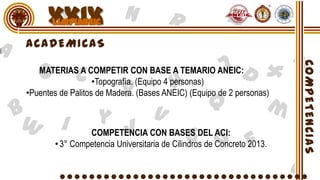
   MATERIAS A COMPETIR CON BASE A TEMARIO ANEIC:
                   •Topografía. (Equipo 4 personas)
•Puentes de Palitos de Madera. (Bases ANEIC) (Equipo de 2 personas)


                COMPETENCIA CON BASES DEL ACI:
       • 3° Competencia Universitaria de Cilindros de Concreto 2013.
XXIX
MATERIAS A COMPETIR CON BASE A GUÍA CENEVAL 2006.

   • Matemáticas.                    • Cimentaciones.
   • Física                          • Diseño Estructural.
   • Química.                        • Obras Hidráulicas
   • Mecánica de Materiales.         • Transportes y Vías Terrestres.
   • Mecánica de Suelos.             • Construcción
   • Mecánica del Medio Continuo.    • Administración de la Construcción.
   • Hidráulica.
   • Análisis Estructural.
XXIX
XXIX
XXIX
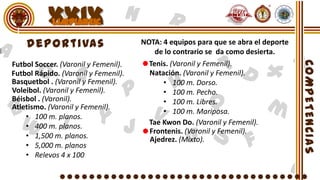
                                      NOTA: 4 equipos para que se abra el deporte
                                          de lo contrario se da como desierta.
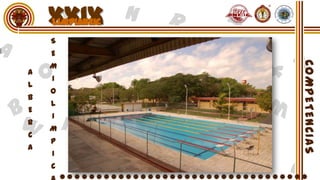
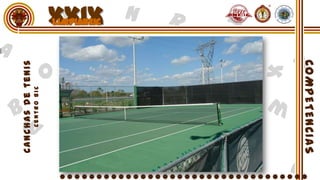
Futbol Soccer. (Varonil y Femenil).     Tenis. (Varonil y Femenil).
Futbol Rápido. (Varonil y Femenil).     Natación. (Varonil y Femenil).
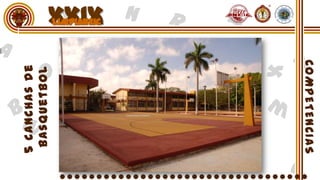
Basquetbol . (Varonil y Femenil).           • 100 m. Dorso.
Voleibol. (Varonil y Femenil).              • 100 m. Pecho.
Béisbol . (Varonil).                        • 100 m. Libres.
Atletismo. (Varonil y Femenil).
                                            • 100 m. Mariposa.
    • 100 m. planos.
    • 400 m. planos.                    Tae Kwon Do. (Varonil y Femenil).
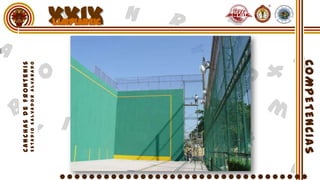
                                        Frontenis. (Varonil y Femenil).
    • 1,500 m. planos.                  Ajedrez. (Mixto).
    • 5,000 m. planos
    • Relevos 4 x 100
XXIX
XXIX
XXIX
XXIX
XXIX
XXIX
XXIX
XXIX
XXIX
    Cuento.
Baile en parejas.
  Fotografía.       Elección de la Señorita
Dibujo Artístico.         ANEIC 2013
Grupo Musical.          (Cena de Gala)
Canto Individual
 Declamación
    Oratoria.
XXIX
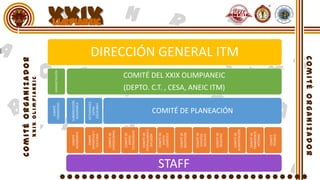
COMITÉ
                                                 ADMINISTRACIÓN
                        FINANCIERO


           COMITÉ      SUBDIRECCIÓN
         ACADÉMICO      ACADÉMICA


          COMTÉ        ACTIVIDADES
        DEPORTIVO Y       EXTRA
         CULTURAL       ESCOLARES
                                                                                                                                         XXIX


         COMITÉ DE
        EXPOSICIONES


         COMITÉ DE
           APOYO
        TECNOLÓGICO


          COMITÉ DE
        PROPAGANDA Y
           DIFUSIÓN

         COMITÉ DE
          APOYO
         LOGÍSTICO


         COMITÉ DE
         RECEPCIÓN
STAFF

         COMITÉ DE
          EVENTOS
          SOCIALES


         COMITÉ DE
          REGISTRO
                                                 (DEPTO. C.T. , CESA, ANEIC ITM)
                                                                                   COMITÉ DEL XXIX OLIMPIANEIC


                          COMITÉ DE PLANEACIÓN


          COMITÉ DE
                                                                                                                 DIRECCIÓN GENERAL ITM


        ALIMENTACIÓN


          COMITÉ DE
         TRANSPORTE
           INTERNO


          COMITÉ
          TÉCNICO
••••••••••••••••••••••••••••••••••
XXIX

“EL CASTELLANO”
    
 50 HABITACIONES
      PISCINA
    GIMNASIO
     INTERNET
                   “EL CONQUISTADOR”
DESAYUNO BUFFETE
                        
                    50 HABITACIONES
                         PISCINA
                       GIMNASIO
                        INTERNET
                   DESAYUNO BUFFETE
XXIX


  “LOS ALUXES”
                     “EL ESPAÑOL”
    
                       
 50 HABITACIONES
                    25 HABITACIONES
      PISCINA
                         PISCINA
    GIMNASIO
                        INTERNET
     INTERNET
                   DESAYUNO BUFFETE
DESAYUNO BUFFETE
••••••••••••••••••••••••••••••••••
XXIX
XXIX
••••••••••••••••••••••••••••••••••
XXIX
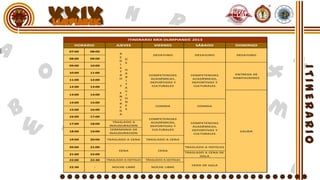
                             ITINERARIO XXIX OLIMPIANEIC 2013
   HORARIO            JUEVES              VIERNES              SÁBADO           DOMINGO
 07:00   08:00
                       R                 DESAYUNO              DESAYUNO          DESAYUNO
 08:00   09:00         E
                         D
                       G
                         E
 09:00   10:00         I
                       S
                         H
 10:00   11:00         T
                         A                                                       ENTREGA DE
                       R               COMPETENCIAS          COMPETENCIAS
                         B                                                      HABITACIONES
 11:00   12:00         O                ACADÉMICAS,           ACADÉMICAS,
                         I
                                        DEPORTIVAS Y          DEPORTIVAS Y
                         T
 12:00   13:00         Y                 CULTURALES            CULTURALES
                         A
                         C
                       E
 13:00   14:00           I
                       N
                         O
                       T
 14:00   15:00           N
                       R
                         E                 COMIDA               COMIDA
                       E
 15:00   16:00           S
                       G
                       A
 16:00   17:00
                                       COMPETENCIAS
                    TRASLADO A          ACADÉMICAS,          COMPETENCIAS
 17:00   18:00
                  INAUGURACIÓN          DEPORTIVAS Y          ACADÉMICAS,
                   CEREMONIA DE          CULTURALES           DEPORTIVAS Y
 18:00   19:00                                                                     SALIDA
                  INAUGURACIÓN                                 CULTURALES

 19:00   20:00   TRASLADO A CENA      TRASLADO A CENA

 20:00   21:00                                             TRASLADO A HOTELES
                       CENA                 CENA
                                                           TRASLADO A CENA DE
 21:00   22:00
                                                                  GALA
 22:00   22:30   TRASLADO A HOTELES   TRASLADO A HOTELES

                                                              CENA DE GALA
 22:30     -       NOCHE LIBRE          NOCHE LIBRE
XXIX
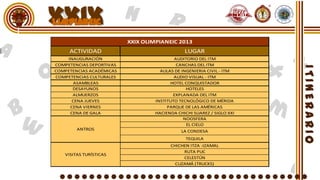
                          XXIX OLIMPIANEIC 2013
     ACTIVIDAD                                LUGAR
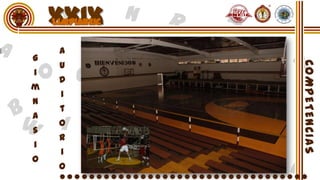
    INAUGURACIÓN                          AUDITORIO DEL ITM
COMPETENCIAS DEPORTIVAS                    CANCHAS DEL ITM
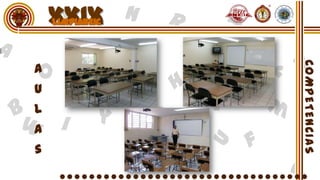
COMPETENCIAS ACADÉMICAS             AULAS DE INGENIERIA CIVIL - ITM
COMPETENCIAS CULTURALES                   AUDIO VISUAL - ITM
      ASAMBLEAS                         HOTEL CONQUISTADOR
      DESAYUNOS                                HOTELES
      ALMUERZOS                          EXPLANADA DEL ITM
      CENA JUEVES                 INSTITUTO TECNOLÓGICO DE MÉRIDA
     CENA VIERNES                      PARQUE DE LAS AMÉRICAS
     CENA DE GALA                 HACIENDA CHICHI SUAREZ / SIGLO XXI
                                              NOOSFERA
                                               EL CIELO
        ANTROS                               LA CONDESA
                                               TEQUILA
                                        CHICHEN ITZA -IZAMAL
                                             RUTA PUC
   VISITAS TURÍSTICAS
                                             CELESTÚN
                                          CUZAMÁ (TRUCKS)
XXIX


Izamal – chichen itza
XXIX


 RUTA PUC
XXIX


CELESTUM
XXIX


CUZAMÁ
XXIX
••••••••••••••••••••••••••••••••••
XXIX

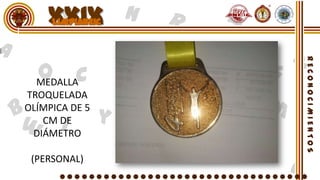
  MEDALLA
TROQUELADA
OLÍMPICA DE 5
   CM DE
 DIÁMETRO

 (PERSONAL)
XXIX

 RECONOCIMIENTO
EN PIEDRA DE JUEGO
     DE PELOTA

   (DEPORTIVO)
XXIX
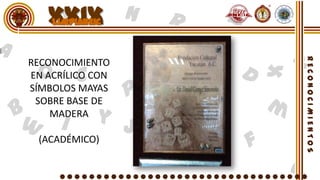
RECONOCIMIENTO
EN ACRÍLICO CON
SÍMBOLOS MAYAS
 SOBRE BASE DE
    MADERA

 (ACADÉMICO)
XXIX
RECONOCIMIENTO
  DE ALTURA CON
   SILUETA DE LA
VICTORIA CON BASE
     PESADA DE
      ACRÍLICO.

 SEÑORITA ANEIC
Xxix olimpianeic avances

Xxix olimpianeic avances

  • 2.
  • 3.
    XXIX MATERIAS A COMPETIR CON BASE A TEMARIO ANEIC: •Topografía. (Equipo 4 personas) •Puentes de Palitos de Madera. (Bases ANEIC) (Equipo de 2 personas) COMPETENCIA CON BASES DEL ACI: • 3° Competencia Universitaria de Cilindros de Concreto 2013.
  • 4.
    XXIX MATERIAS A COMPETIRCON BASE A GUÍA CENEVAL 2006. • Matemáticas. • Cimentaciones. • Física • Diseño Estructural. • Química. • Obras Hidráulicas • Mecánica de Materiales. • Transportes y Vías Terrestres. • Mecánica de Suelos. • Construcción • Mecánica del Medio Continuo. • Administración de la Construcción. • Hidráulica. • Análisis Estructural.
  • 5.
  • 6.
  • 7.
    XXIX NOTA: 4 equipos para que se abra el deporte de lo contrario se da como desierta. Futbol Soccer. (Varonil y Femenil). Tenis. (Varonil y Femenil). Futbol Rápido. (Varonil y Femenil). Natación. (Varonil y Femenil). Basquetbol . (Varonil y Femenil). • 100 m. Dorso. Voleibol. (Varonil y Femenil). • 100 m. Pecho. Béisbol . (Varonil). • 100 m. Libres. Atletismo. (Varonil y Femenil). • 100 m. Mariposa. • 100 m. planos. • 400 m. planos. Tae Kwon Do. (Varonil y Femenil). Frontenis. (Varonil y Femenil). • 1,500 m. planos. Ajedrez. (Mixto). • 5,000 m. planos • Relevos 4 x 100
  • 8.
  • 9.
  • 10.
  • 11.
  • 12.
  • 13.
  • 14.
  • 15.
  • 16.
    XXIX Cuento. Baile en parejas. Fotografía. Elección de la Señorita Dibujo Artístico. ANEIC 2013 Grupo Musical. (Cena de Gala) Canto Individual Declamación Oratoria.
  • 17.
  • 18.
    COMITÉ ADMINISTRACIÓN FINANCIERO COMITÉ SUBDIRECCIÓN ACADÉMICO ACADÉMICA COMTÉ ACTIVIDADES DEPORTIVO Y EXTRA CULTURAL ESCOLARES XXIX COMITÉ DE EXPOSICIONES COMITÉ DE APOYO TECNOLÓGICO COMITÉ DE PROPAGANDA Y DIFUSIÓN COMITÉ DE APOYO LOGÍSTICO COMITÉ DE RECEPCIÓN STAFF COMITÉ DE EVENTOS SOCIALES COMITÉ DE REGISTRO (DEPTO. C.T. , CESA, ANEIC ITM) COMITÉ DEL XXIX OLIMPIANEIC COMITÉ DE PLANEACIÓN COMITÉ DE DIRECCIÓN GENERAL ITM ALIMENTACIÓN COMITÉ DE TRANSPORTE INTERNO COMITÉ TÉCNICO
  • 19.
  • 20.
    XXIX “EL CASTELLANO”  50 HABITACIONES PISCINA GIMNASIO INTERNET “EL CONQUISTADOR” DESAYUNO BUFFETE  50 HABITACIONES PISCINA GIMNASIO INTERNET DESAYUNO BUFFETE
  • 21.
    XXIX “LOSALUXES” “EL ESPAÑOL”   50 HABITACIONES 25 HABITACIONES PISCINA PISCINA GIMNASIO INTERNET INTERNET DESAYUNO BUFFETE DESAYUNO BUFFETE
  • 22.
  • 23.
  • 24.
  • 25.
  • 26.
    XXIX ITINERARIO XXIX OLIMPIANEIC 2013 HORARIO JUEVES VIERNES SÁBADO DOMINGO 07:00 08:00 R DESAYUNO DESAYUNO DESAYUNO 08:00 09:00 E D G E 09:00 10:00 I S H 10:00 11:00 T A ENTREGA DE R COMPETENCIAS COMPETENCIAS B HABITACIONES 11:00 12:00 O ACADÉMICAS, ACADÉMICAS, I DEPORTIVAS Y DEPORTIVAS Y T 12:00 13:00 Y CULTURALES CULTURALES A C E 13:00 14:00 I N O T 14:00 15:00 N R E COMIDA COMIDA E 15:00 16:00 S G A 16:00 17:00 COMPETENCIAS TRASLADO A ACADÉMICAS, COMPETENCIAS 17:00 18:00 INAUGURACIÓN DEPORTIVAS Y ACADÉMICAS, CEREMONIA DE CULTURALES DEPORTIVAS Y 18:00 19:00 SALIDA INAUGURACIÓN CULTURALES 19:00 20:00 TRASLADO A CENA TRASLADO A CENA 20:00 21:00 TRASLADO A HOTELES CENA CENA TRASLADO A CENA DE 21:00 22:00 GALA 22:00 22:30 TRASLADO A HOTELES TRASLADO A HOTELES CENA DE GALA 22:30 - NOCHE LIBRE NOCHE LIBRE
  • 27.
    XXIX XXIX OLIMPIANEIC 2013 ACTIVIDAD LUGAR INAUGURACIÓN AUDITORIO DEL ITM COMPETENCIAS DEPORTIVAS CANCHAS DEL ITM COMPETENCIAS ACADÉMICAS AULAS DE INGENIERIA CIVIL - ITM COMPETENCIAS CULTURALES AUDIO VISUAL - ITM ASAMBLEAS HOTEL CONQUISTADOR DESAYUNOS HOTELES ALMUERZOS EXPLANADA DEL ITM CENA JUEVES INSTITUTO TECNOLÓGICO DE MÉRIDA CENA VIERNES PARQUE DE LAS AMÉRICAS CENA DE GALA HACIENDA CHICHI SUAREZ / SIGLO XXI NOOSFERA EL CIELO ANTROS LA CONDESA TEQUILA CHICHEN ITZA -IZAMAL RUTA PUC VISITAS TURÍSTICAS CELESTÚN CUZAMÁ (TRUCKS)
  • 28.
  • 29.
  • 30.
  • 31.
  • 32.
  • 33.
  • 34.
    XXIX MEDALLA TROQUELADA OLÍMPICADE 5 CM DE DIÁMETRO (PERSONAL)
  • 35.
    XXIX RECONOCIMIENTO EN PIEDRADE JUEGO DE PELOTA (DEPORTIVO)
  • 36.
    XXIX RECONOCIMIENTO EN ACRÍLICO CON SÍMBOLOSMAYAS SOBRE BASE DE MADERA (ACADÉMICO)
  • 37.
    XXIX RECONOCIMIENTO DEALTURA CON SILUETA DE LA VICTORIA CON BASE PESADA DE ACRÍLICO. SEÑORITA ANEIC

Notas del editor

  • #2 Animated dotted line with fade-in text(Basic)To reproduce the text effects on this slide, do the following:On the Home tab, in the Slides group, click Layout, and then click Blank.On the Insert tab, in the Text group, click Text Box, and then on the slide, drag to draw a text box that spans the entire width of the slide.On the Insert tab, in the Symbols group, click Symbol. In the Symbol dialog box, do the following:In the Font list, select (normal text).In the Subset list, select General Punctuation.In the Character Code box, enter 2022 to select BULLET, and then click Insert.Click Insert 33 more times until there is a row of 34 bullets in the text box. In the text box, select the text, and then on the Home tab, in the Font group do the following:In the Font list select ArialBlack.In the FontSize box select 44 pt.In the FontColor list, under ThemeColors select White, Background 1 (first row, the first option from the left).On the Home tab, in the Drawing group, click the arrow below Arrange, under PositionObjects, point to Align, and then do the following:Select Align to Slide.Select AlignCenter.Select AlignMiddle.On the Insert tab, in the Text group, click TextBox.Drag to draw a text box on the slide.Enter and select the text.On the Home tab, in the Font group do the following:In the Font list select Corbel.In the FontSize box enter 50 pt.In the FontColor list, under ThemeColors select White, Background 1 (first row, the first option from the left).Click Bold.On the Home tab, in the Paragraph group click Center.Select the second text box.On the Home tab, in the Drawing group, click the arrow below Arrange, under PositionObjects, point to Align, and then do the following:Select Align to Slide.Select AlignCenter.Select AlignMiddle.To reproduce the background effects on this slide, do the following:Right-click the slide background area, and then click Format Background. In the Format Background dialog box, click Fill in the left pane, select Gradient fill in the Fill pane, and then do the following:In the Type list, select Radial.Click the button next to Direction, and then click From Center (third option from the left). Under Gradient stops, click Add or Remove until two stops appear on the slider, and customize the gradient stops as follows:Select Stop 1 on the slider, and then do the following:In the Position box, enter 0%.Click the button next to Color, and then under ThemeColors select Blue, Accent 1, Darker 25% (fifth row, fifth option from the left). Select Stop 2 from the list, and then do the following: In the Position box, enter 100%.Click the button next to Color, and then under ThemeColors select Black, Text 1 (first row, second option from the left).To reproduce the animation effects on this slide, do the following:On the slide, select the first text box (containing the bullets) and do the following:On the Animations tab, in the Animation group, click the More arrow to expand the effects gallery, and then under Entrance, click Fly In.In the Animation group, click Effect Options. Under Direction, click From Left. In the Timing group, do the following:In the Start list, select WithPrevious.In the Speed list, select 00.50.In the Delay box enter 10.In the Advanced Animation group, click Animation Pane. In the Animation Pane, do the following:Click the arrow at the first animation effect (bullet entrance effect) and click Effect Options.In the Fade dialog box, on the Effect tab, click the arrow at the Animate text list and click By Letter.In the % delay between letters box enter 10.In the Advanced Animation group, click AddAnimation, and under Exit, click Fade. In the Animation group, click Effect Options. Under Direction, click From Left.In the Timing group, do the following:In the Start list, select WithPrevious.In the Speed list, select 00.50.In the Delay box enter 00.10.Click the arrow to the right of the fade exit effect (second effect) and select EffectOptions. In the Fade dialog box, do the following:On the Timing tab, and then under Enhancements do the following:In the Start list ,select WithPrevious.In the Speed list, select 00.50.In the Delay box, enter 01.50.In the Animation Pane, do the following:Click the arrow at the second animation effect (bullet exit effect) and click Effect Options.In the Fade dialog box, on the Effect tab, click the arrow at the Animate text list and click By Letter.In the % delay between letters box enter 10.On the slide, select the second text box (containing text), and do the following.On the Animations tab, in the Animation group, click the More arrow to expand the effects gallery, and then under Entrance, click Fade.In the Timing group, do the following:In the Start list, select WithPrevious.In the Speed list, select 00.50.In the Delay box enter 02.00.In the Animation Pane, do the following:Click the arrow at the third animation effect (text entrance effect) and click Effect Options.In the Fade dialog box, on the Effect tab, click the arrow at the Animate text list and click By Letter.In the % delay between letters box enter 6.
  • #3 Animated dotted line with fade-in text(Basic)To reproduce the text effects on this slide, do the following:On the Home tab, in the Slides group, click Layout, and then click Blank.On the Insert tab, in the Text group, click Text Box, and then on the slide, drag to draw a text box that spans the entire width of the slide.On the Insert tab, in the Symbols group, click Symbol. In the Symbol dialog box, do the following:In the Font list, select (normal text).In the Subset list, select General Punctuation.In the Character Code box, enter 2022 to select BULLET, and then click Insert.Click Insert 33 more times until there is a row of 34 bullets in the text box. In the text box, select the text, and then on the Home tab, in the Font group do the following:In the Font list select ArialBlack.In the FontSize box select 44 pt.In the FontColor list, under ThemeColors select White, Background 1 (first row, the first option from the left).On the Home tab, in the Drawing group, click the arrow below Arrange, under PositionObjects, point to Align, and then do the following:Select Align to Slide.Select AlignCenter.Select AlignMiddle.On the Insert tab, in the Text group, click TextBox.Drag to draw a text box on the slide.Enter and select the text.On the Home tab, in the Font group do the following:In the Font list select Corbel.In the FontSize box enter 50 pt.In the FontColor list, under ThemeColors select White, Background 1 (first row, the first option from the left).Click Bold.On the Home tab, in the Paragraph group click Center.Select the second text box.On the Home tab, in the Drawing group, click the arrow below Arrange, under PositionObjects, point to Align, and then do the following:Select Align to Slide.Select AlignCenter.Select AlignMiddle.To reproduce the background effects on this slide, do the following:Right-click the slide background area, and then click Format Background. In the Format Background dialog box, click Fill in the left pane, select Gradient fill in the Fill pane, and then do the following:In the Type list, select Radial.Click the button next to Direction, and then click From Center (third option from the left). Under Gradient stops, click Add or Remove until two stops appear on the slider, and customize the gradient stops as follows:Select Stop 1 on the slider, and then do the following:In the Position box, enter 0%.Click the button next to Color, and then under ThemeColors select Blue, Accent 1, Darker 25% (fifth row, fifth option from the left). Select Stop 2 from the list, and then do the following: In the Position box, enter 100%.Click the button next to Color, and then under ThemeColors select Black, Text 1 (first row, second option from the left).To reproduce the animation effects on this slide, do the following:On the slide, select the first text box (containing the bullets) and do the following:On the Animations tab, in the Animation group, click the More arrow to expand the effects gallery, and then under Entrance, click Fly In.In the Animation group, click Effect Options. Under Direction, click From Left. In the Timing group, do the following:In the Start list, select WithPrevious.In the Speed list, select 00.50.In the Delay box enter 10.In the Advanced Animation group, click Animation Pane. In the Animation Pane, do the following:Click the arrow at the first animation effect (bullet entrance effect) and click Effect Options.In the Fade dialog box, on the Effect tab, click the arrow at the Animate text list and click By Letter.In the % delay between letters box enter 10.In the Advanced Animation group, click AddAnimation, and under Exit, click Fade. In the Animation group, click Effect Options. Under Direction, click From Left.In the Timing group, do the following:In the Start list, select WithPrevious.In the Speed list, select 00.50.In the Delay box enter 00.10.Click the arrow to the right of the fade exit effect (second effect) and select EffectOptions. In the Fade dialog box, do the following:On the Timing tab, and then under Enhancements do the following:In the Start list ,select WithPrevious.In the Speed list, select 00.50.In the Delay box, enter 01.50.In the Animation Pane, do the following:Click the arrow at the second animation effect (bullet exit effect) and click Effect Options.In the Fade dialog box, on the Effect tab, click the arrow at the Animate text list and click By Letter.In the % delay between letters box enter 10.On the slide, select the second text box (containing text), and do the following.On the Animations tab, in the Animation group, click the More arrow to expand the effects gallery, and then under Entrance, click Fade.In the Timing group, do the following:In the Start list, select WithPrevious.In the Speed list, select 00.50.In the Delay box enter 02.00.In the Animation Pane, do the following:Click the arrow at the third animation effect (text entrance effect) and click Effect Options.In the Fade dialog box, on the Effect tab, click the arrow at the Animate text list and click By Letter.In the % delay between letters box enter 6.
  • #4 Animated dotted line with fade-in text(Basic)To reproduce the text effects on this slide, do the following:On the Home tab, in the Slides group, click Layout, and then click Blank.On the Insert tab, in the Text group, click Text Box, and then on the slide, drag to draw a text box that spans the entire width of the slide.On the Insert tab, in the Symbols group, click Symbol. In the Symbol dialog box, do the following:In the Font list, select (normal text).In the Subset list, select General Punctuation.In the Character Code box, enter 2022 to select BULLET, and then click Insert.Click Insert 33 more times until there is a row of 34 bullets in the text box. In the text box, select the text, and then on the Home tab, in the Font group do the following:In the Font list select ArialBlack.In the FontSize box select 44 pt.In the FontColor list, under ThemeColors select White, Background 1 (first row, the first option from the left).On the Home tab, in the Drawing group, click the arrow below Arrange, under PositionObjects, point to Align, and then do the following:Select Align to Slide.Select AlignCenter.Select AlignMiddle.On the Insert tab, in the Text group, click TextBox.Drag to draw a text box on the slide.Enter and select the text.On the Home tab, in the Font group do the following:In the Font list select Corbel.In the FontSize box enter 50 pt.In the FontColor list, under ThemeColors select White, Background 1 (first row, the first option from the left).Click Bold.On the Home tab, in the Paragraph group click Center.Select the second text box.On the Home tab, in the Drawing group, click the arrow below Arrange, under PositionObjects, point to Align, and then do the following:Select Align to Slide.Select AlignCenter.Select AlignMiddle.To reproduce the background effects on this slide, do the following:Right-click the slide background area, and then click Format Background. In the Format Background dialog box, click Fill in the left pane, select Gradient fill in the Fill pane, and then do the following:In the Type list, select Radial.Click the button next to Direction, and then click From Center (third option from the left). Under Gradient stops, click Add or Remove until two stops appear on the slider, and customize the gradient stops as follows:Select Stop 1 on the slider, and then do the following:In the Position box, enter 0%.Click the button next to Color, and then under ThemeColors select Blue, Accent 1, Darker 25% (fifth row, fifth option from the left). Select Stop 2 from the list, and then do the following: In the Position box, enter 100%.Click the button next to Color, and then under ThemeColors select Black, Text 1 (first row, second option from the left).To reproduce the animation effects on this slide, do the following:On the slide, select the first text box (containing the bullets) and do the following:On the Animations tab, in the Animation group, click the More arrow to expand the effects gallery, and then under Entrance, click Fly In.In the Animation group, click Effect Options. Under Direction, click From Left. In the Timing group, do the following:In the Start list, select WithPrevious.In the Speed list, select 00.50.In the Delay box enter 10.In the Advanced Animation group, click Animation Pane. In the Animation Pane, do the following:Click the arrow at the first animation effect (bullet entrance effect) and click Effect Options.In the Fade dialog box, on the Effect tab, click the arrow at the Animate text list and click By Letter.In the % delay between letters box enter 10.In the Advanced Animation group, click AddAnimation, and under Exit, click Fade. In the Animation group, click Effect Options. Under Direction, click From Left.In the Timing group, do the following:In the Start list, select WithPrevious.In the Speed list, select 00.50.In the Delay box enter 00.10.Click the arrow to the right of the fade exit effect (second effect) and select EffectOptions. In the Fade dialog box, do the following:On the Timing tab, and then under Enhancements do the following:In the Start list ,select WithPrevious.In the Speed list, select 00.50.In the Delay box, enter 01.50.In the Animation Pane, do the following:Click the arrow at the second animation effect (bullet exit effect) and click Effect Options.In the Fade dialog box, on the Effect tab, click the arrow at the Animate text list and click By Letter.In the % delay between letters box enter 10.On the slide, select the second text box (containing text), and do the following.On the Animations tab, in the Animation group, click the More arrow to expand the effects gallery, and then under Entrance, click Fade.In the Timing group, do the following:In the Start list, select WithPrevious.In the Speed list, select 00.50.In the Delay box enter 02.00.In the Animation Pane, do the following:Click the arrow at the third animation effect (text entrance effect) and click Effect Options.In the Fade dialog box, on the Effect tab, click the arrow at the Animate text list and click By Letter.In the % delay between letters box enter 6.
  • #5 Animated dotted line with fade-in text(Basic)To reproduce the text effects on this slide, do the following:On the Home tab, in the Slides group, click Layout, and then click Blank.On the Insert tab, in the Text group, click Text Box, and then on the slide, drag to draw a text box that spans the entire width of the slide.On the Insert tab, in the Symbols group, click Symbol. In the Symbol dialog box, do the following:In the Font list, select (normal text).In the Subset list, select General Punctuation.In the Character Code box, enter 2022 to select BULLET, and then click Insert.Click Insert 33 more times until there is a row of 34 bullets in the text box. In the text box, select the text, and then on the Home tab, in the Font group do the following:In the Font list select ArialBlack.In the FontSize box select 44 pt.In the FontColor list, under ThemeColors select White, Background 1 (first row, the first option from the left).On the Home tab, in the Drawing group, click the arrow below Arrange, under PositionObjects, point to Align, and then do the following:Select Align to Slide.Select AlignCenter.Select AlignMiddle.On the Insert tab, in the Text group, click TextBox.Drag to draw a text box on the slide.Enter and select the text.On the Home tab, in the Font group do the following:In the Font list select Corbel.In the FontSize box enter 50 pt.In the FontColor list, under ThemeColors select White, Background 1 (first row, the first option from the left).Click Bold.On the Home tab, in the Paragraph group click Center.Select the second text box.On the Home tab, in the Drawing group, click the arrow below Arrange, under PositionObjects, point to Align, and then do the following:Select Align to Slide.Select AlignCenter.Select AlignMiddle.To reproduce the background effects on this slide, do the following:Right-click the slide background area, and then click Format Background. In the Format Background dialog box, click Fill in the left pane, select Gradient fill in the Fill pane, and then do the following:In the Type list, select Radial.Click the button next to Direction, and then click From Center (third option from the left). Under Gradient stops, click Add or Remove until two stops appear on the slider, and customize the gradient stops as follows:Select Stop 1 on the slider, and then do the following:In the Position box, enter 0%.Click the button next to Color, and then under ThemeColors select Blue, Accent 1, Darker 25% (fifth row, fifth option from the left). Select Stop 2 from the list, and then do the following: In the Position box, enter 100%.Click the button next to Color, and then under ThemeColors select Black, Text 1 (first row, second option from the left).To reproduce the animation effects on this slide, do the following:On the slide, select the first text box (containing the bullets) and do the following:On the Animations tab, in the Animation group, click the More arrow to expand the effects gallery, and then under Entrance, click Fly In.In the Animation group, click Effect Options. Under Direction, click From Left. In the Timing group, do the following:In the Start list, select WithPrevious.In the Speed list, select 00.50.In the Delay box enter 10.In the Advanced Animation group, click Animation Pane. In the Animation Pane, do the following:Click the arrow at the first animation effect (bullet entrance effect) and click Effect Options.In the Fade dialog box, on the Effect tab, click the arrow at the Animate text list and click By Letter.In the % delay between letters box enter 10.In the Advanced Animation group, click AddAnimation, and under Exit, click Fade. In the Animation group, click Effect Options. Under Direction, click From Left.In the Timing group, do the following:In the Start list, select WithPrevious.In the Speed list, select 00.50.In the Delay box enter 00.10.Click the arrow to the right of the fade exit effect (second effect) and select EffectOptions. In the Fade dialog box, do the following:On the Timing tab, and then under Enhancements do the following:In the Start list ,select WithPrevious.In the Speed list, select 00.50.In the Delay box, enter 01.50.In the Animation Pane, do the following:Click the arrow at the second animation effect (bullet exit effect) and click Effect Options.In the Fade dialog box, on the Effect tab, click the arrow at the Animate text list and click By Letter.In the % delay between letters box enter 10.On the slide, select the second text box (containing text), and do the following.On the Animations tab, in the Animation group, click the More arrow to expand the effects gallery, and then under Entrance, click Fade.In the Timing group, do the following:In the Start list, select WithPrevious.In the Speed list, select 00.50.In the Delay box enter 02.00.In the Animation Pane, do the following:Click the arrow at the third animation effect (text entrance effect) and click Effect Options.In the Fade dialog box, on the Effect tab, click the arrow at the Animate text list and click By Letter.In the % delay between letters box enter 6.
  • #6 Animated dotted line with fade-in text(Basic)To reproduce the text effects on this slide, do the following:On the Home tab, in the Slides group, click Layout, and then click Blank.On the Insert tab, in the Text group, click Text Box, and then on the slide, drag to draw a text box that spans the entire width of the slide.On the Insert tab, in the Symbols group, click Symbol. In the Symbol dialog box, do the following:In the Font list, select (normal text).In the Subset list, select General Punctuation.In the Character Code box, enter 2022 to select BULLET, and then click Insert.Click Insert 33 more times until there is a row of 34 bullets in the text box. In the text box, select the text, and then on the Home tab, in the Font group do the following:In the Font list select ArialBlack.In the FontSize box select 44 pt.In the FontColor list, under ThemeColors select White, Background 1 (first row, the first option from the left).On the Home tab, in the Drawing group, click the arrow below Arrange, under PositionObjects, point to Align, and then do the following:Select Align to Slide.Select AlignCenter.Select AlignMiddle.On the Insert tab, in the Text group, click TextBox.Drag to draw a text box on the slide.Enter and select the text.On the Home tab, in the Font group do the following:In the Font list select Corbel.In the FontSize box enter 50 pt.In the FontColor list, under ThemeColors select White, Background 1 (first row, the first option from the left).Click Bold.On the Home tab, in the Paragraph group click Center.Select the second text box.On the Home tab, in the Drawing group, click the arrow below Arrange, under PositionObjects, point to Align, and then do the following:Select Align to Slide.Select AlignCenter.Select AlignMiddle.To reproduce the background effects on this slide, do the following:Right-click the slide background area, and then click Format Background. In the Format Background dialog box, click Fill in the left pane, select Gradient fill in the Fill pane, and then do the following:In the Type list, select Radial.Click the button next to Direction, and then click From Center (third option from the left). Under Gradient stops, click Add or Remove until two stops appear on the slider, and customize the gradient stops as follows:Select Stop 1 on the slider, and then do the following:In the Position box, enter 0%.Click the button next to Color, and then under ThemeColors select Blue, Accent 1, Darker 25% (fifth row, fifth option from the left). Select Stop 2 from the list, and then do the following: In the Position box, enter 100%.Click the button next to Color, and then under ThemeColors select Black, Text 1 (first row, second option from the left).To reproduce the animation effects on this slide, do the following:On the slide, select the first text box (containing the bullets) and do the following:On the Animations tab, in the Animation group, click the More arrow to expand the effects gallery, and then under Entrance, click Fly In.In the Animation group, click Effect Options. Under Direction, click From Left. In the Timing group, do the following:In the Start list, select WithPrevious.In the Speed list, select 00.50.In the Delay box enter 10.In the Advanced Animation group, click Animation Pane. In the Animation Pane, do the following:Click the arrow at the first animation effect (bullet entrance effect) and click Effect Options.In the Fade dialog box, on the Effect tab, click the arrow at the Animate text list and click By Letter.In the % delay between letters box enter 10.In the Advanced Animation group, click AddAnimation, and under Exit, click Fade. In the Animation group, click Effect Options. Under Direction, click From Left.In the Timing group, do the following:In the Start list, select WithPrevious.In the Speed list, select 00.50.In the Delay box enter 00.10.Click the arrow to the right of the fade exit effect (second effect) and select EffectOptions. In the Fade dialog box, do the following:On the Timing tab, and then under Enhancements do the following:In the Start list ,select WithPrevious.In the Speed list, select 00.50.In the Delay box, enter 01.50.In the Animation Pane, do the following:Click the arrow at the second animation effect (bullet exit effect) and click Effect Options.In the Fade dialog box, on the Effect tab, click the arrow at the Animate text list and click By Letter.In the % delay between letters box enter 10.On the slide, select the second text box (containing text), and do the following.On the Animations tab, in the Animation group, click the More arrow to expand the effects gallery, and then under Entrance, click Fade.In the Timing group, do the following:In the Start list, select WithPrevious.In the Speed list, select 00.50.In the Delay box enter 02.00.In the Animation Pane, do the following:Click the arrow at the third animation effect (text entrance effect) and click Effect Options.In the Fade dialog box, on the Effect tab, click the arrow at the Animate text list and click By Letter.In the % delay between letters box enter 6.