INFORME
ESTUDIANETE: Lenin Quishpe SEMESTRE: Segundo
PARALELO: C PRÁCTICA #20
TEMA:
Desarrollo de nuestra practica veinte en ECLIPSE.
OBJETIVO:
-Conocereldesarrollodeunprogramaen“Eclipse”,paraestedesarrollotendremosquecomprender
lo que son los formularios en Windows builder.
RESULTADOS DE APRENDIZAJE
-Comprensión de la aplicación de Eclipse.
-Uso correcto del código que aplicaremos en Eclipse.
-Aprender el uso correcto de los formularios
- Aprender a crear un menú
ACTIVIDADES:
-Realizarunprogramaelcualtengaunmenúquetengabotonesdeformulariosanteriormente
hechos y botones de regresar
DESARROLLO DE CONTENIDOS
1. Abrir la aplicación ECLIPSE.
2. Seleccionar la dirección en la que queramos guardar nuestro proyecto, en este caso lo vamos a
guardar en Escritorio (workspace).
3. Creamos un proyecto nuevo de Java.
4. Le ponemos un nombre a nuestro proyecto y le damos clic en Finish.
5. Dentro de nuestro nuevo proyecto crearemos un JFrame, le pondremos cualquier título.
6. Al crear un JFrame nos aparecerá el siguiente código, aquí podemos empezar a programar
7. Debemos ir a Design para entrar al formulario
8. Una vez que ingresemos al formulario podemos hacer las modificaciones que necesitemos
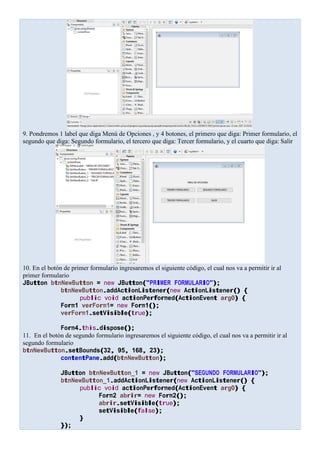
9. Pondremos 1 label que diga Menú de Opciones , y 4 botones, el primero que diga: Primer formulario, el
segundo que diga: Segundo formulario, el tercero que diga: Tercer formulario, y el cuarto que diga: Salir
10. En el botón de primer formulario ingresaremos el siguiente código, el cual nos va a permitir ir al
primer formulario
JButton btnNewButton = new JButton("PRIMER FORMULARIO");
btnNewButton.addActionListener(new ActionListener() {
public void actionPerformed(ActionEvent arg0) {
Form1 verForm1= new Form1();
verForm1.setVisible(true);
Form4.this.dispose();
11. En el botón de segundo formulario ingresaremos el siguiente código, el cual nos va a permitir ir al
segundo formulario
btnNewButton.setBounds(32, 95, 168, 23);
contentPane.add(btnNewButton);
JButton btnNewButton_1 = new JButton("SEGUNDO FORMULARIO");
btnNewButton_1.addActionListener(new ActionListener() {
public void actionPerformed(ActionEvent arg0) {
Form2 abrir= new Form2();
abrir.setVisible(true);
setVisible(false);
}
});
12. En el botón de tercer formulario ingresaremos el siguiente código, el cual nos va a permitir ir al tercer
formulario
btnNewButton_1.setBounds(210, 95, 177, 23);
contentPane.add(btnNewButton_1);
JButton btnNewButton_2 = new JButton("TERCER FORMULARIO");
btnNewButton_2.addActionListener(new ActionListener() {
public void actionPerformed(ActionEvent arg0) {
form3 abrir= new form3();
abrir.setVisible(true);
setVisible(false);
}
13. En el botón de salir ingresaremos el siguiente código, el cual nos va a permitir Salir del formulario.
JButton btnNewButton_1 = new JButton("SALIR");
btnNewButton_1.addActionListener(new ActionListener() {
public void actionPerformed(ActionEvent arg0) {
System.exit(WIDTH);
}
14. En el botón de regresar ingresaremos el siguiente código, el cual nos va a permitir Salir del
formulario.
JButton btnNewButton_3 = new JButton("REGRESAR");
btnNewButton_3.addActionListener(new ActionListener() {
public void actionPerformed(ActionEvent arg0) {
Form4 verForm4=new Form4 ();
verForm4.setVisible(true);
Form2.this.dispose();
15. Por último utilizaremos el botón para correr el programa.
16.- Si damos clic en el primer formulario, nos aparecerá el primer formulario.
17.- Si damos clic en el segundo formulario, nos aparecerá el segundo formulario.
18.- Si damos clic en el tercer formulario, nos aparecerá el tercer formulario.
19.-Porúltimo,dejarélalíneadecódigoqueutilicé.Enelproyectooperaciónutilicéelsiguiente
código:
import java.awt.BorderLayout;
import java.awt.EventQueue;
import javax.swing.JFrame;
import javax.swing.JPanel;
import javax.swing.border.EmptyBorder;
import javax.swing.JLabel;
import javax.swing.JButton;
import java.awt.event.ActionListener;
import java.awt.event.ActionEvent;
public class Form4 extends JFrame {
private JPanel contentPane;
/**
* Launch the application.
*/
public static void main(String[] args) {
EventQueue.invokeLater(new Runnable() {
public void run() {
try {
Form4 frame = new Form4();
frame.setVisible(true);
} catch (Exception e) {
e.printStackTrace();
}
}
});
}
/**
* Create the frame.
*/
public Form4() {
setDefaultCloseOperation(JFrame.EXIT_ON_CLOSE);
setBounds(100, 100, 450, 300);
contentPane = new JPanel();
contentPane.setBorder(new EmptyBorder(5, 5, 5, 5));
setContentPane(contentPane);
contentPane.setLayout(null);
JLabel lblNewLabel = new JLabel("MENU DE OPCIONES ");
lblNewLabel.setBounds(164, 63, 153, 14);
contentPane.add(lblNewLabel);
JButton btnNewButton = new JButton("PRIMER FORMULARIO");
btnNewButton.addActionListener(new ActionListener() {
public void actionPerformed(ActionEvent arg0) {
Form1 verForm1= new Form1();
verForm1.setVisible(true);
Form4.this.dispose();
}
});
btnNewButton.setBounds(32, 95, 168, 23);
contentPane.add(btnNewButton);
JButton btnNewButton_1 = new JButton("SEGUNDO FORMULARIO");
btnNewButton_1.addActionListener(new ActionListener() {
public void actionPerformed(ActionEvent arg0) {
Form2 abrir= new Form2();
abrir.setVisible(true);
setVisible(false);
}
});
btnNewButton_1.setBounds(210, 95, 177, 23);
contentPane.add(btnNewButton_1);
JButton btnNewButton_2 = new JButton("TERCER FORMULARIO");
btnNewButton_2.addActionListener(new ActionListener() {
public void actionPerformed(ActionEvent arg0) {
form3 abrir= new form3();
abrir.setVisible(true);
setVisible(false);
}
});
btnNewButton_2.setBounds(32, 147, 168, 23);
contentPane.add(btnNewButton_2);
JButton btnNewButton_3 = new JButton("SALIR");
btnNewButton_3.addActionListener(new ActionListener() {
public void actionPerformed(ActionEvent arg0) {
System.exit(0);
}
});
btnNewButton_3.setBounds(210, 147, 168, 23);
contentPane.add(btnNewButton_3);
}
}
f.)
____ _______ f.) __________________
MSc. Víctor Zapata
ESTUDIANTE DOCENTE

In 20

  • 1.
    INFORME ESTUDIANETE: Lenin QuishpeSEMESTRE: Segundo PARALELO: C PRÁCTICA #20 TEMA: Desarrollo de nuestra practica veinte en ECLIPSE. OBJETIVO: -Conocereldesarrollodeunprogramaen“Eclipse”,paraestedesarrollotendremosquecomprender lo que son los formularios en Windows builder. RESULTADOS DE APRENDIZAJE -Comprensión de la aplicación de Eclipse. -Uso correcto del código que aplicaremos en Eclipse. -Aprender el uso correcto de los formularios - Aprender a crear un menú ACTIVIDADES: -Realizarunprogramaelcualtengaunmenúquetengabotonesdeformulariosanteriormente hechos y botones de regresar DESARROLLO DE CONTENIDOS 1. Abrir la aplicación ECLIPSE. 2. Seleccionar la dirección en la que queramos guardar nuestro proyecto, en este caso lo vamos a guardar en Escritorio (workspace).
  • 2.
    3. Creamos unproyecto nuevo de Java. 4. Le ponemos un nombre a nuestro proyecto y le damos clic en Finish. 5. Dentro de nuestro nuevo proyecto crearemos un JFrame, le pondremos cualquier título.
  • 3.
    6. Al crearun JFrame nos aparecerá el siguiente código, aquí podemos empezar a programar 7. Debemos ir a Design para entrar al formulario 8. Una vez que ingresemos al formulario podemos hacer las modificaciones que necesitemos
  • 4.
    9. Pondremos 1label que diga Menú de Opciones , y 4 botones, el primero que diga: Primer formulario, el segundo que diga: Segundo formulario, el tercero que diga: Tercer formulario, y el cuarto que diga: Salir 10. En el botón de primer formulario ingresaremos el siguiente código, el cual nos va a permitir ir al primer formulario JButton btnNewButton = new JButton("PRIMER FORMULARIO"); btnNewButton.addActionListener(new ActionListener() { public void actionPerformed(ActionEvent arg0) { Form1 verForm1= new Form1(); verForm1.setVisible(true); Form4.this.dispose(); 11. En el botón de segundo formulario ingresaremos el siguiente código, el cual nos va a permitir ir al segundo formulario btnNewButton.setBounds(32, 95, 168, 23); contentPane.add(btnNewButton); JButton btnNewButton_1 = new JButton("SEGUNDO FORMULARIO"); btnNewButton_1.addActionListener(new ActionListener() { public void actionPerformed(ActionEvent arg0) { Form2 abrir= new Form2(); abrir.setVisible(true); setVisible(false); } });
  • 5.
    12. En elbotón de tercer formulario ingresaremos el siguiente código, el cual nos va a permitir ir al tercer formulario btnNewButton_1.setBounds(210, 95, 177, 23); contentPane.add(btnNewButton_1); JButton btnNewButton_2 = new JButton("TERCER FORMULARIO"); btnNewButton_2.addActionListener(new ActionListener() { public void actionPerformed(ActionEvent arg0) { form3 abrir= new form3(); abrir.setVisible(true); setVisible(false); } 13. En el botón de salir ingresaremos el siguiente código, el cual nos va a permitir Salir del formulario. JButton btnNewButton_1 = new JButton("SALIR"); btnNewButton_1.addActionListener(new ActionListener() { public void actionPerformed(ActionEvent arg0) { System.exit(WIDTH); } 14. En el botón de regresar ingresaremos el siguiente código, el cual nos va a permitir Salir del formulario. JButton btnNewButton_3 = new JButton("REGRESAR"); btnNewButton_3.addActionListener(new ActionListener() { public void actionPerformed(ActionEvent arg0) { Form4 verForm4=new Form4 (); verForm4.setVisible(true); Form2.this.dispose(); 15. Por último utilizaremos el botón para correr el programa. 16.- Si damos clic en el primer formulario, nos aparecerá el primer formulario. 17.- Si damos clic en el segundo formulario, nos aparecerá el segundo formulario.
  • 6.
    18.- Si damosclic en el tercer formulario, nos aparecerá el tercer formulario. 19.-Porúltimo,dejarélalíneadecódigoqueutilicé.Enelproyectooperaciónutilicéelsiguiente código: import java.awt.BorderLayout; import java.awt.EventQueue; import javax.swing.JFrame; import javax.swing.JPanel; import javax.swing.border.EmptyBorder; import javax.swing.JLabel; import javax.swing.JButton; import java.awt.event.ActionListener; import java.awt.event.ActionEvent; public class Form4 extends JFrame {
  • 7.
    private JPanel contentPane; /** *Launch the application. */ public static void main(String[] args) { EventQueue.invokeLater(new Runnable() { public void run() { try { Form4 frame = new Form4(); frame.setVisible(true); } catch (Exception e) { e.printStackTrace(); } } }); } /** * Create the frame. */ public Form4() { setDefaultCloseOperation(JFrame.EXIT_ON_CLOSE); setBounds(100, 100, 450, 300); contentPane = new JPanel(); contentPane.setBorder(new EmptyBorder(5, 5, 5, 5)); setContentPane(contentPane); contentPane.setLayout(null); JLabel lblNewLabel = new JLabel("MENU DE OPCIONES "); lblNewLabel.setBounds(164, 63, 153, 14); contentPane.add(lblNewLabel); JButton btnNewButton = new JButton("PRIMER FORMULARIO"); btnNewButton.addActionListener(new ActionListener() { public void actionPerformed(ActionEvent arg0) { Form1 verForm1= new Form1(); verForm1.setVisible(true); Form4.this.dispose(); } }); btnNewButton.setBounds(32, 95, 168, 23); contentPane.add(btnNewButton); JButton btnNewButton_1 = new JButton("SEGUNDO FORMULARIO"); btnNewButton_1.addActionListener(new ActionListener() { public void actionPerformed(ActionEvent arg0) { Form2 abrir= new Form2(); abrir.setVisible(true); setVisible(false); } });
  • 8.
    btnNewButton_1.setBounds(210, 95, 177,23); contentPane.add(btnNewButton_1); JButton btnNewButton_2 = new JButton("TERCER FORMULARIO"); btnNewButton_2.addActionListener(new ActionListener() { public void actionPerformed(ActionEvent arg0) { form3 abrir= new form3(); abrir.setVisible(true); setVisible(false); } }); btnNewButton_2.setBounds(32, 147, 168, 23); contentPane.add(btnNewButton_2); JButton btnNewButton_3 = new JButton("SALIR"); btnNewButton_3.addActionListener(new ActionListener() { public void actionPerformed(ActionEvent arg0) { System.exit(0); } }); btnNewButton_3.setBounds(210, 147, 168, 23); contentPane.add(btnNewButton_3); } } f.) ____ _______ f.) __________________ MSc. Víctor Zapata ESTUDIANTE DOCENTE