EL CUADRO DE MANDOINTEGRALPresentación hechapor los alumnos de la Maestría en DOHJulio 2010
1La mediciónCapituloY la gestiónen la eraIndustrial
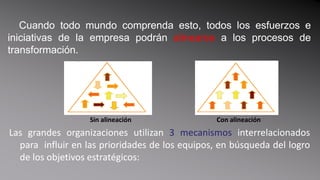
Industrial V.s. InformaciónERA INDUSTRIAL   Se desarrollan sistemas de control financiero.         Un indicador financiero: rendimiento sobre el capital empleado.ERA DE LA INFORMACION  Es mas revolucionario en las empresas de servicio que en las empresas fabricantes.3
Cuadro Integral de MandoPROPORCIONA.TRADUCE.PERMITE.4(c)StartYourDoc.com
La era de la información exige: Desarrollan relaciones con los clientes.Introduce productos y servicios innovadores.Produzca productos y servicios de alta calidad con coste bajo.Moviliza habilidades y motivaciones de los empleados.Aplica tecnología.5
Organizaciones en laEra de la información6
La era de la información exige: FUNCIONES CRUZADAS (Combina: velocidad, eficiencia y calidad)VINCULO CON LOS CLIENTES Y PROVEEDORES.SEGMENTACION DE LOS CLIENTES: Ofrecenproductos y servicioshechos a la medida de la demanda de susdiferentessegmentos de clientes.ESCALA GLOBALINNOVACION:  Los ciclos de vida de los productossiguenacortándose.EMPLEADOS DE NIVEL:  Todos los empleadoshan de aportar valor.7
ElObjetivoEs una actuación que permita que la organización tenga éxito en la nueva competencia de la era de la información.8
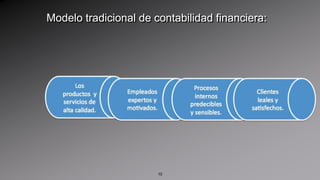
Modelo tradicional de contabilidad financiera:Sigue anclado  en un modelo de contabilidad desarrollado hace siglos  para un entorno de transacciones en plano de igualdad entre entidades independientes.En un modelo tradicional de contabilidad financiera lo ideal para que sea un modelo completo seria que este valorara los activos intangibles de una empresa como son:9
Modelo tradicional de contabilidad financiera:10
CuadroMandointegral11
Este tipo de cuadro  complementa los indicadores financieros de la actuación pasada con medidas de los inductores de actuación futura. Los objetivos e indicadores de cuadro de mando se derivan de la visión y estrategia de una organización; y contemplan la actuación de la organización desde cuatro perspectivas.12
El cuadro de mando integral pone énfasis en que los indicadores financieros y no Financieros deben formar parte del sistema de información para los empleados en todos los niveles de la organización.13
C. M. I14
C. M. I15
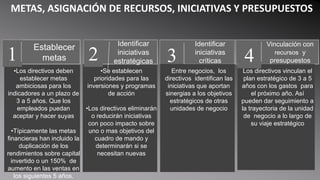
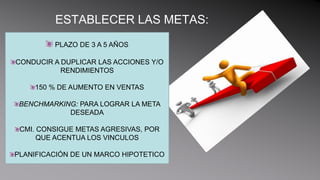
PLANIFICACIÓN, ESTABLECIMIENTO DE OBJETIVOS Y ALINEACIÓN DE INICIATIVAS ESTRATÉGICASPara alcanzar  objetivos financieros:  Los directivos deben identificar los objetivos de extensión para sus clientes. Cómo? Con herramientas como  Benchmarking.El proceso de planificación y de gestión de establecimiento de objetivos  permite  a la organización:16
Cuantificar los resultados que a largo plazo desea alcanzarIdentificar mecanismos y proporcionar recursos para alcanzar los resultadosEstablecer las metas a corto plazo para los indicadores financieros  y no financieros del cuadro de mando.17
Aumentar el Feedback y formación estratégica: constituye el  aspecto más importante del proceso de gestión del cuadro de mando debido a que proporciona la aptitud para la formación organizativa a nivel ejecutivo. Cómo? Por medio del cuadro de mando  el cual permite ajustar la puesta en práctica de las estrategias de los directivos y si es necesario, hacer cambios  en la estrategia.18
Las organizaciones necesitan la capacidad de aprendizaje de doble bucle: este se da cuando los directivos cuestionan sus  asunciones. Cuando se cuestionan si la teoría bajo la que operan, sigue siendo consistente con la evidencia, observaciones y experiencia actual. Herramientas:  Feedback.19
La recolección de datos, comprobación de hipótesis,  reflexión, formación estratégica y adaptación es fundamental para la implementación exitosa de una estrategia empresarial. 20
2¿PorquéCapitulonecesitan las empresas unC.M.I?
¡Si no puedes medirlo, no puedes gestionarlo!22
El Sistema de Medición de Una Organización:Afecta muchisimo al comportamiento de las personas dentro de la empresa.23
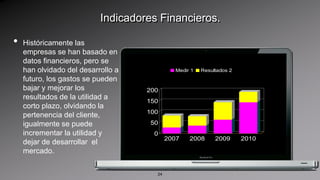
Indicadores Financieros.Históricamente las empresas se han basado en datos financieros, pero se han olvidado del desarrollo a futuro, los gastos se pueden bajar y mejorar los resultados de la utilidad a corto plazo, olvidando la pertenencia del cliente, igualmente se puede incrementar la utilidad y dejar de desarrollar  el mercado. 24
Conjunto coherente de indicadores (CIM)FINANZAS: Indicadores financieros, rentabilidad, apalancamiento,crecimiento proyectado de ventas, tiempo de retorno de efectivo.CLIENTES: Satisfacción del cliente, retención del cliente, adquisición de nuevos clientes, rentabilidad del cliente y cuota de mercado en los segmentos seleccionados.CIM25
Procesos internos - Formación y crecimiento26
La perspectivadel proceso internoIdentificación de los procesos críticos internos en los que se debe ser excelente y los que tendrán mayor impacto en la satisfacción del cliente y en la consecución de los objetivos financieros de la organización. 27
Incorpora  objetivos y medidas para el ciclo de innovación de onda larga y al ciclo de operaciones de onda corta.28
29
Identifica la infraestructura que la empresa debe construir para  crear una mejora y crecimiento a largo plazo30
31
Validación de Indicadores múltiplesLas múltiples medidas de un CMI deben formar una serie de objetivos y medidas vinculadas, que son consistentes y reforzantes.32
El CMI debe incorporar el conjuntos de relaciones causa-efecto entre las variables críticas, incluyendo adelantos, retrasos y bucles de feedback que describan la trayectoria y el plan de vuelo de la estrategia33
La relación causa-efecto34
Una estrategia es un conjunto de hipótesis sobre la causa y el efecto. 35
El sistema de medición debe establecer la forma explícita las relaciones (hipótesis), entre los objetivos (y medidas) en las diversas perspectivas, a fin de que puedan ser gestionadas y evaluadas. 36
37
Indicadores deactuación.38
Un buen Cuadro de Mando Integral debe tener también una mezcla de medidas de resultado y de inductores de actuación.39
El CMI debe ser la traducción de la estrategia de la unidad de negocio en un conjunto vinculado de medidas, que definan tanto los objetivos estratégicos a largo plazo como los mecanismos para alcanzar estos objetivos.40
¿Eliminarse los indicadoresFinancieros?41
Indicadores Financieros (IF)42
El fracaso en la conversión de una actuación operativa mejorada es una actuación financiera mejorada debe hacer volver a los ejecutivos al tablero de dibujo, para pensar de nuevo en la estrategia de la empresa o en sus planes de puesta en práctica.43
Un amplio sistema de indicadores y de gestión ha de especificar la forma en que las mejoras en operaciones, servicio al cliente y nuevos productos y servicios se vinculan a una actuación financiera mejorada:44
Actuación FinancieraMejorada.45
A través de mayores ventas, Mayores márgenes operativos, Una más rápida rotación de los activos Y menores gastos operativosMejoras:46
El CMI obtiene los beneficios, al mantener las mediciones financieras como resultados últimos, sin la miopía y distorsión que dimanan de una enfoque exclusivo en la mejora de las medidas financieras a corto plazo.47
La Unidad organizativa para un C.I.M.48
Los CMI están mejor definidos para las unidades estratégicas de negocios (UEN).49
El CMI de la UNE, se desliza en cascada hasta llegar a los centros locales de responsabilidad dentro de la UNE, partiendo que todos los centros de responsabilidad  trabajen, de una forma coherente, hacia la consecución de los objetivos de la UNE.50
51
52
Limitaciones de las mediciones financieras53
54
Cuadro de Mando IntegralLA PERSPECTIVA FINANCIERA3CapituloDesarrollo de Habilidades del Pensamiento SistémicoProfe. René JassoJulio 2010
Objetivos de exposiciónConocer la importancia de los objetivos financieros como parte del CMI.Conocer las estrategias y temas que pueden considerarse para los objetivos financieros.
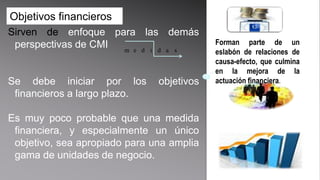
Objetivos financierosSirven de enfoque para las demás perspectivas de CMISe debe iniciar por los objetivos financieros a largo plazo.Es muy poco probable que una medida financiera, y especialmente un único objetivo, sea apropiado para una amplia gama de unidades de negocio.Forman parte de un eslabón de relaciones de causa-efecto, que culmina en la mejora de la actuación financiera.medidas
Objetivos financieros de acuerdo con la estrategia “operativa”Pueden ser considerablemente diferentes, dependiendo de la etapa.
La teoría de estrategias de negocios identifica 3 fases:Cuadro comparativo          ESTRATEGIAS financieras
OBJETIVO ADICIONAL GESTIÓN DEL RIESGO
 Diversificar fuentes de ingresos
 1 o 2 líneas de negocios
 Regiones geográficas determinadas.
Determinar objetivos.EquilibrioGestión y control del riesgoRendimientos esperados
Objetivos e indicadores de la Gestión del Riesgo Dependerán de la actividad de la empresa, los objetivos para la protección ante el riesgo.comisiones (bancos)Aumento de cuota de ingresos de servicios.Cobro de Indicadores de reservas.Cubrir gastos de mantenimiento de inversiones y mejora de procesos y productos.aseguradorasempresas c/intenso movimiento de capital
Temas estratégicospara la perspectiva financieraESTRATEGIASTEMAS
Tiempo necesario para que la empresa convierta los pagos a los proveedores, en cobros de clientes.
Cuadro de Mando IntegralLA PERSPECTIVA DEL CLIENTE4Capitulo
Objetivos de exposiciónConocer la importancia de la identificación del mercado,  segmentación y enfoque de cliente como parte del CMI.Comprender la relación entre los cinco indicadores centrales de la perspectiva del cliente.Comprender los atributos de las propuestas de valor.
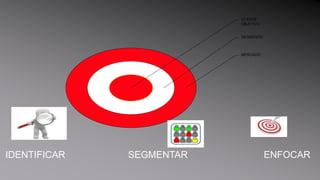
Identificación
IDENTIFICAR                        SEGMENTAR                             ENFOCAR
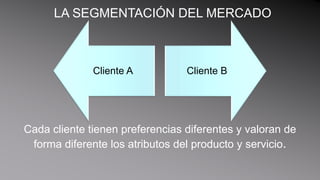
LA SEGMENTACIÓN DEL MERCADOCada cliente tienen preferencias diferentes y valoran de forma diferente los atributos del producto y servicio.
Perspectiva del cliente
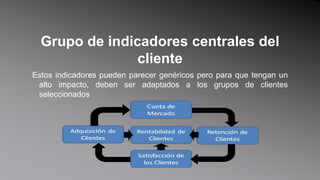
Grupo de indicadores centrales del clienteEstos indicadores pueden parecer genéricos pero para que tengan un alto impacto, deben ser adaptados a los grupos de clientes seleccionados
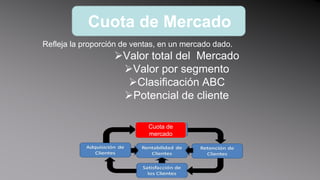
Cuota de MercadoRefleja la proporción de ventas, en un mercado dado.Valor total del  Mercado
Valor por segmento
Clasificación ABC
Potencial de clienteCuota demercado
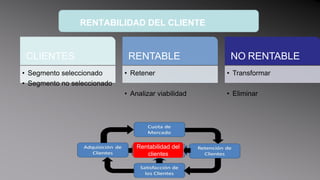
Retención de clientesEs la tasa en la que el negocio retiene las relaciones existentes con sus clientes. Se mide por el porcentaje de crecimiento del negocio con los clientes existentes.Retención de clientes
Adquisición de clientes(incremento del cliente)Mide la tasa en que el negocio atrae o gana nuevos clientes o negocios. Adquisición de clientes
Satisfacción del ClienteEn cuanto a:	Producto
Servicio
Personas
Por medio :
Encuestas por correo
Encuestas telefónicas
Encuestas personalesSatisfacción del clientes
Rentabilidaddel clienteRentabilidad del clientes
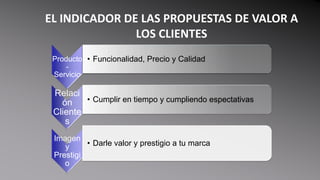
EL INDICADOR DE LAS PROPUESTAS DE VALOR A LOS CLIENTES
CLIENTE SATISFECHO
5CapituloPerspectiva del ProcesoInterno
Permitequelasempresascentrensusindicadores de los procesosinternos en aquellosprocesosqueentregarán los objetivosestablecidospor los clientes o accionistas y en la mejora de los procesosoperativos.
Permiten a la unidad de negocios:Entregarlaspropuestas de valor queatraerán y retendrán a los clientes de los segmentos de mercadoseleccionados.Satisfacerlasexpectativas de excelentesrendimientosfinancieros de los accionistas.
Cadena de Valor  de los procesosinternos…Proceso de Innovación:Identificarlasnecesidades de los clientesactuales y futuros.Desarrollarnuevassolucionesparaestasnecesidades.Entregar los productos y serviciosexistentes a clientesexistentes.Ofrecerserviciosdespués de la venta, con valor quereciben los clientes.
Modelo de la Cadena de Valor del procesointerno… 3 procesosprincipales:Innovación,Operación,Serviciopostventa.
2 ProcesosInternosNuevosObjetivos de Procesos Internos con los Objetivos de Clientes y Financieros:
Gestionarlasrelaciones de proyectoexistentes, parafacilitar un ciclorápido de finalización y cobro.Anticiparse a lasfuturas solicitudes de los clientes e influir en ellas.
Las medidas de los procesosinternos se centran en dondetendrán el mayor impacto en la satisfacción del cliente y en la consecución de los objetivosfinancieros de unaorganización.
Enfoque del Cuadro de Mando Integral Identificarprocesostotalmentenuevos, en los que la organizacióndeberá ser excelenteparasatisfacer los objetivosfinancieros y del cliente, porejemplo:“Unaempresapuededarsecuenta de quedebedesarrollar un procesoparaanticiparse a lasnecesidades de los clientes o unaparaentregarnuevosserviciosque el clienteseleccionadovalora.”Incorporarprocesosinnovadores a la perspectiva. Obtenerobjetivos y medidaspara el ciclo de innovación de ondalarga, Home
La Perspectiva de Aprendizaje y Crecimiento6Capitulo
Desarrollaobjetivos e indicadoresparaimpulsar el aprendizaje y el crecimiento de la organización.Proporciona la infraestructuraquepermiteque se alcancen los objetivosambiciosos en lasrestantestresperspectivas del cuadro de mando.
Categorías de las VariablesLas capacidades de los empleadosLas capacidades de los sistemas de informaciónMotivación, delegación del poder (empowerment) y coherencia de objetivos.
IndicadoresparalasCapacidades de los Empleados:La satisfacción del empleadoLa retención del empleadoLa productividad del empleado
Indicadoressobre la Capacidad de los Sistemas de la Información:Ratio de cobertura de la informaciónestratégica
Indicadorespara la Motivación, Empowerment y Coherencia de ObjetivosNúmero de sugerenciasporempleadoIndicador de la mitad de la vidaSistemas de reconocimiento y recompensaActuaciónbasada en equiposPorcentaje de empleadosexpuestos al CIMHome
7CapituloBalance Scorecard y Tácticas
Se trata de traducir en indicadoresclaros y medibles los objetivos de la empresa, de talsuertequeseanentendibles a cualquiernivel de la corporación.
ExistencuatrovertientesEl BS describe la visióninstitucional a todos los niveles de la organización, haciéndolacomprensibleparatodos.Contribuye a crear un modeloholístico de lasestrategiasquepermitan al empleadocontribuir de forma efectiva  en suámbito local.El Scorecard concentra los esfuerzos de cambioefectivos, silasestrategiasestándebidamentelocalizadas y comprendidashastalastácticasmasespecificas.
VincularlasTácticas del BS a lasEstrategias de unaOrganizaciónRelaciónCausa-EfectoProcedimientos de DesempeñoVinculaciónFinanciera
RelaciónCausa-EfectoEsta se basa en la idea de tenerunahipótesis, la cualcasisiempre parte de escenariossupuestos.
Ejemplo de Capacitación de Catálogo-Incremento en VentasSi se capacita a un empleadosobrelasventajascompetitivas de toda la línea de productos, el ejecutivoserámejor en ofrecerlasdiferentesopciones de productosSi el ejecutivopuedeofrecerunalíneavariada de productos a los clientes, lasprobabilidades de ventas se amplíanSi lasprobabilidades son másamplias, lasventas de diferentesproductospuedensubirSi  lasventasaumentan, la organizaciónserámásexitosa
El sistema de medición del BS, permitirádetectar la credibilidad de estashipótesis, y suefectividad en lasestrategiasestablecidas.Todo BS debereflejar en sustácticaselegidas, un elemento en la cadena de la relación de causa y efectoqueidentifiqueclaramente la estrategia pre-determinada en el Plan de Negocios de unaOrganización.
Procesos de Resultadosy DesempeñoAquí se trata de detectar en el proceso del desempeño, lastácticasadecuadas. Lo quepermitepredecir el resultado a obtener con ciertaprecisión y comoestepuedealcanzarse .
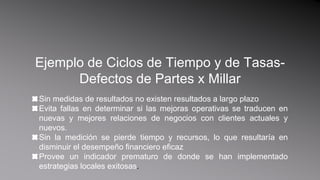
Ejemplo de Ciclos de Tiempo y de Tasas-Defectos de Partes x MillarSin medidas de resultados no existenresultados a largo plazoEvitafallas en determinarsilasmejorasoperativas se traducen en nuevas y mejoresrelaciones de negocios con clientesactuales y nuevos.Sin la medición se pierdetiempo y recursos, lo queresultaría en disminuir el desempeñofinancieroeficazProvee un indicadorprematuro de donde se hanimplementadoestrategias locales exitosas.
VinculaciónFinancieraEL BS debetener en cuenta la importanciaextrema de los resultados, sobretododentro del ámbitofinanciero, Porellotodaorganizacióndebeestablecercomoprioritario la vinculación del programa a evidencias en este sector en el arranque, no al final.
Ejemplo de Vicios en la VinculaciónFinancieraMuchosadministradoresfallan en relacionarprogramascomoCalidad Total, reducción de ciclos de tiempo, re-ingeniería y capacitación de personal con resultadosfinancierosTodo lo anterior afecta la percepción del cliente, quieninfluyedirectamente en el futurofinanciero.En lasorganizaciones, los programas de mejoras se dejanhasta el ultimo lugar, perjudicandolasfinanzassanas, en inversiones de cambios, lo cualesincongruente.La situación cambia cuandoestoscriterios se convierten en estrategias y no objetivos.
Estructura y Estratégia8Capitulo
ESTRUCTURA Y ESTRATEGIADESARROLLO DEL CMI PARA UNIDADES DE LA ORGANIZACIÓN.Corporaciones con diversas UEN.JointVentures (alianzas    empresariales).Departamentos de apoyo en corporaciones de UEN.Empresas sin lucro y Publicas.
UEN FRENTE A LA ESTRATEGIAPAPEL CORPORATIVOAcciones ordenadasque crean sinergias a nivel UEN. (clientes, que comparten tecnologías comunes)TEMAS CORPORATIVOSValores.Creencias.Temas que reflejan la identidad.Compartidos por todas las UEN.
EJEMPLO: KENYON STORES
Departamentos funcionales.Recursos corporativos compartidosLa aplicación del CMI a niveles funcionales permite la alineación directa y estrecha con los objetivos corporativos o de resultado esperados.Involucrando directamente el capital humano al entender la manera como contribuirán al logro de los resultados finales.RESULTADO: VENTAJAS  COMPETITIVAS
Empresas no Gubernamentales y sin animos de Lucro  Cuadro de mando integral para organizaciones que son diferentes a las unidades de negocio. Organizaciones que deben limitar gastos Vs. Presupuestos.		El éxito se mide no por el cumplimiento de presupuesto 	sino por cuan eficiente satisface necesidades de usuarios.
Empresas no Gubernamentales y sin animos de Lucro  “Reinventar el gobierno”  Iniciativa NPR (National Performance Review -  Reporte de actuación nacional) Documento que desataca 	Centrarse en el cliente y medir su actuación.“Delegar poder a los empleados para conseguir resultados”	Informar resultados	Aclarar objetivos	Desarrollo de acuerdos escritos
EAMALa iniciativa la aplico un equipo que se llama EAMA – (Equipo de acción de medición de la actuación  )  Para el área de compras... 	PEA (ProcurementExecutiveAssociation – Asociación ejecutiva de adquisiciones) 	El objetivo “Evaluar el estado del sistema actual (de aprovisionamiento) identificar medición y actuación y desarrollar recomendaciones para la salud”..... mejora.
Cuadro de Mando Integral para Gobierno
Servicio al ClienteEjemplo: Gobiero Charlote-Carolina del NortePrimera parte cinco áreas :Seguridad
Iniciativas vecinales
Reestructuración de la administración
Desarrollo económico
Transporte Segunda parte indicadores de éxito en cuatro perspectivas:Servicio al cliente
Responsabilidad financiera
Eficiencia en el trabajo interno
Innovación y formación“Estoy muy complacido con lo que hemos conseguido... Este informe representa el espíritu de éxitode nuestra organización”
Ejemplo:  Special OlympicsTres objetivos principales:Reconocimiento público
Involucración a la comunidad
Expansión del programaIndicadoresNumero de atletas
Reclutamiento de voluntarios
Nuevos patrocinadores
Retorno de patrocinadores
	Numero de atletas en programas de apoyo

Cuadro de mando integral

  • 1.
    EL CUADRODE MANDOINTEGRALPresentación hechapor los alumnos de la Maestría en DOHJulio 2010
  • 2.
    1La mediciónCapituloY lagestiónen la eraIndustrial
  • 3.
    Industrial V.s. InformaciónERAINDUSTRIAL Se desarrollan sistemas de control financiero. Un indicador financiero: rendimiento sobre el capital empleado.ERA DE LA INFORMACION Es mas revolucionario en las empresas de servicio que en las empresas fabricantes.3
  • 4.
    Cuadro Integral deMandoPROPORCIONA.TRADUCE.PERMITE.4(c)StartYourDoc.com
  • 5.
    La era dela información exige: Desarrollan relaciones con los clientes.Introduce productos y servicios innovadores.Produzca productos y servicios de alta calidad con coste bajo.Moviliza habilidades y motivaciones de los empleados.Aplica tecnología.5
  • 6.
    Organizaciones en laErade la información6
  • 7.
    La era dela información exige: FUNCIONES CRUZADAS (Combina: velocidad, eficiencia y calidad)VINCULO CON LOS CLIENTES Y PROVEEDORES.SEGMENTACION DE LOS CLIENTES: Ofrecenproductos y servicioshechos a la medida de la demanda de susdiferentessegmentos de clientes.ESCALA GLOBALINNOVACION: Los ciclos de vida de los productossiguenacortándose.EMPLEADOS DE NIVEL: Todos los empleadoshan de aportar valor.7
  • 8.
    ElObjetivoEs una actuaciónque permita que la organización tenga éxito en la nueva competencia de la era de la información.8
  • 9.
    Modelo tradicional decontabilidad financiera:Sigue anclado en un modelo de contabilidad desarrollado hace siglos para un entorno de transacciones en plano de igualdad entre entidades independientes.En un modelo tradicional de contabilidad financiera lo ideal para que sea un modelo completo seria que este valorara los activos intangibles de una empresa como son:9
  • 10.
    Modelo tradicional decontabilidad financiera:10
  • 11.
  • 12.
    Este tipo decuadro complementa los indicadores financieros de la actuación pasada con medidas de los inductores de actuación futura. Los objetivos e indicadores de cuadro de mando se derivan de la visión y estrategia de una organización; y contemplan la actuación de la organización desde cuatro perspectivas.12
  • 13.
    El cuadro demando integral pone énfasis en que los indicadores financieros y no Financieros deben formar parte del sistema de información para los empleados en todos los niveles de la organización.13
  • 14.
  • 15.
  • 16.
    PLANIFICACIÓN, ESTABLECIMIENTO DEOBJETIVOS Y ALINEACIÓN DE INICIATIVAS ESTRATÉGICASPara alcanzar objetivos financieros: Los directivos deben identificar los objetivos de extensión para sus clientes. Cómo? Con herramientas como Benchmarking.El proceso de planificación y de gestión de establecimiento de objetivos permite a la organización:16
  • 17.
    Cuantificar los resultadosque a largo plazo desea alcanzarIdentificar mecanismos y proporcionar recursos para alcanzar los resultadosEstablecer las metas a corto plazo para los indicadores financieros y no financieros del cuadro de mando.17
  • 18.
    Aumentar el Feedbacky formación estratégica: constituye el aspecto más importante del proceso de gestión del cuadro de mando debido a que proporciona la aptitud para la formación organizativa a nivel ejecutivo. Cómo? Por medio del cuadro de mando el cual permite ajustar la puesta en práctica de las estrategias de los directivos y si es necesario, hacer cambios en la estrategia.18
  • 19.
    Las organizaciones necesitanla capacidad de aprendizaje de doble bucle: este se da cuando los directivos cuestionan sus asunciones. Cuando se cuestionan si la teoría bajo la que operan, sigue siendo consistente con la evidencia, observaciones y experiencia actual. Herramientas: Feedback.19
  • 20.
    La recolección dedatos, comprobación de hipótesis, reflexión, formación estratégica y adaptación es fundamental para la implementación exitosa de una estrategia empresarial. 20
  • 21.
  • 22.
    ¡Si no puedesmedirlo, no puedes gestionarlo!22
  • 23.
    El Sistema deMedición de Una Organización:Afecta muchisimo al comportamiento de las personas dentro de la empresa.23
  • 24.
    Indicadores Financieros.Históricamente lasempresas se han basado en datos financieros, pero se han olvidado del desarrollo a futuro, los gastos se pueden bajar y mejorar los resultados de la utilidad a corto plazo, olvidando la pertenencia del cliente, igualmente se puede incrementar la utilidad y dejar de desarrollar el mercado. 24
  • 25.
    Conjunto coherente deindicadores (CIM)FINANZAS: Indicadores financieros, rentabilidad, apalancamiento,crecimiento proyectado de ventas, tiempo de retorno de efectivo.CLIENTES: Satisfacción del cliente, retención del cliente, adquisición de nuevos clientes, rentabilidad del cliente y cuota de mercado en los segmentos seleccionados.CIM25
  • 26.
    Procesos internos -Formación y crecimiento26
  • 27.
    La perspectivadel procesointernoIdentificación de los procesos críticos internos en los que se debe ser excelente y los que tendrán mayor impacto en la satisfacción del cliente y en la consecución de los objetivos financieros de la organización. 27
  • 28.
    Incorpora objetivosy medidas para el ciclo de innovación de onda larga y al ciclo de operaciones de onda corta.28
  • 29.
  • 30.
    Identifica la infraestructuraque la empresa debe construir para crear una mejora y crecimiento a largo plazo30
  • 31.
  • 32.
    Validación de IndicadoresmúltiplesLas múltiples medidas de un CMI deben formar una serie de objetivos y medidas vinculadas, que son consistentes y reforzantes.32
  • 33.
    El CMI debeincorporar el conjuntos de relaciones causa-efecto entre las variables críticas, incluyendo adelantos, retrasos y bucles de feedback que describan la trayectoria y el plan de vuelo de la estrategia33
  • 34.
  • 35.
    Una estrategia esun conjunto de hipótesis sobre la causa y el efecto. 35
  • 36.
    El sistema demedición debe establecer la forma explícita las relaciones (hipótesis), entre los objetivos (y medidas) en las diversas perspectivas, a fin de que puedan ser gestionadas y evaluadas. 36
  • 37.
  • 38.
  • 39.
    Un buen Cuadrode Mando Integral debe tener también una mezcla de medidas de resultado y de inductores de actuación.39
  • 40.
    El CMI debeser la traducción de la estrategia de la unidad de negocio en un conjunto vinculado de medidas, que definan tanto los objetivos estratégicos a largo plazo como los mecanismos para alcanzar estos objetivos.40
  • 41.
  • 42.
  • 43.
    El fracaso enla conversión de una actuación operativa mejorada es una actuación financiera mejorada debe hacer volver a los ejecutivos al tablero de dibujo, para pensar de nuevo en la estrategia de la empresa o en sus planes de puesta en práctica.43
  • 44.
    Un amplio sistemade indicadores y de gestión ha de especificar la forma en que las mejoras en operaciones, servicio al cliente y nuevos productos y servicios se vinculan a una actuación financiera mejorada:44
  • 45.
  • 46.
    A través demayores ventas, Mayores márgenes operativos, Una más rápida rotación de los activos Y menores gastos operativosMejoras:46
  • 47.
    El CMI obtienelos beneficios, al mantener las mediciones financieras como resultados últimos, sin la miopía y distorsión que dimanan de una enfoque exclusivo en la mejora de las medidas financieras a corto plazo.47
  • 48.
    La Unidad organizativapara un C.I.M.48
  • 49.
    Los CMI estánmejor definidos para las unidades estratégicas de negocios (UEN).49
  • 50.
    El CMI dela UNE, se desliza en cascada hasta llegar a los centros locales de responsabilidad dentro de la UNE, partiendo que todos los centros de responsabilidad trabajen, de una forma coherente, hacia la consecución de los objetivos de la UNE.50
  • 51.
  • 52.
  • 53.
    Limitaciones de lasmediciones financieras53
  • 54.
  • 55.
    Cuadro de MandoIntegralLA PERSPECTIVA FINANCIERA3CapituloDesarrollo de Habilidades del Pensamiento SistémicoProfe. René JassoJulio 2010
  • 56.
    Objetivos de exposiciónConocerla importancia de los objetivos financieros como parte del CMI.Conocer las estrategias y temas que pueden considerarse para los objetivos financieros.
  • 57.
    Objetivos financierosSirven deenfoque para las demás perspectivas de CMISe debe iniciar por los objetivos financieros a largo plazo.Es muy poco probable que una medida financiera, y especialmente un único objetivo, sea apropiado para una amplia gama de unidades de negocio.Forman parte de un eslabón de relaciones de causa-efecto, que culmina en la mejora de la actuación financiera.medidas
  • 58.
    Objetivos financieros deacuerdo con la estrategia “operativa”Pueden ser considerablemente diferentes, dependiendo de la etapa.
  • 59.
    La teoría deestrategias de negocios identifica 3 fases:Cuadro comparativo ESTRATEGIAS financieras
  • 60.
  • 61.
  • 62.
    1 o2 líneas de negocios
  • 63.
  • 64.
    Determinar objetivos.EquilibrioGestión ycontrol del riesgoRendimientos esperados
  • 65.
    Objetivos e indicadoresde la Gestión del Riesgo Dependerán de la actividad de la empresa, los objetivos para la protección ante el riesgo.comisiones (bancos)Aumento de cuota de ingresos de servicios.Cobro de Indicadores de reservas.Cubrir gastos de mantenimiento de inversiones y mejora de procesos y productos.aseguradorasempresas c/intenso movimiento de capital
  • 66.
    Temas estratégicospara laperspectiva financieraESTRATEGIASTEMAS
  • 69.
    Tiempo necesario paraque la empresa convierta los pagos a los proveedores, en cobros de clientes.
  • 70.
    Cuadro de MandoIntegralLA PERSPECTIVA DEL CLIENTE4Capitulo
  • 71.
    Objetivos de exposiciónConocerla importancia de la identificación del mercado, segmentación y enfoque de cliente como parte del CMI.Comprender la relación entre los cinco indicadores centrales de la perspectiva del cliente.Comprender los atributos de las propuestas de valor.
  • 73.
  • 74.
    IDENTIFICAR SEGMENTAR ENFOCAR
  • 75.
    LA SEGMENTACIÓN DELMERCADOCada cliente tienen preferencias diferentes y valoran de forma diferente los atributos del producto y servicio.
  • 76.
  • 77.
    Grupo de indicadorescentrales del clienteEstos indicadores pueden parecer genéricos pero para que tengan un alto impacto, deben ser adaptados a los grupos de clientes seleccionados
  • 78.
    Cuota de MercadoReflejala proporción de ventas, en un mercado dado.Valor total del Mercado
  • 79.
  • 80.
  • 81.
  • 82.
    Retención de clientesEsla tasa en la que el negocio retiene las relaciones existentes con sus clientes. Se mide por el porcentaje de crecimiento del negocio con los clientes existentes.Retención de clientes
  • 83.
    Adquisición de clientes(incrementodel cliente)Mide la tasa en que el negocio atrae o gana nuevos clientes o negocios. Adquisición de clientes
  • 84.
    Satisfacción del ClienteEncuanto a: Producto
  • 85.
  • 86.
  • 87.
  • 88.
  • 89.
  • 90.
  • 91.
  • 92.
    EL INDICADOR DELAS PROPUESTAS DE VALOR A LOS CLIENTES
  • 93.
  • 94.
  • 95.
    Permitequelasempresascentrensusindicadores de losprocesosinternos en aquellosprocesosqueentregarán los objetivosestablecidospor los clientes o accionistas y en la mejora de los procesosoperativos.
  • 96.
    Permiten a launidad de negocios:Entregarlaspropuestas de valor queatraerán y retendrán a los clientes de los segmentos de mercadoseleccionados.Satisfacerlasexpectativas de excelentesrendimientosfinancieros de los accionistas.
  • 97.
    Cadena de Valor de los procesosinternos…Proceso de Innovación:Identificarlasnecesidades de los clientesactuales y futuros.Desarrollarnuevassolucionesparaestasnecesidades.Entregar los productos y serviciosexistentes a clientesexistentes.Ofrecerserviciosdespués de la venta, con valor quereciben los clientes.
  • 98.
    Modelo de laCadena de Valor del procesointerno… 3 procesosprincipales:Innovación,Operación,Serviciopostventa.
  • 99.
    2 ProcesosInternosNuevosObjetivos deProcesos Internos con los Objetivos de Clientes y Financieros:
  • 100.
    Gestionarlasrelaciones de proyectoexistentes,parafacilitar un ciclorápido de finalización y cobro.Anticiparse a lasfuturas solicitudes de los clientes e influir en ellas.
  • 101.
    Las medidas delos procesosinternos se centran en dondetendrán el mayor impacto en la satisfacción del cliente y en la consecución de los objetivosfinancieros de unaorganización.
  • 102.
    Enfoque del Cuadrode Mando Integral Identificarprocesostotalmentenuevos, en los que la organizacióndeberá ser excelenteparasatisfacer los objetivosfinancieros y del cliente, porejemplo:“Unaempresapuededarsecuenta de quedebedesarrollar un procesoparaanticiparse a lasnecesidades de los clientes o unaparaentregarnuevosserviciosque el clienteseleccionadovalora.”Incorporarprocesosinnovadores a la perspectiva. Obtenerobjetivos y medidaspara el ciclo de innovación de ondalarga, Home
  • 103.
    La Perspectiva deAprendizaje y Crecimiento6Capitulo
  • 104.
    Desarrollaobjetivos e indicadoresparaimpulsarel aprendizaje y el crecimiento de la organización.Proporciona la infraestructuraquepermiteque se alcancen los objetivosambiciosos en lasrestantestresperspectivas del cuadro de mando.
  • 105.
    Categorías de lasVariablesLas capacidades de los empleadosLas capacidades de los sistemas de informaciónMotivación, delegación del poder (empowerment) y coherencia de objetivos.
  • 106.
    IndicadoresparalasCapacidades de losEmpleados:La satisfacción del empleadoLa retención del empleadoLa productividad del empleado
  • 107.
    Indicadoressobre la Capacidadde los Sistemas de la Información:Ratio de cobertura de la informaciónestratégica
  • 108.
    Indicadorespara la Motivación,Empowerment y Coherencia de ObjetivosNúmero de sugerenciasporempleadoIndicador de la mitad de la vidaSistemas de reconocimiento y recompensaActuaciónbasada en equiposPorcentaje de empleadosexpuestos al CIMHome
  • 109.
  • 110.
    Se trata detraducir en indicadoresclaros y medibles los objetivos de la empresa, de talsuertequeseanentendibles a cualquiernivel de la corporación.
  • 111.
    ExistencuatrovertientesEl BS describela visióninstitucional a todos los niveles de la organización, haciéndolacomprensibleparatodos.Contribuye a crear un modeloholístico de lasestrategiasquepermitan al empleadocontribuir de forma efectiva en suámbito local.El Scorecard concentra los esfuerzos de cambioefectivos, silasestrategiasestándebidamentelocalizadas y comprendidashastalastácticasmasespecificas.
  • 112.
    VincularlasTácticas del BSa lasEstrategias de unaOrganizaciónRelaciónCausa-EfectoProcedimientos de DesempeñoVinculaciónFinanciera
  • 113.
    RelaciónCausa-EfectoEsta se basaen la idea de tenerunahipótesis, la cualcasisiempre parte de escenariossupuestos.
  • 114.
    Ejemplo de Capacitaciónde Catálogo-Incremento en VentasSi se capacita a un empleadosobrelasventajascompetitivas de toda la línea de productos, el ejecutivoserámejor en ofrecerlasdiferentesopciones de productosSi el ejecutivopuedeofrecerunalíneavariada de productos a los clientes, lasprobabilidades de ventas se amplíanSi lasprobabilidades son másamplias, lasventas de diferentesproductospuedensubirSi lasventasaumentan, la organizaciónserámásexitosa
  • 115.
    El sistema demedición del BS, permitirádetectar la credibilidad de estashipótesis, y suefectividad en lasestrategiasestablecidas.Todo BS debereflejar en sustácticaselegidas, un elemento en la cadena de la relación de causa y efectoqueidentifiqueclaramente la estrategia pre-determinada en el Plan de Negocios de unaOrganización.
  • 116.
    Procesos de ResultadosyDesempeñoAquí se trata de detectar en el proceso del desempeño, lastácticasadecuadas. Lo quepermitepredecir el resultado a obtener con ciertaprecisión y comoestepuedealcanzarse .
  • 117.
    Ejemplo de Ciclosde Tiempo y de Tasas-Defectos de Partes x MillarSin medidas de resultados no existenresultados a largo plazoEvitafallas en determinarsilasmejorasoperativas se traducen en nuevas y mejoresrelaciones de negocios con clientesactuales y nuevos.Sin la medición se pierdetiempo y recursos, lo queresultaría en disminuir el desempeñofinancieroeficazProvee un indicadorprematuro de donde se hanimplementadoestrategias locales exitosas.
  • 118.
    VinculaciónFinancieraEL BS debeteneren cuenta la importanciaextrema de los resultados, sobretododentro del ámbitofinanciero, Porellotodaorganizacióndebeestablecercomoprioritario la vinculación del programa a evidencias en este sector en el arranque, no al final.
  • 119.
    Ejemplo de Viciosen la VinculaciónFinancieraMuchosadministradoresfallan en relacionarprogramascomoCalidad Total, reducción de ciclos de tiempo, re-ingeniería y capacitación de personal con resultadosfinancierosTodo lo anterior afecta la percepción del cliente, quieninfluyedirectamente en el futurofinanciero.En lasorganizaciones, los programas de mejoras se dejanhasta el ultimo lugar, perjudicandolasfinanzassanas, en inversiones de cambios, lo cualesincongruente.La situación cambia cuandoestoscriterios se convierten en estrategias y no objetivos.
  • 120.
  • 121.
    ESTRUCTURA Y ESTRATEGIADESARROLLODEL CMI PARA UNIDADES DE LA ORGANIZACIÓN.Corporaciones con diversas UEN.JointVentures (alianzas empresariales).Departamentos de apoyo en corporaciones de UEN.Empresas sin lucro y Publicas.
  • 122.
    UEN FRENTE ALA ESTRATEGIAPAPEL CORPORATIVOAcciones ordenadasque crean sinergias a nivel UEN. (clientes, que comparten tecnologías comunes)TEMAS CORPORATIVOSValores.Creencias.Temas que reflejan la identidad.Compartidos por todas las UEN.
  • 123.
  • 125.
    Departamentos funcionales.Recursos corporativoscompartidosLa aplicación del CMI a niveles funcionales permite la alineación directa y estrecha con los objetivos corporativos o de resultado esperados.Involucrando directamente el capital humano al entender la manera como contribuirán al logro de los resultados finales.RESULTADO: VENTAJAS COMPETITIVAS
  • 126.
    Empresas no Gubernamentalesy sin animos de Lucro  Cuadro de mando integral para organizaciones que son diferentes a las unidades de negocio. Organizaciones que deben limitar gastos Vs. Presupuestos. El éxito se mide no por el cumplimiento de presupuesto sino por cuan eficiente satisface necesidades de usuarios.
  • 127.
    Empresas no Gubernamentalesy sin animos de Lucro  “Reinventar el gobierno”  Iniciativa NPR (National Performance Review - Reporte de actuación nacional) Documento que desataca Centrarse en el cliente y medir su actuación.“Delegar poder a los empleados para conseguir resultados” Informar resultados Aclarar objetivos Desarrollo de acuerdos escritos
  • 128.
    EAMALa iniciativa laaplico un equipo que se llama EAMA – (Equipo de acción de medición de la actuación )  Para el área de compras... PEA (ProcurementExecutiveAssociation – Asociación ejecutiva de adquisiciones)  El objetivo “Evaluar el estado del sistema actual (de aprovisionamiento) identificar medición y actuación y desarrollar recomendaciones para la salud”..... mejora.
  • 129.
    Cuadro de MandoIntegral para Gobierno
  • 130.
    Servicio al ClienteEjemplo:Gobiero Charlote-Carolina del NortePrimera parte cinco áreas :Seguridad
  • 131.
  • 132.
  • 133.
  • 134.
    Transporte Segunda parte indicadoresde éxito en cuatro perspectivas:Servicio al cliente
  • 135.
  • 136.
    Eficiencia en eltrabajo interno
  • 137.
    Innovación y formación“Estoymuy complacido con lo que hemos conseguido... Este informe representa el espíritu de éxitode nuestra organización”
  • 138.
    Ejemplo: SpecialOlympicsTres objetivos principales:Reconocimiento público
  • 139.
  • 140.
  • 141.
  • 142.
  • 143.
  • 144.
    Numero de atletasen programas de apoyo

Notas del editor

  • #2 SmartArt custom animation effects: pictures peek-in(Basic)To reproduce the SmartArt effects on this page, do the following:On the Home tab, in the Slides group, click Layout, and then click Blank. On the Insert tab, in the Illustrations group, click SmartArt.In the Choose a SmartArt Graphic dialog box, in the left pane, click Matrix. In the Matrix pane, double-click Titled Matrix (second option from the left) to insert the graphic into the slide. Select the graphic. Under SmartArt Tools, on the Format tab, click Size, and then do the following:In the Height box, enter 5.67”.In the Width box, enter 8.5”.Under SmartArt Tools, on the Format tab, click Arrange, click Align, and then do the following:Click Align to Slide.Click Align Middle. Click Align Center. Select the graphic, and then click one of the arrows on the left border. In the Type your text here dialog box, enter text in the top-level bullet only (text for the rounded rectangle at the center of the graphic). To remove the [Text] placeholder in the second-level bullets, select each bullet and press SPACE.On the slide, select the graphic. Under SmartArtTools, on the Design tab, in the SmartArtStyles group, click More, and then under Best Match for Document click Moderate Effect.Select the rounded rectangle at the center of the graphic. On the Home tab, in the Font group, select 28 from the Font Size list, click the arrow next to Font Color, and then click White, Background 1 (first row, first option from the left).With the rounded rectangle selected, under SmartArtTools, on the Format tab, in the bottom right corner of the ShapeStyles group, click the FormatShape dialog box launcher. In the FormatShape dialog box, click Fill in the left pane, select Gradient fill in the Fill pane, and then do the following:In the Type list, select Linear.In the Direction list, select LinearUp (second row, second option from the left).Under Gradient stops, click Add or Remove until three stops appear in the drop-down list.Also under Gradient stops, customize the gradient stops as follows:Select Stop 1 from the list, and then do the following:In the Stop position box, enter 0%.Click the button next to Color, and then under Theme Colors click White, Background 1, Darker 35% (fifth row, first option from the left).Select Stop 2 from the list, and then do the following: In the Stop position box, enter 80%.Click the button next to Color, and then under Theme Colors click White, Background 1, Darker 35% (fifth row, first option from the left).Select Stop 3 from the list, and then do the following: In the Stop position box, enter 100%.Click the button next to Color, and then under Theme Colors click White, Background 1, Darker 15% (third row, first option from the left).Right-click the top left shape in the graphic, and then click Format Shape. In the Format Shape dialog box, in the left pane, click Fill. In the Fill pane, click Picture or texture fill,and then under Insert from, click File.In the Insert Picture dialog box, select a picture and then click Insert. Right-click the top right shape in the graphic, and then click Format Shape. In the Format Shape dialog box, in the left pane, click Fill. In the Fill pane, click Picture or texture fill,and then under Insert from, click File.In the Insert Picture dialog box, select a picture and then click Insert. Right-click the bottom left shape in the graphic, and then click Format Shape. In the Format Shape dialog box, in the left pane, click Fill. In the Fill pane, click Picture or texture fill,and then under Insert from, click File.In the Insert Picture dialog box, select a picture and then click Insert. Right-click the bottom right shape in the graphic, and then click Format Shape. In the Format Shape dialog box, in the left pane, click Fill. In the Fill pane, click Picture or texture fill,and then under Insert from, click File.In the Insert Picture dialog box, select a picture and then click Insert. To reproduce the animation effects on this slide, do the following:On the Animations tab, in the Animations group, click CustomAnimation.On the slide, select the graphic, and then do the following in the CustomAnimation task pane: Click Add Effect, point to Entrance, and then click MoreEffects. In the Add Entrance Effect dialog box, under Subtle, click Expand. Under Modify: Expand, in the Speed list, select Fast.Under Modify: Expand, in the Start list, select After Previous.Also in the Custom Animation task pane, click the arrow to the right of theanimation effect, and then click EffectOptions. In the Expand dialog box, on the SmartArt Animation tab, in the Group Graphic list, select One by one.Also in the Custom Animation taskpane, click the double-arrow below the animation effect to expand the list of effects, and then do the following:Press and hold CTRL, and then select all five animation effects in the Custom Animation task pane. Under Modify: Expand, in the Start list, select With Previous.Press and hold CTRL, select the second, third, fourth, and fifth animation effects (expand effects for the picture-filled rectangles), and then do the following:Click Change, point to Entrance, and then click MoreEffects. In the Change Entrance Effect dialog box, under Basic, click Peek In. Under Modify: Peek In, in the Speed list, select Fast.Select the second animation effect. Under Modify: Peek In, in the Start list, select After Previous.Select the third animation effect. Under Modify: Peek In, in the Direction list, select From Left.Select the fourth animation effect. Under Modify: Peek In, in the Direction list, select From Right.Select the fifth animation effect. Under Modify: Peek In, in the Direction list, select From Top.To reproduce the background effects on this slide, do the following:Right-click the slide background area, and then click Format Background. In the Format Background dialog box, click Fill in the left pane, select Gradient fill in the Fill pane, and then do the following:In the Type list, select Radial.Click the button next to Direction, and then click From Corner (fifth option from the left).Under Gradient stops, click Add or Remove until two stops appear in the drop-down list.Also under Gradient stops, customize the gradient stops as follows:Select Stop 1 from the list, and then do the following:In the Stop position box, enter 0%.Click the button next to Color, and then under Theme Colors click White, Background 1 (first row, first option from the left).Select Stop 2 from the list, and then do the following: In the Stop position box, enter 71%.Click the button next to Color, and then under Theme Colors click White, Background 1, Darker 15% (third row, first option from the left).
  • #3 SmartArt custom animation effects: continuous picture list(Basic)To reproduce the SmartArt effects on this slide, do the following:On the Home tab, in the Slides group, click Layout, and then click Blank. On the Insert tab, in the Illustrations group, click SmartArt. In the Choose a SmartArt Graphic dialog box, in the left pane, click List. In the List pane, double-click Continuous Picture List (third row, fourth option from the left) to insert the graphic into the slide.On the slide, select the graphic. Under SmartArt Tools, on the Format tab, click Size, and then do the following:In the Height box, enter 5.05”.In the Width box, enter 7.57”.Under SmartArt Tools, on the Format tab, click Arrange, click Align, and then do the following:Click Align to Slide.Click Align Middle. Click Align Center. Select the graphic, and then click one of the arrows on the left border. In the Type your text here dialog box, enter text.Select the graphic. Under SmartArtTools, on the Design tab, in the SmartArtStyles group, click More, and then under Best Match for Document clickselect Moderate Effect (fourth option from the left).Click each of the three picture placeholders in the SmartArt graphic, and then in the Insert Picture dialog box, select a picture and click Insert.Press and hold CTRL, and then select the three circle pictures on the slide. Under PictureTools, on the Format tab, in the PictureStyles group, click PictureEffects, point to Glow, and then do the following:Under Glow Variations, click Accent color 1, 8 pt glow (second row, first option from the left).Point to MoreGlowColors,and then under Theme Colors click Orange, Accent 6, Lighter 80% (second row, 10th option from the left).Select the left-right arrow at the bottom of the SmartArt graphic. Under SmartArtTools, on the Format tab, in the ShapeStyles group, click the arrow next to ShapeFill, point to Gradient, and then click MoreGradients. In the Format Shape dialog box, click Fill in the left pane,select Gradient fill in the Fill pane, and then do the following:In the Type list, select Linear.Click the button next to Direction, and then select Linear Right (first row, fourth option from the left).Under Gradient stops, click Add or Remove until three stops appear in the drop-down list.Also under Gradient stops, customize the gradient stops as follows:Select Stop 1 from the list, and then do the following:In the Stop position box, enter 0%.Click the button next to Color, and then under Theme Colors click Orange, Accent 6, Darker 25% (fifth row, 10th option from the left).Select Stop 2 from the list, and then do the following: In the Stop position box, enter 50%.Click the button next to Color, and then click MoreColors. In the Colors dialog box,on the Custom tab, enter values for Red: 255, Green: 192, Blue: 0.Select Stop 3 from the list, and then do the following: In the Stop position box, enter 100%.Click the button next to Color, and then under Theme Colors click Orange, Accent 6, Darker 25% (fifth row, 10th option from the left).Press and hold CTRL, and then select the three rounded rectangles on the slide. On the Home tab, in the Font group, select Gill Sans MT from the Font list, enter 30 pt in the Font Size box, click the arrow next to Font Color, and then click White, Background 1 (first row, first option from the left).Under SmartArtTools, on the Format tab, in the ShapeStyles group, click Shape Effects, point to Reflection, and then under ReflectionVariations click Tight reflection, touching (first row, first option from the left).Under SmartArtTools, on the Format tab, in the ShapeStyles group, click Shape Fill, point to Gradient, and then click More Gradients. In the Format Shape dialog box, in the left pane, click Fill, select Gradient fill in the Fill pane, and then do the following:In the Type list, select Linear.In the Direction list, select Linear Down (first row, second option from the left).Under Gradient stops, click Add or Remove until two stops appear in the drop-down list.Also under Gradient stops, customize the gradient stops as follows:Select Stop 1 from the list, and then do the following:In the Stop position box, enter 19%.Click the button next to Color, and then under Theme Colors click Black, Text 1 (first row, second option from the left). Select Stop 2 from the list, and then do the following: In the Stop position box, enter 100%.Click the button next to Color, and then under Theme Colors click Black, Text 1, Lighter 50% (second row, second option from the left).To reproduce the animation effects on this slide, do the following:On the Animations tab, in the Animations group, click CustomAnimation.On the slide, select the graphic. In the Custom Animation task pane, do the following:Click Add Effect, point to Entrance, and then click MoreEffects. In the Add Entrance Effect dialog box, under Moderate, click Stretch. Under Modify: Stretch, in the Speed list, select Fast.Also in the CustomAnimation task pane, click the arrow to the right of the animation effect, and then click Effect Options. In the Stretch dialog box, on the SmartArtAnimation tab, in the Group graphic list, select One by One.Also in the CustomAnimation task pane, click the double arrows under the animation effect to expand the list of effects. Press and hold CTRL, and then select all of the animation effects in the Custom Animation task pane. Under Modify: Stretch, in the Start list, select With Previous.Select the first animation effect (stretch effect for the left-right arrow) in the CustomAnimation task pane. Under Modify: Stretch, click the arrow to the right of the effect, and then click Timing. In the Stretch dialog box, on the Timing tab, do the following: In the Delay box, enter 0.5. In the Speed box, enter 1.5 seconds.Press and hold CTRL, and then select the second and third animation effects (stretch effects for the left panel) in the CustomAnimation task pane. Under Modify: Stretch, in the Direction list, select From Right. Also in the Custom Animation task pane, with the second and third animation effects still selected, click the arrow to the right of one of those effects, and then click Timing. In the Stretch dialog box, on the Timing tab, in the Delay box, enter 1, and then click OK.Press and hold CTRL, and then select the sixth and seventh animation effects (stretch effects for the right panel) in the Custom Animation task pane. Under Modify: Stretch, in the Direction list, select From Left. Also in the Custom Animation task pane, with the sixth and seventh animation effects still selected, click the arrow to the right of one of those effects, and then click Timing. In the Stretch dialog box, on the Timing tab, in the Delay box, enter 1.To reproduce the background effects on this slide, do the following:Right-click the slide background area, and then click Format Background. In the Format Background dialog box, click Fill in the left pane, select Gradient fill in the Fill pane, and then do the following:In the Type list, select Radial.Click the button next to Direction, and then click From Center (third option from the left). Under Gradient stops, click Add or Remove until two stops appear in the drop-down list.Also under Gradient stops, customize the gradient stops as follows:Select Stop 1 from the list, and then do the following:In the Stop position box, enter 0%.Click the button next to Color, and then under Theme Colors click White, Background 1 (first row, first option from the left).Select Stop 2 from the list, and then do the following: In the Stop position box, enter 100%.Click the button next to Color, and then under Theme Colors click Black, Text 1, Lighter 25% (fourth row, second option from the left).
  • #4 SmartArt custom animation effects: vertical bullet list(Basic)To reproduce the SmartArt effects on this slide, do the following:On the Home tab, in the Slides group, click Layout, and then click Blank. On the Insert tab, in the Illustrations group, click SmartArt. In the Choose a SmartArt Graphic dialog box, in the left pane, click List. In the List pane, click Vertical Bullet List (first row, third option from the left), and then click OK to insert the graphic into the slide. To create another row, select the bottom, first-level (color-filled) rectangle, and then under SmartArtTools, on the Design tab, in the CreateGraphic group, click the arrow next to AddShape, and select AddShapeAfter.To add bullet text area, select the new first-level (color-filled) rectangle, and then under SmartArtTools, on the Design tab, in the CreateGraphic group, click AddBullet.To enter text, select the graphic, and then click one of the arrows on the left border. In the Type your text here dialog box, enter text for each level. (Note: In the example slide, the first-level text is “Topic One,” “Topic Two,” and “Topic Three.” The second-level text is “Supporting Text.”)Select the border of the SmartArt graphic. Drag the left center sizing handle to the left edge of the slide to resize the width of the SmartArt graphic.To reproduce the rectangle effects on this slide, do the following:Press and hold CTRL, and select the three color-filled rectangles (in the example above, these are the “Topic One,” “Topic Two,” and “Topic Three” rectangles).Under SmartArtTools, on the Format tab, in the Shapes group, click ChangeShape, and under Rectangles select RoundDiagonalCornerRectangle (ninth option from the left).Under SmartArtTools, on the Format tab, in the ShapeStyles group, click ShapeEffects, point to Presets and select Preset 7 (second row, third option from the left). On the Home tab, in the Font group do the following:In the Font list, select FranklinGothicDemiCond.In the FontSize box, enter 32 pt.Click Shadow.On the Home tab, in the bottom right corner of the Drawing group, click the FormatShape dialog box launcher. In the FormatShape dialog box, click TextBox in the left pane, and in the TextBox pane, under Internalmargin, in the Left box enter 3”. Select the first color-filled rectangle from the top (in the example slide, “Topic One”).On the Home tab, in the bottom right corner of the Drawing group, click the FormatShape dialog box launcher. In the FormatShape dialog box, click Fill in the left pane, select Gradientfill in the Fill pane, and then do the following:In the Type list, select Linear.Click the button next to Direction, and then click Linear Right (first row, fourth option from the left). Under Gradient stops, click Add or Remove until two stops appear in the drop-down list.Also under Gradient stops, customize the gradient stops that you added as follows:Select Stop 1 from the list, and then do the following:In the Stop position box, enter 0%.Click the button next to Color, and then under ThemeColors select Olive Green, Accent 3 (first row, seventh option from the left). In the Transparency box, enter 90%Select Stop 2 from the list, and then do the following: In the Stop position box, enter 100%.Click the button next to Color, and then under ThemeColors select Olive Green, Accent 3 (first row, seventh option from the left). In the Transparency box, enter 0%.Select the second color-filled rectangle from the top (in the example above, “Topic Two”).On the Home tab, in the bottom right corner of the Drawing group, click the FormatShape dialog box launcher. In the FormatShape dialog box, click Fill in the left pane, select Gradientfill in the Fill pane, and then do the following:In the Type list, select Linear.Click the button next to Direction, and then click Linear Right (first row, fourth option from the left). Under Gradient stops, click Add or Remove until two stops appear in the drop-down list.Also under Gradient stops, customize the gradient stops that you added as follows:Select Stop 1 from the list, and then do the following:In the Stop position box, enter 0%.Click the button next to Color, and then under ThemeColors select Blue, Accent 1 (first row, the fifth option from the left). In the Transparency box, enter 90%Select Stop 2 from the list, and then do the following: In the Stop position box, enter 100%.Click the button next to Color, and then under ThemeColors select Blue, Accent 1 (first row, the fifth option from the left). In the Transparency box, enter 0%.Select the third color-filled rectangle from the top (in the example slide, “Topic Three”).On the Home tab, in the bottom right corner of the Drawing group, click the FormatShape dialog box launcher. In the FormatShape dialog box, click Fill in the left pane, select Gradientfill in the Fill pane, and then do the following:In the Type list, select Linear.Click the button next to Direction, and then click Linear Right (first row, fourth option from the left). Under Gradient stops, click Add or Remove until two stops appear in the drop-down list.Also under Gradient stops, customize the gradient stops that you added as follows:Select Stop 1 from the list, and then do the following:In the Stop position box, enter 0%.Click the button next to Color, and then under ThemeColors select Orange, Accent 6 (first row, 10th option from the left). In the Transparency box, enter 90%Select Stop 2 from the list, and then do the following: In the Stop position box, enter 100%.Click the button next to Color, and then under ThemeColors select Orange, Accent 6 (first row, 10th option from the left). In the Transparency box, enter 0%.To reproduce the bulleted text on this slide, do the following:Press and hold CTRL, and select the three second-level, bulleted text boxes. On the Home tab, in the Font group, do the following:In the Font list, select FranklinGothicMediumCond.In the FontSize box, enter 22 pt.In the FontColor list, select White, Background 1, Darker 50% (sixth row, first option from the left).On the Home tab, in the bottom right corner of the Drawing group, click the FormatShape dialog box launcher. In the FormatShape dialog box, select TextBox in the left pane, and in the TextBox pane do the following:Under Textlayout, in the Verticalalignment list select Middle.Under Internalmargin, do the following: In the Left box, enter 3.8”.In the Top box, enter 0.2”.In the Right box, enter 0.17”.In the Bottom box, enter 0.2”. Increase the height of the SmartArt graphic by dragging the top or bottom sizing handle. To reproduce the animation effects on this slide, do the following:On the Animations tab, in the Animations group, click CustomAnimation.Select the SmartArt graphic on the slide, and then in the CustomAnimation task pane, do the following:Click AddEffect, point to Entrance, and select MoreEffects. In the AddEntranceEffect dialog box, under Moderate,select Ascend.Click the arrow to the right of the ascend entrance effect, and then select EffectOptions. In the Ascend dialog box, do the following:On the Timing tab, in the Speed list, select 1 seconds (Fast).On the SmartArtAnimation tab, in the Groupgraphic list, select Onebyone. Click the double arrow below the animation effect to expand the list of effects.Press and hold CTRL, and select all the effects in the CustomAnimation task pane. Then under Modify: Ascend, in the Start list, select AfterPrevious.Press and hold CTRL, and select the second, fourth, and sixth effects (ascend entrance effects) in the CustomAnimation task pane. Click Change, point to Entrance, and then select MoreEffects. In the ChangeEntranceEffect dialog box, under Moderate, select EaseIn.To reproduce the background effects on this slide, do the following:Right-click the slide background area, and then click Format Background. In the Format Background dialog box, click Fill in the left pane, select Gradient fill in the Fill pane, and then do the following:In the Type list, select Linear.Click the button next to Direction, and then click Linear Left (first row, fifth option from the left). Under Gradient stops, click Add or Remove until three stops appear in the drop-down list.Also under Gradient stops, customize the gradient stops that you added as follows:Select Stop 1 from the list, and then do the following:In the Stop position box, enter 60%.Click the button next to Color, and then under ThemeColors select White, Background 1 (first row, first option from the left). Select Stop 2 from the list, and then do the following: In the Stop position box, enter 90%.Click the button next to Color, and then under ThemeColors select White, Background 1, Darker 25% (fourth row, first option from the left). Select Stop 3 from the list, and then do the following: In the Stop position box, enter 100%.Click the button next to Color, and then under ThemeColors select Black, Text 1, Lighter 50% (second row, second option from the left).
  • #5 SmartArt custom animation effects: vertical chevron list with bright colors(Basic)To reproduce the SmartArt effects on this slide, do the following:On the Home tab, in the Slides group, click Layout, and then click Blank. On the Insert tab, in the Illustrations group, click SmartArt. In the Choose a SmartArt Graphic dialog box, in the left pane, click List. In the List pane, click Vertical Chevron List (fourth row, fourth option from the left), and then click OK to insert the graphic into the slide.Select the graphic, and then click one of the arrows on the left border. In the Type your text here dialog box, enter text. Select the graphic. Under SmartArt Tools, on the Format tab, click Size, and then do the following:In the Height box, enter 5.35”.In the Width box, enter 6.86”.Under SmartArt Tools, on the Format tab, click Arrange, click Align, and then do the following:Click Align to Slide.Click Align Middle. Click Align Center. On the slide, select the graphic. On the Design tab, in the Themes group, click Colors,and then under Built-in click Solstice. (Note: If this action is taken in a PowerPoint presentation containing more than one slide, the color scheme will be applied to all of the slides.)Under SmartArtTools, on the Design tab, in the SmartArtStyles group, do the following:Click ChangeColors and then under Colorful click Colorful Range – Accent Colors 4 to 5 (fourth option from the left).Click More, and then under 3-D click Polished (first row, first option from the left).Press and hold CTRL, and then select the three chevron shapes (topic headings). On the Home tab, in the Font group, select Gill Sans MT Condensed from the Font list, and then enter 35 in the Font Size box.Press and hold CTRL, and then select the three rectangles (bulleted lists). On the Home tab, in the Font group, select Gill Sans MT Condensed from the Font list, and then enter 33 in the Font Size box. Under SmartArtTools, on the Format tab, in the Shape Styles group, click the arrow next to Shape Fill, point to Gradient, and then click More Gradients. In the Format Shape dialog box, click Fill in the left pane, select Gradient fill in the Fill pane, and then do the following:In the Type list, select Linear.Click the button next to Direction, and then click Linear Down (first row, second option from the left).Under Gradient stops, click Add or Remove until two stops appear in the drop-down list.Also under Gradient stops, customize the gradient stops as follows:Select Stop 1 from the list, and then do the following:In the Stop position box, enter 20%.Click the button next to Color, and then under Theme Colors click White, Background 1 (first row, first option from the left).In the Transparency box, enter 73%.Select Stop 2 from the list, and then do the following: In the Stop position box, enter 100%.Click the button next to Color, and then under Theme Colors click White, Background 1 (first row, first option from the left).In the Transparency box, enter 0%.To reproduce the animation effects on this slide, do the following:On the Animations tab, in the Animations group, click CustomAnimation.On the slide, select the graphic. In the CustomAnimation task pane, do the following:Click Add Effect, point to Entrance, and then click MoreEffects. In the Add Entrance Effect dialog box, under Moderate, click Descend.Under Modify: Descend, in the Speed list, select VeryFast.Also in the CustomAnimation task pane, select the animation effect. Click the arrow to the right of the animation effect, and then click EffectOptions. In the Descend dialog box, on the SmartArtAnimation tab, in the Group graphic list, select One by one, and then click OK.Also in the Custom Animation taskpane, click the double arrow under the animation effect to expand the contents of the list of effects, and then do the following:Select the first animation effect (descend effect for the first topic heading). Under Modify: Descend, in the Start list, select After Previous. Press and hold CTRL, select the second, fourth, and sixthanimation effects (descend effects for the bulleted lists), and then do the following:Click Change, point to Entrance, and then click More Effects. In the Change Entrance Effect dialog box, under Moderate, click Stretch, and then click OK.Under Modify: Stretch, in the Direction list, select From Left. Under Modify: Stretch, in the Speed list, select Fast.To reproduce the background effects on this slide, do the following:Right-click the slide background area, and then click Format Background. In the Format Background dialog box, click Fill in the left pane, select Gradient fill in the Fill pane, and then do the following:In the Type list, select Linear.In the Direction list, click Linear Up (second row, second option from the left).Under Gradient stops, click Add or Remove until two stops appear in the drop-down list.Also under Gradient stops, customize the gradient stops that you added as follows:Select Stop 1 from the list, and then do the following:In the Stop position box, enter 20%.Click the button next to Color, and then under Theme Colors click White, Background 1 (first row, first option from the left).In the Transparency box, enter 0%.Select Stop 2 from the list, and then do the following: In the Stop position box, enter 100%.Click the button next to Color, and then under Theme Colors click White, Background 1, Darker 50% (sixth row, first option from the left).
  • #120 For reproduction steps for this slide, refer to the PowerPoint template titled “Combined picture and text effects for PowerPoint slides” (ANI_TEXT.potx), slide number 8.
  • #121 SmartArt custom animation effects: radial list(Intermediate)To reproduce the SmartArt effects on this slide, do the following:On the Home tab, in the Slides group, click Layout, and then click Blank. On the Insert tab, in the Illustrations group, click SmartArt. In the Choose a SmartArt Graphic dialog box, in the left pane, click Relationship. In the Relationship pane, click Radial List (fifth row, fourth option from the left), and then click OK to insert the graphic into the slide. To enter text, select the graphic, and then click one of the arrows on the left border. In the Type your text here dialog box, in the top level bullets, enter the text for the three, smaller circle shapes in the graphic. In the second-level bullets, type the text for the bullets to the right of the three, smaller circle shapes.On the slide, select the SmartArt, and then on the Design tab, in the Themes group, click Colors, and under Built-In, select Technic.Press and hold CTRL, and on the slide, select the large circle and all three small circles.On the Home tab, in the Drawing group, click the arrow to the right of ShapeEffects, point to Preset, and then under Presets select Preset2 (first row, second option from the left).On the slide, click the picture placeholder in the center of the large circle. In the Insert Picture dialog box, select a picture, and then click Insert. (Notes: (1) If the picture in the large circle is distorted, tile the picture as a texture by selecting the large, picture-filled circle, and then on the Home tab, in the bottom right corner of the Drawing group, click the FormatShape dialog box launcher. In the FormatShape dialog box, click Fill in the left pane, and in the Fill pane check Tilepicture as texture.(2) If necessary, change the tile position of the picture within the shape. To do this, in the FormatShape dialog box, in the Fill pane, under Tiling options, enter values into the OffsetX and OffsetY boxes to reposition the focal point of the picture. To resize the picture, in the FormatShape dialog box, in the Fill pane, under Tiling options, enter values into the Scale X and Scale Y boxes.)Select the top, small circle in the SmartArt graphic. On the Home tab, in the bottom right corner of the Drawing group, click the FormatShape dialog box launcher. In the FormatShape dialog box, click Fill in the left pane, and in the Fill pane click Solidfill, and then in the Color list, select Gray-25%, Background 2, Darker 75% (fifth row, third option from the left).Select the middle small circle in the SmartArt graphic. On the Home tab, in the bottom right corner of the Drawing group, click the FormatShape dialog box launcher. In the FormatShape dialog box, click Fill in the left pane, click Solidfill in the Fill pane, and then in the Color list select Gold, Accent 2 (first row, sixth option from the left).Select the bottom small circle in the SmartArt graphic. On the Home tab, in the bottom right corner of the Drawing group, click the FormatShape dialog box launcher. In the FormatShape dialog box, click Fill in the left pane, click Solidfill in the Fill pane, and then in the Color list select Lavender, Accent 3 (first row, seventh option from the left).Press and hold CTRL, and select all three lines connecting the large circle to the three smaller circles. On the Home tab, in the bottom right corner of the Drawing group, click the FormatShape dialog box launcher. In the FormatShape dialog box, do the following:Click LineColor in the left pane, and in the LineColor pane click Solidline.Also in the LineColor pane, in the Color list select White, Background 1, Darker 25% (fourth row, first option from the left).Also in the Format Shape dialog box, click LineStyle in the left pane, and in the LineStyle pane, do the following: In the Width box, enter 2.5 pt.In the Dashtype list, select RoundDot (second option from the top).Press and hold CTRL, and select all three text boxes in the SmartArt graphic. On the Home tab, in the Font group, in the FontSize box, enter 22.To reproduce the animation effects on this slide, do the following:On the Animations tab, in the Animations group, click CustomAnimation. Select the SmartArt graphic on the slide, and then in the CustomAnimation task pane, do the following:Click AddEffect, point to Entrance, and select MoreEffects. In the AddEntranceEffect dialog box, under Subtle, select Fade.Click the arrow to the right of the fade entrance effect and select EffectOptions. In the Fade dialog box, do the following:On the Timing tab, in the Start list, select WithPrevious.On the Timing tab, in the Speed list, select 1 seconds (Fast). On the SmartArtAnimation tab, in the Groupgraphic list, select One by one. Click the double arrow under the animation effect to expand the list of effects.Select the first effect in the list (fade entrance effect), and then click Change, point to Entrance, and select MoreEffects. In the ChangeEntranceEffect dialog box, under Moderate, select Grow & Turn.Select the second effect in the list (fade entrance effect), and then click Change, point to Entrance and select MoreEffects. In the ChangeEntranceEffect dialog box, under Basic, select Wipe.Select the second effect in the list again (wipe entrance effect). Under Modify: Wipe,do the following:In the Start list, select AfterPrevious.In the Direction list, select FromLeft.In the Speed list, select VeryFast.Select the third effect in the list (fade entrance effect), and then click Change, point to Entrance, and select MoreEffects. In the ChangeEntranceEffect dialog box, under Subtle, select FadedZoom.Select the third effect in the list again (faded zoom entrance effect). Under Modify: Faded Zoom, do the following:In the Start list, select WithPrevious.In the Speed list, select Fast.Select the fourth effect in the list (fade entrance effect), and under Modify: Fade, in the Start list select WithPrevious.Press and hold CTRL, and select the fifth and eighth effects in the list (fade entrance effects), and then click Change, point to Entrance, and select MoreEffects. In the ChangeEntranceEffect dialog box, under Basic select Wipe, and then click OK.With the fifth and eighth effects in the list still selected (wipe entrance effects), under Modify: Wipe,do the following:In the Direction list, select FromLeft.In the Speed list, select VeryFast.Press and hold CTRL, and select the sixth and ninth effects in the list (fade entrance effects). Click Change, point to Entrance, and select MoreEffects. In the ChangeEntranceEffect dialog box, under Subtle, select FadedZoom.With the sixth and ninth effects in the list still selected (faded zoom entrance effects), under Modify: Faded Zoom,do the following:In the Start list, select WithPrevious.In the Speed list, select VeryFast.Press and hold CTRL, and select the seventh and 10th animation effects in the list (fade entrance effects), and then under Modify: Fade, in the Start list, select AfterPrevious.To reproduce the background effects on this slide, do the following:Right-click the slide background area, and then click Format Background. In the Format Background dialog box, click Fill in the left pane, select Gradient fill in the Fill pane, and then do the following:In the Type list, select Radial.Click the button next to Direction, and then click From Center (third option from the left). Under Gradient stops, click Add or Remove until two stops appear in the drop-down list.Also under Gradient stops, customize the gradient stops that you added as follows:Select Stop 1 from the list, and then do the following:In the Stop position box, enter 0%.Click the button next to Color, and then under ThemeColors select White, Background 1 (first row, first option from the left). Select Stop 2 from the list, and then do the following: In the Stop position box, enter 100%.Click the button next to Color, and then under ThemeColors select White, Background 1, Darker 35% (fifth row, first option from the left).